Como configurar o X-VPN no roteador Huawei usando L2TP?
Última edição em 2026-07-17
Neste tutorial, iremos fornecer instruções passo a passo sobre como configurar uma VPN L2TP no seu roteador. Vamos começar agora!
Passo 1: Faça login na conta X-VPN no site: https://xvpn.io/login
Observação: a configuração avançada do roteador é apenas para assinantes Premium; por favor, certifique-se de que sua conta é Premium.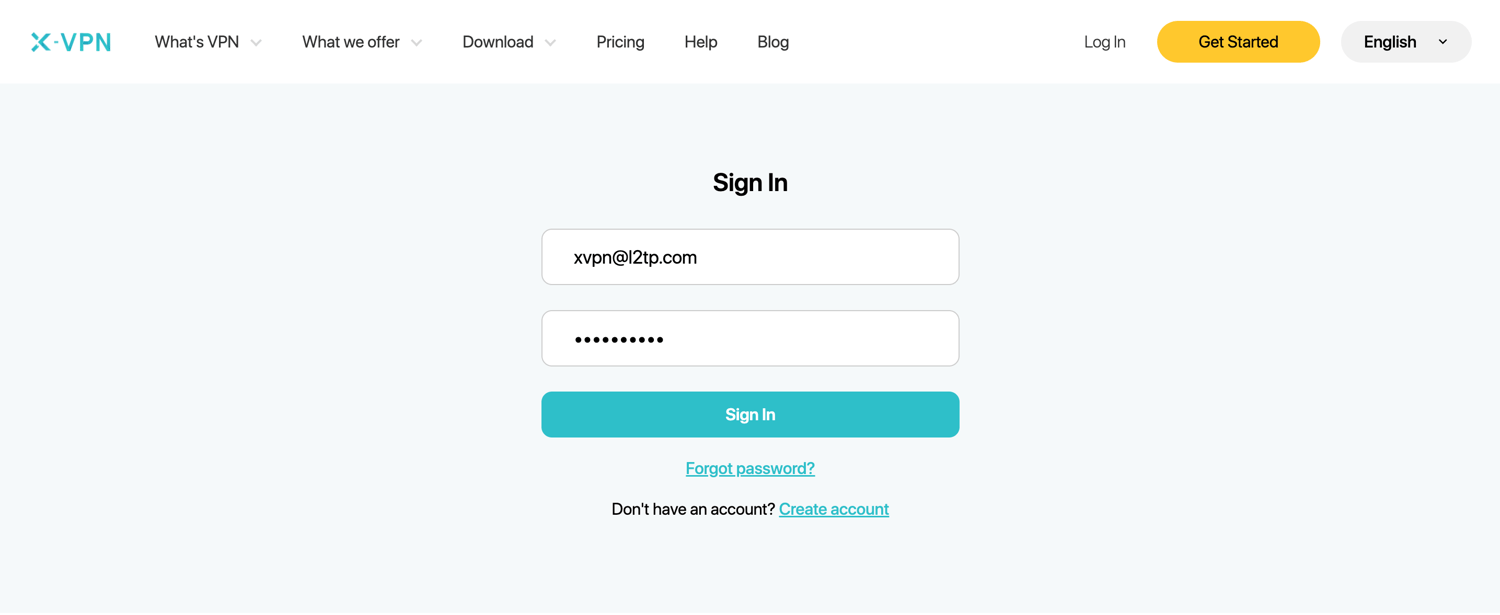
Usuários gratuitos? Ir para premium para desfrutar de benefícios avançados.
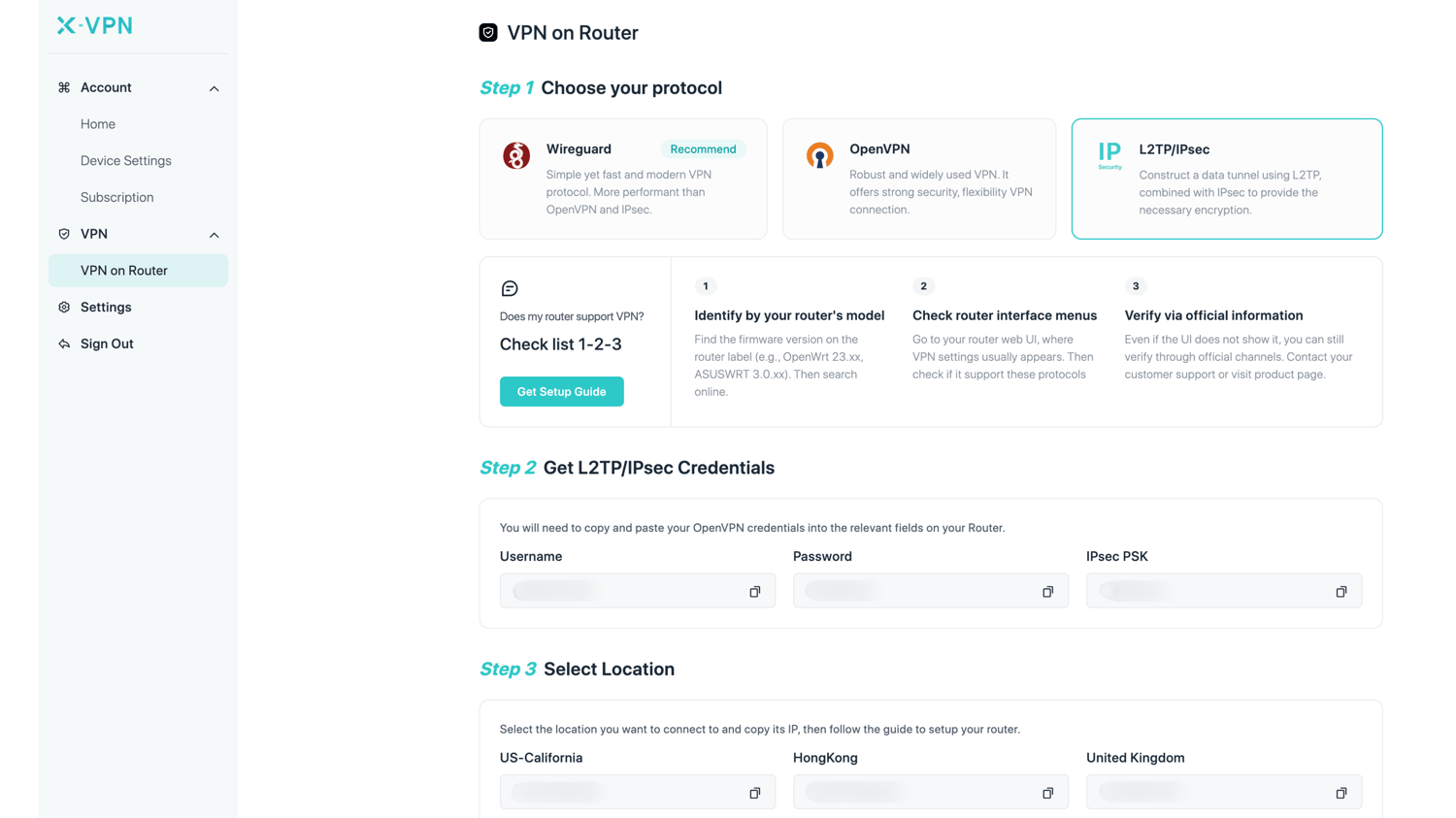
Passo 2: Obtenha suas credenciais L2TP
Vá para Minha Conta > VPN > VPN no Roteador, escolha L2TP/IPsec, em seguida obtenha as credenciais (Nome de usuário, Senha e IPsec PSK ) e o endereço IP de localização.
Você pode copiar e colar as credenciais L2TP no campo correspondente no seu roteador.
Passo 3: Faça login na sua conta do roteador
Abra o painel de controle do seu roteador Huawei em uma nova aba/página: digite o endereço IP do seu roteador - http://192.168.3.1 ou 192.168.0.1 ou 192.168.8.1, por padrão. Além disso, você pode encontrar o gateway padrão do seu roteador aqui.
Você pode encontrar a senha de login na etiqueta na parte inferior do roteador, a menos que você a tenha alterado. 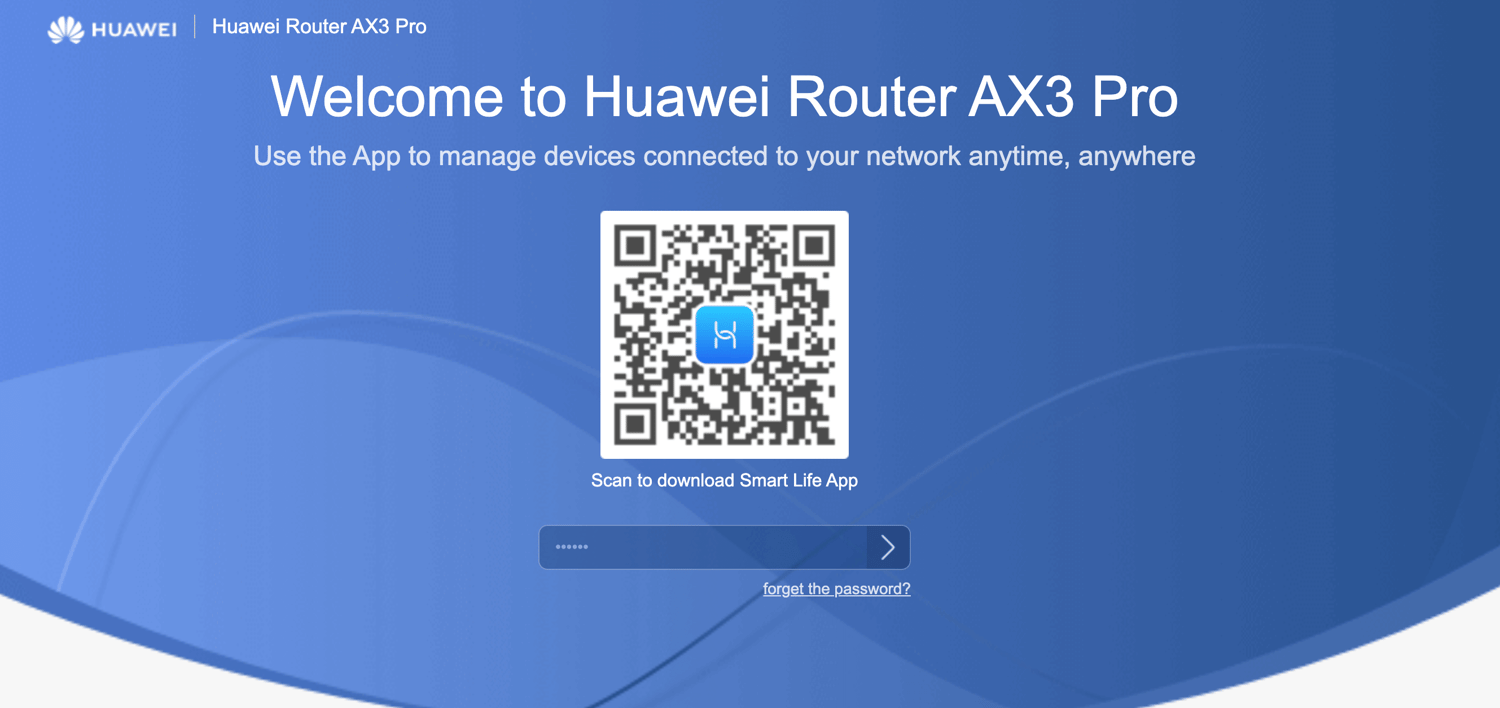
Etapa 4: Configurar o cliente VPN L2TP
Vá para "More features" > "network settings" > "VPN", o caminho pode variar de acordo com o modelo do seu roteador.
Then click "edit" of L2TP to configure the L2TP.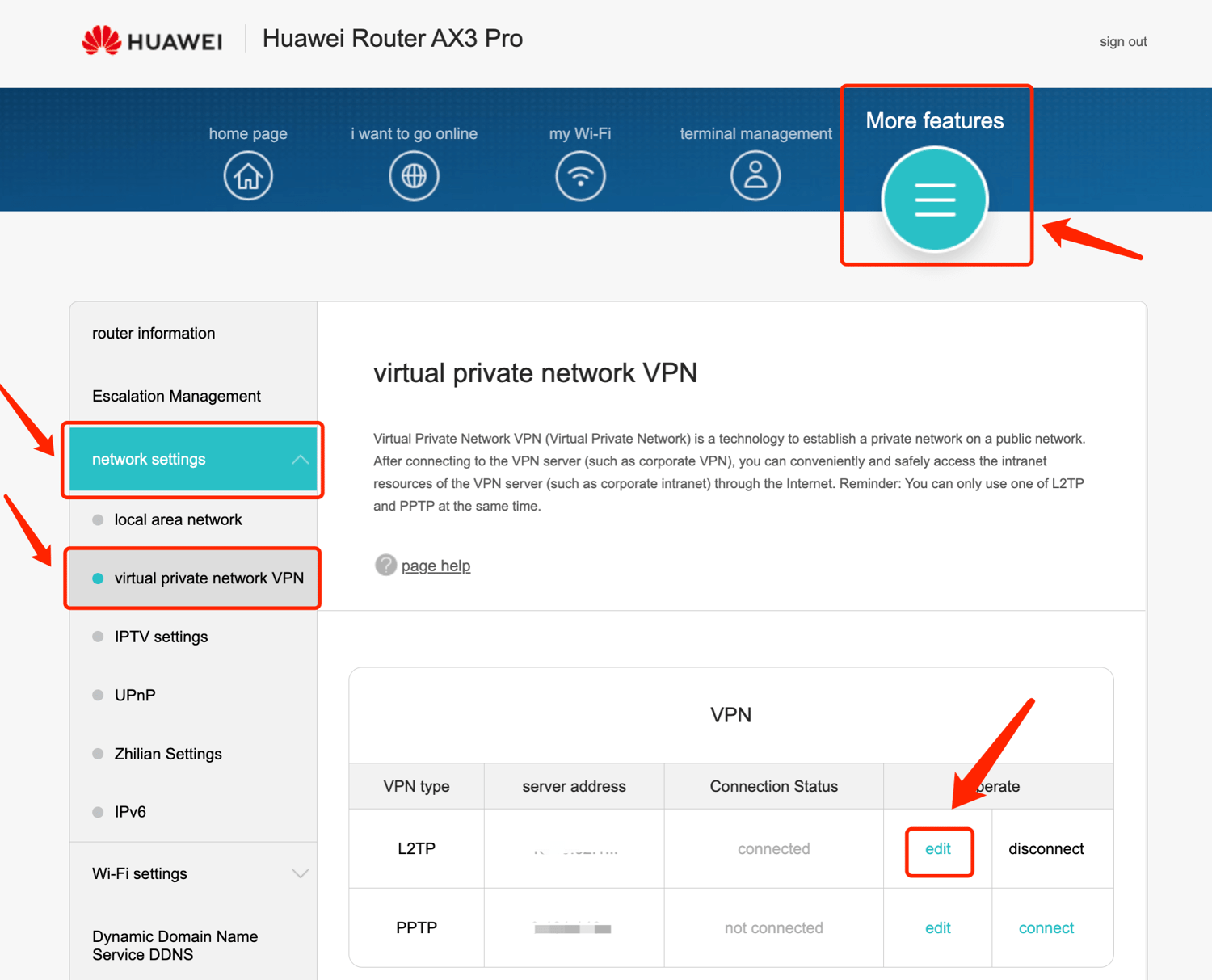 Fill in the details as follows:Enable L2TP (if required): CheckedServer address/ LNS address: Paste IP address you choose from Step 2Username: Paste Username you got in Step2Password: Paste Password you got in Step2
Senha do túnel (se necessário): Cole a PSK IPsec que você obteve na Etapa 2Intervalo de handshake (s) (se necessário): 60Autenticação (se necessário): Auto
Then click "Connect" to connect to the VPN. 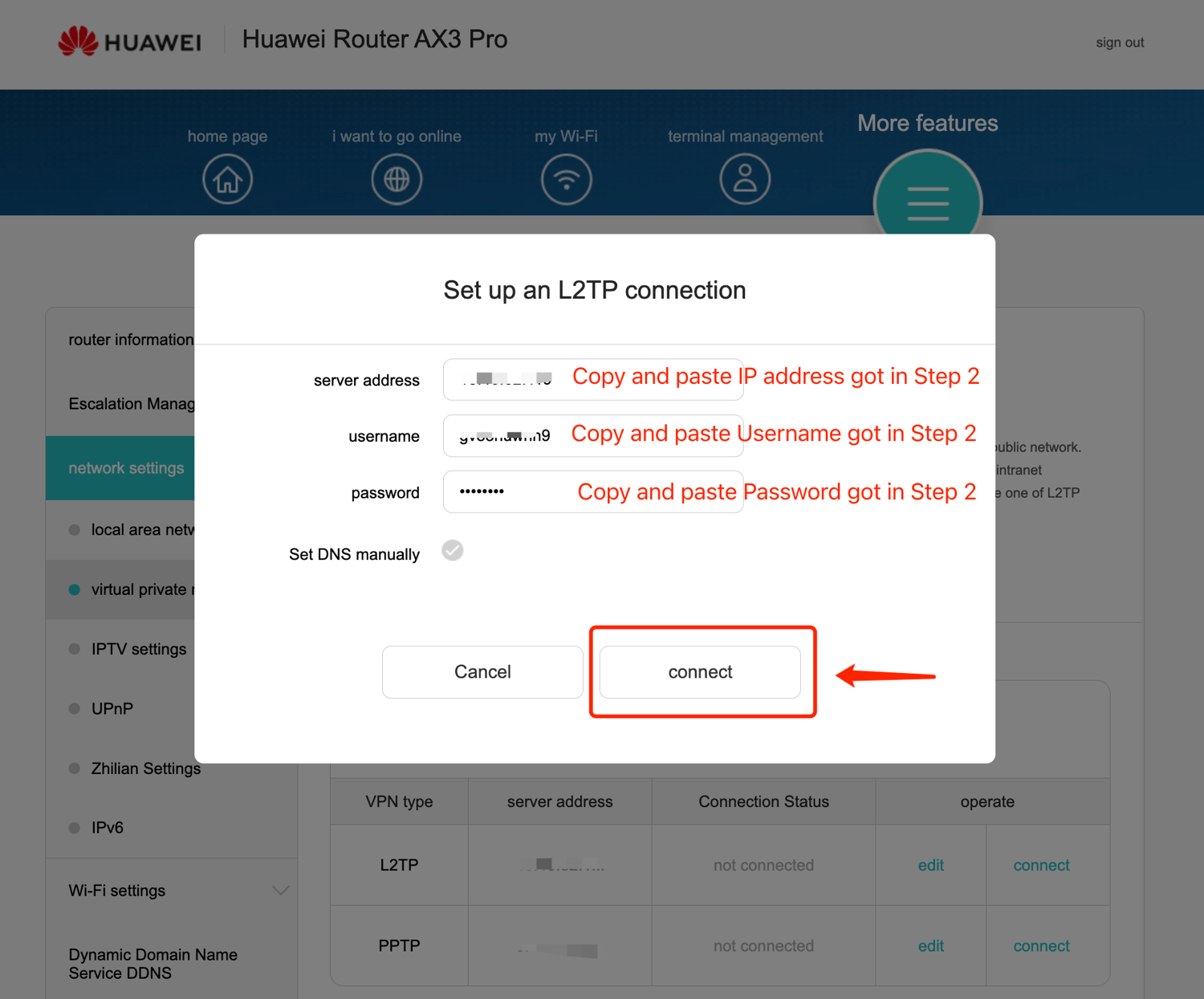
Passo 5: Verificar a conexão e desconectar
It may take some time to connect, then you can check if the connection status is "connected". Also, You may visit this site to verify that your IP address has changed!If you want to disconnect X-VPN, just click "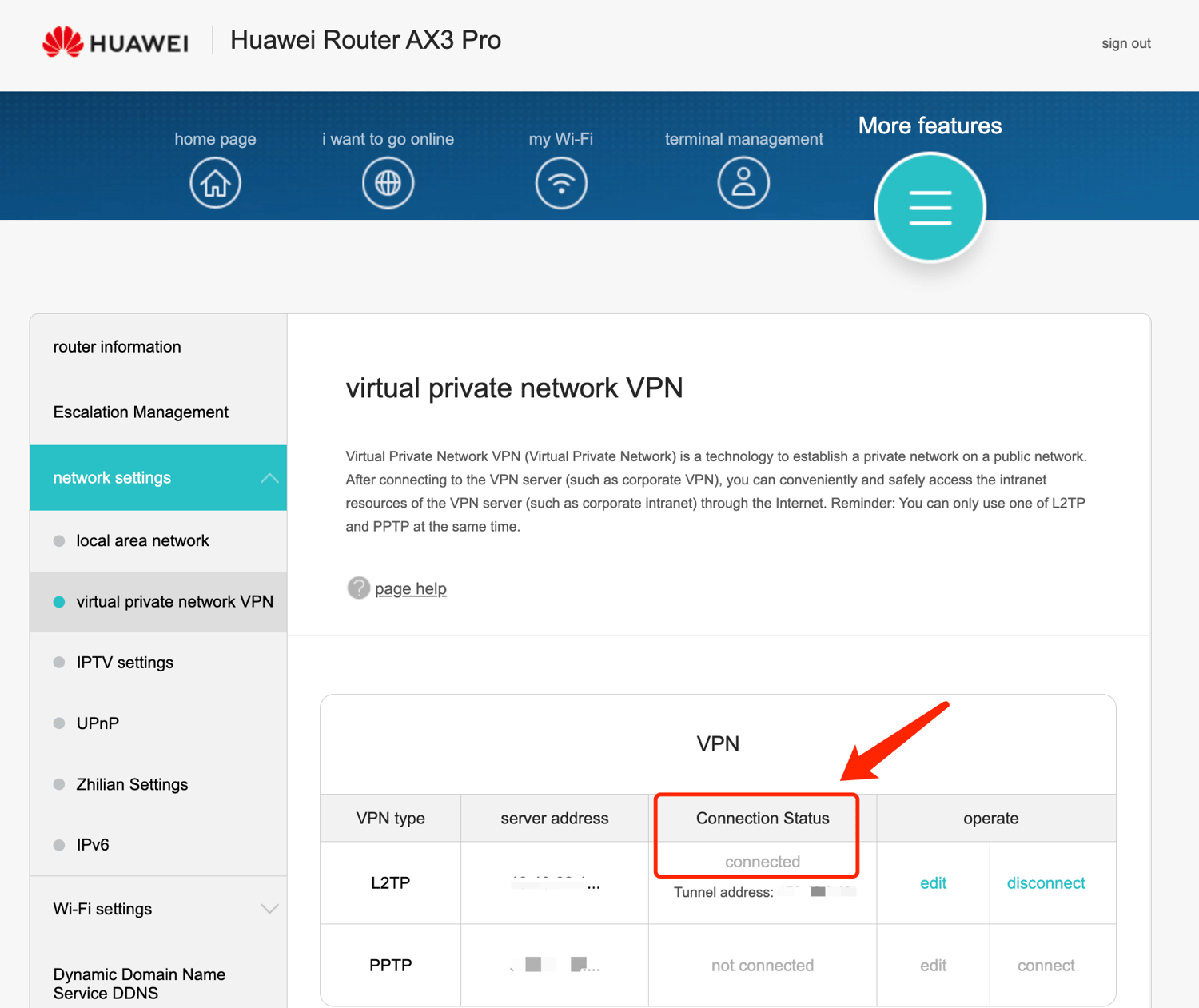 disconnect" !
Precisa de mais ajuda? Entre em contato.
Este artigo foi útil?
Obrigado pelo seu feedback!
Por que este artigo não foi útil?