VPN for AI Agent — Setup Guide
Latest edited on 2026-05-27
What you’ll get
X-VPN MCP turns X-VPN into a network layer your AI Agent can drive on its own. After this guide, your Agent will be able to:
- Discover available regions and protocols
- Connect to a country, state, or city you mention in a prompt
- Check connection status and active operations
- Disconnect when the task is done
You don’t need to use the X-VPN GUI app. Everything runs as a small local daemon that exposes a local-only MCP endpoint at http://127.0.0.1:3841/mcp.
Before you begin
Supported platforms
| OS | Minimum version | Architectures |
|---|---|---|
| macOS (Darwin) | 13+ | amd64, arm64 |
| Linux | Kernel 5.10+ | amd64, arm64 |
Supported AI Agents
The setup wizard can register X-VPN MCP into any of these clients automatically. Each one is registered by writing into the client’s MCP config file:
- Claude Code (
~/.claude.json) - Codex (
~/.codex/config.toml) - Gemini CLI (
~/.gemini/settings.json) - Cursor (
~/.cursor/mcp.json) - Continue.dev (
~/.continue/config.yaml) - Windsurf (
~/.codeium/mcp_config.json) - Antigravity (
~/.gemini/antigravity/mcp_config.json)
If your client isn’t listed, you can still point it manually at http://127.0.0.1:3841/mcp — see Manual MCP configuration below.
You’ll need
- Terminal access.
sudois recommended; if not available, the installer falls back to user install and prints aPATHhint.- An X-VPN account is optional. You can run on the free tier without signing in.
Step 1 — Install (one line)
Run one of the following in your terminal:
sh <(curl -sSf https://app.xvpncdn.com/rpc788pbdq/install.sh)sh <(wget -qO - https://app.xvpncdn.com/rpc788pbdq/install.sh)The installer is non-interactive and will:
- Detect your OS and architecture.
- Download the matching binary to
/tmp/. - Verify the signature / hash.
- Install to
/usr/local/bin/xvpn(or~/.local/bin/xvpnif it can’t write to system paths). - Auto-launch
xvpn installand hand you off to the wizard in Step 2.
If the installer exits with an error, jump to Troubleshooting › Install errors.
Step 2 — Run the setup wizard
The wizard has 7 short stages. Each stage prints a clear [n/m] progress header.
2.1 Welcome
Welcome to use X-VPN MCP Wizard
       Version 1.0.0_1014

  PrivacyPolicy: https://xvpn.io/policy
  Terms:        https://xvpn.io/terms-service

This wizard will:

1. Install the X-VPN daemon
2. Register X-VPN with your AI Agents
3. (Optional) Sign in
4. Verify everything works

Estimated time: ~2 minutes
Press ENTER to continue, or Ctrl-C to exit
The wizard never auto-accepts the privacy policy. By pressing ENTER you confirm you’ve read the linked policies.
2.2 Install the daemon
The wizard registers xvpn as a system daemon (e.g. via systemd on Linux or launchd on macOS) and brings it up. You should see:
[1/6] Install X-VPN Daemon
─────────────────────────────────────
  [1/3] Writing service file        OK
  [2/3] Loading service             OK
  [3/3] Verifying daemon            OK

  ✓ daemon is up.
If any of those steps fail, the wizard will surface the failing line. The most common cause is missing privileges — re-run with sudo.
2.3 Choose which AI Agents to register
[2/5] Register X-VPN MCP
─────────────────────────────────────
  [x] Claude Code           write: ~/.claude.json
  [ ] Codex                 write: ~/.codex/config.toml
  [ ] Gemini CLI            write: ~/.gemini/settings.json
  [x] Cursor                write: ~/.cursor/mcp.json
  [ ] Continue.dev          write: ~/.continue/config.yaml
  [ ] Windsurf              write: ~/.codeium/mcp_config.json
  [ ] Antigravity           write: ~/.gemini/antigravity/mcp_config.json

[SPACE select · ENTER continue]- toggles a row.
- confirms.
- If you confirm with nothing selected, the wizard prompts a second time so you don’t skip registration by accident.
2.4 Apply the registration
The wizard writes into each selected client’s config file. Two things to know about the merge behavior:
- Existing config is parsed and amended incrementally. Your other MCP servers, model settings, and custom commands stay intact — the wizard only adds the X-VPN entry rather than rewriting the whole file.
- Backups never overwrite each other. Before writing, the wizard copies the current config to a
.bkpsibling. If.bkpalready exists from a previous run, the new copy is saved as.bkp.1,.bkp.2, and so on, so you can roll back to the state at the time of any earlier install.
[3/5] Connect X-VPN MCP
─────────────────────────────────────
Registering with Cursor...
  Copy current config file for backup...
  Write to ~/.cursor/mcp.json ...
  ✓ Added.
If no config file exists at the expected path, the wizard creates a new one with just the X-VPN registration.
2.5 Verify the install
The wizard runs three checks end-to-end:
[4/5] Verifying Installation
─────────────────────────────────────
  [1/3] Daemon responding        OK
  [2/3] MCP handshake            OK
  [3/3] Tool call                OK

  ✓ All checks passed.
What each check does:
- Daemon responding — pings the local IPC channel.
- MCP handshake —
curl http://127.0.0.1:3841/mcpperforms the MCP initialize handshake. - Tool call — issues one read-only call to
xvpn_get_overviewand parses the response.
If the Tool call check fails, the wizard offers [r]etry / [q]uit.
2.6 Sign in (optional)
[5/5] Sign In (Optional)
─────────────────────────────────────
  Without signing in, you'll use the free tier:
    • 50MB per connection
    • Connect free locations only

  > 1. Continue with free
    2. Sign in/Sign up
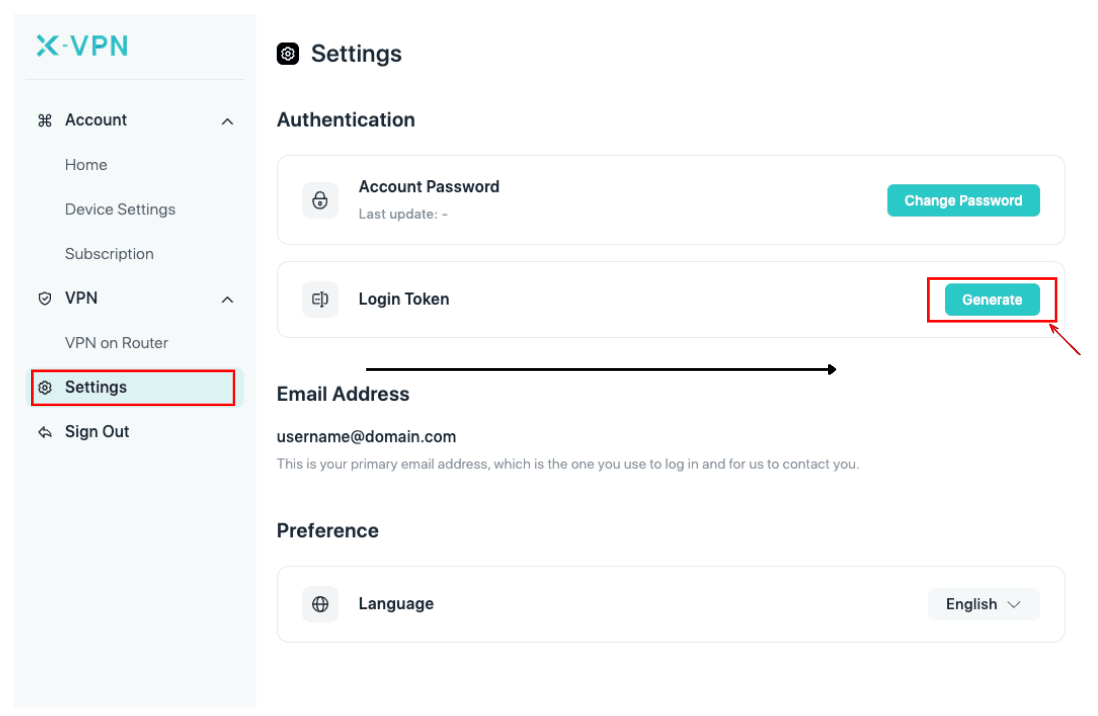
Signing in unlocks the full premium experience: 250+ locations and unlimited traffic per connection. You can sign in via:
- Email address and password
- Credential token — generate one at https://xvpn.io/account/settings
- Passcode from other devices — if you’re already signed in elsewhere
2.7 Done
─────────────────────────────────────
  X-VPN MCP is ready. Restart your agent clients to activate
  new settings.

  Try in your Agent:
    "Use X-VPN to connect to the United States."

  Manage mcp server:    xvpn mcp-server [on|off]
  Toggle auto-split:    xvpn auto-split [on|off|list]
  Reconfigure:          xvpn install      (any time)
  Uninstall:            xvpn uninstall

  Help:    https://xvpn.io/help-center
  Report:  mailto:support@xvpn.io
The wizard exits automatically.
Restart your agent client before continuing. Because registration happens by writing the client’s config file, a running agent (Claude Code, Cursor, Codex, etc.) won’t reload that file on its own. Quit and reopen the client now — otherwise the prompts in Step 3 will report the X-VPN tools as unavailable.
Step 3 — Try your first VPN-aware prompt
Open the Agent you registered and try one of:
Use X-VPN to connect to the United States, then fetch the front page of reddit.com.
Connect through Tokyo and run a quick speed check on our website.
Pull the trending topics on twitter.com from Germany’s perspective.
Behind the scenes the Agent will call a sequence like:
xvpn_get_overview— confirms connection state and accountxvpn_list_locations(search="united-states")— finds the nodexvpn_connect(location="united-states")— establishes the tunnelxvpn_get_status— waits forconnected- (your task)
xvpn_disconnect— tears down
If you’d like to see the calls inline, most Agents have an “MCP debug” or “tools” panel — toggle it on.
Manage your installation
Day-to-day commands you may want:
| Command | What it does |
|---|---|
xvpn | Show help |
xvpn version | Show CLI version |
xvpn mcp-server on / off | Toggle the MCP HTTP endpoint. off keeps the daemon alive (so auto-split and CLI status still work) but stops responding to Agents. Existing VPN connections are kept. |
xvpn auto-split on / off | Toggle the local domain bypass that protects Agent-side calls (e.g. to OpenAI, Anthropic, OpenRouter, Gemini) from being routed through the VPN. Premium users also have server-side splitting that’s always on. |
xvpn install | Re-run the wizard at any time — useful for re-registering with a new Agent or signing in later. Restart your agent client after this completes so it picks up the refreshed config. |
xvpn uninstall | Remove the daemon and clean up registrations. |
State (sign-in, auto-split, mcp-server) is persistent across version upgrades.
Manual MCP configuration
If your client isn’t in the wizard’s list, point it at the local endpoint:
URL:       http://127.0.0.1:3841/mcp
Transport: HTTP (Streamable HTTP)
Auth:      none (loopback only)
The endpoint is bound to 127.0.0.1 and rejects non-loopback origins, so no extra firewall rules are needed.
Troubleshooting
Install errors
| Symptom | Cause | What to do |
|---|---|---|
ERROR: Unsupported platform: / | OS or arch below the minimum | Upgrade to macOS 13+ / Linux 5.10+ on amd64 or arm64. |
ERROR: Download binary failed | Network or proxy issue | Retry on a different network; if behind a proxy, export HTTPS_PROXY before re-running. |
ERROR: Binary verification failed | Hash/signature mismatch | Retry. If it persists, download the binary manually from the linked URL printed in the error. |
WARNING: Cannot write to /usr/local/bin, fallback to user dictionary | No sudo / SIP | The installer will fall back to ~/.local/bin/xvpn. Add it to your PATH per the printed hint. |
ERROR: Cannot write to /usr/local/bin or ~/.local/bin | Both targets unwritable | Re-run with appropriate permissions, or sudo. |
Verification errors
| Failing check | Likely cause | Fix |
|---|---|---|
Daemon responding — Failed | Daemon didn’t start, or another instance is holding the IPC | Stop any conflicting xvpn process and re-run xvpn install. No inline retry on this check. |
MCP handshake — Failed | The HTTP endpoint isn’t bound (port 3841 in use) or xvpn mcp-server is off | Make sure nothing else is on 127.0.0.1:3841; run xvpn mcp-server on if you’d toggled it off; re-run xvpn install. No inline retry on this check. |
Tool call — Failed | The Agent reached the daemon but the read-only tool returned unexpected data | Choose [r]etry. If it persists, capture the printed error and email support@xvpn.io. |
Agent client doesn’t see X-VPN MCP after install
The wizard registers X-VPN by writing into the client’s config file (e.g. ~/.claude.json, ~/.cursor/mcp.json). A running client doesn’t reload that file on its own. Quit and reopen the client. If the issue persists, re-run xvpn install and watch for any registration errors in the wizard output before restarting again.
Multiple MCP clients
X-VPN MCP is safe to use from multiple Agents simultaneously — IPC writes are serialized so you won’t see crossed connection states. If you do see odd behavior, restart the daemon with xvpn install.
What’s next
- Skill — drop our prebuilt Skill into your Agent to teach it the recommended call patterns: https://github.com/x-vpn/xvpn-mcp-skill
- Community — questions and feedback in our Reddit and on GitHub Issues
If you hit anything not covered here, email support@xvpn.io with the output of xvpn version and the failing wizard step — we read every report.
Was this article helpful?
Thanks for your feedback!
Why wasn't this article helpful?