How to use X-VPN on Linux(Command Line)?
Ultima modifica il 2026-07-17
Download & Install X-VPN for Linux
Copy and run the curl command below for installation.
sh <(curl -sSf https://app.xvpncdn.com/4dzfjmwrjw/cli_install.sh)Or, try the wget command below if you encounter any problems or just prefer to use wget.
sh <(wget -qO - https://app.xvpncdn.com/4dzfjmwrjw/cli_install.sh)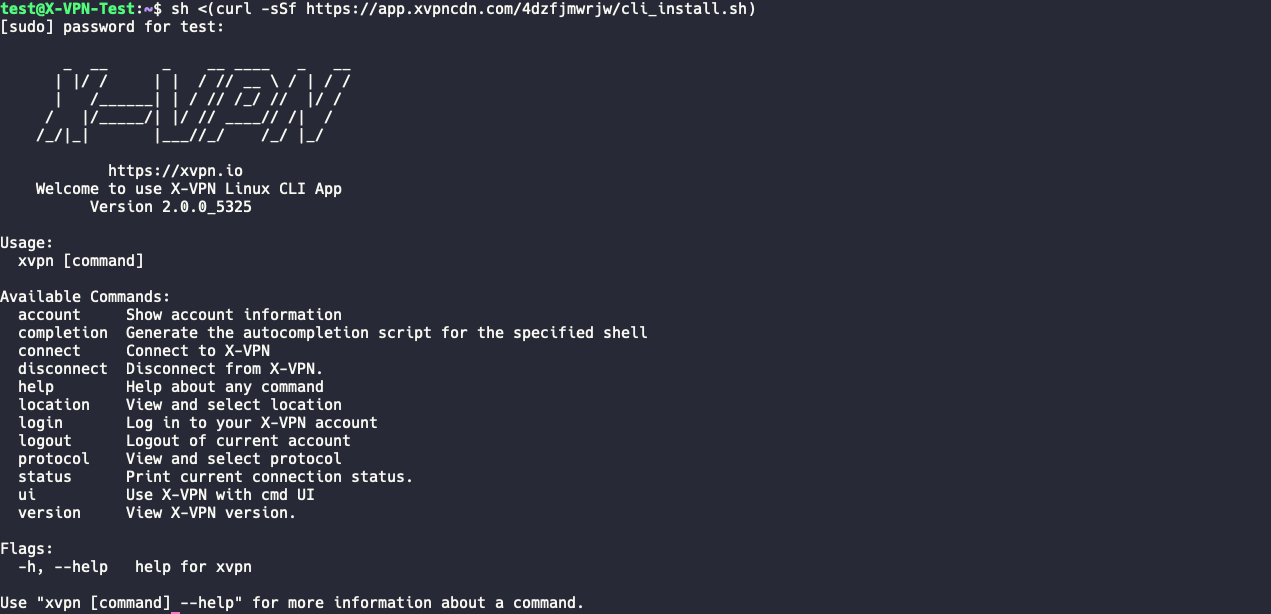
X-VPN Account
1. Log In
- Log in with email & password
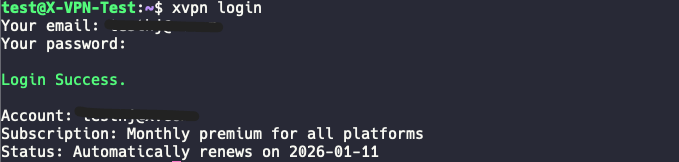
Use the following command to log in. A premium account is required to use X-VPN on Linux.
xvpn loginThen you need to enter your email and password, and you are all set!
- Log in via passcode
Use the command below to log in via passcode.
xvpn login --via-passcodeThen you need to enter your passcode generated on other logged-in devices, and you are all set!
2. View Account Info
Copy and run the command below to view your account information.
xvpn account3. Log Out
Copy and run the command below to log out of your current account.
xvpn logout*If you want to change your password or unlink devices, please go to the Account Center.
X-VPN Location
1. Check X-VPN Locations
Use the following command to view the full list of X-VPN servers.
xvpn locationor
xvpn location --getor
xvpn location -g2. Update X-VPN Location List
Use the following command to update the latest list of servers.
xvpn location --updateor
xvpn location -uX-VPN Protocol
1. Check X-VPN Protocols
Use the following command to view the full list of X-VPN protocols.
xvpn protocolor
xvpn protocol --getor
xvpn protocol -gConnect to X-VPN
1. Fast Connect
Use the command below to connect to "The Fastest Server" and the "Auto" protocol.
xvpn connect or
xvpn cOnce you connect to X-VPN, you will see the following message:

2. Change Location & Protocol
Use the following command to change the location and protocol.
xvpn connect [location] -p [protocol]or
xvpn connect -p [protocol] [location] 3. Change Location Only
Use the location --set command. For example, to connect to the United States, run:
xvpn location --set "United States"or
xvpn location -s us4. Change Protocol Only
Use the protocol --set command. For example, to switch to UDP, run:
xvpn protocol --set UDPor
xvpn protocol -s udp5. Check Current Connection Status
Copy and run the command below to see your current connection status, including whether you're connected successfully, what location you are connected to, and what protocol you are using.
xvpn statusDisconnect from X-VPN
Copy and run the command below to disconnect from X-VPN.
xvpn disconnector
xvpn d
X-VPN Command UI
1. Use the Command UI Version of X-VPN
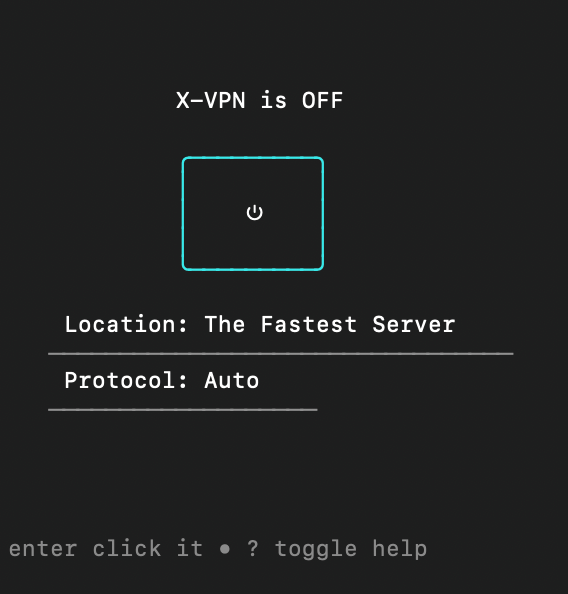
Copy and run the following command to use the UI version of X-VPN.
xvpn uiAfter logging in to your X-VPN premium account, you will see the main page as follows:
2. Operating on the UI Version
- Manipulate the cursor position with the up, down, left, and right keys of the keyboard, and press Enter to select. You can connect and select the protocol and location with a simple cmd UI.
- The 'esc' key functions as a back button and an exit button. Press 'esc' on the Location/Protocol selection page to return to the home page, and press 'esc' on the home page to exit the UI.
X-VPN Command Help
Executing the xvpn command directly to get help content. You'll see all the X-VPN command lines here.
xvpnor
man xvpnFor any further help, feel free to contact our support email: support@xvpn.io.
Questo articolo è stato utile?
Grazie per il tuo feedback!
Perché questo articolo non è stato utile?