We use cookies to provide you a better service and analyze traffic. To find out more about cookies, please see our Cookie Declaration. By continuing to browse our website, you agree to our use of cookies.

Agree
Manage

Cookie Settings

We use cookies to provide you a better service and analyze traffic, To find out more about cookies, please see our Cookie Declaration.

Essential

Our website relies on these cookies for proper functionality.

Functionality

These cookies are utilized to retain your preferences, such as language selection.

Statistics

Cookies enable us to gain insights into our visitors and enhance their browsing.

Advertising

Cookies that are used to track conversions for ads platforms.

Confirm

X‑VPN Premium Giveaway Is Happening Now on Our Subreddit!

X‑VPN Premium Giveaway Is Happening Now on Our Subreddit!
Enter Now

How to quickly log in to the PC VPN via mobile?

Latest edited on 2023-06-09

To use X-VPN on multiple devices, please first confirm that you have a subscription that supports all platforms.

Mobile subscription only? Click here to learn how to upgrade your subscription.

Not subscribed yet? Click here to get X-VPN Premium now. Feel free to try it risk-free, we have a 30-day money-back guarantee.

If you already have a subscription for all platforms, you can quickly log in with a few simple steps.

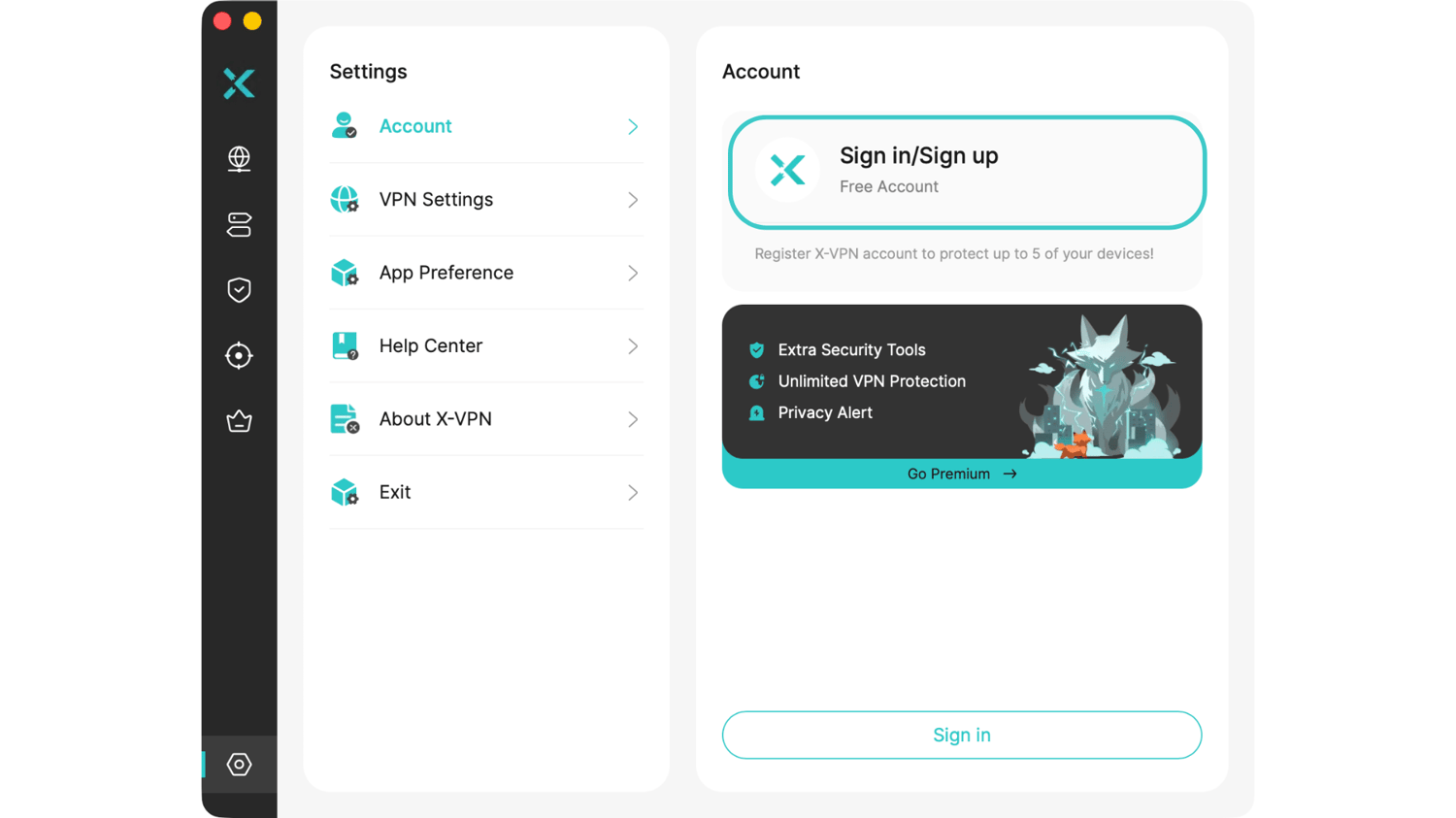
Step 1: Open X-VPN on the computer, click Sign in/Sign up in the upper left corner, and then you will enter the login page.
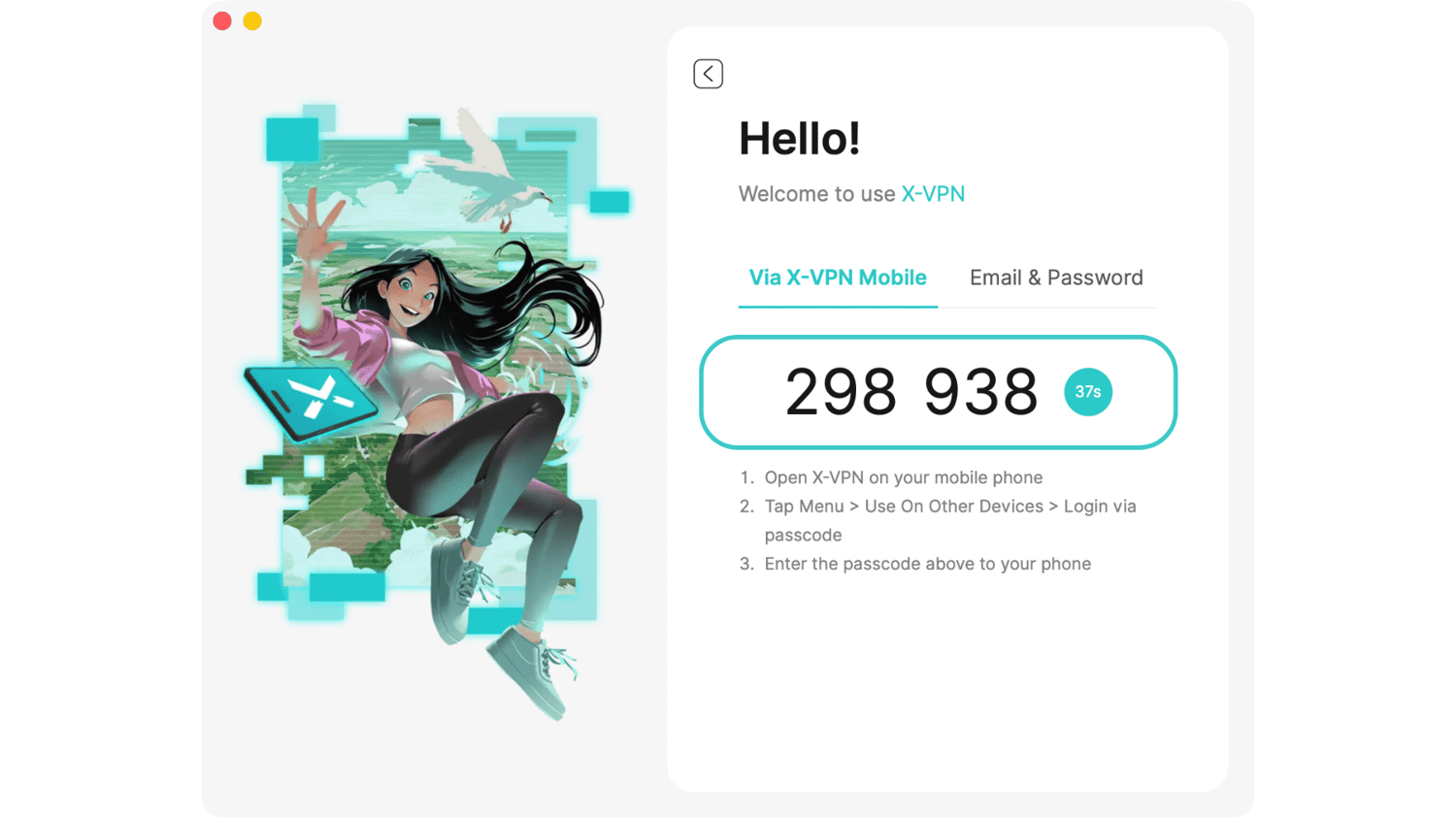
Step 2: Click Login via Mobile Phone and you will get a six-digit passcode.
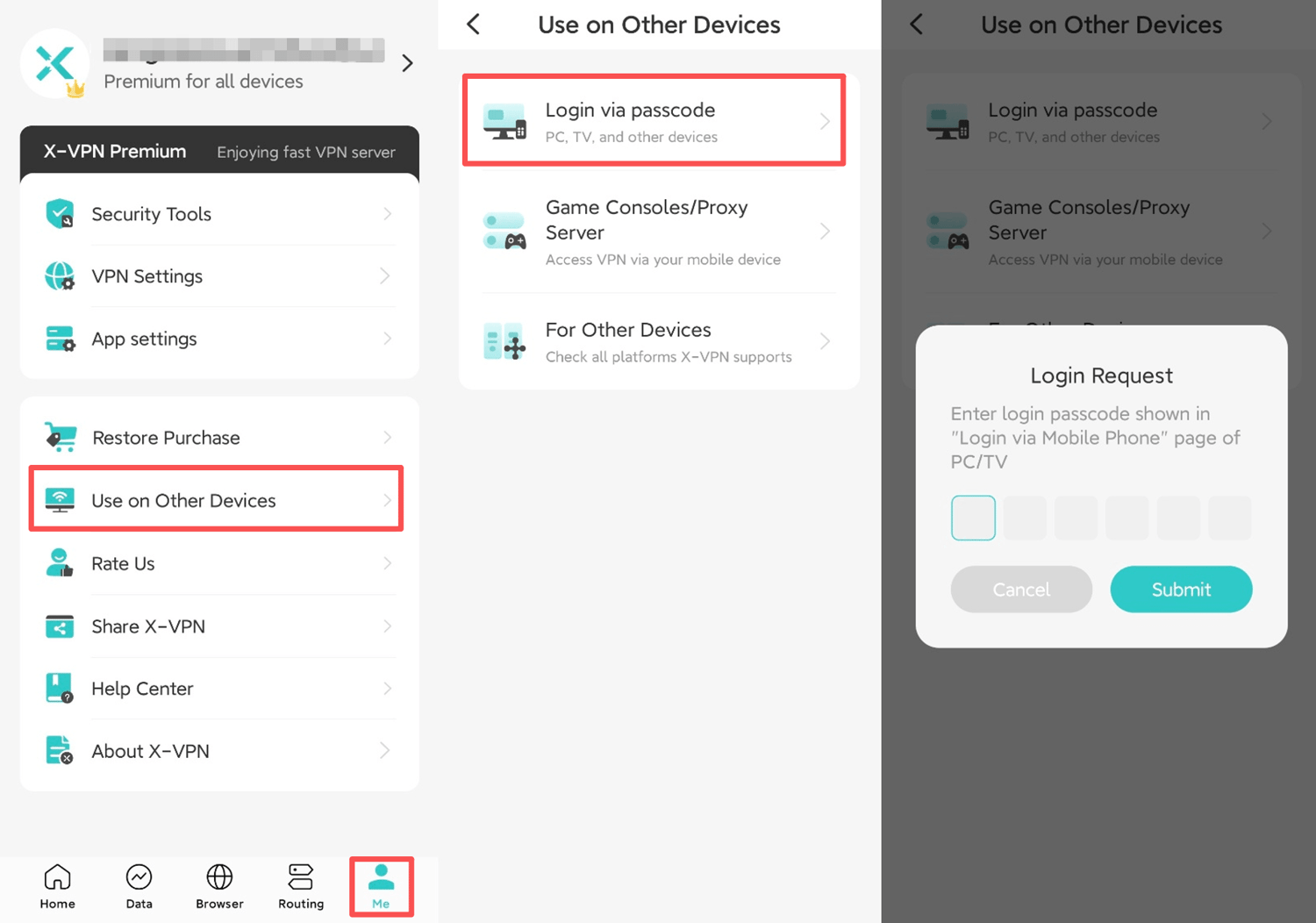
Step 3: Open X-VPN on your phone, click on the left sidebar, click Use On Other Devices, then click Login via passcode, you will get the passcode input box.

Step 4: Enter the passcode you got on the computer in the input box, and then click OK, when you see the Login Success pop-up window, the login is successful! Just enjoy!

Of course, you can also use the most common method: enter your account and password to log in to X-VPN on your computer. When logging in, please make sure to enter the correct account.

Need further help? Please contact us.

Was this article helpful?

Thanks for your feedback!

Why wasn't this article helpful?