How to set up X-VPN on Linksys router - L2TP?
Latest edited on 2026-07-17
In this tutorial, we will provide step-by-step instructions on how to set up L2TP VPN on your router. Let's start now!
Step 1: Sign in to X-VPN account on the website: https://xvpn.io/login
Note: Advanced configuration for Router is premium only, please make sure your account is premium.
Free users? Go premium to enjoy advanced benefits.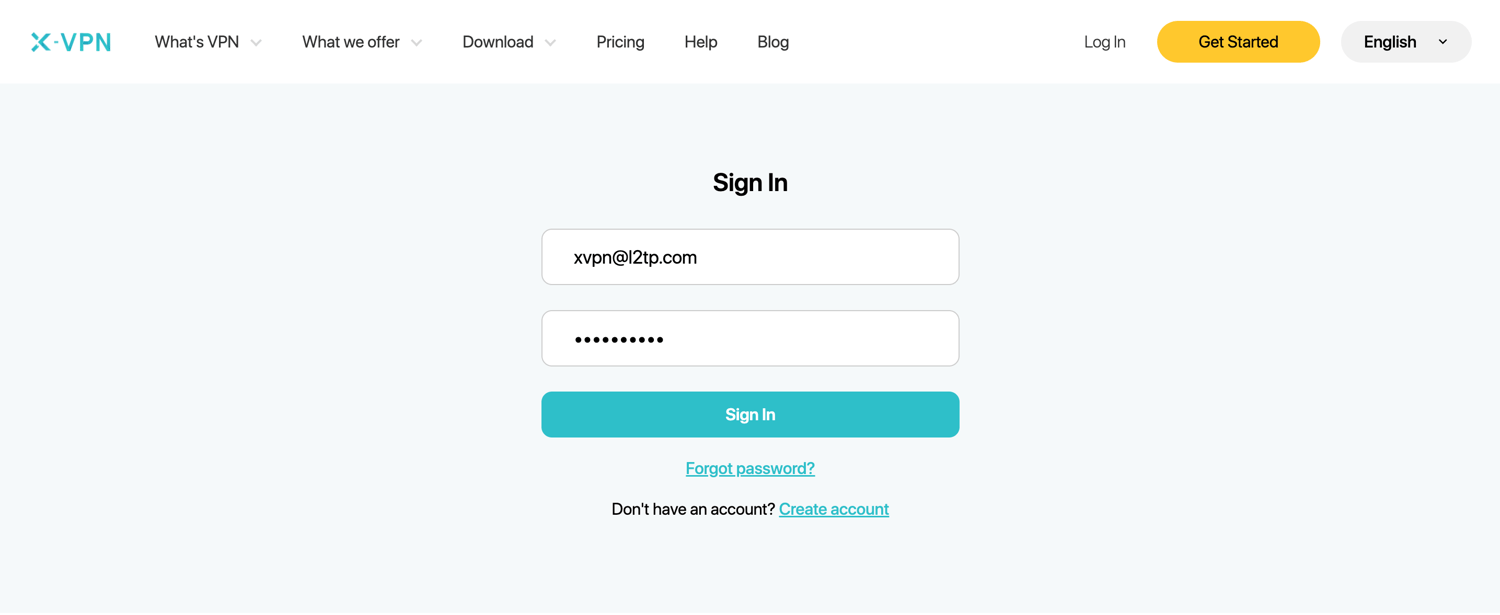
Step 2: Get your L2TP credentials
Go to My Account > VPN > VPN on Router, choose L2TP/IPsec, then get credentials (Username, Password and IPsec PSK ) and location IP address.
You can copy and paste the L2TP credentials into corresponding filed in your router.
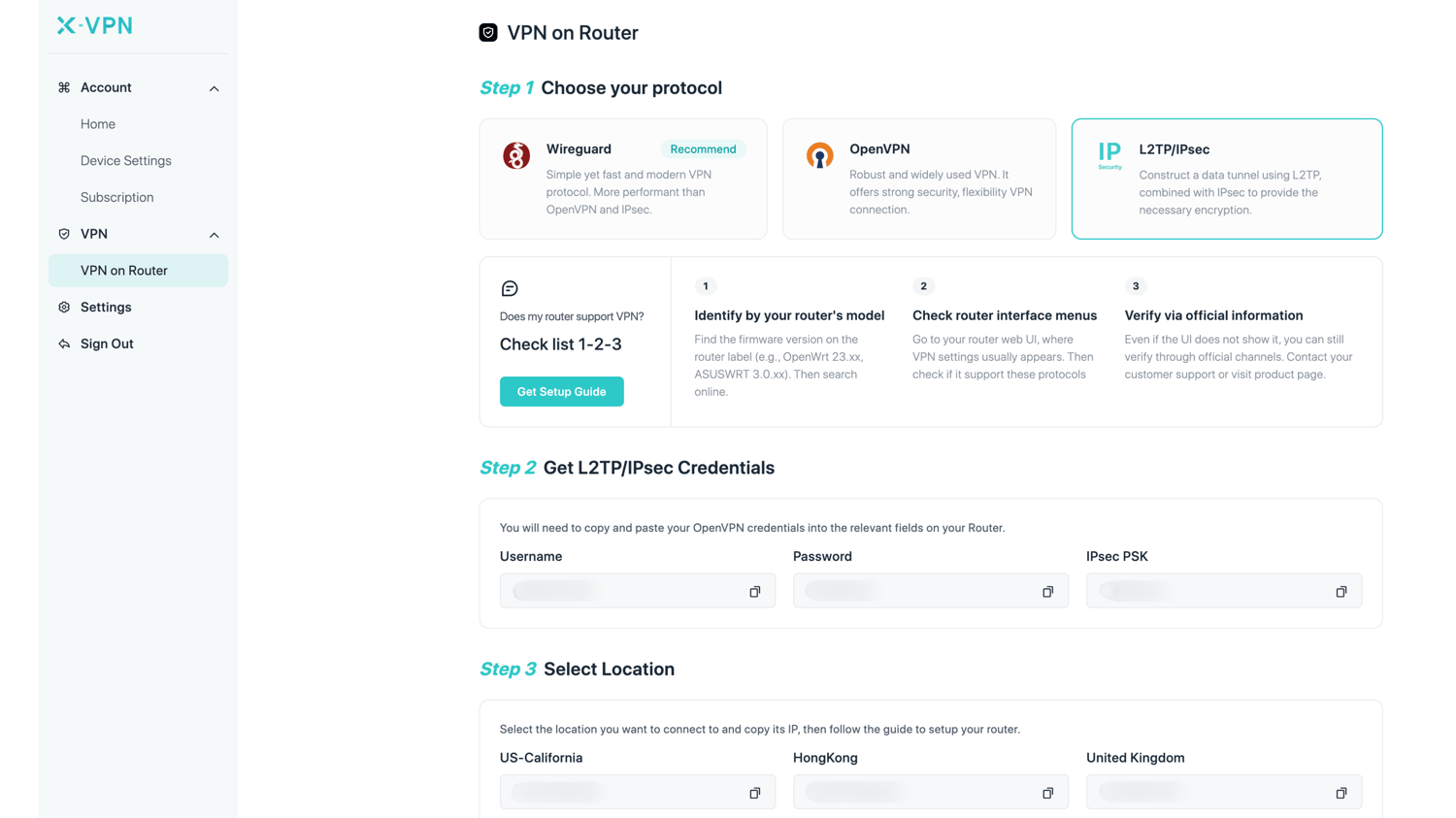
Step 3: Sign in to your router account
Open your Linksys router control panel on a new tab/page: enter the IP address of your router - http://192.168.1.1/, by default. Also, you can find your router's default gateway here.
Enter your Linksys account and password, then click "Sign In" to enter the router’s control panel.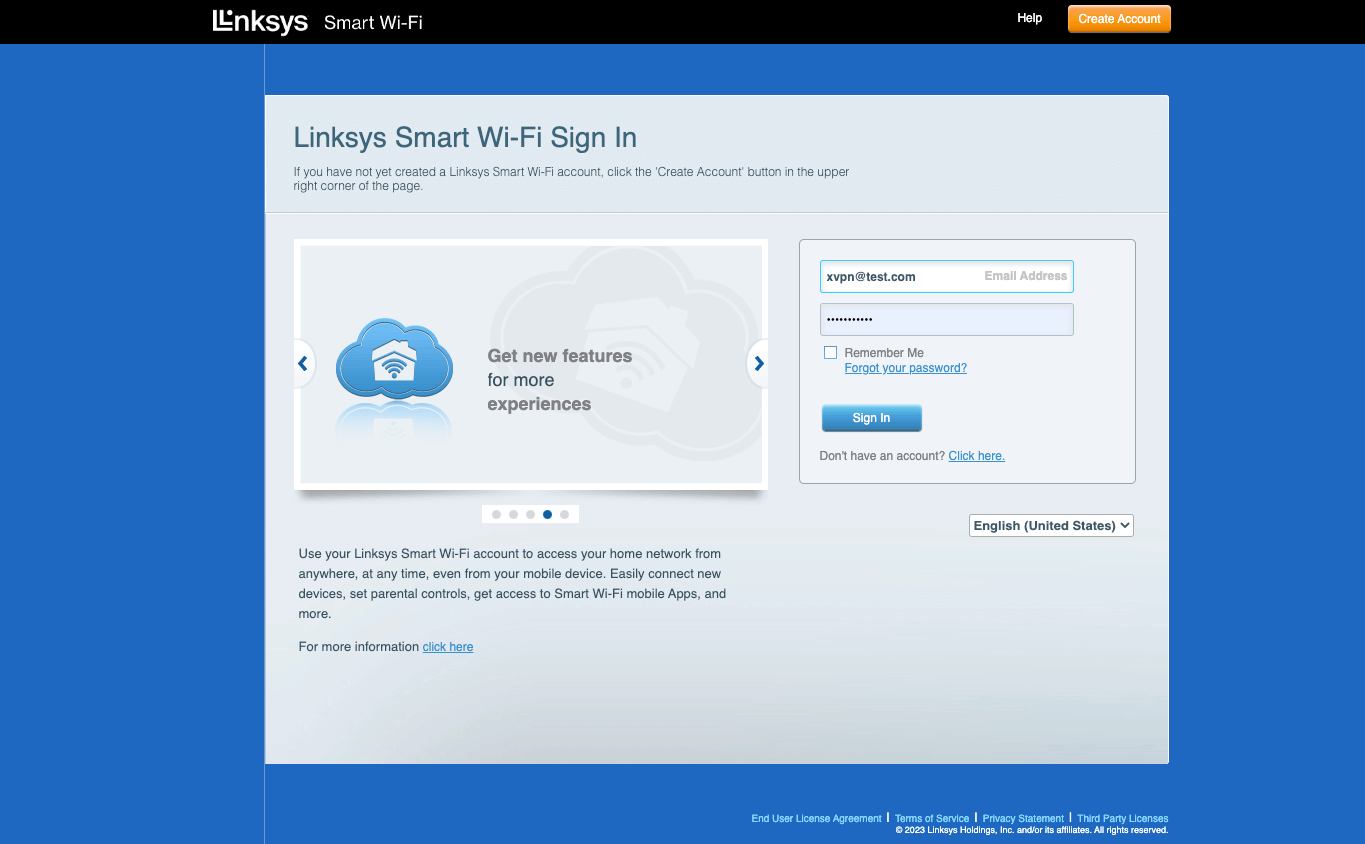
Step 4: Configure the L2TP VPN client
Navigate to "Connectivity" on sidebar, which is under Router Settings. 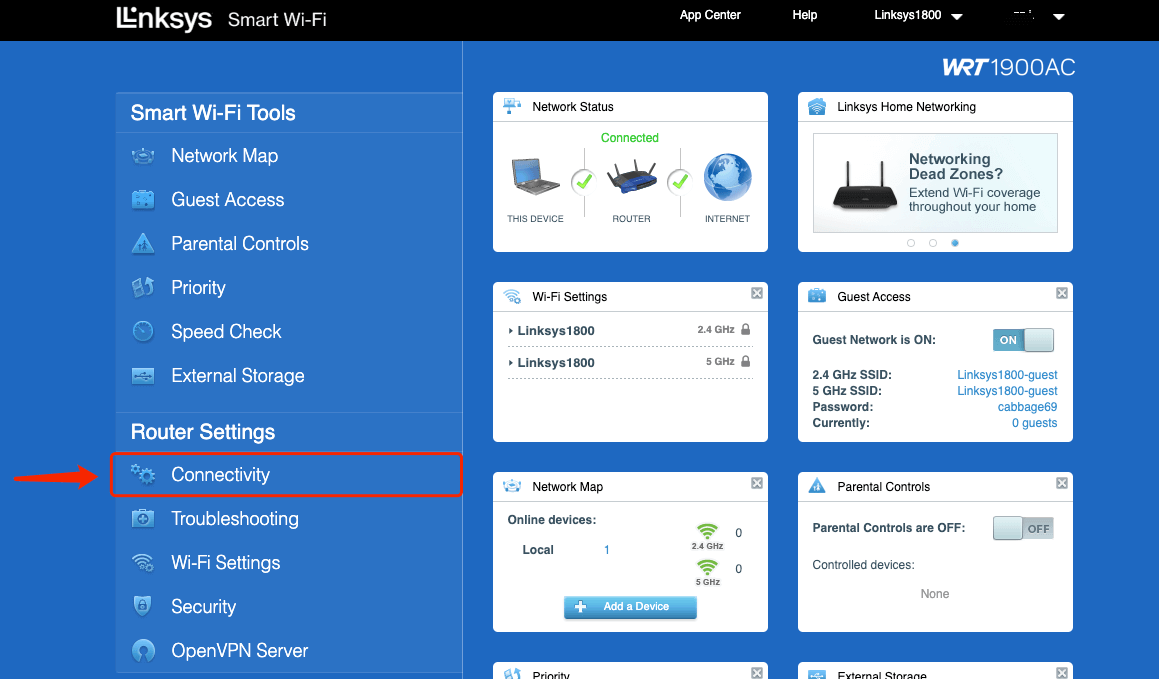
Click Internet “Settings”, then click “Edit” to choose L2TP.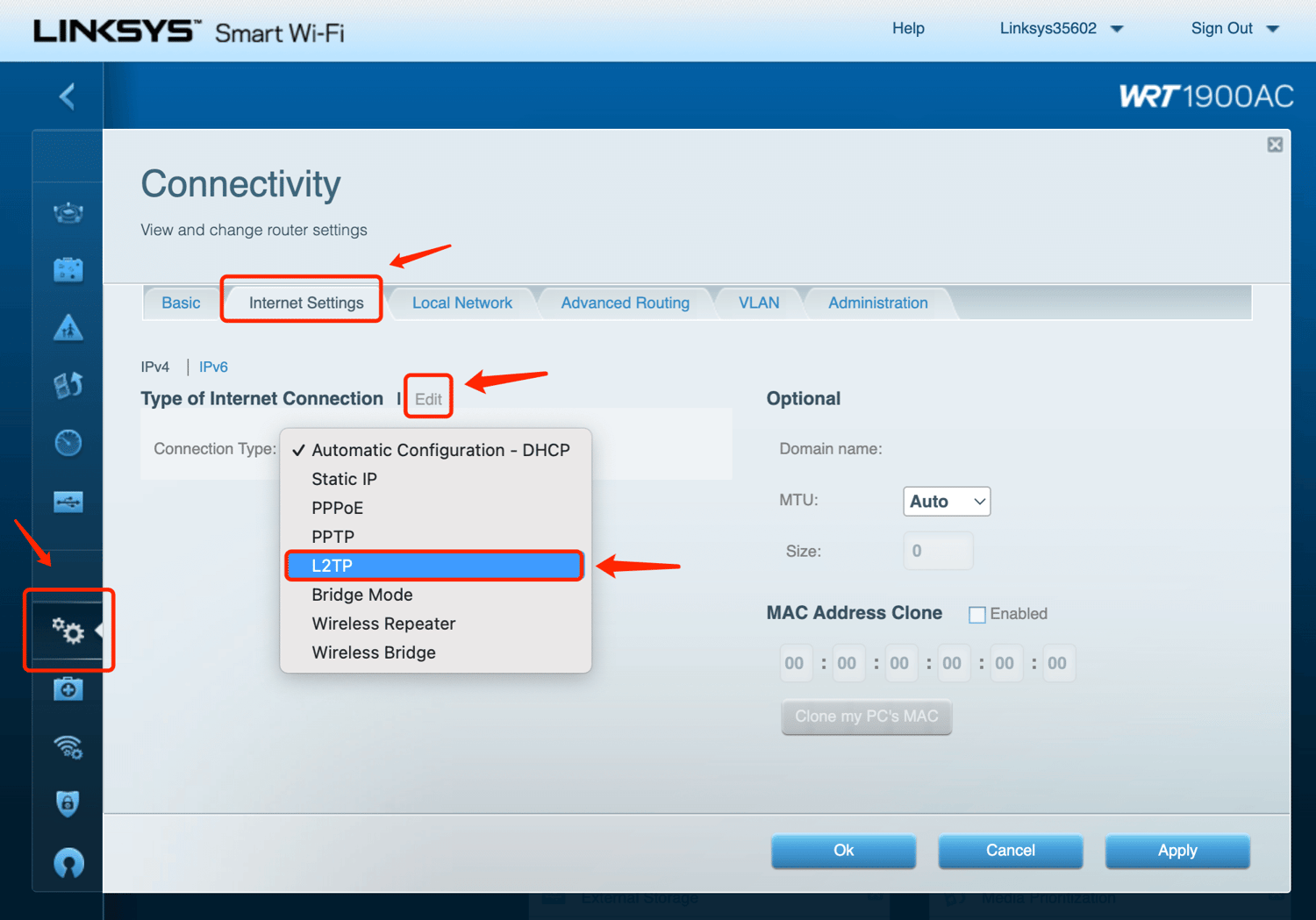
Copy the location IP address, Username and Password you got in Step 2 and paste them into the fields.
Then click “Apply”, X-VPN will start to connect. 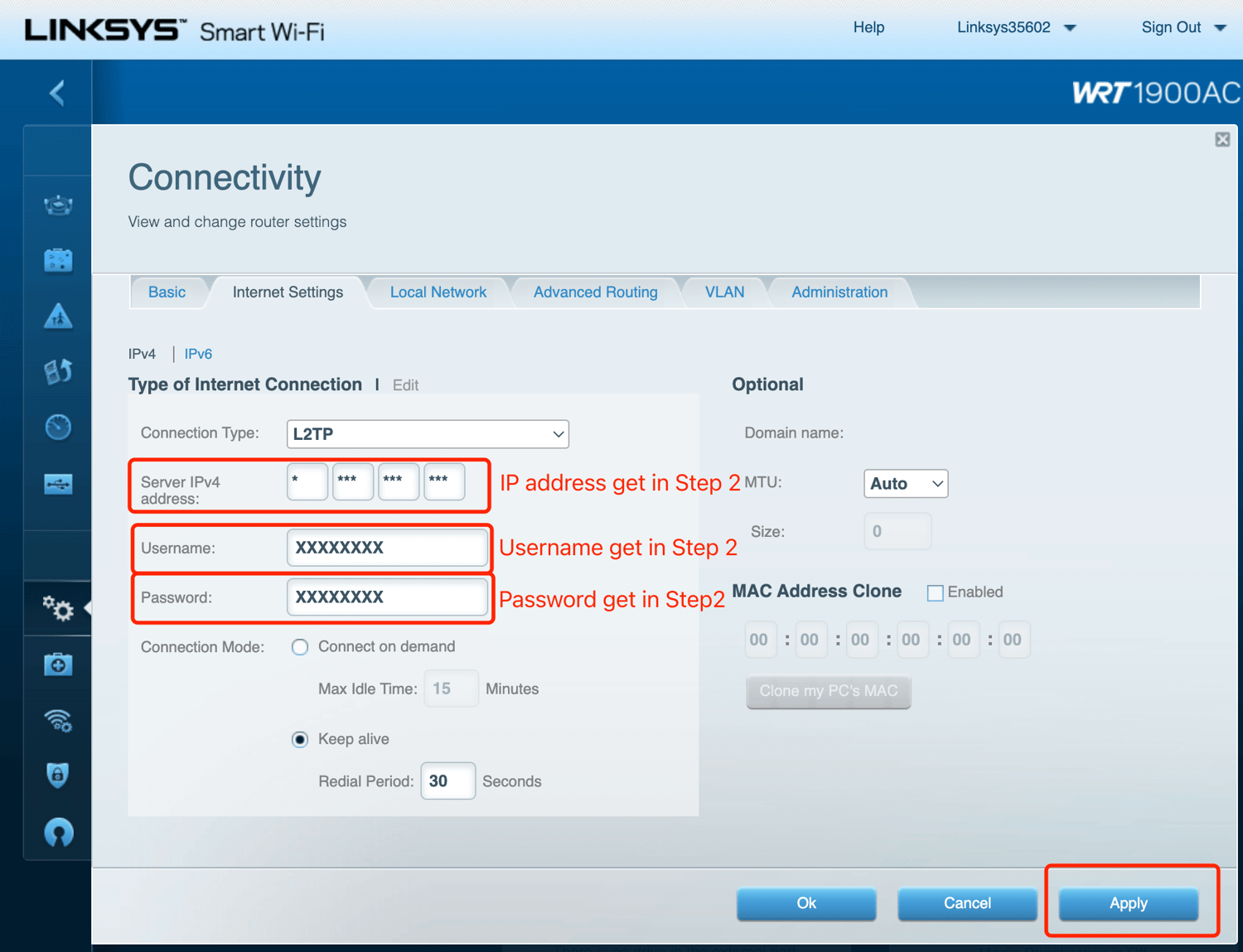
Step 5: Check connection and disconnect
You may visit this site to verify that your IP address has changed! To disconnect X-VPN, simply change connection type to “Automatic Configuration”.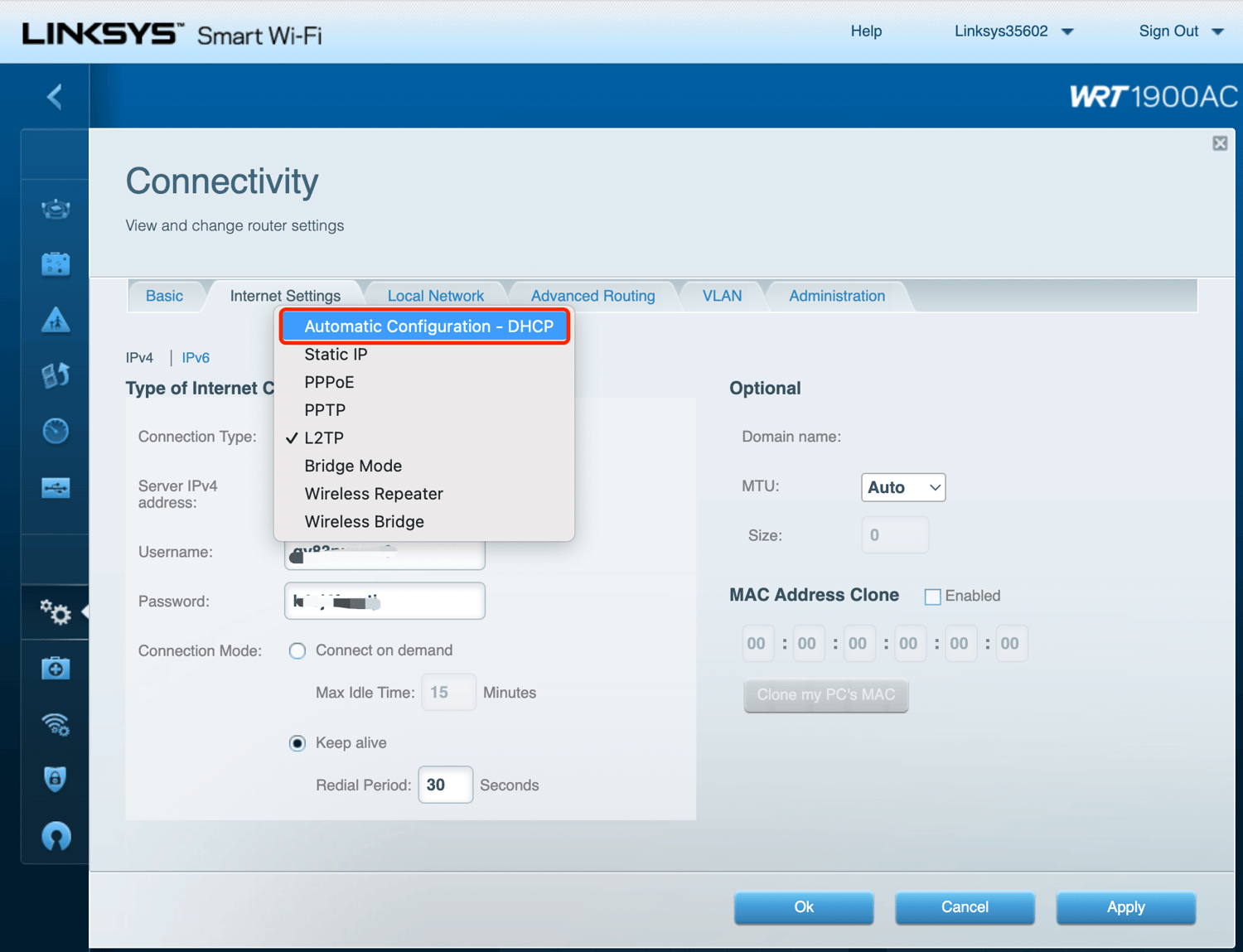 Need more help? Contact Us.
Was this article helpful?
Thanks for your feedback!
Why wasn't this article helpful?