How to set up X-VPN on iOS devices - iPhone and iPad?
Latest edited on 2026-09-03
Watch the video to learn how to set up X-VPN on iOS devices - iPhone and iPad.
For better use, follow the tutorial below to set up and use X-VPN on your iOS devices - iPhone and iPad.
Download the X-VPN app
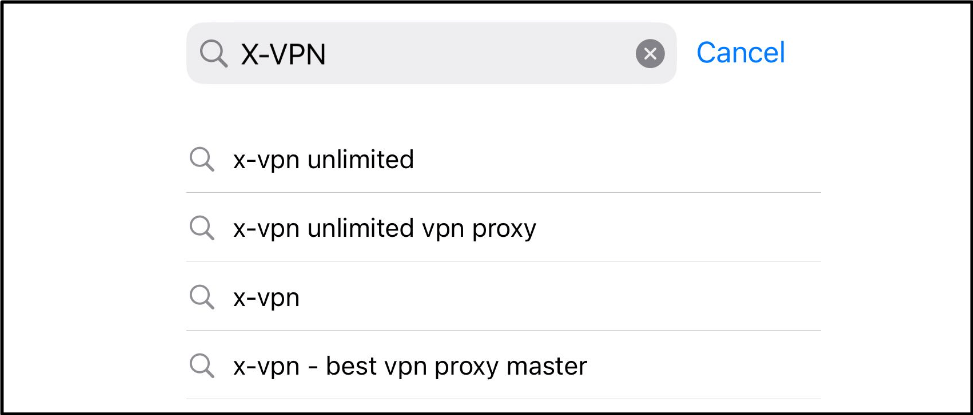
1. The iOS version of X-VPN can only be downloaded from the App Store. Please open the App Store on your iPhone or iPad and search for "X-VPN".
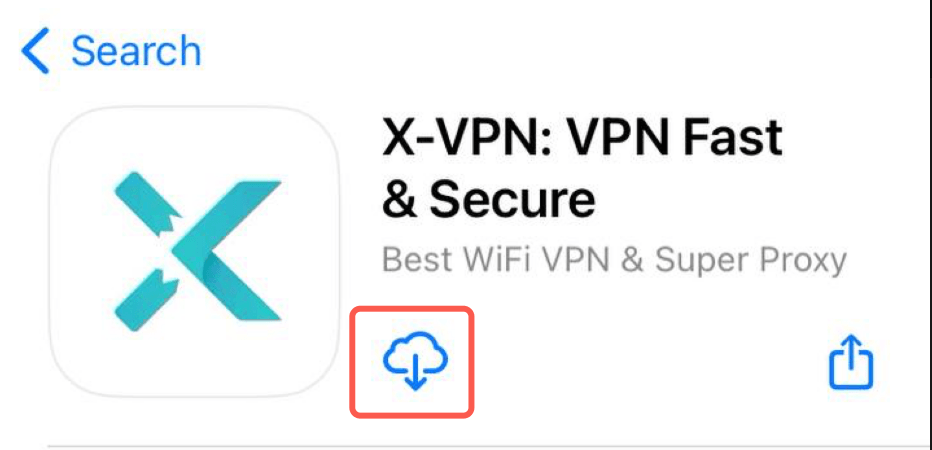
2. Then click the download button to download the X-VPN app.
Enter the X-VPN app
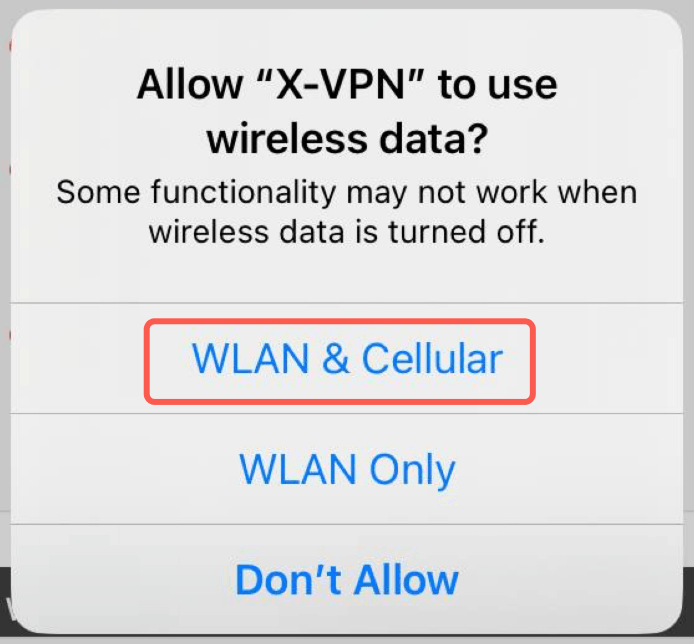
1. When you open the X-VPN app for the first time, you will see a pop-up window requesting network access. We recommend that you choose the first option, which will allow you to use X-VPN normally under both Wi-Fi and cellular networks.
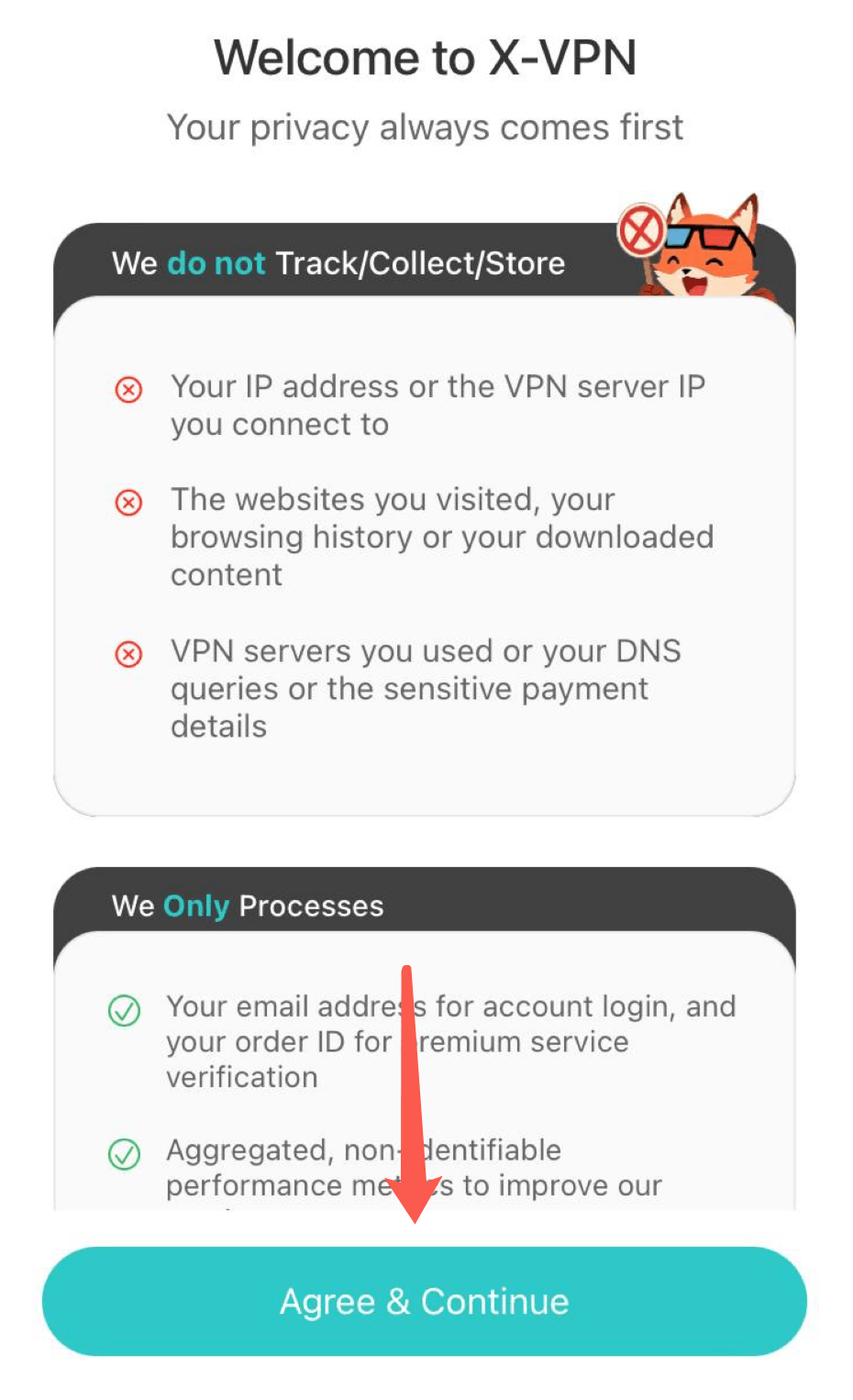
2. You will then see our privacy agreement page and a VPN configuration pop-up. Please read them carefully, and then click "Agree & Continue" and "Allow" in sequence to complete the basic configuration.
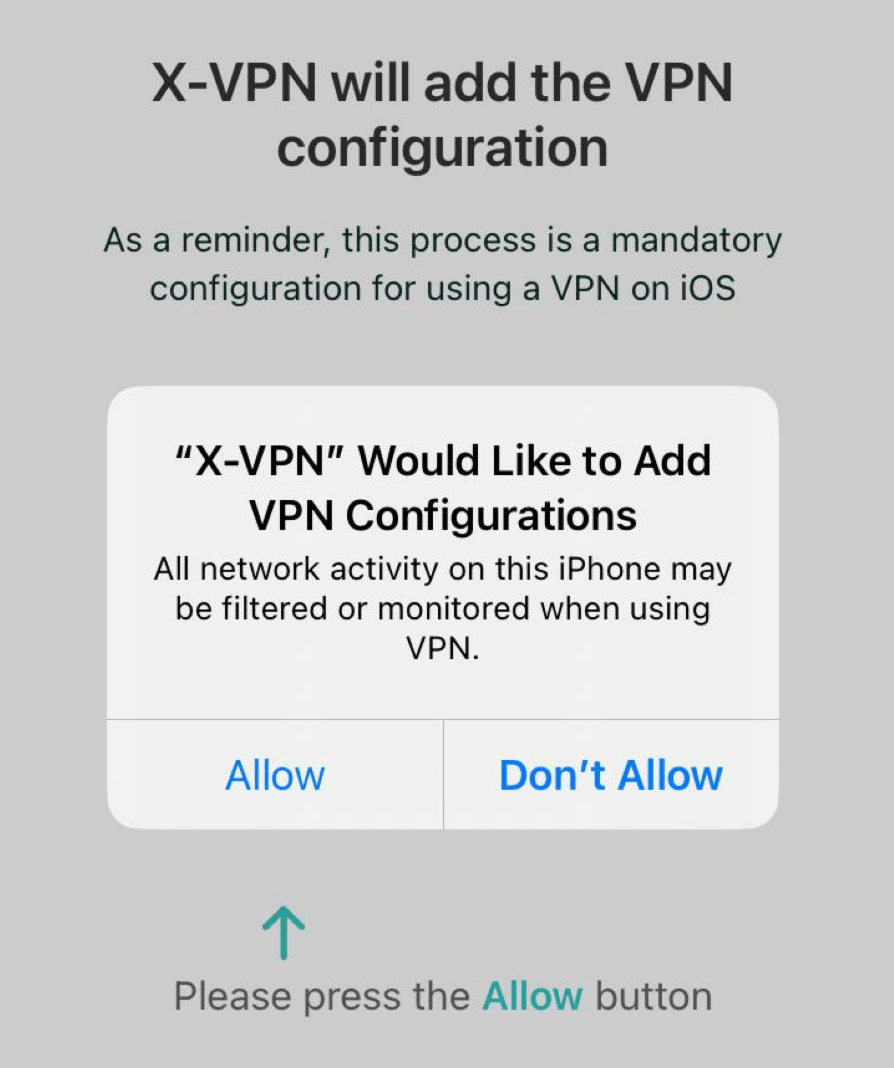
3. You have now completed the configuration.
If you wish to enjoy all the features of X-VPN, please purchase an X-VPN subscription or log in to your VIP account on the following page.
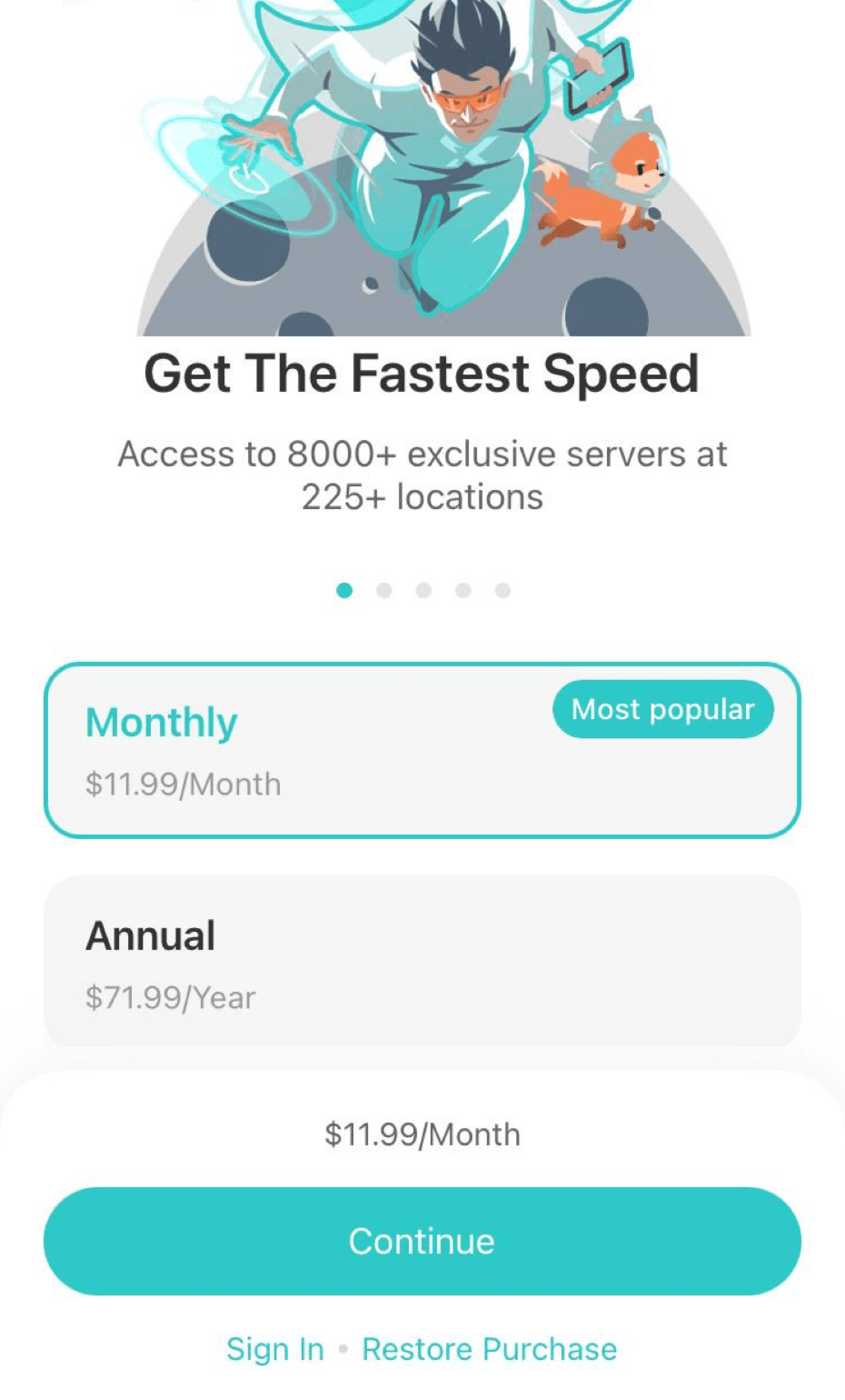
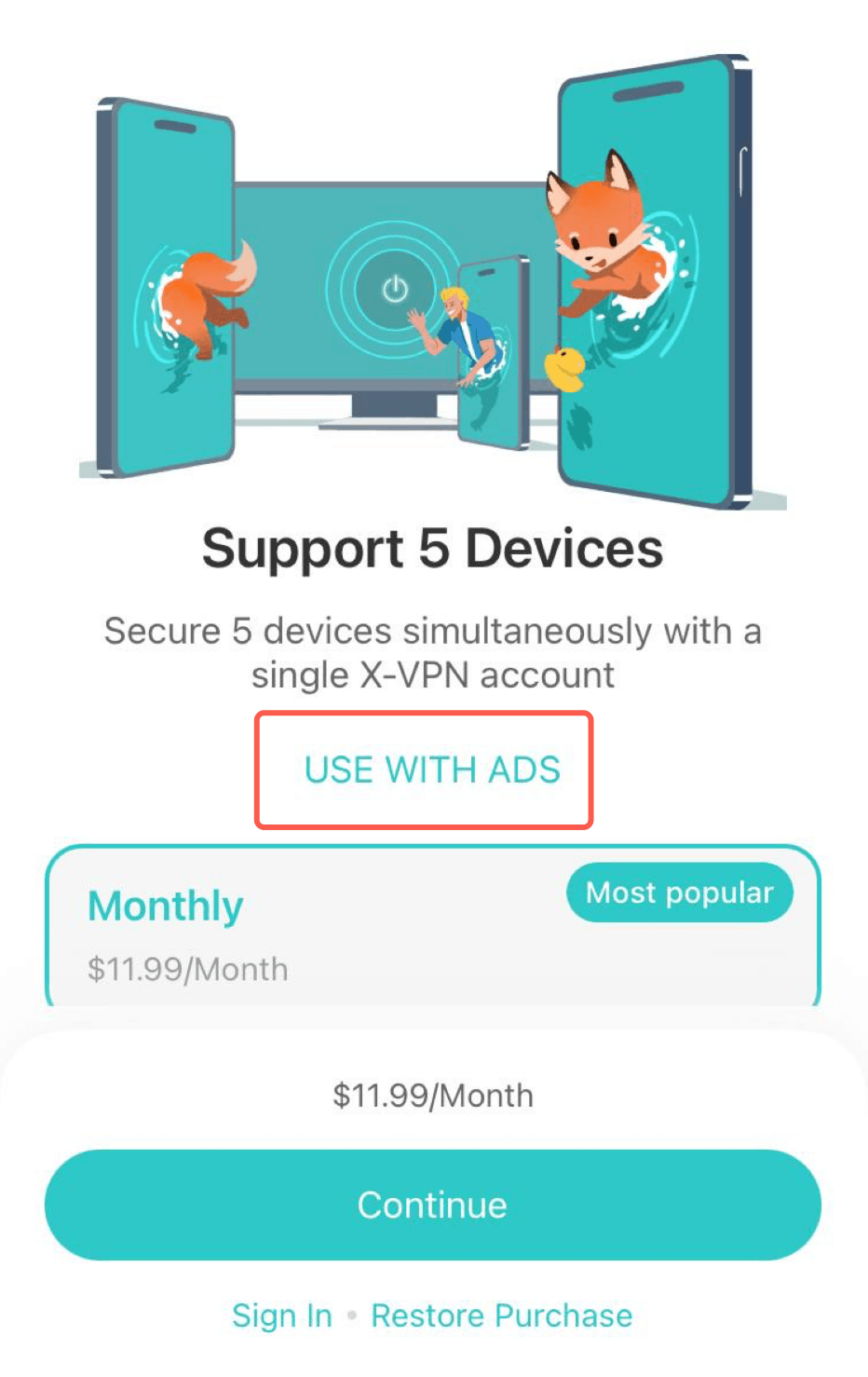
If you wish to experience the free version first, please swipe left on the page, find "USE WITH ADS," and click it to skip the subscription page.
Well done! Now that you have X-VPN installed, you can use it to your heart's content.
Connect and disconnect VPN
To quickly connect or disconnect from the VPN, simply tap on the button located on the homepage.
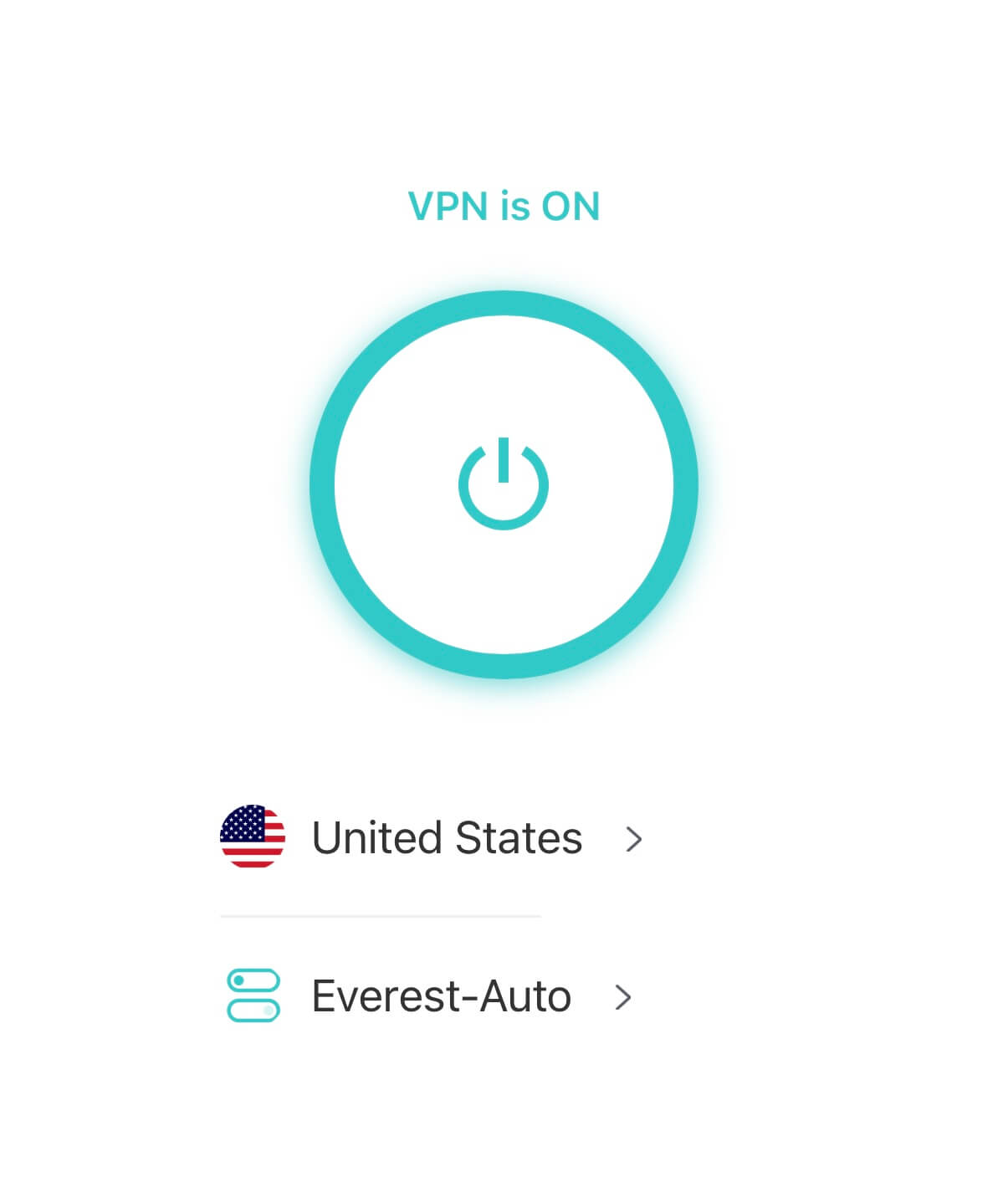
Easily monitor your VPN connection status by checking the status display located above the connection button.
If you have not selected a specific server location or protocol, X-VPN will automatically choose the most suitable combination based on your network environment.
Change VPN Location
Tap the "Selected Location" (or the location name) on homepage to enter the location list page.
X-VPN provides four location pages to choose from:
- The Recommended page displays your location history, favorite servers, and recommended servers for quick access.
- The All page lists all available country locations.
- The Streaming/Gaming page displays specific servers optimized for streaming and gaming.
- The Special page displays Tor over VPN, P2P Servers, and Distributed VPN for special needs.
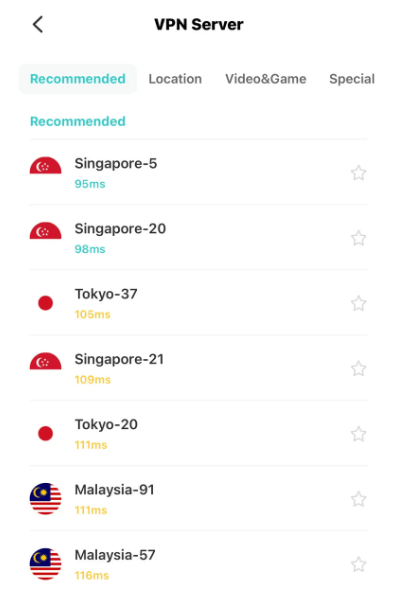
To change your IP location using our service, tap once on the desired location to connect, and tap the star icon to save it as a favorite.
Use the black triangle icon to expand the server list and select your preferred country, city, streaming, or gaming location.
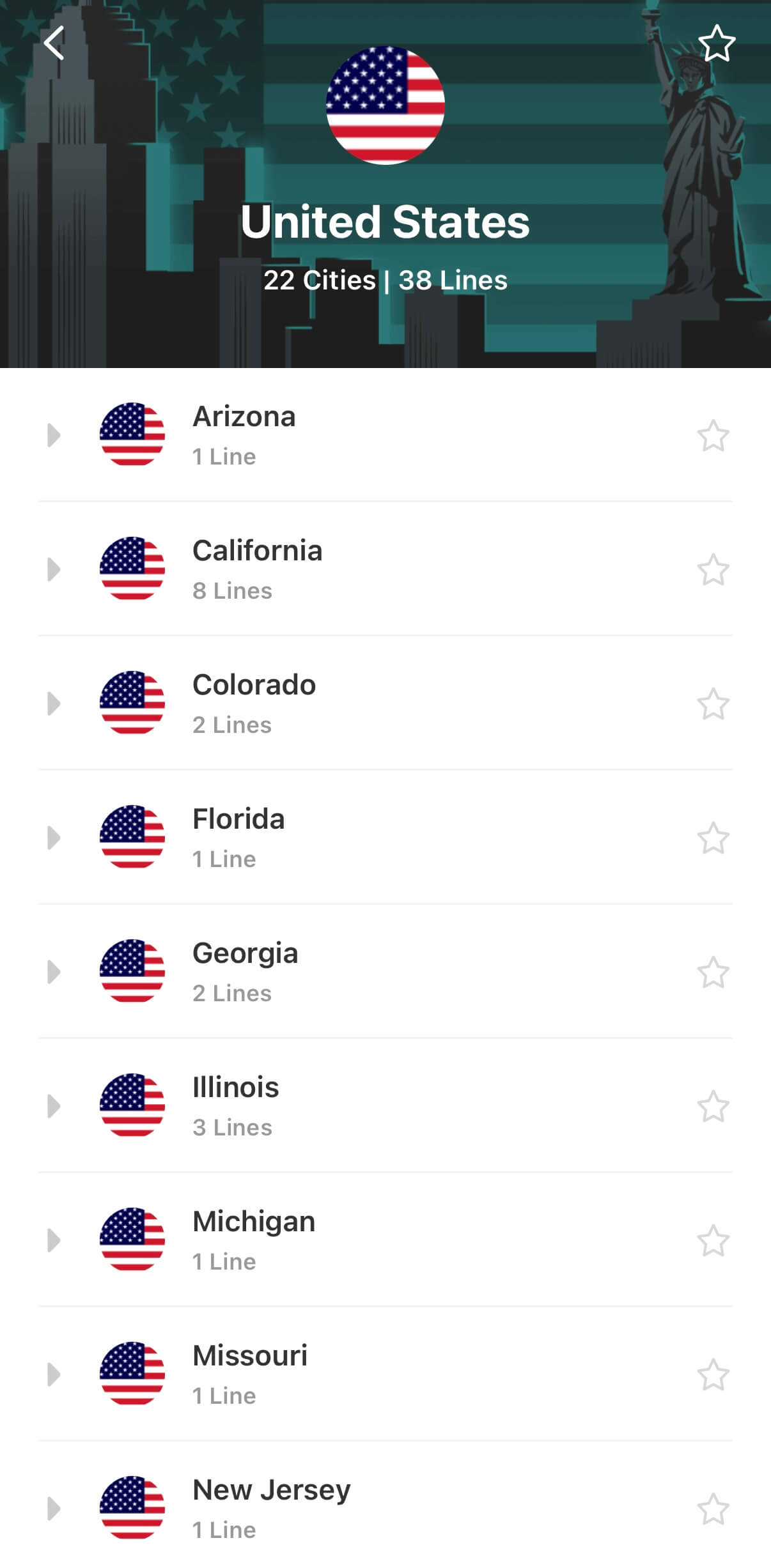
Know more about Servers here.
Change VPN Protocol
Tap the "Everest-Auto: ( the protocol name ) on homepage to enter the location list page.
You may choose the one best for your demand or just chose "Everest-Auto" to let X-VPN recommend the best one for you.
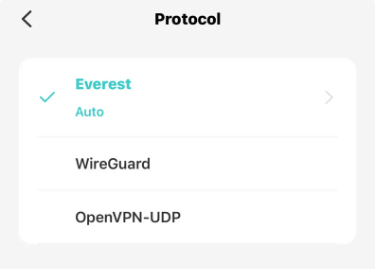
Advanced features
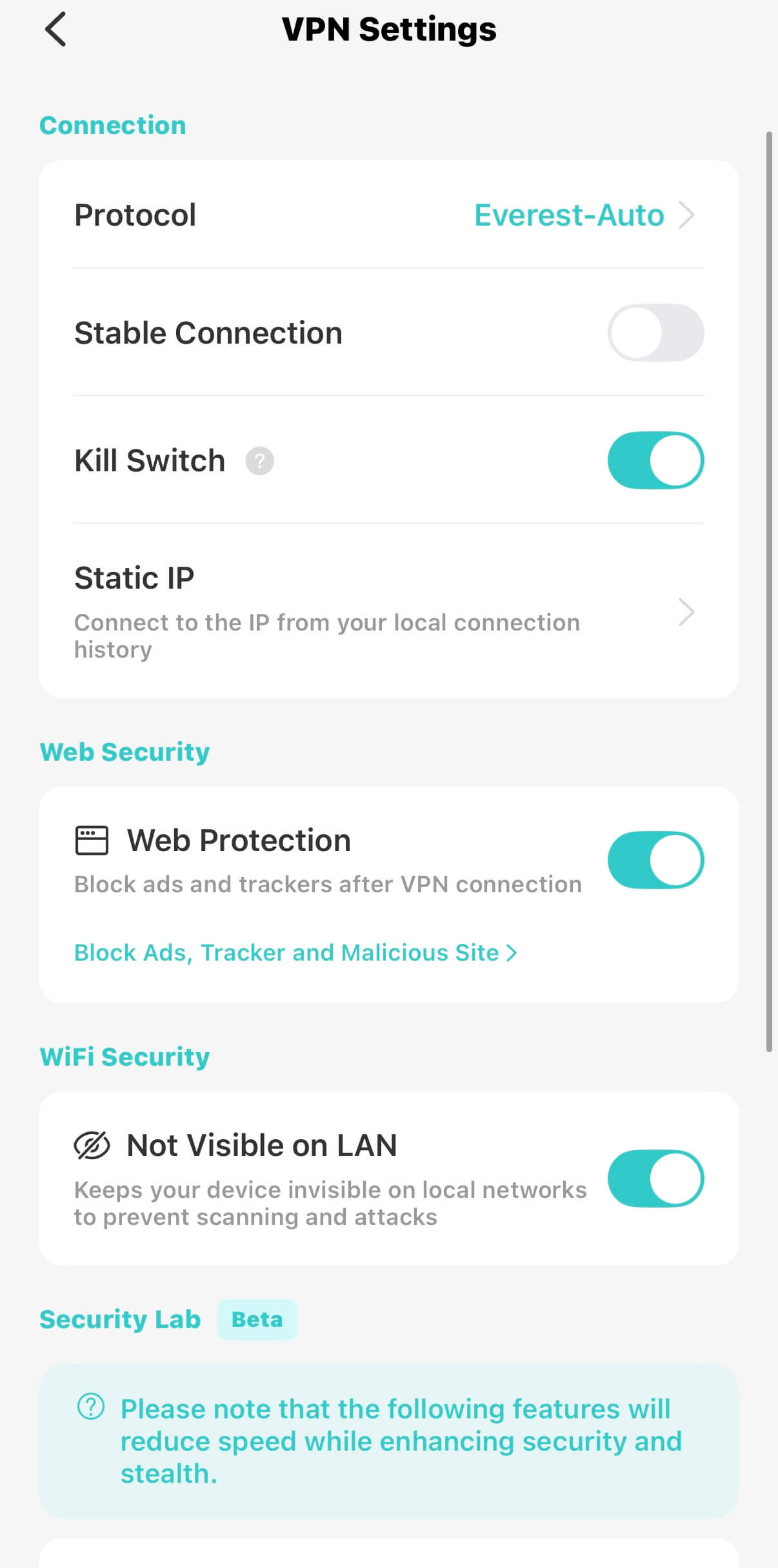
Tap the "Me > VPN Settings" on homepage to enter the advanced features page.
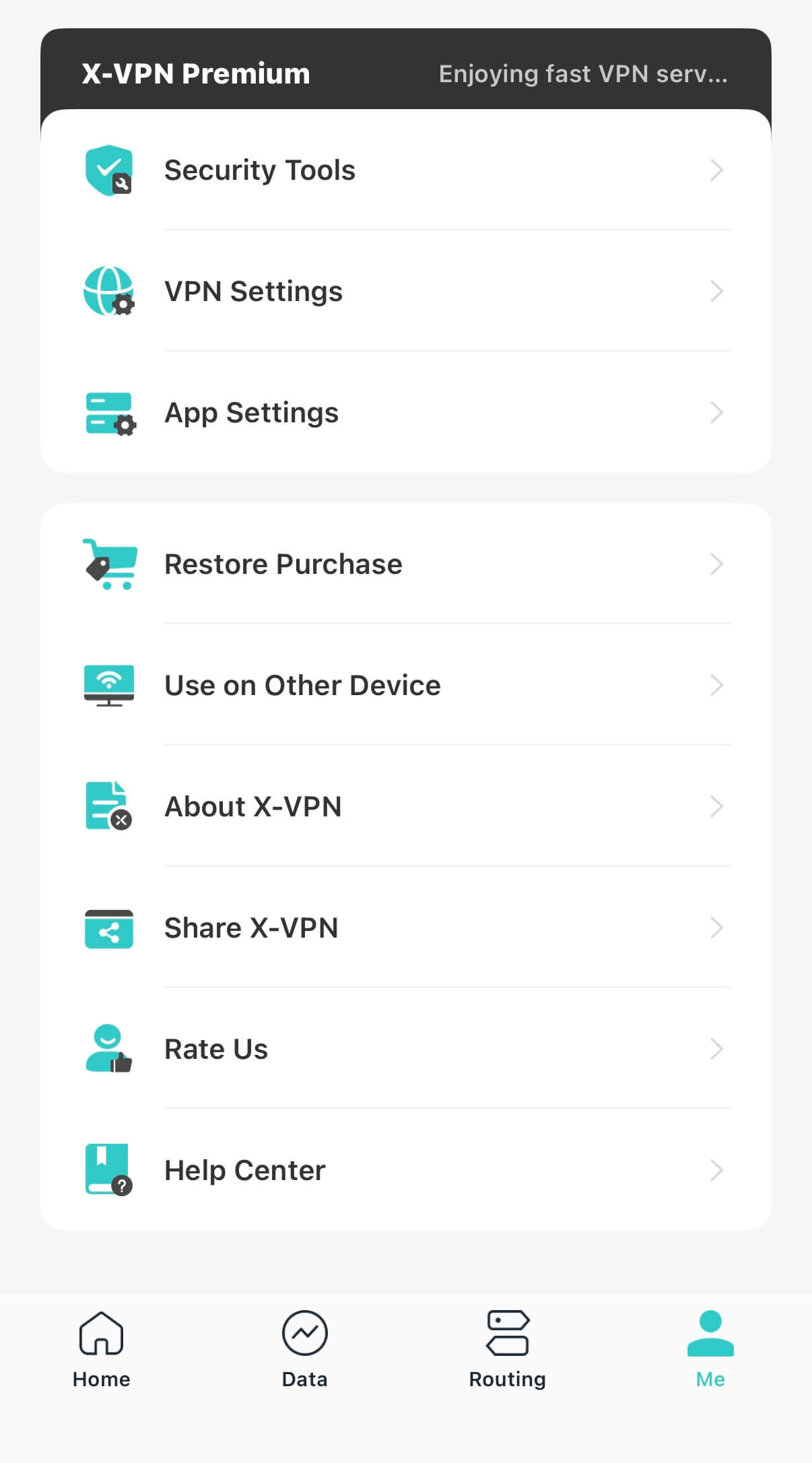
Advanced features - Kill Switch
Turn kill switch on to shut down all internet connection to prevent unauthorized network access once the VPN disconnect unexpectedly
Advanced features - Stable Connection
You may turn stable connection on, if X-VPN keeps disconnect.
Use X-VPN on game consoles
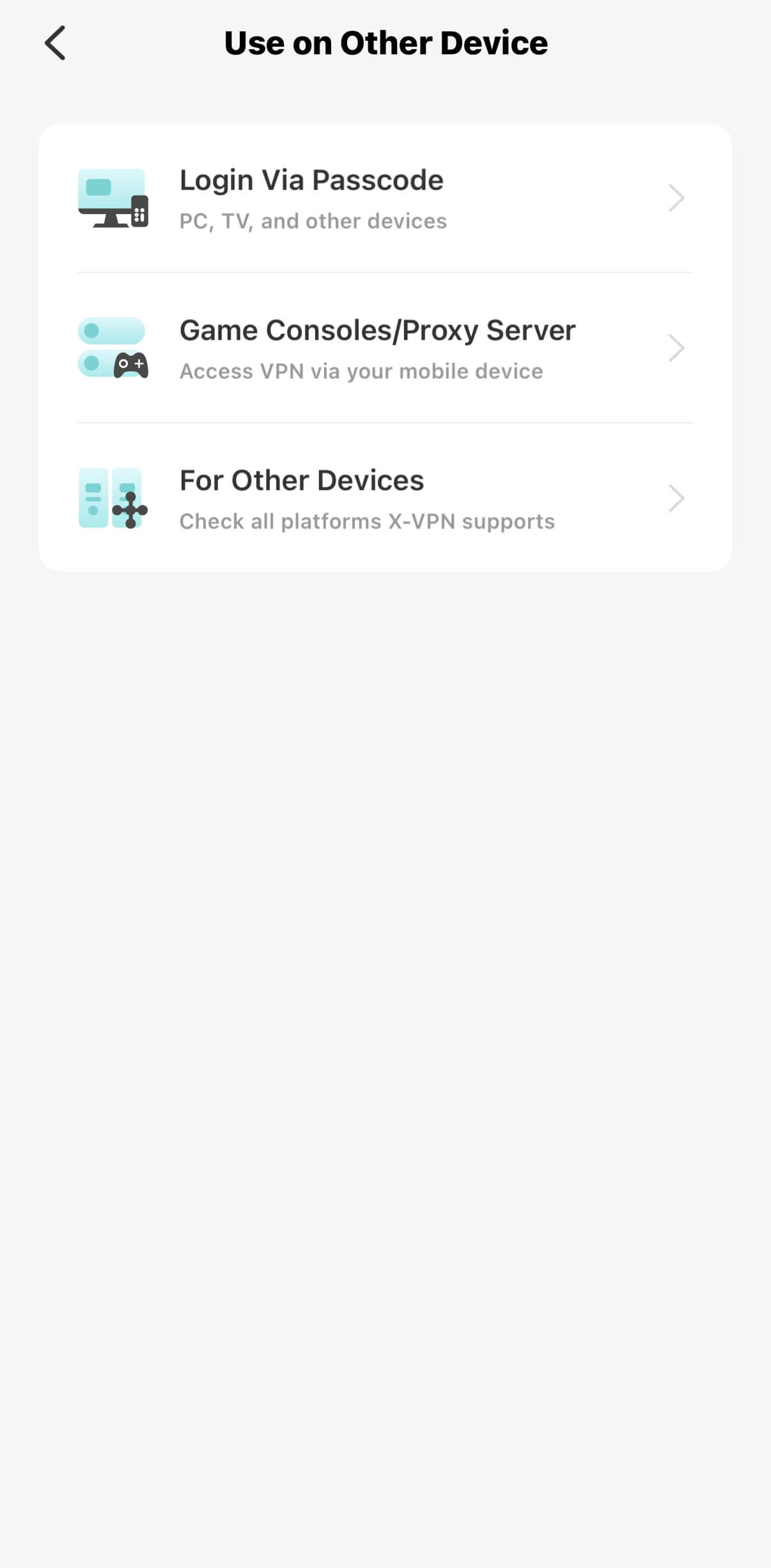
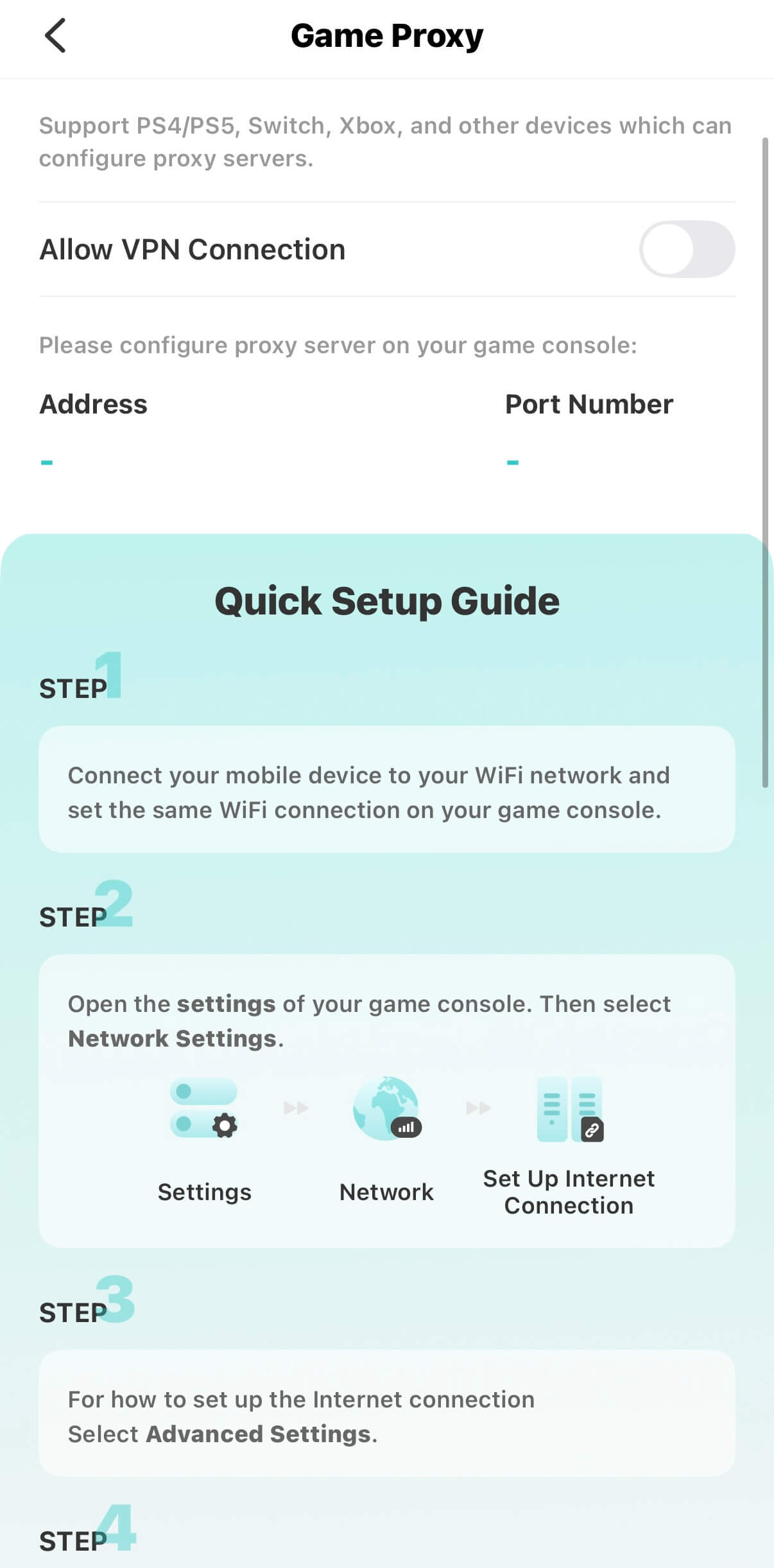
Tap the Me > Use on Other Device > Game Consoles/Proxy Server to enter the set up page of VPN proxy for Xbox, Switch and PS4/5, and other devices which can configure proxy servers
Know more information in the page or get specific instruction here.
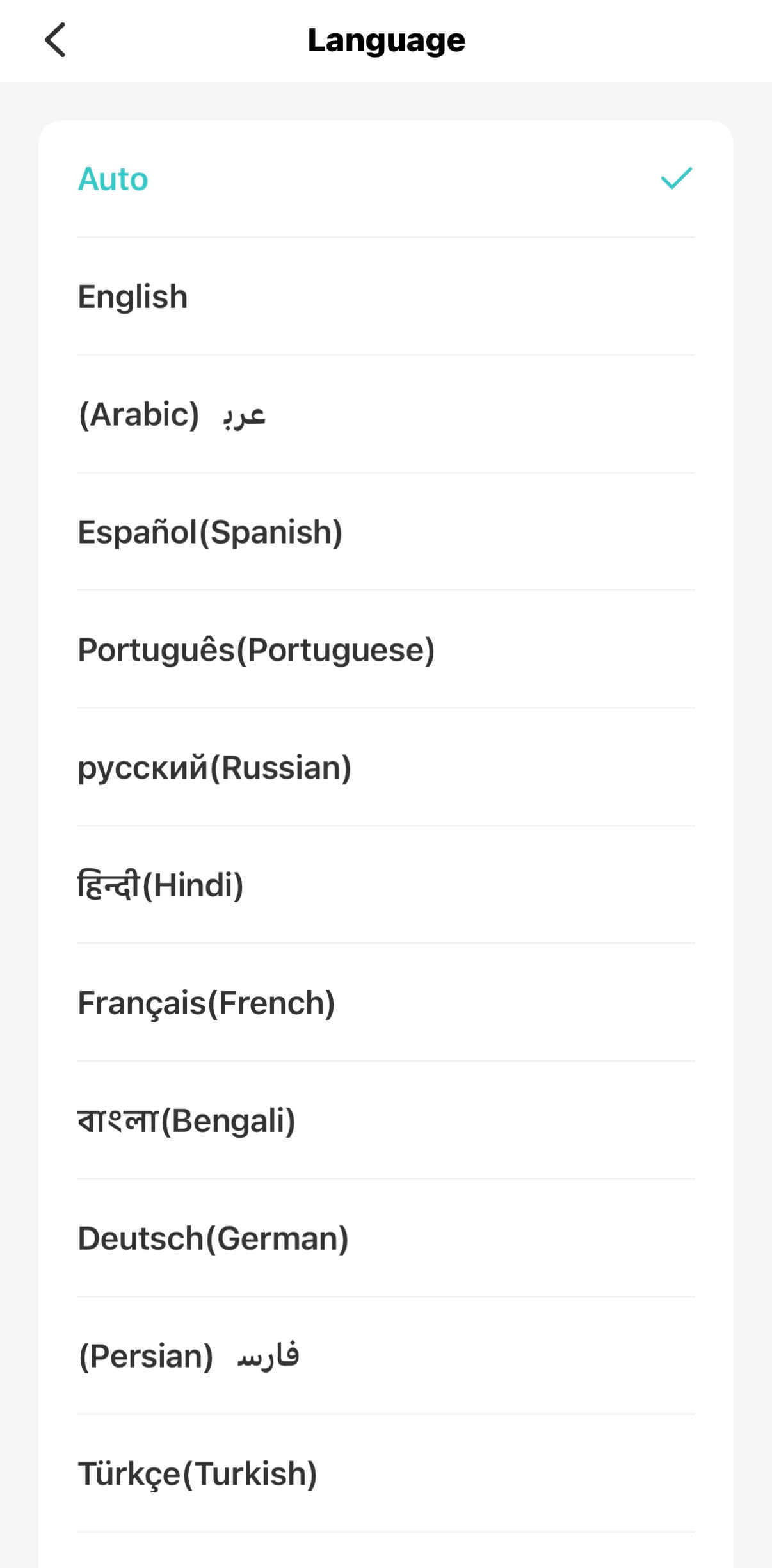
Change languages in X-VPN
Tap the Me > App Settings > Language
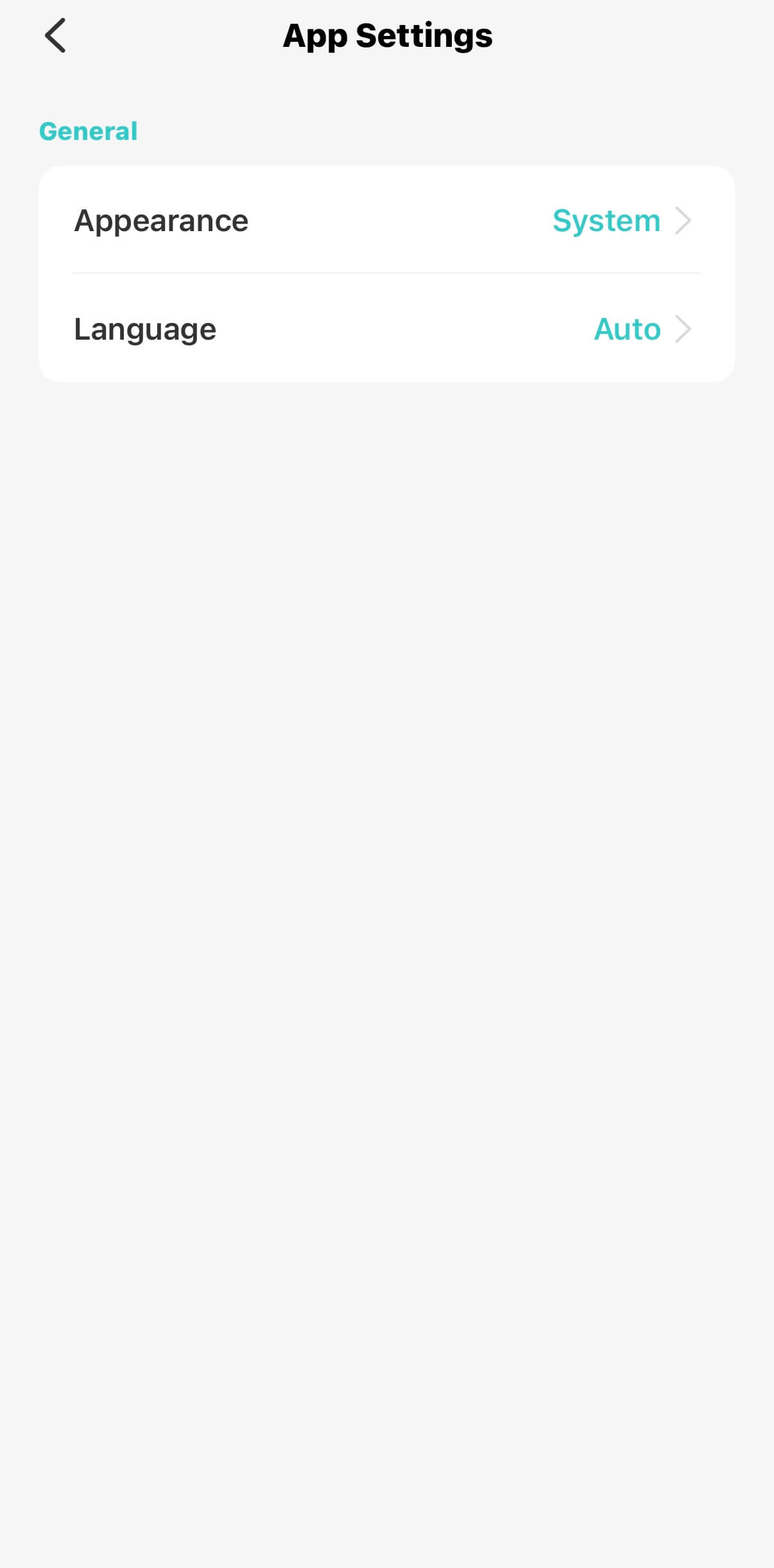
Tap to choose the language you prefer to use.
By default, the language is auto which is follow your mobile system settings.
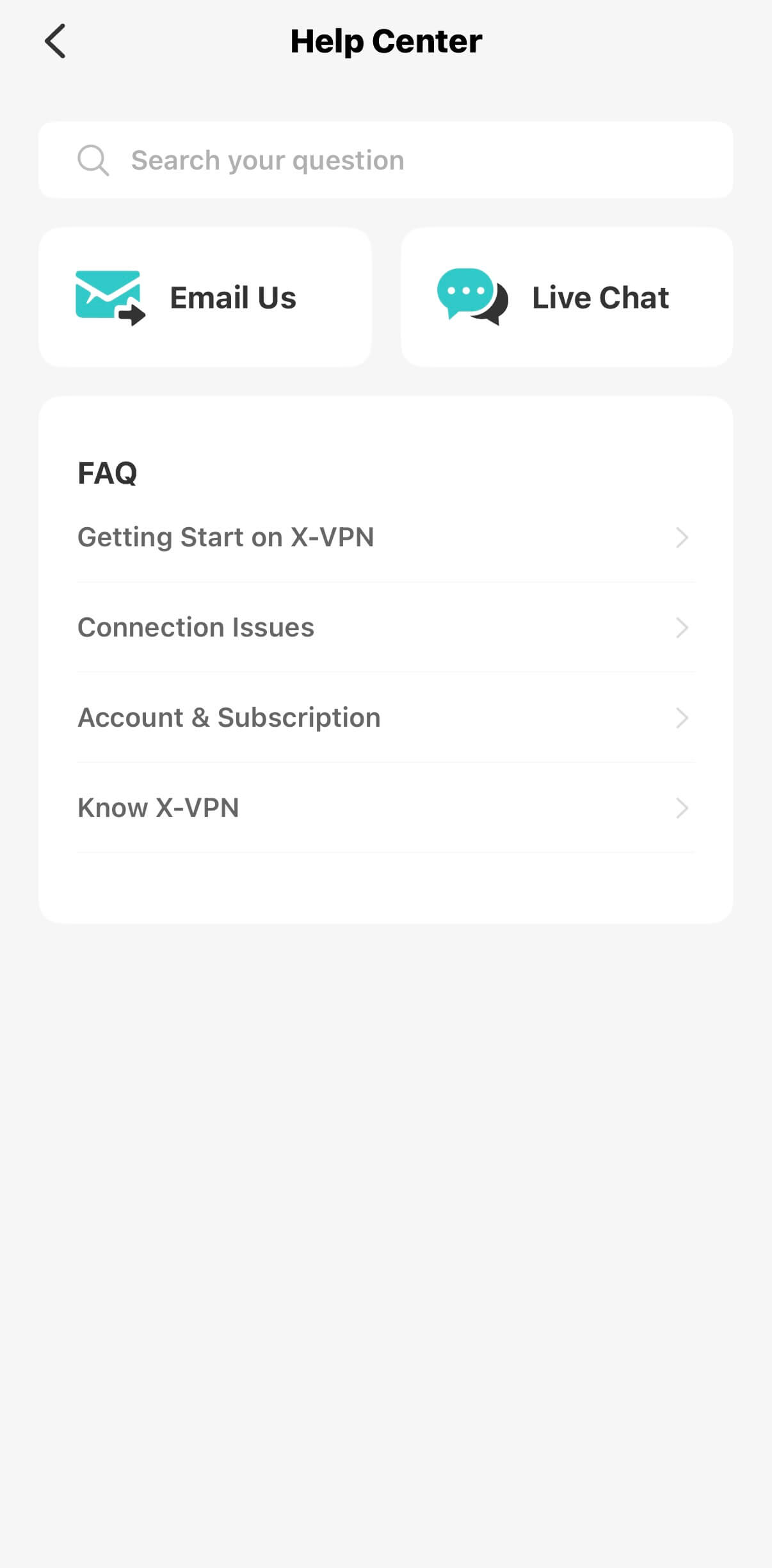
Get help in the app
Tap Me > Help Center > Live Chat.
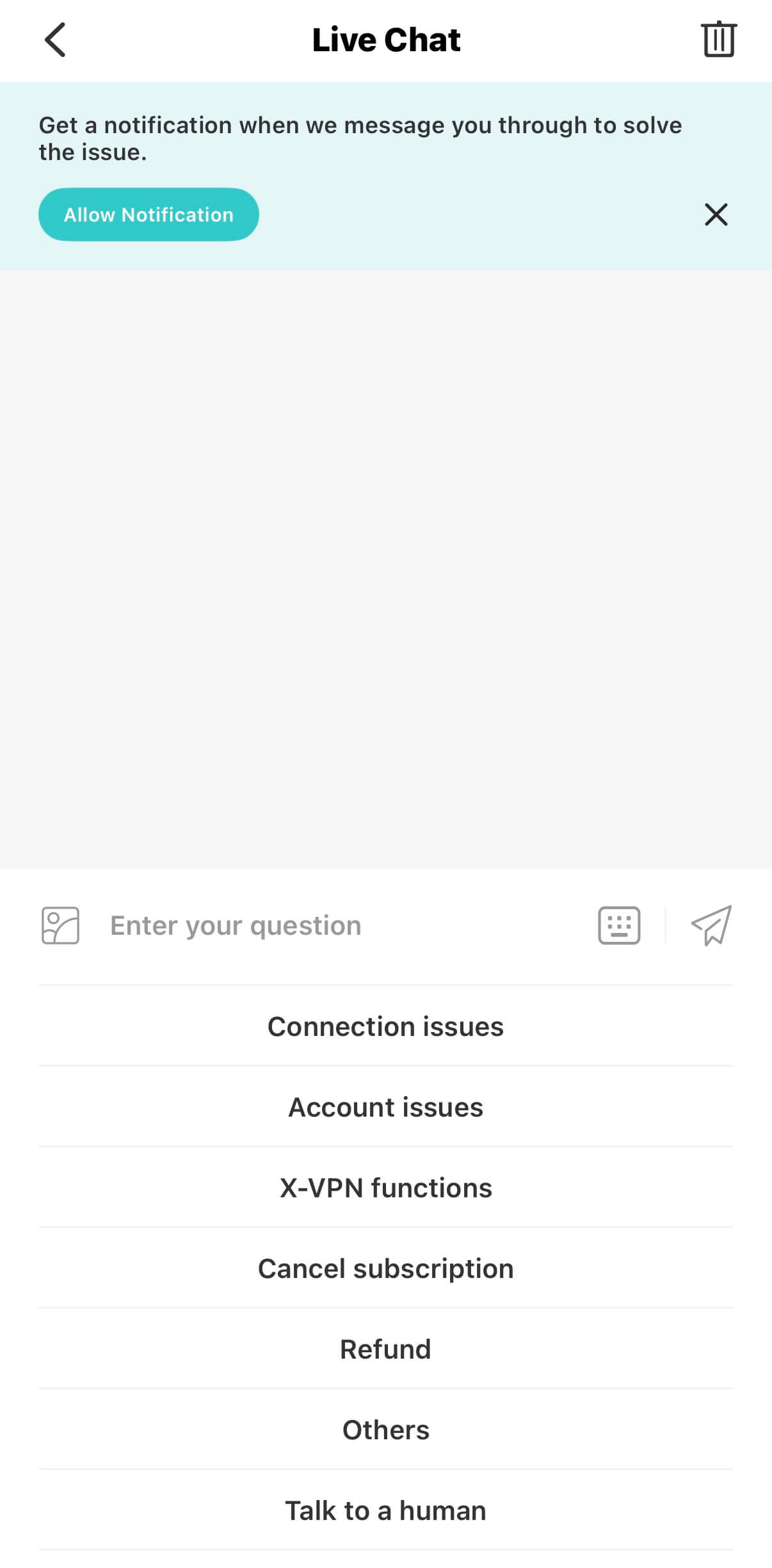
Then enter the live chat for answers of frequently asked questions and help from real person.
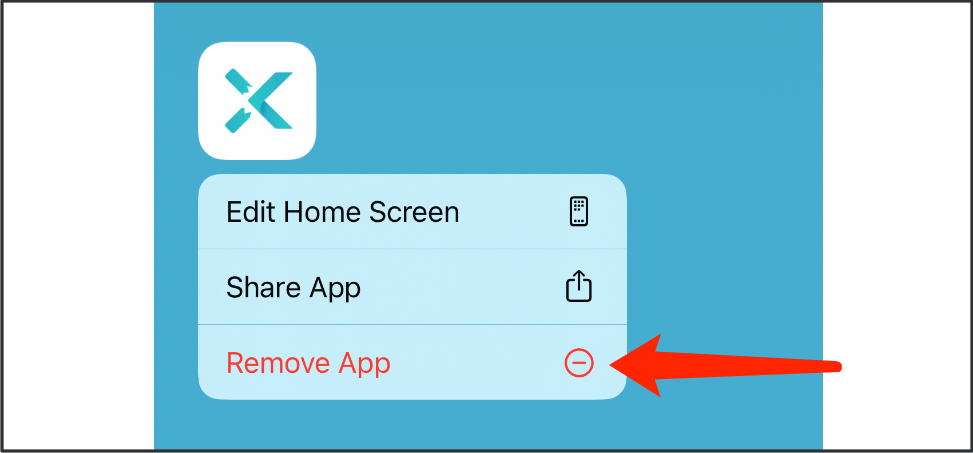
Uninstall the app
Tap and hold X-VPN icon on your devices until the app icon vibrate, then select Delete App to uninstall the app from your iPhone or iPad.
Need more information? Contact Us
Was this article helpful?
Thanks for your feedback!
Why wasn't this article helpful?