How to change VPN location on X-VPN app?
Latest edited on 2026-09-04
In this article, we’ll show you how to change location in the X-VPN app step-by-step.
Step 1: Launch the X-VPN app
Open the X-VPN app on your device. If you haven’t already downloaded it, you can get it from here.
Step 2: Choose a server
Once the app is open, you’ll need to select a server location. Select the location you want to connect to. If you don’t know which location or server to choose, refer to this artcle.
Click Select Location tab in the middle of the screen. You’ll be presented with a list of server locations from which to choose.
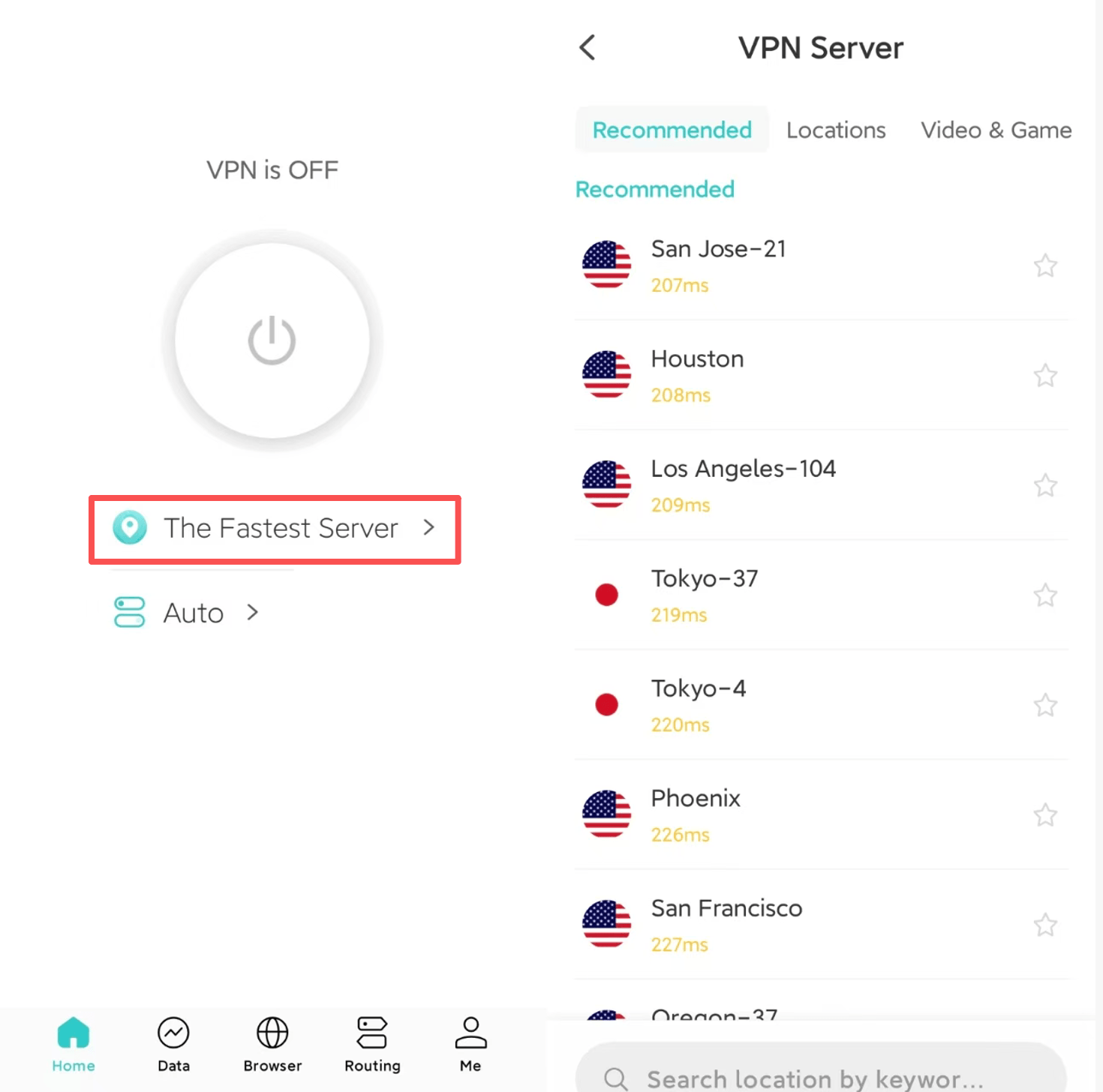
X-VPN on mobile
❑ Recommended: Several locations that X-VPN recommends you connect to.
❑ Locations: All servers by country are displayed under this tab.
❑ Video&Game: Dedicated servers for streaming and gaming.
❑ Special: Special servers, like Tor over VPN, P2P servers, Distributed VPN
X-VPN on PC
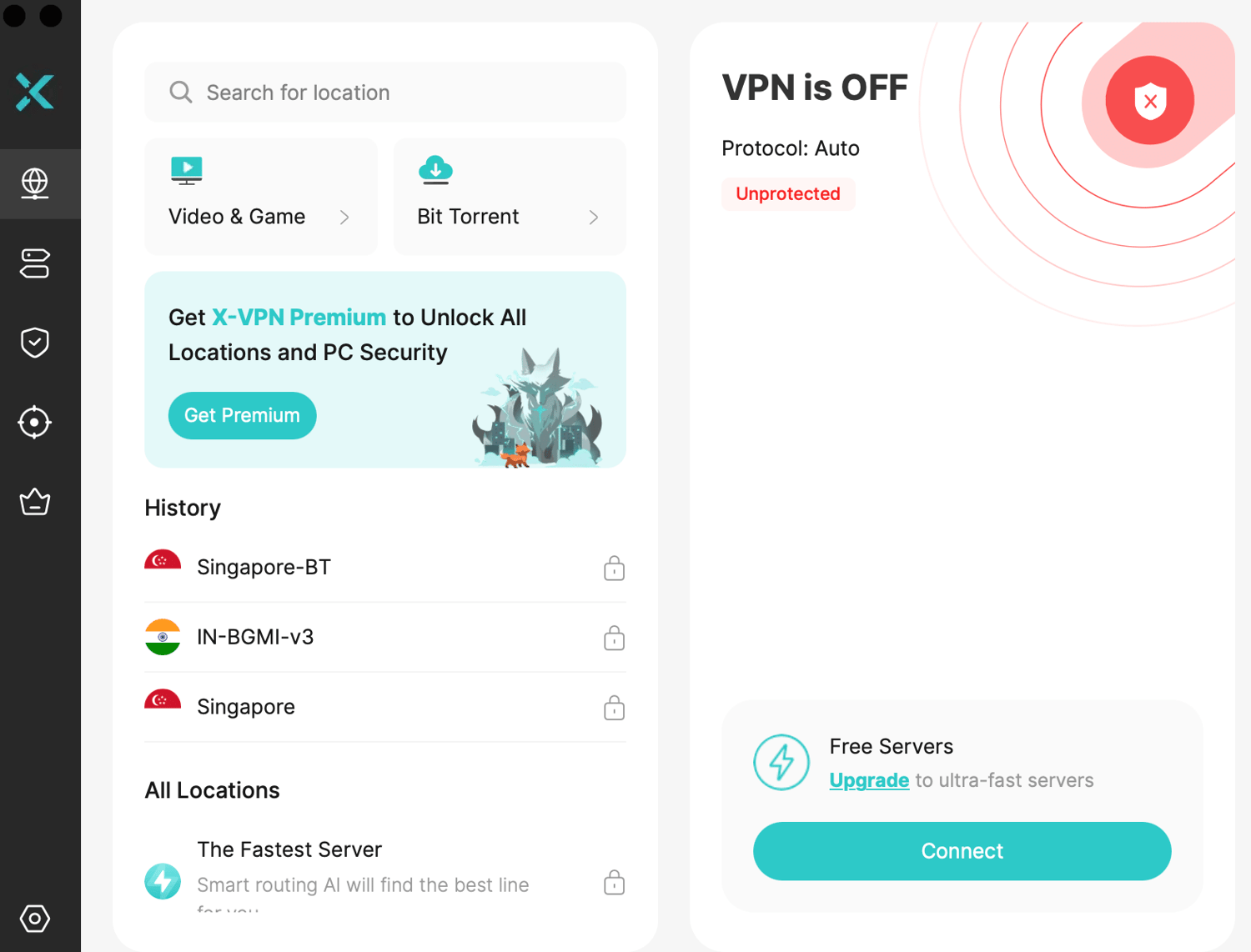
❑ History: Server you have connected before.
❑ All Locations: All servers by country are displayed under this tab.
❑ Video&Game: Dedicated servers for streaming and gaming.
❑ For Downloads/Bit Torrent: Servers that suits for downloading BitTorrent. For root version only.
Tips:
❑ Click the arrow button on the far right to expand the server list.
❑ Click on the ☆ button on the far right to bookmark your preferred servers for quick connection in the Recommended column.
❑ Search for the server name you need in the Search Bar, which supports precise search, fuzzy search, or even drama name search, etc.
X-VPN on Router
Please refer to the router setup tutorial.
Step 3: Connect to the server
Click on the selected server, the app will begin connecting to the server you’ve chosen. This may take a few seconds or a minute, depending on your internet connection speed.
Step 4: Verify that you’re connected to the server
Once the connection is established, the X-VPN app will display a “VPN is ON” message on the screen. You can verify whether you’re connected to the server by checking your IP address. Simply navigate to a website that displays your IP address, and it should show the IP address of the server location you selected.
Step 5: Disconnect from the server
To disconnect from the server, simply click the connect button on homepage again. The X-VPN app will immediately terminate the connection to the server.
Need further help? Please contact us or write to support@xvpn.io.
Was this article helpful?
Thanks for your feedback!
Why wasn't this article helpful?