


If you found a setting in your new VPN app named split tunneling, that’s a feature that lets you choose which apps and websites use the VPN’s protection, and which connect directly to the internet.
The other option is called full tunnel, which is the default setting in most VPN apps. It keeps all your traffic going through the VPN tunnel.
Both tunnel modes have advantages, depending on your varying needs. What you can learn in this guide is when the exception is, and how to enable the split tunneling if that’s more convenient for you.
Table of Contents
Split Tunnel Vs Full Tunnel: 6 Key Differences
As we mentioned upfront, the key differences between full and split tunneling is whether the traffic is fully protected by VPN or partially.
Full tunneling sends all your internet traffic through the VPN. Split tunneling puts some of it inside and lets the rest go out over the normal connection, at your real IP address.
Full Tunneling | Split Tunneling | |
|---|---|---|
What’s protected | All traffic | Only what your rules route through the tunnel |
Your IP address | Hidden for everything | Hidden for tunnel traffic, real for the rest |
Setup | None | Pick which apps or sites skip the tunnel |
Speed | Some slowdown, depending on how far the VPN server is | Excluded apps run at your normal speed |
Local network access | Depends on a setting, defaults vary | Mostly works, may require set up |
Best for | Everything, by default | Apps that need your real IP or location |
One row is worth expanding a bit, because it’s a more special scenario.
Local Network Access
Whether your printer or your NAS drives can keep working depends on the VPN’s local network setting, and defaults are different among different apps: some allow LAN connections by default, some block them until you turn the setting on.
If these devices stop working after the VPN connection, you can first check that setting, not the split tunneling setting.
What Is VPN Full Tunneling
Full tunneling routes all requests originating from your device through the VPN server. Your browser and apps all follow the same VPN path.
This is the default setting once you install a VPN and click connect. Nothing else needs to be done. All internet data traffic is protected by the VPN.
However, there is one exception worth noting, the special case mentioned in the previous section. In most cases, traffic flowing to devices on your own network (such as your home printer or NAS drive) remains outside the VPN tunnel, and whether your VPN app allows or blocks this traffic depends on your local network settings. As mentioned above, different providers have different default settings.
Furthermore, full tunneling means exactly what its name suggests: one rule applies to all traffic, and your real IP address will be hidden.
What Is VPN Split Tunneling
Split tunneling replaces a single rule with a list of options to choose which apps or websites should go through/not through the VPN tunnel.
Your VPN app checks each outbound request, examining two things: which app or process the request originated from, and the destination of the request. It then makes a decision based on the list of options you’ve set. Take the Via VPN list as an example. Traffic in that list is encrypted by the VPN and sent through the tunnel. All other traffic goes directly through your ISP, without VPN encryption, and carries your real IP address, just like when the VPN is off.
This leads to two points you should be aware of:
First, traffic outside the VPN tunnel exposes your real IP address, and your ISP can see that traffic is going directly to its destination, revealing your activity.
Second, once you open the split tunneling function, this splitting process is done on a per-request basis and runs automatically in the background. As a user, you can’t see the processing, so it’s best to check if the splitting is actually working after setup. We’ll explain how to check this later.
Bypass VPN or Via VPN: Pick the Direction First
Split tunneling can be set up by choosing what uses the VPN or by choosing what avoids it.
Bypass VPN means that selected apps or websites will not go through the VPN tunnel and will use the normal network connection, while unselected apps will.
Via VPN, on the other hand, only the apps or websites you specify will use the VPN tunnel. All other traffic will use your normal network connection.
The choice of mode depends on the number of apps or websites you need to protect with VPN. If you only have two or three apps or websites that need to use your real IP address, use Bypass VPN mode to bypass the VPN tunnel protection individually. If you only want to protect one app or website, use Via VPN mode to let it use the VPN tunnel alone.
This reduces the number of apps or websites you need to select, makes setup easier, and makes it easier to manage if you change your mind and need to remove some.
How to Turn on Split Tunneling in X-VPN
Setup takes about a minute. The steps differ slightly between desktop and mobile.
On Windows and Mac
Step 1. Open the X-VPN app, go to Smart Routing.
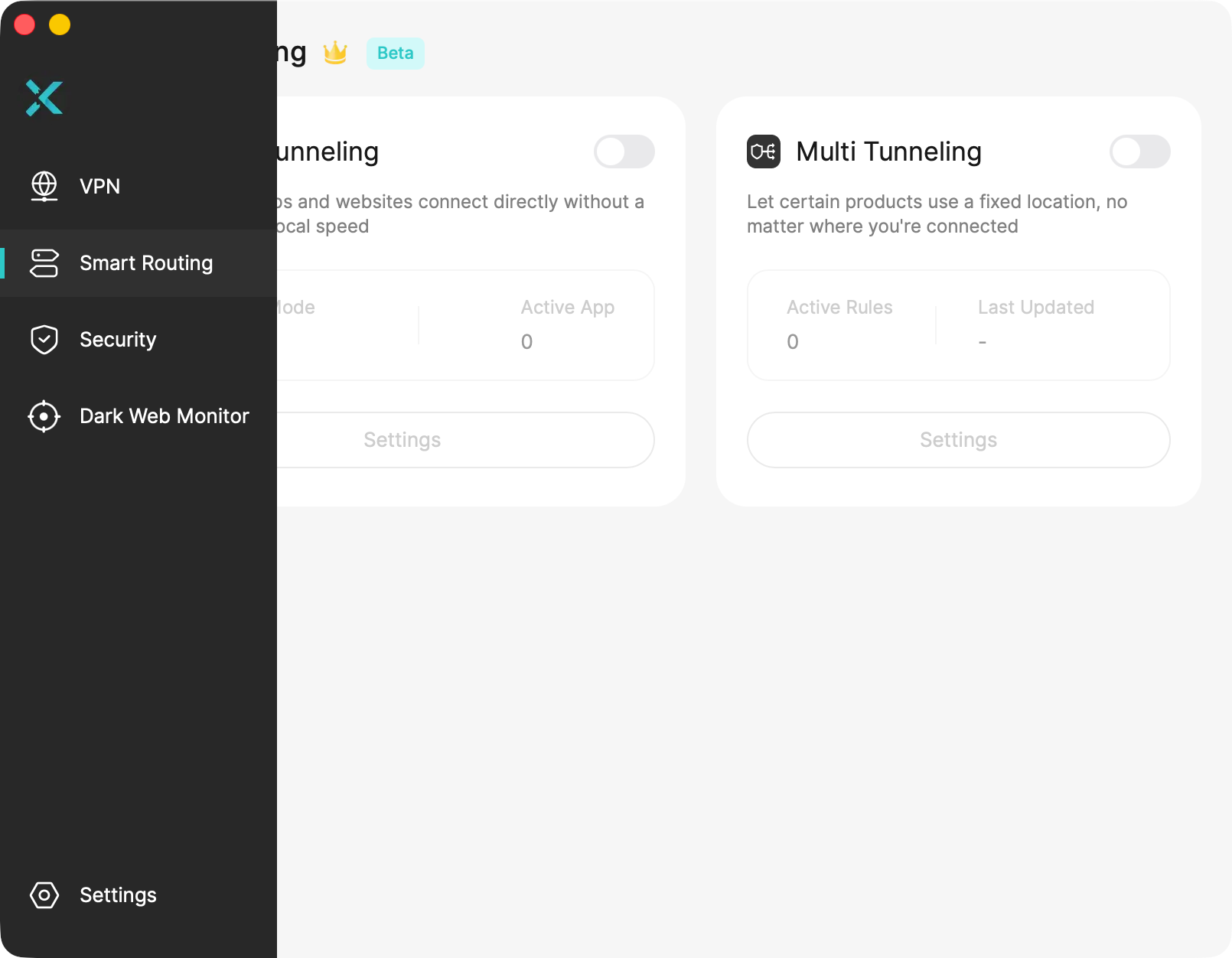
Step 2. Turn on Split Tunneling.
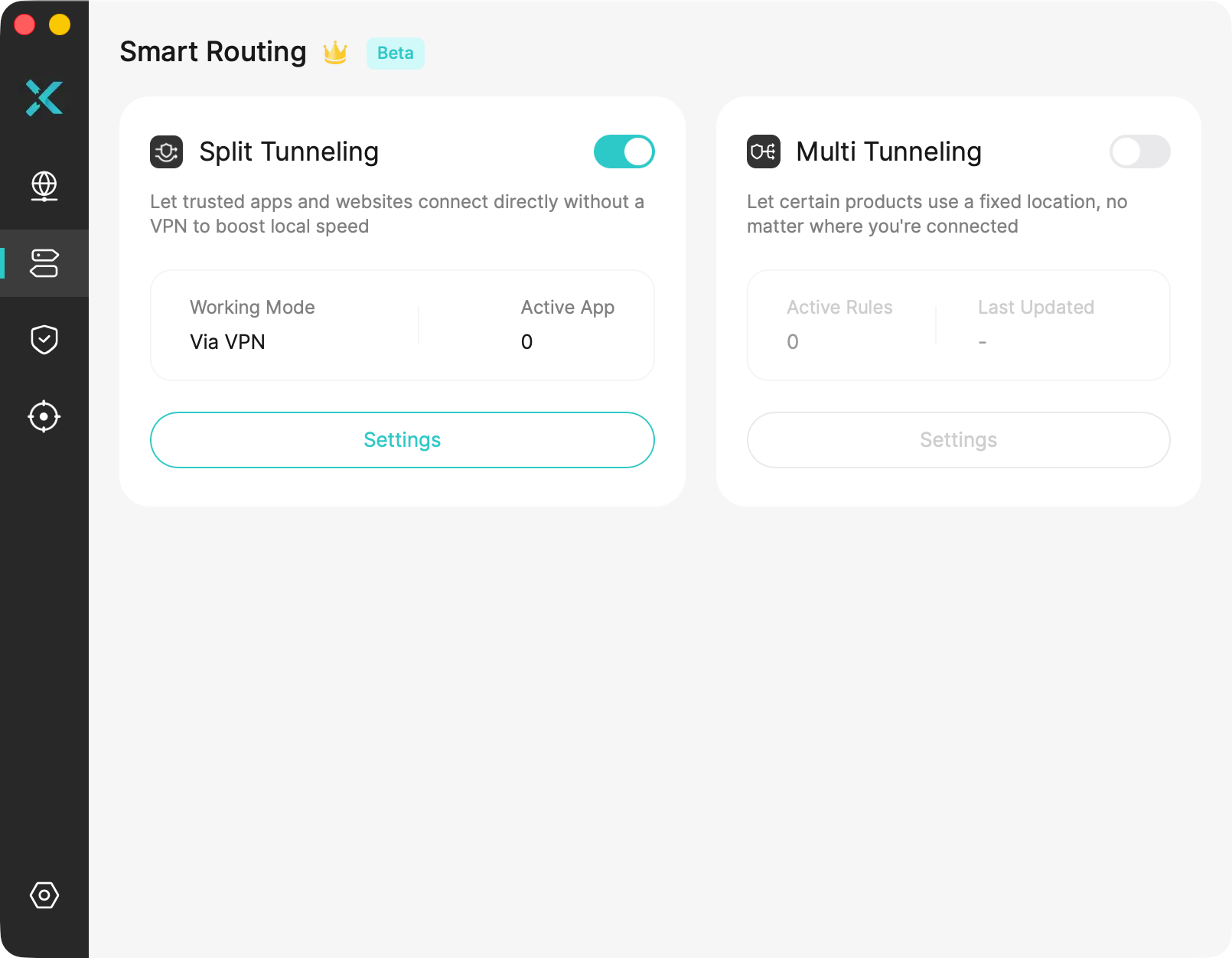
Step 3. In the settings, choose Bypass VPN or Via VPN, then add the apps or websites you want in that list.
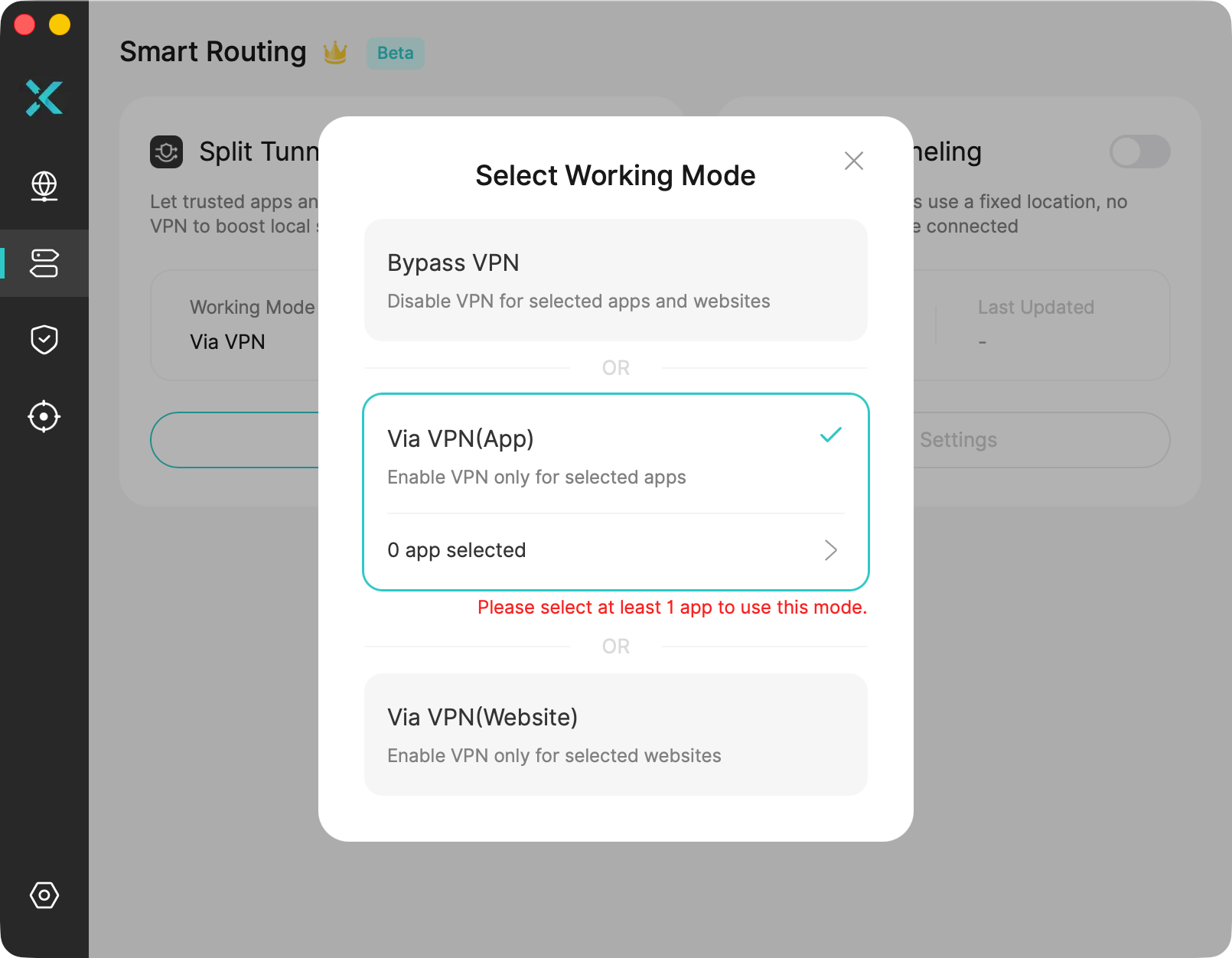
Step 4. Connect. Changes take effect on your next connection.
On iOS and Android
Step 1. Open the X-VPN app, go to Routing.
Step 2. Turn on Split Tunneling. You’ll be asked whether to reconnect now or finish making changes first. Either is fine, though it’s easier to finish your list and reconnect once at the end.
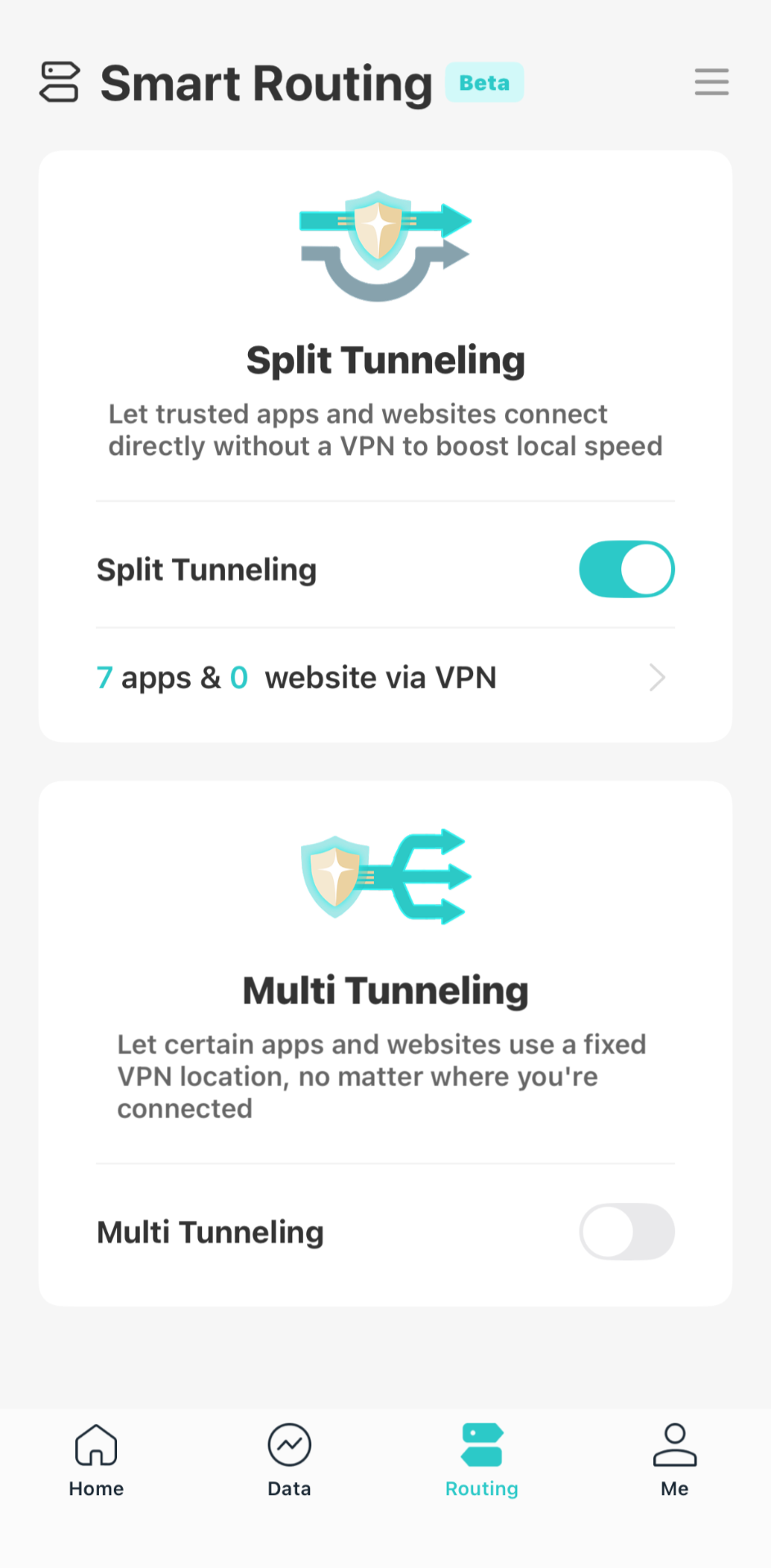
Step 3. Choose the apps or websites you want to Bypass or route Via the VPN. (X-VPN was the first iOS VPN with app-based split tunneling.)

Step 4. Connect. Your settings apply from the next connection.
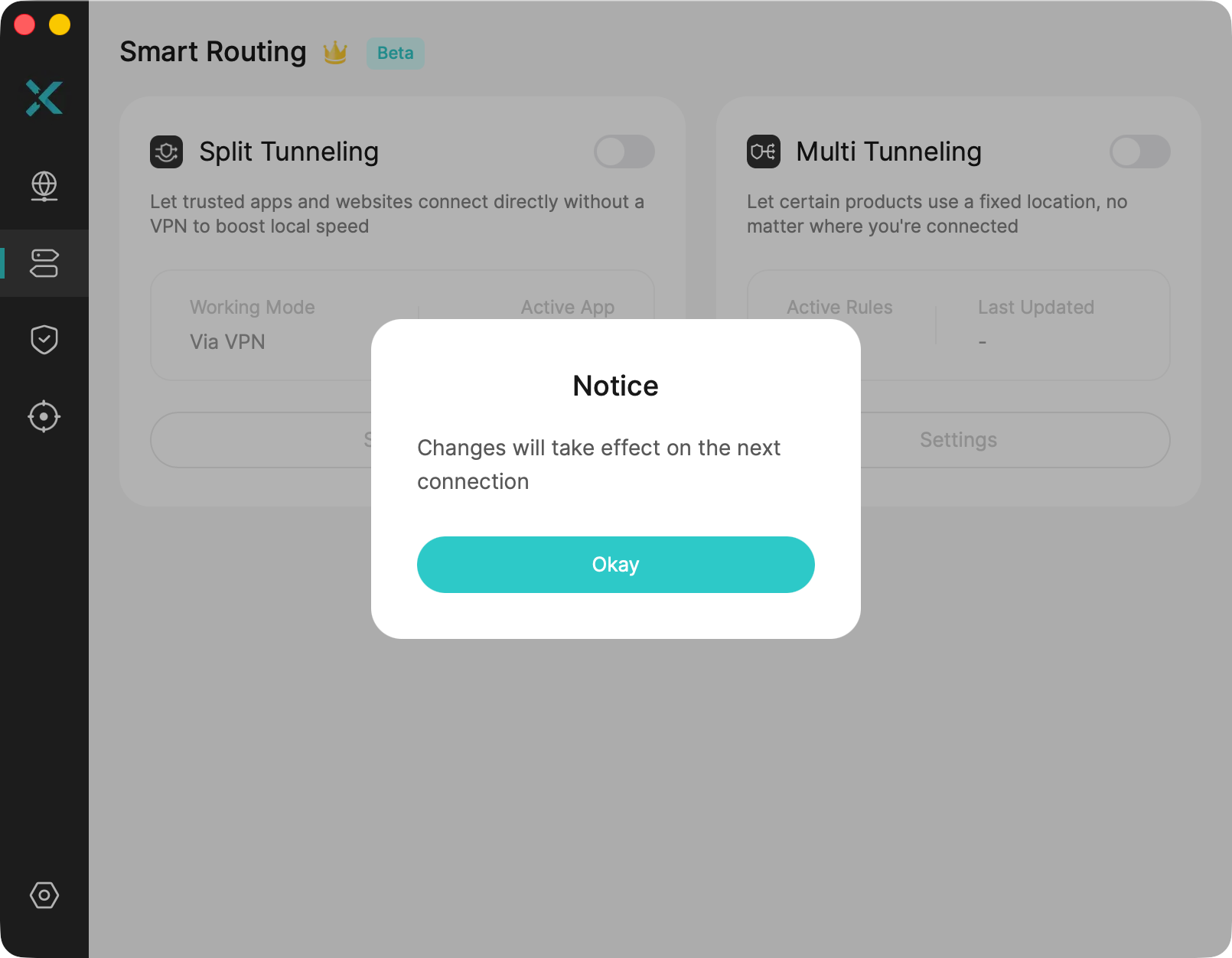

💡That last step matters more than it looks. Your rules don’t apply to a session that’s already running, so if you check your setup without reconnecting first, you’ll be looking at your old routing and wondering why nothing changed.
How To Check Your Split Tunneling Is Working
Please reconnect first. Split tunneling rules take effect on the next connection after setup, not from the current connection. If you skip this step, you are testing an older routing setup.
Open Your Apps And See Where They Think You Are
Go through the apps and sites you added to your list and look at what each one reports about your location. Most services tell you without being asked:
- Browsers are easiest to test: visit any IP checker and read the result directly.
- Streaming services often load a different catalogue per region. If a streaming service or local broadcaster shows you the library you’d expect at home, that website might be connecting directly.
- Shopping sites could switch currency, or offer to redirect you to another country’s store.
- Search engines and news sites might change language or serve regional results.
Optional: Check How DNS Is Being Routed
Split tunneling controls where an app’s traffic goes, but DNS requests don’t always follow the same route. Depending on the VPN, an excluded app may still use the VPN’s DNS resolver, or its DNS requests may go through your ISP instead.
You can run a DNS leak test to check how your browser is being routed. Run the test in Via VPN mode and note the DNS server and public IP address. Reconnect and test in Bypass VPN mode.
If the DNS results change along with the public IP, DNS is likely following the split-tunnel rule. If DNS results stay the same, your VPN may be handling DNS separately.
That doesn’t mean apps will handle DNS the same way, but it helps clarify browser operation.
If The Results Come Back Backwards
If an app you excluded shows the VPN’s location, or one you protected shows your real one, check if you selected the wrong option. Go back and see whether you’re in Bypass VPN or Via VPN before you touch the list itself.
When To Use Split Tunnel, And When To Stay On Full Tunnel
Situation | Use |
|---|---|
An app that flags you for verification when it sees a VPN IP, like banking or payments | Split Tunnel |
Content or services tied to where you actually are, like a local streaming library or a home-region game server | Split Tunnel |
A game where the extra hop to the VPN server costs you too much latency | Split Tunnel |
Public Wi-Fi, hotels, airports, cafés | Full Tunnel |
Anything you’d rather your ISP didn’t see | Full Tunnel |
One entry in the second half is worth explaining.
Public Wi-Fi is safest to use with full tunneling. You connect to a VPN on an untrusted network precisely because you can’t trust what’s between you and the internet. If you use split tunneling routinely, it’s worth switching back to full tunnel when you’re out.
A third case doesn’t fit either column. Sometimes you don’t want an app outside the tunnel, you want it going through a different country. That’s what Multi Tunneling is for. It keeps every app inside the VPN and assigns different servers to different apps, so you can reach multiple countries on one connection without anything leaving the tunnel.
Summary
Full tunnel is the right default. It protects your internet traffic, there’s nothing to configure, and there’s nothing to get wrong.
Split tunneling is a fix for a specific problem: an app or website that needs to see your real IP or your real location, such as your bank, a local streaming library, a game server at home. Use it for those and leave the rest in the tunnel.
Whether split tunneling is worth setting up depends on how you use your VPN. If nothing on your device needs to see where you actually are, you don’t need it. If one or two apps do, it’s a minute of setup and a quick check afterwards.
FAQs
Is split tunneling safe?
It’s safe when configured correctly and verified. The failure mode isn’t the feature. It’s the configuration. Traffic you exclude has no VPN protection, so your ISP sees that activity, and the exposure is exactly as large as your exclusion list.
Does split tunneling make my VPN faster?
No. It reduces how much traffic goes through the VPN. Excluded traffic runs at your normal speed because it isn’t being encrypted or rerouted. The tunnel itself is unchanged.
Is a full tunnel always more secure?
In practice, yes, mostly because all your traffic is under VPN’s encryption and protection, and there’s less to get wrong.