Using a VPN is not complicated, but many beginners tend to get stuck in one of three places: choosing the right app, figuring out the setup process, or trying to tell whether the VPN is actually working after they connect.
This guide is written for all three situations. Based on the most common questions beginners have when they first try X-VPN or another VPN app, we’ll start with the simplest and safest path, then explain the settings and terms that matter later — without burying you in technical details from the start.
In 2026, many people first encounter VPNs not by manually entering complicated settings on a computer, but by downloading an app on their phone, tapping connect, and then trying to confirm whether it is really on. That is why a modern beginner’s guide should focus first on the practical questions: where to download it, what to do first, and how to confirm that the VPN is actually working — instead of jumping straight into protocols, routing, and advanced options.
Table of Contents
The Fastest Way to Get Started with a VPN
If you just want the shortest path, follow these five steps:
Choose a legitimate VPN that has an official app.
Download it from the official website or app store.
Install the app and sign in.
Tap Quick Connect, or choose a nearby server.
Make sure both the app and your device show that the VPN is connected.
For most first-time users, that is enough. The goal is not to understand every setting right away. The goal is to complete one successful connection and know what “connected” actually looks like. Once you do that, everything else becomes easier to understand.
Do You Need a VPN App, or Are Built-In Settings Enough?
For most beginners, the answer is simple: start with the VPN provider’s official app.
Phones and computers do have built-in VPN settings, but those usually make more sense for people who already have manual setup details, such as a server address, login credentials, or configuration files. This is more common in remote work setups, self-hosted VPNs, or more advanced installations.
For example, if your employer gives you VPN credentials for remote access, if you run your own VPN server, or if a provider gives you configuration files instead of a full app, then the built-in VPN settings can be useful. In those cases, you already know what information to enter and what kind of connection you are setting up.
But for someone using a VPN for the first time, built-in settings usually create extra friction. You have to know where to enter the details, what they mean, and how to confirm that the connection is working. An official app is usually easier because it combines installation, server selection, connection status, and basic troubleshooting in one place.
So here is the simple version: if you already have clear manual setup details, built-in VPN settings may work fine; if this is your first time using a VPN, the official app is usually the easier option.
X-VPN offers a free VPN with no sign-up required. Just download it, connect as a guest, and try it today. Download X-VPN for free today!
Two Things to Check Before You Install
Before you download anything, make sure you check these two things.
1. Does It Have an Official App?
For a first-time user, ease of setup and clarity matter more than a long list of features.
A beginner-friendly VPN should make these things easy to understand:
where to download it
how to sign in
how to connect
whether it is currently active
A lot of beginners get distracted by feature overload. They start comparing protocols, specialty servers, routing tools, and advanced settings before they have even made one successful connection. That usually makes the whole process feel harder than it needs to be.
Your first VPN does not need to look powerful. It needs to look clear. If the app makes downloading, signing in, and checking connection status easy to understand, that is already a strong sign that it is beginner-friendly. Getting started smoothly matters more than having the longest feature list.
2. Are You Downloading It from an Official Source?
Try to download only from these two places:
the VPN provider’s official website
the official app store
Do not install VPN apps from random download sites, mirror pages, “cracked” versions, modified apps, or forum links. A VPN interacts closely with your internet connection and system permissions, so the source matters a lot. If the download source feels questionable, stop there.
In practice, an “official source” should mean the provider’s real website or a legitimate app marketplace — not a page that copies the brand name, not a third-party installer, and not a file someone uploaded to a forum or software directory.
If the download path feels messy, full of ads, or generally suspicious, that alone is a warning sign. For beginners, a good installation experience should feel direct, clear, and trustworthy from the beginning.
How to Install and Connect to a VPN
If you downloaded a legitimate VPN app, the setup process is usually not that hard. What makes beginners hesitate is often not the installation itself, but the first permission prompt or the uncertainty that comes after connecting.
Step 1: Install the App
Install the VPN app on your phone, tablet, or computer.
If you are using a phone, this step usually feels like installing any other app. You just download it and follow the normal prompts. Some devices may show system messages related to network access during installation or the first launch. That is normal and does not usually mean anything is wrong.
Step 2: Sign In
Open the app and sign in using the method it offers. Common options include:
email and password
a one-time code
Google sign-in
Apple sign-in
For most beginners, there is nothing unusual about this step. The important part is not choosing the “best” sign-in method — it is simply getting through the login flow so you can reach the connection screen.
Step 3: Allow VPN Permission
This is the point where many first-time users pause.
Your device may ask whether you want to allow the app to add VPN settings or create a VPN connection. If you downloaded the app from an official source, this is usually a normal part of the setup process. You need to allow it so the app can create and manage the VPN connection properly.
Many people get nervous when they see a system-level permission prompt for the first time. That makes sense. But for a legitimate VPN app, this step is usually necessary, not suspicious.
Step 4: Connect to a Server
After you sign in and allow permission, you are usually ready to connect.
If you do not have any special needs yet, start with one of these:
Quick Connect
Connect
Fastest Server
a server near your actual location
For most beginners, it makes more sense to use the recommended default option than to manually choose a server in a faraway country right away. At this stage, the goal is not to find the “best” server. The goal is to make one clear, stable connection and confirm that it worked.
Step 5: Check the Connection Status
Before you close the app, confirm that it clearly shows you are connected.
Look for signs like these:
Connected
Protected
a visible server location
a connection timer
a status indicator showing the VPN is on
Just because the app is open does not mean the VPN is actually connected. Always check the status carefully. A lot of beginners do not make mistakes by tapping the wrong button — they make mistakes by not checking the result.
VPN Setup Checklist
After setup, use this quick checklist:
downloaded from the official website or app store
installed the app
signed in successfully
allowed VPN permission
connected to a server
the app says Connected or Protected
the device also shows VPN status
your public IP or visible location changed
If most of those boxes are checked, your VPN setup is probably working as expected.
For a first-time user, your goal can stay simple: complete one successful connection, make sure the status clearly shows that you are connected, and only then start learning the extra features. That is usually the fastest and least stressful way to begin.
How to Tell If Your VPN Is Actually Working
This is often the part beginners feel most unsure about. Installing a VPN is one thing. Knowing whether it is truly working is another.
Here are the main ways to check.
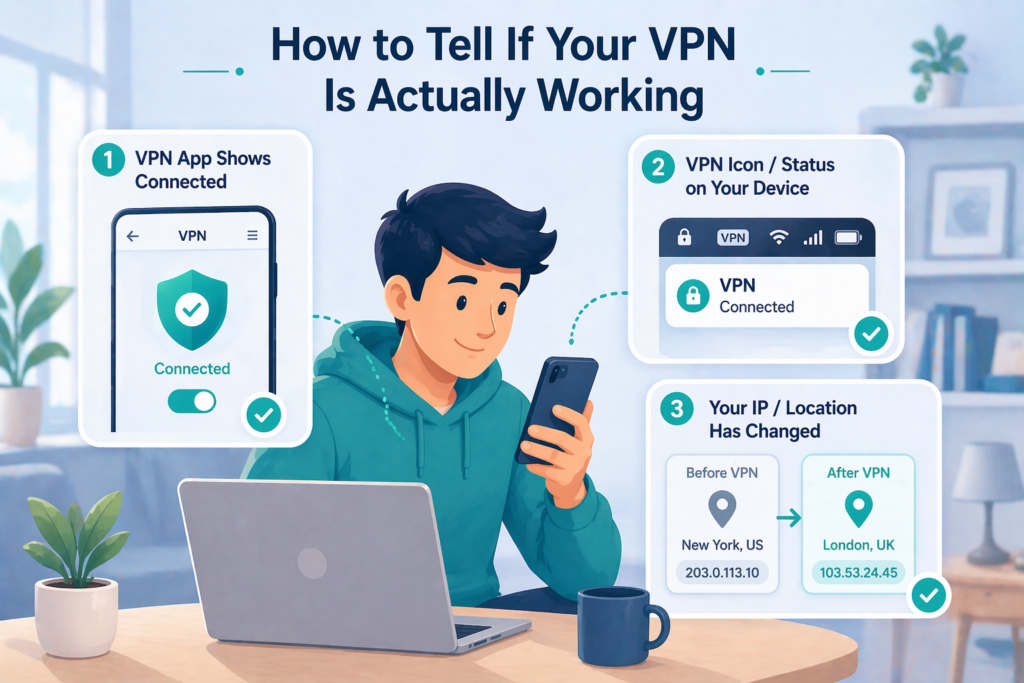
Check 1: The App Says You Are Connected
The most obvious place to check is the VPN app itself.
Look for things like:
Connected
the current server or location
a connection timer
Protected
If the app clearly shows an active session, that is a good first sign. In many cases, if the status screen is clear, you do not need to run complicated technical tests right away.
Check 2: Your Device Also Shows VPN Status
Besides the app, your phone or computer may also show that a VPN is active.
For example:
your phone may show a VPN icon in the status bar
your computer may show VPN status in network settings
You do not need to dig deep into system menus. You are simply looking for a second confirmation: not only does the app say you are connected, but the device itself recognizes the VPN connection too. That extra confirmation can make a big difference for first-time users.
On iPhone, the VPN icon in the status bar is one of the easiest ways to confirm that the device is connected using VPN.
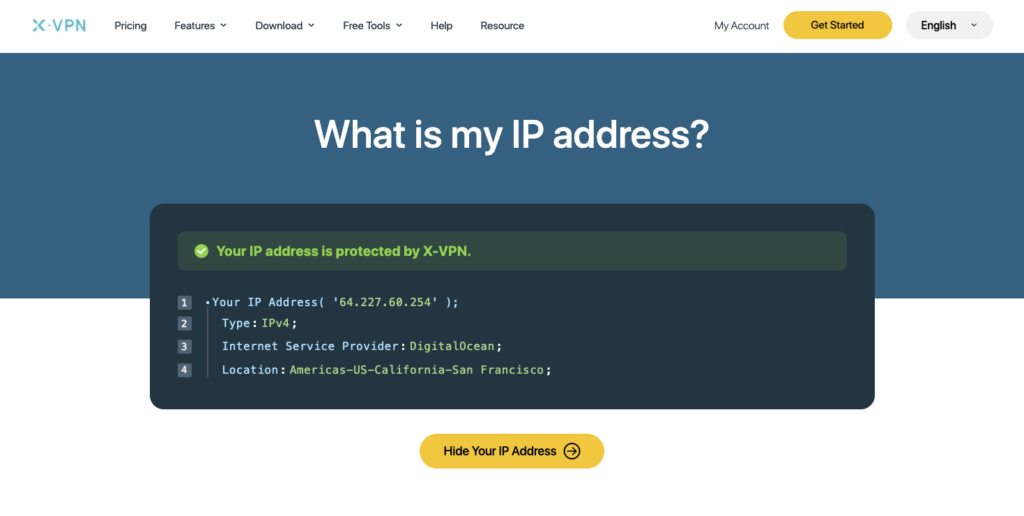
Check 3: Your Public IP or Visible Location Changes
If you want a stronger confirmation, compare your public IP address or visible location before and after connecting.
If those details change after you turn on the VPN, that usually means your traffic is now going through the VPN server. For many beginners, this is one of the most reassuring checks because it gives a more visible result than just reading the word “Connected” on the screen.
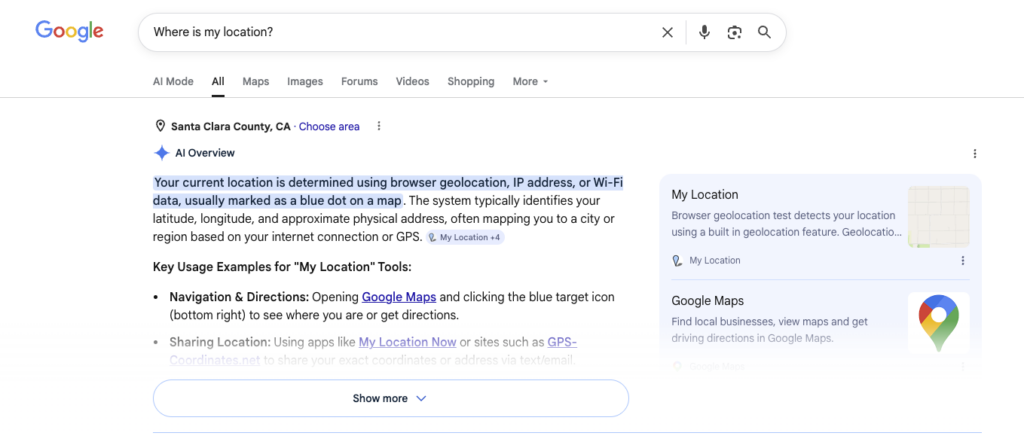
Alternatively, you can Google ‘Where is my location?’
This is not something you need on day one, but it helps to know that it exists.
If you want to be extra sure your device is not still exposing certain network requests outside the VPN, a DNS leak test can give you more confidence. But for most beginners, this belongs in the “learn later” category, not the “must do right now” category.
For a first setup, these three checks are usually enough:
Check the app status
Check the device’s VPN status
Check whether your IP or visible location changed
If those three things line up, you can usually feel confident that the VPN is working.
The Most Common Beginner Mistakes
VPNs are not that hard to use, but beginners often make the same avoidable mistakes.
Downloading from Third-Party Sites
Try to use only the official website or app store. If the install path feels messy or suspicious, do not continue.
A lot of problems do not start with “I do not know how to use a VPN.” They start because the wrong app was downloaded in the first place. For beginners, getting the source right matters more than understanding every feature.
Assuming the App Being Open Means the VPN Is On
This is one of the most common mistakes. Installing the app does not mean it is active, and even opening it does not always mean it is connected. Always look for a clear Connected status.
Many people think opening the app means they are done. But the key question is whether a real VPN connection has actually been established.
Rejecting the Permission Prompt
If your device asks for VPN permission and you reject it, the app may not be able to create the connection properly.
This happens a lot because system-level permission prompts can look intimidating the first time. But if you downloaded the app from an official source and you are setting up a real VPN, that permission is usually necessary.
Choosing a Very Distant Server Right Away
If you connect to a server on another continent for no reason, slower speeds are normal. For your first try, it is usually better to use Quick Connect or a nearby server.
A lot of beginners instinctively choose a faraway country because it feels like a more dramatic change. But that usually increases latency and makes troubleshooting harder. Starting close and stable is usually the better move.
Overthinking Protocol Settings Too Early
Many beginners see protocol names and assume they need to start optimizing immediately. Usually, that is not necessary. If the VPN seems slow, the first thing to check is often server distance, not the protocol menu.
For a first-time user, the default settings are usually the best place to start. Use the VPN first, then decide later whether anything needs to be adjusted.
Assuming a VPN Means Total Anonymity or Total Safety
A VPN is useful, but it is not a magic shield. It can help protect your connection in some situations, but it does not replace:
HTTPS
strong passwords
two-factor authentication
software updates
awareness of phishing sites
A better way to think about it is this: a VPN is one layer of protection, not the whole system. Once you understand that, it becomes easier to use it well.
Your VPN Says Connected, but Something Still Feels Off
Sometimes the app says you are connected, but something still seems wrong. If that happens, start by checking these things.
Your Location Did Not Change
Disconnect and reconnect, then test again. If it still looks wrong, manually choose a different server and see whether the visible location changes.
Sometimes the problem is not that the VPN failed completely. The issue may just be the server you chose, the way the test site detects location, or a temporary cache issue. A simple reconnect is often a better first step than assuming the whole setup is broken.
Your Speed Dropped a Lot
Try a server closer to your real location before touching advanced settings. Many beginners underestimate how much distance affects speed.
If your first server is very far away, some slowdown is expected. Rule out distance first, then worry about protocols or advanced options later.
A Hotel, Airport, or Public Wi-Fi Network Is Blocking the Connection
Some public networks behave strangely until you fully join them. If you see a login page, captive portal, or access screen, finish that process first, then reconnect the VPN.
A lot of people assume “the VPN will not connect” means the app is broken. But sometimes the real issue is that the network itself has not fully admitted your device yet.
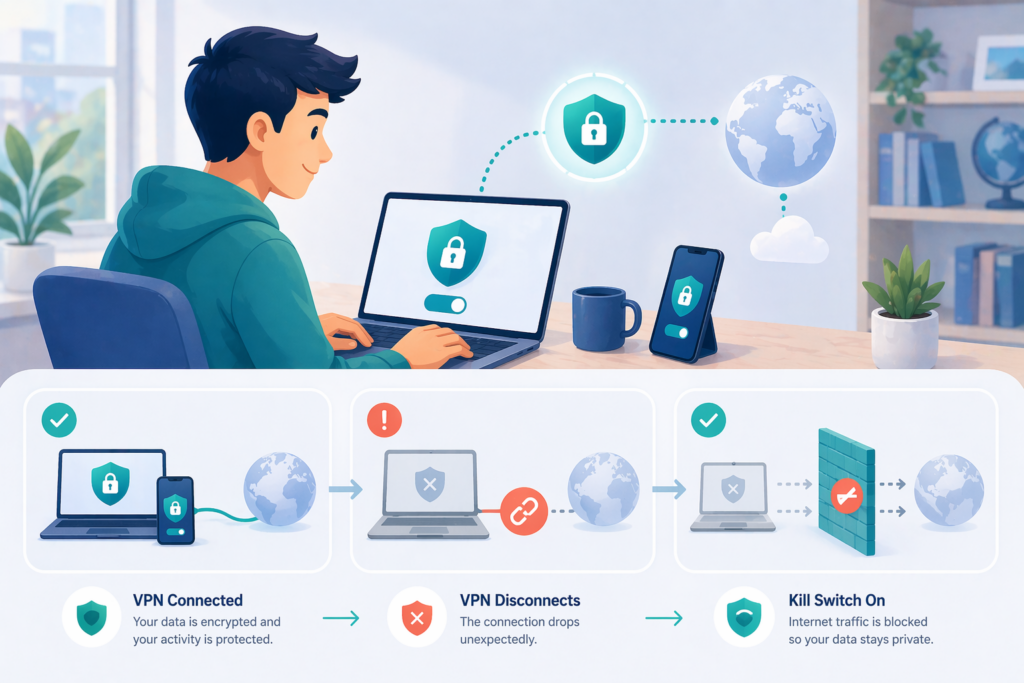
Your Internet Stops When the VPN Disconnects
Check whether Kill Switch is turned on. That feature is designed to block regular traffic if the VPN drops, so it can look like your internet suddenly stopped working.
The first time this happens, it is easy to think the app is malfunctioning. But sometimes the opposite is true — the protection feature is working exactly the way it was designed to.
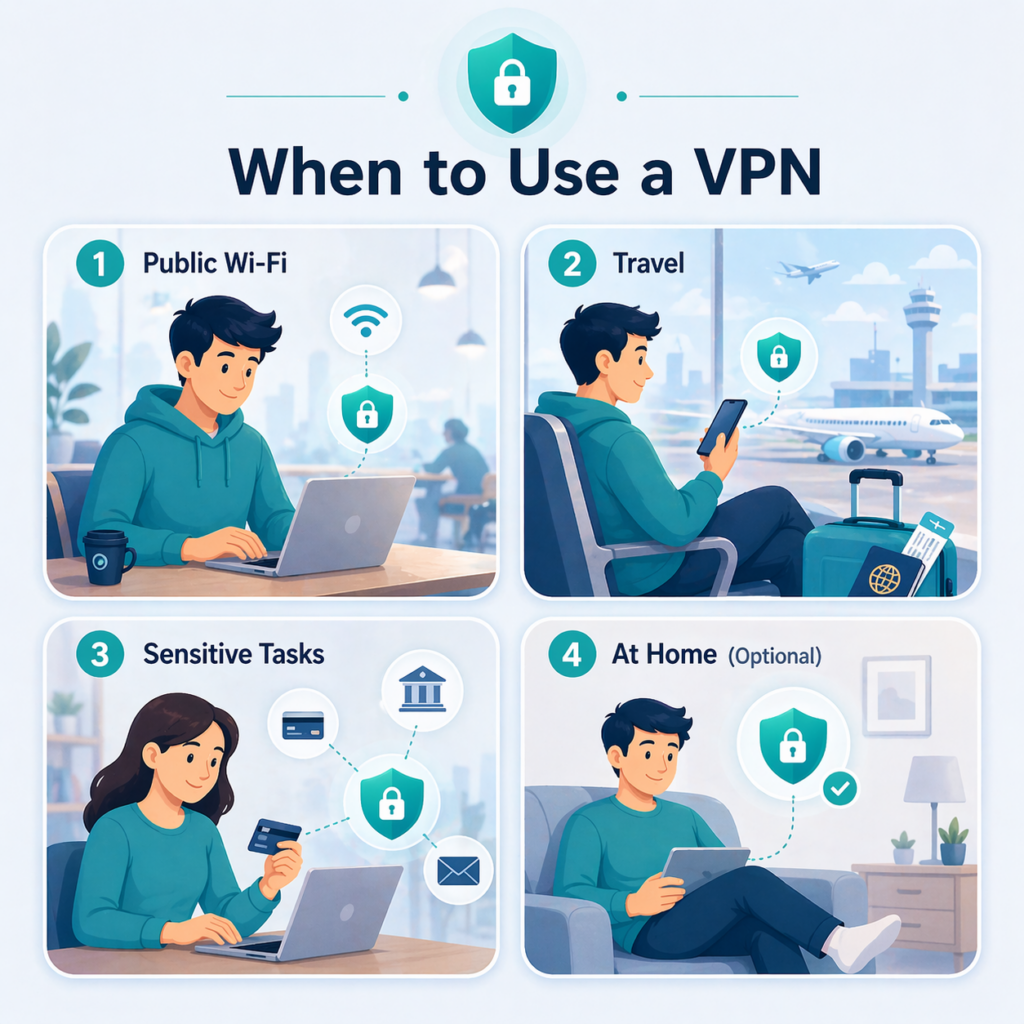
When Is It Worth Turning On a VPN?
You do not need to think about your VPN every second you are online, but there are situations where it makes more sense to use it.
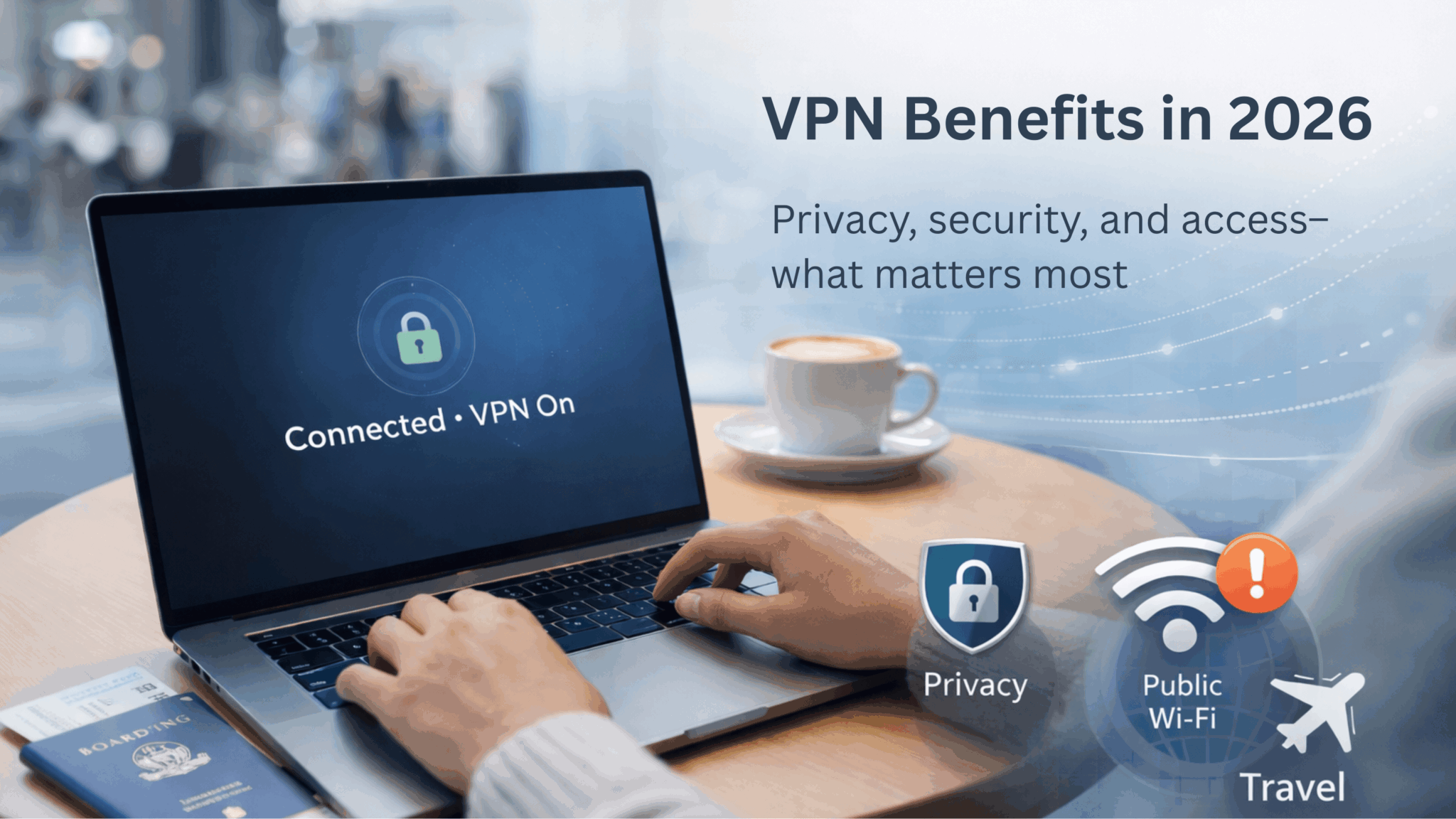
Public Wi-Fi
This is the easiest case to remember.
Today, many websites and services already use encryption, so public Wi-Fi is not automatically as dangerous as it was in the early internet days. But that does not mean unfamiliar networks are completely worry-free. You still do not control the network itself, and you can still run into phishing pages, weak passwords, or outdated devices.
So the more accurate way to think about it is this: a VPN is still useful on public Wi-Fi, but it is better understood as an extra layer of connection protection, not your only line of defense. For beginners, turning on a VPN whenever you join a network you do not control is usually a solid habit.
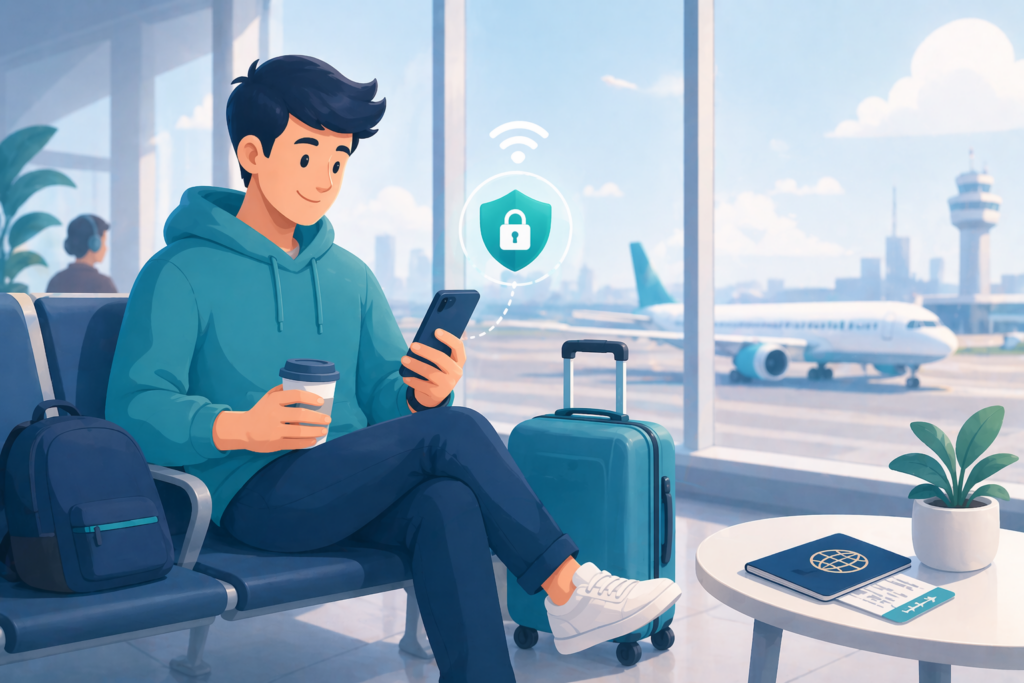
While Traveling
When you travel, you are more likely to connect to unfamiliar networks. That is when a VPN often becomes more useful. For a closer look at this use case, see why a VPN is a must for travel.
The issue is not just that you are away from home. It is that you may be connecting through hotels, airports, shared workspaces, temporary rentals, and other networks you know very little about. Keeping your VPN on in those situations can make the whole connection process feel more consistent and more controlled.
For many beginners, travel is actually one of the easiest situations in which to build the habit of using a VPN.
When Handling Sensitive Tasks
If you are checking email, managing accounts, changing payment settings, opening work files, or doing anything sensitive on a network you do not fully trust, turning on a VPN is usually a smart move.
The point is not that every important task is automatically dangerous. The point is that these tasks often involve personal information, account access, or financial details. If the network feels unfamiliar, adding one more layer of connection protection is usually reasonable.
For beginners, it may help to think of a VPN as a tool to turn on whenever you want your connection to feel more controlled — not as something you need to overanalyze every time.
At Home
At home, it depends more on your habits and preferences.
Some people use a VPN only on public networks. Others prefer to leave it on more often for an extra layer of privacy. Both approaches are normal. For most people, home is not a situation where a VPN must always be on, but if you prefer a more consistent setup or simply feel more comfortable leaving it connected, that is fine too.
A simple beginner rule is this: if you do not control the network, turn the VPN on. At home, it is more about preference than strict necessity.
A good rule of thumb is:
The less you trust the network, the more useful a VPN becomes.
On day one, you do not need to master every VPN term. But there are a few worth recognizing.
Split Tunneling
Split tunneling means some apps or traffic go through the VPN while others bypass it and use your normal connection.
For example, you might want your browser to use the VPN while another local app does not. Beginners usually only notice this setting when an app does not work well through the VPN, or when they want only certain activities to stay behind the VPN.
Most first-time users do not need to touch this right away. It helps to think of it as a more flexible way to route traffic, something you can explore later if you run into a specific need.
Kill Switch
Kill Switch blocks normal internet traffic if the VPN disconnects unexpectedly. This helps prevent your traffic from switching back to your regular connection without you noticing.
A lot of beginners do not think about this feature until something goes wrong. If your VPN drops and your internet suddenly stops, Kill Switch may be the reason. That can feel alarming the first time, but it usually means the protection is working as intended.
For a beginner, the key idea is simple: if your internet suddenly cuts off after the VPN drops, that is not always a bad sign — sometimes it means the safety feature is doing its job.
Server Location
A server location is the place where your traffic exits to the internet.
If you choose a server in another country, websites may see your location as coming from there. For beginners, this setting matters most for two reasons: speed and visible location.
In most cases, a nearby server is the easiest first choice because it is usually faster and easier to troubleshoot. Unless you have a specific reason to switch regions, there is no need to jump around between lots of countries on your first day.
Which VPN Protocol Should Beginners Use?
Most beginners do not need to change protocols manually. If you want to understand the differences in more detail, you can read more about VPN protocols. . For a first-time user, the most important thing is not understanding every technical difference — it is confirming that the default setup works reliably.
WireGuard
WireGuard is a newer protocol that is often fast and efficient. Many VPN apps use it as a default or recommended option.
For beginners, you do not need to understand the technical details. The practical takeaway is simple: if the app recommends it and the connection works well, there is usually no reason to change it.
OpenVPN
OpenVPN is one of the most common and longest-running VPN protocols. It is widely supported and still very common.
You may see:
OpenVPN UDP
OpenVPN TCP
In simple terms, UDP is often faster, while TCP can sometimes be more stable. But that does not mean you need to choose between them on day one. If the default setup works, most beginners do not need to spend much time comparing them right away.
IKEv2 / IPsec
IKEv2 / IPsec often appears in built-in system VPN settings or manual setup situations. Seeing it there is normal.
For beginners, the main thing to understand is not “how to choose it,” but that some VPN setups are simply more system-based and manual than app-based. That is one reason official apps are usually easier for first-time users.
So When Should You Change Protocols?
Most beginners should stick with the default protocol.
The main reasons to switch are practical, not technical. For example, the VPN feels unusually slow, disconnects often, or has trouble working on a certain network. If everything feels stable, you usually do not need to touch it.
For beginners, the best order is simple:
connect first
use it normally
only change protocols later if speed, stability, or compatibility becomes a real problem
FAQ
Do I Have to Download a VPN App? Can I Just Use Built-In Settings?
You can use built-in settings, but for most beginners, the official app is easier. Built-in settings make more sense when you already have manual setup details from work, a self-hosted VPN, or a provider that gave you configuration files.
Where Is the Safest Place to Download a VPN?
Usually, the safest places are the provider’s official website and the official app store. Try not to get VPN apps from third-party download sites, mirror pages, forum attachments, or unknown installer files.
Start by checking whether the app clearly says Connected. Then confirm that your device also shows VPN status and that your public IP or visible location changes after you connect.
Which Server Should I Choose First?
If you do not have any special needs yet, use Quick Connect or choose a server close to your physical location. That is usually the simplest and most stable place to start.
Should I Change the Protocol Right Away?
Usually not. Start with the app’s recommended default. Only think about switching if you run into speed, stability, or compatibility problems.
Will a VPN Slow Down My Internet?
It can. The impact depends on the server you choose, the distance, the protocol, and the quality of your normal connection. If it feels slower than expected, try a closer server before changing advanced settings.
Does a VPN Use More Battery?
Usually yes, because your device is maintaining an extra encrypted connection in the background. For most people, the difference is not huge, but it can be more noticeable on a phone if the VPN stays on for long periods and the device switches networks often.
Does a VPN Make Me Completely Safe?
No. A VPN can improve privacy and connection protection in some situations, but it does not replace strong passwords, two-factor authentication, software updates, or safe browsing habits.
Final Takeaway
If this is your first time using a VPN, you do not need to understand every setting on day one.
The simplest path is enough:
Download a legitimate VPN app from an official source
Install it and sign in
Connect to a server
Confirm that it is actually working
If you are using X-VPN, the best way to start is usually the same: begin with the official app, complete one clear and stable connection, and then learn about protocols, split tunneling, Kill Switch, and other advanced features over time.