


Choosing the right DNS server can help you avoid lag and disconnections while gaming, make game downloads or updates smoother, and offer you a safer internet environment.
Don’t know where to find a suitable one? Check below, we’ll explore the 6 best DNS servers for gaming.
Table of Contents
TL;DR
Here is a quick summary offered for you to get info quickly.
DNS Provider | Primary Server | Secondary Server | Key Point |
|---|---|---|---|
Cloudflare | 1.1.1.1 | 1.0.0.1 | Fastest free service |
Google Public DNS | 8.8.8.8 | 8.8.4.4 | All-round free service |
Quad9 | 9.9.9.9 | 149.112.112.112 | Robust security |
OpenDNS | 208.67.222.222 | 208.67.220.220 | Customized filters |
CleanBrowsing | 185.228.168.9 | 185.228.169.9 | Focus on Privacy |
CDNetworks | Regional servers | Regional servers | Distributed infrastructure |
What Is a DNS Server?
The Domain Name System (DNS) servers can be thought of as the “address book/navigation system” of the Internet. When we type in easy-to-remember domain names like abcd.com, the network actually translates them into IP addresses, like 122.1.3.2. DNS works by translating domain names into IP addresses, telling devices which server to connect to.
Simply put, when you type a URL into your browser and hit Enter, DNS first looks up the “destination” for you. This allows your device to successfully connect to the corresponding web server and retrieve the page content.
Essentially, whether browsing webpages, logging into apps, or launching online games, your device must first use DNS to find the correct server entry point. Only then can the subsequent connection proceed.
Does the DNS Server Significantly Impact Gaming?
Indeed, DNS can impact gaming-related network experiences to some extent, but it isn’t the core that determines victory or defeat. It’s more like a small component in the network chain: choosing the right one brings peace of mind; settling for an average one might not cause immediate problems.
Generally, it can make a difference in these areas:
Faster Loading of Game-Related Browsing
Access Gaming Resources without Restrictions
Blocking Threats
Can a DNS Server Affect In-game Pings?
No, it can not. Many people believe that changing your DNS will lower your ping, but that’s not how it works. DNS primarily accelerates the resolution of domain names into IP addresses. It doesn’t handle subsequent data transmission or alter your actual network connection quality.
So even if you use the best DNS for gaming, it can only improve the above three aspects at most—but it won’t increase your bandwidth, nor will it directly reduce your in-game ping.
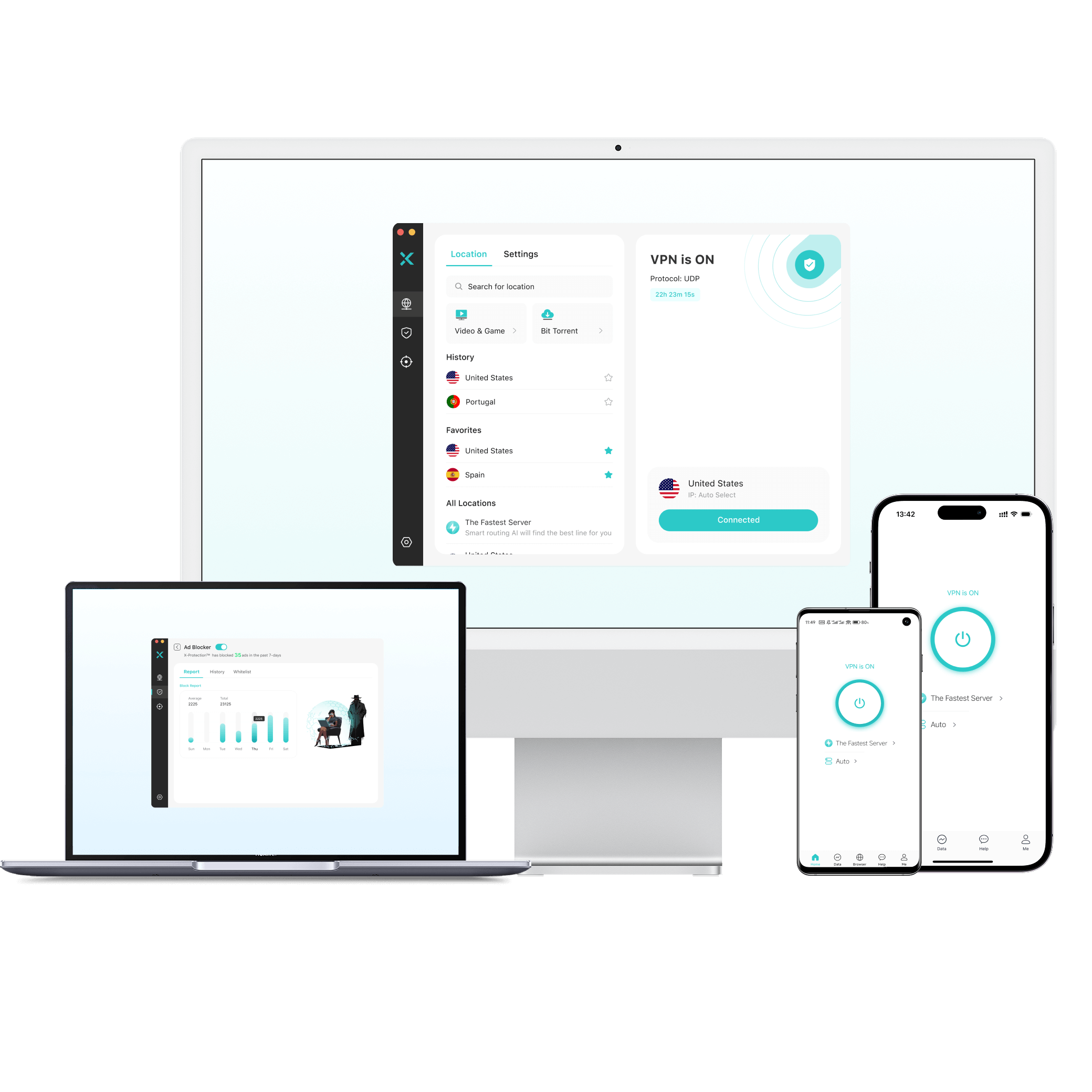
What truly determines your gaming latency is usually the distance between you and the game server (along with the network path in between). The closer the game server is to you and the smoother the connection, the lower your ping will be. If you want to lower your ping, consider getting X-VPN and choose the node closest to your game server from over 10,000 worldwide!
Why Choose X-VPN?
The Best VPN for Gaming with 10,000+ Servers.
Ultra-fast speed.
Dedicated servers for gaming.
Significantly reduce game ping.
Unlock global games and DLC content.
Buy cheaper Steam games or Xbox Game Pass.
Fix game server connections.
Support PlayStation, Xbox, and Switch.
Protect your game accounts with top VPN encryption.
100% free version offered, no login.
Best 6 DNS Servers for Gaming Recommended
After understanding the role of DNS servers, if you need an exceptional DNS server to enhance your gaming journey, consider our top picks for the six best gaming DNS servers of 2026.
Here is a brief list:
- Cloudflare – The Fastest DNS Server for gaming.
- Google Public DNS – All-round free service.
- Quad9 – High-level security.
- OpenDNS – Customized filters.
- CleanBrowsing – Concern for privacy.
- CDNetworks – Distributed infrastructure
Cloudflare
- Primary Server: 1.1.1.1
- Secondary Server: 1.0.0.1
If your needs are straightforward—replacing your current slow DNS without spending a dime—Cloudflare is essentially the most hassle-free option. It boasts free service and fast speeds, consistently performing well in numerous third-party and independent speed tests. Additionally, the company emphasizes that user browsing data won’t be used for targeted advertising, making it more privacy-friendly for those who care.
Gamers should note, however, that Cloudflare does not provide additional online security tools. So if you play web-based games, browse strategy sites, or download resources, avoid casually clicking on ads, pop-ups, or unknown links on pages to steer clear of potential security pitfalls.
Google Public DNS
- Primary Server: 8.8.8.8
- Secondary Server: 8.8.4.4
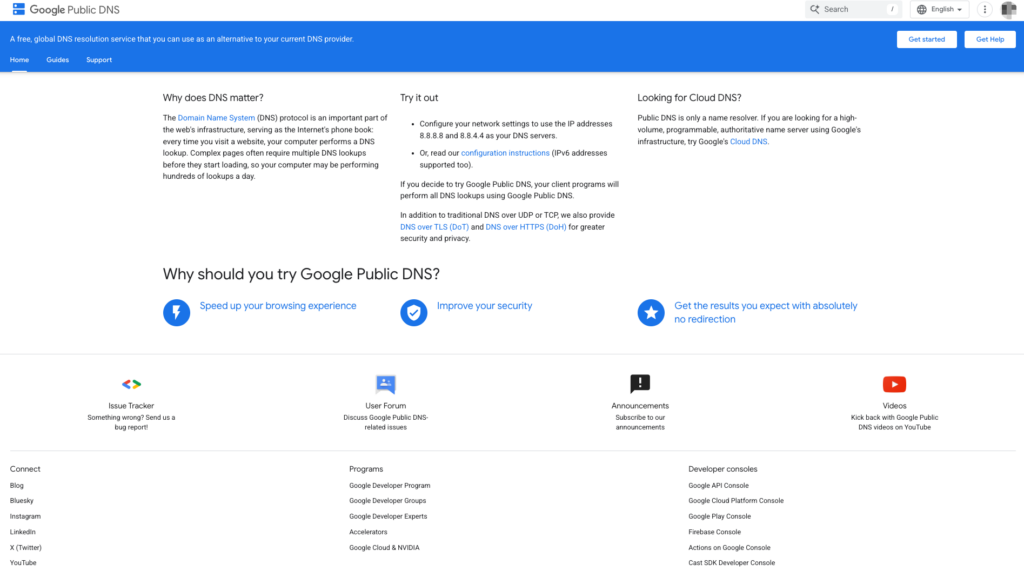
This DNS service, backed by Google, inherently offers stability, extensive coverage, and a large user base. Although Google Public DNS may not consistently rank first in speed tests, its strength lies in being reliable and durable. For most users, it strikes a balanced approach between performance and familiarity. For everyday web browsing or game ranking, it typically delivers a smooth resolution experience, making overall connectivity more hassle-free.
What’s more, while Google Public DNS is also a free service, its positioning differs from Cloudflare’s. Beyond basic resolution, it offers security and privacy-focused functions, like a degree of DDoS protection and support for encrypted DNS protocols like DNS-over-HTTPS (DoH) and DNS-over-TLS (DoT). These encryptions make DNS requests more resistant to eavesdropping or tampering during transmission.
Quad9
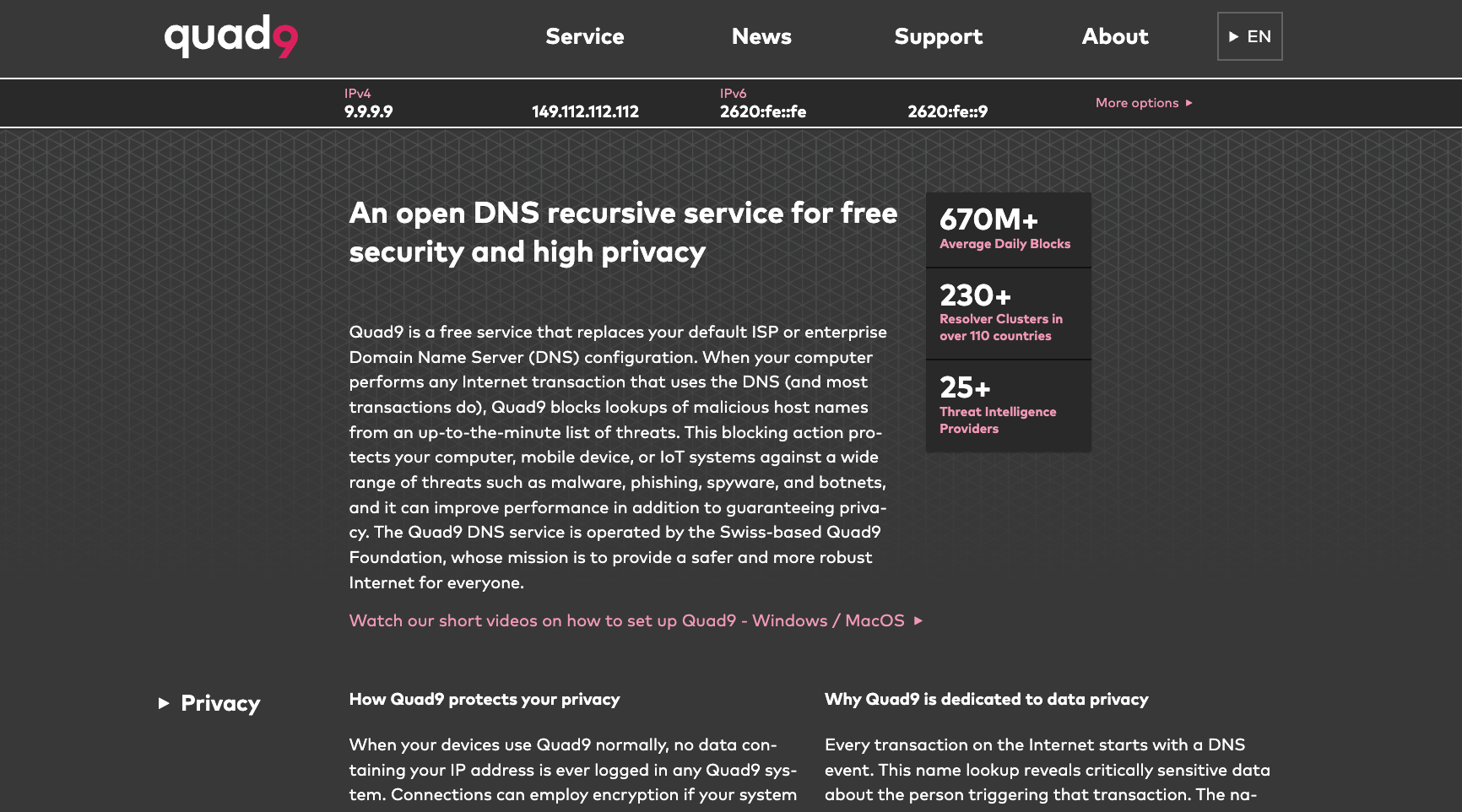
- Primary Server: 9.9.9.9
- Secondary Server: 149.112.112.112
Quad9‘s positioning is clear: prioritizing privacy and security above all else. By integrating multiple threat intelligence sources, it blocks known unsafe domains during the resolution phase, minimizing your chances of accidentally landing on malicious sites or phishing pages. Regarding privacy, Quad9 emphasizes not logging DNS query data and supports encrypted protocols like DNS-over-HTTPS (DoH) and DNS-over-TLS (DoT), making requests harder to intercept or tamper with.
However, users should be aware of its trade-offs: While Quad9 is also free, its speed performance is often less impressive, with potentially slower resolution and response times. Therefore, if your top priority is a safer, cleaner browsing/gaming environment and you’re willing to sacrifice a bit of speed for enhanced protection, Quad9 is an excellent choice.
OpenDNS
- Primary Server: 208.67.222.222
- Secondary Server: 208.67.220.220
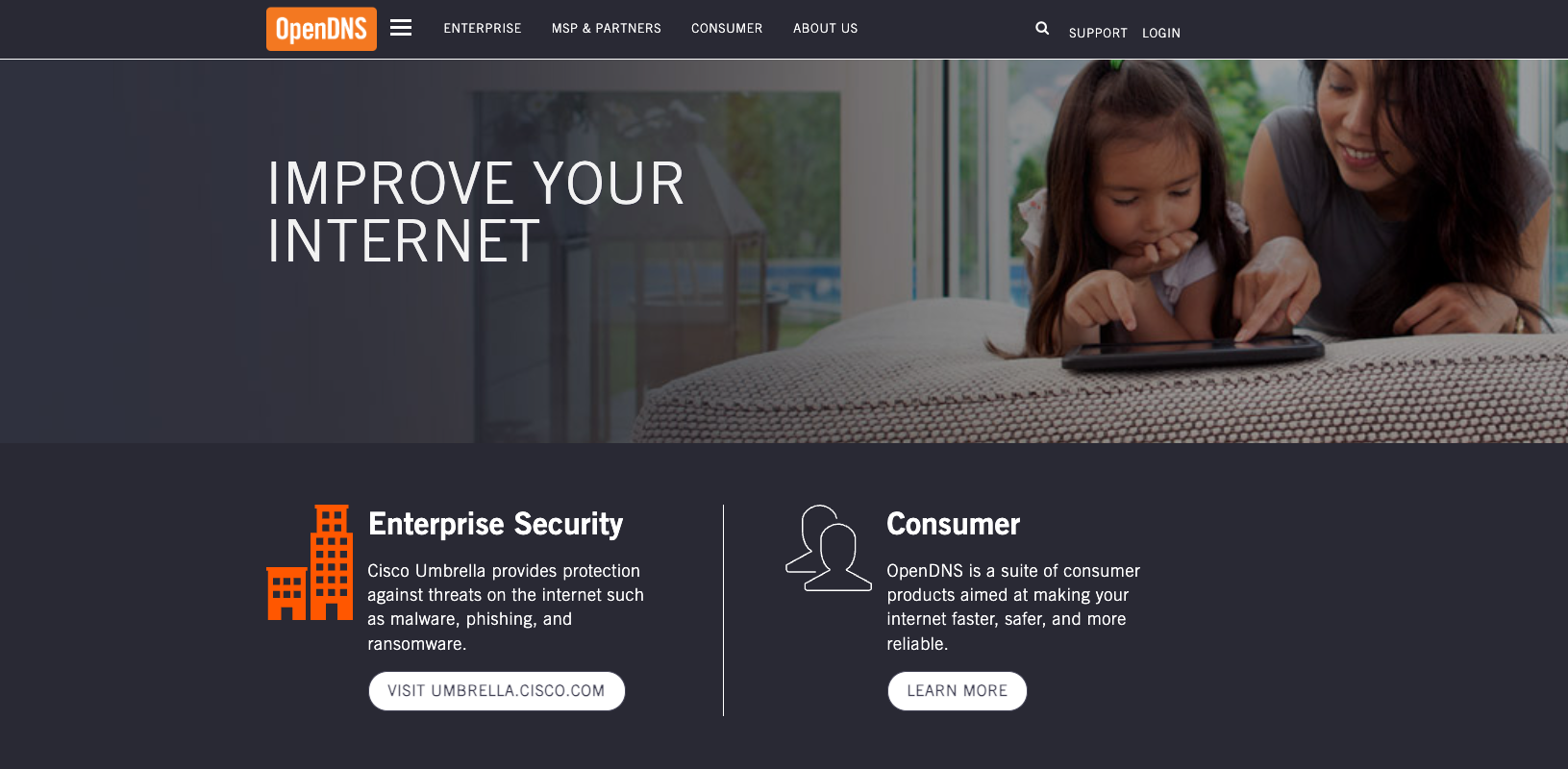
Among the options listed, OpenDNS stands out most for its exceptional controllability—it offers 50+ content filtering options, making it ideal for parents to tailor their children’s online access. Categories like violent language and adult content can be directly blocked via rules, ensuring kids are less likely to encounter inappropriate material while browsing.
Of course, OpenDNS also delivers a solid user experience: it boasts decent resolution speeds and incorporates security features like anti-phishing. Overall, it functions as a speed-and-security-focused parental mode DNS, ensuring smoother browsing for children (and sure for other users) while keeping common risks at bay.
CleanBrowsing
・Primary Server: 185.228.168.9
・Secondary Server: 185.228.169.9
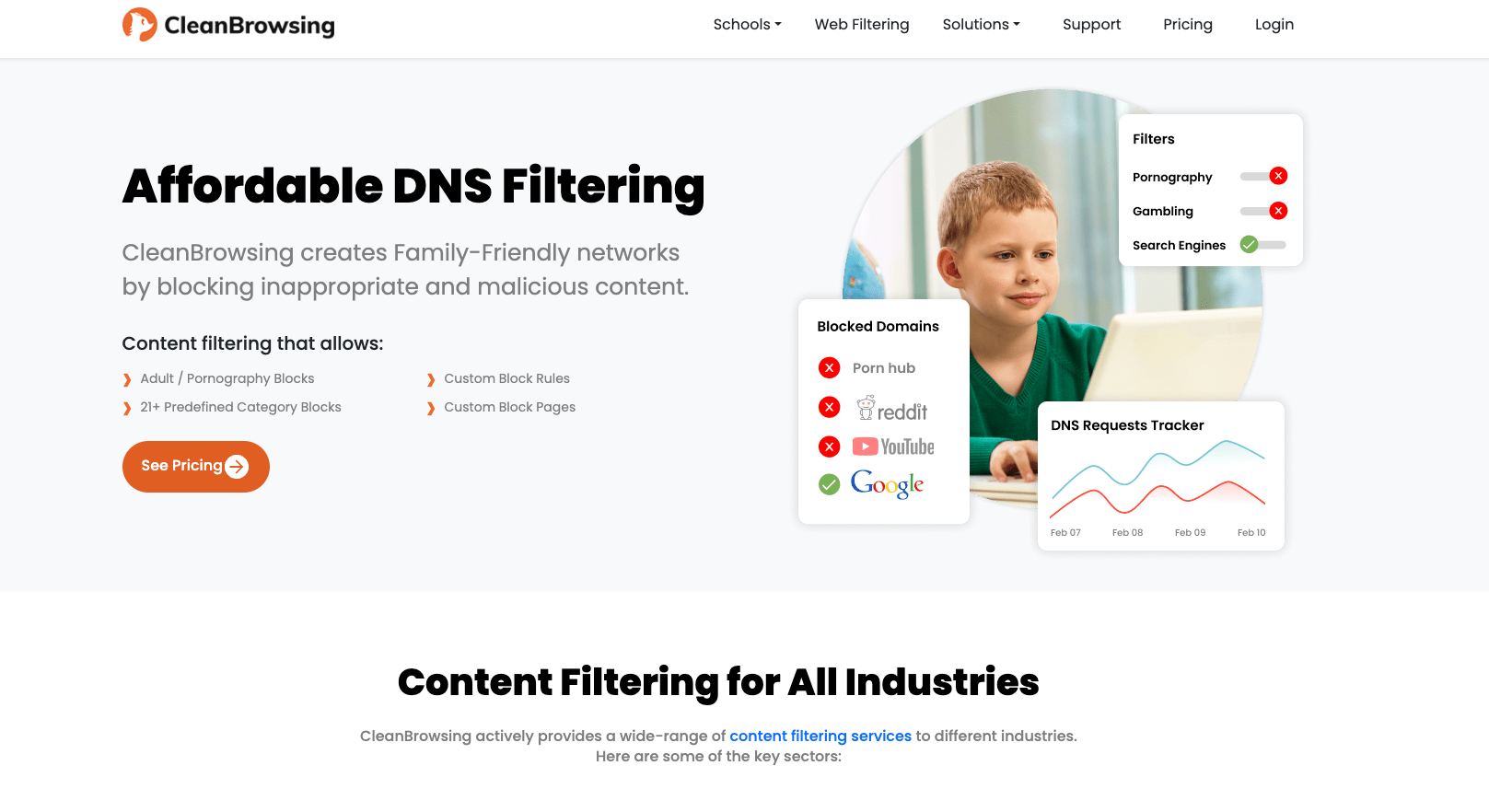
CleanBrowsing is another feature-packed DNS service, though its primary focus leans more toward privacy protection. It’s also quite user-friendly to set up—whether you’re configuring it on your computer, phone, or router, you can get started quickly and adapt it to different devices and network scenarios.
If you frequently play browser-based games, CleanBrowsing can help reduce the risk of tracking to some extent while also cleaning up your network environment—minimizing unnecessary redirects and potential disruptions for smoother, more worry-free gameplay.
CDNetworks
- Primary Server: Regional servers
- Secondary Server: Regional servers
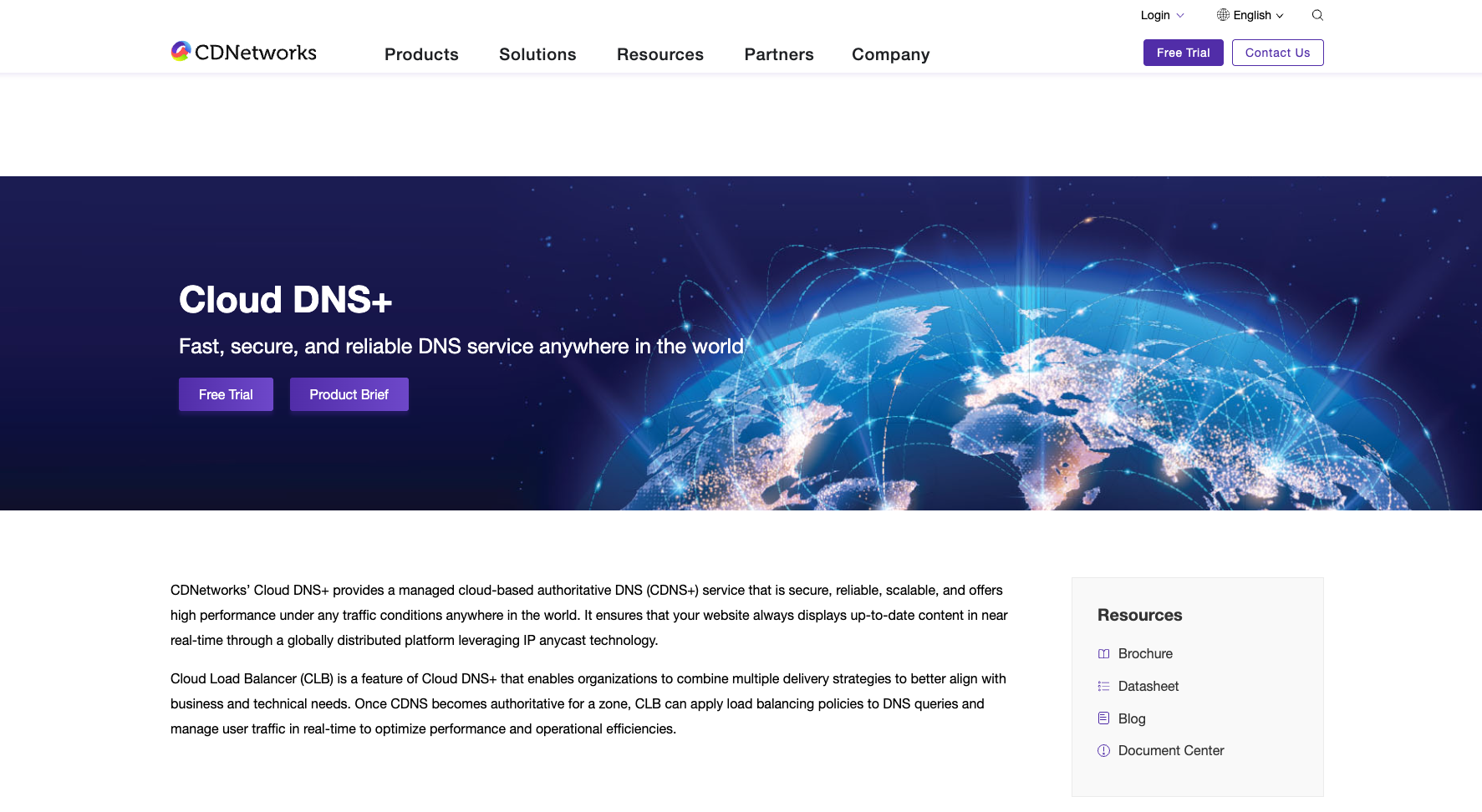
CDNetworks provides cloud-based authoritative DNS services, characterized by support for granular geographic/regional policies. Leveraging its globally distributed network, websites maintain more stable resolution performance and availability across different regions. With no data thresholds, its advanced DNS abilities enable faster synchronization of game-related page content to users, achieving near real-time updates.
Another standout feature is its Cloud Load Balancing. With CLB, service providers can assemble delivery solutions tailored to their specific business and technical requirements: selecting optimal DNS resolution tiers and paths for different players or regions, and dynamically allocating and scheduling traffic accordingly. This ensures consistent performance even during peak periods.
How to Change Your DNS Server?
After selecting the best gaming DNS provider for yourself, you just need to go to the device’s network settings and replace the default DNS address.
Note that the DNS settings locations differ across platforms. No worry—we’ve compiled detailed modification steps for iOS, Android, Windows, and macOS. Just follow them to complete the changes.
How to Change DNS on iPhone/iPad?
Step 1. Open the Settings on your iOS device.
Step 2. Hit Wi-Fi > your Wi-Fi network name.
Step 3. Hit the (i) icon next to the Wi-Fi name and scroll down to Configure DNS.
Step 4. Choose Manual> Add Server and enter the IP address for your preferred/alternate DNS server (like Google Public DNS: 8.8.8.8/8.8.4.4).
Step 5. Save the changes.
How to Change DNS on Android?
Step 1. Navigate to the Settings on an Android device.
Step 2. Move to Wi-Fi or Network & Internet.
Step 3. Press your Wi-Fi network name, then Modify network/Manage this network.
Step 4. Depending on your device, choose an option named Advanced or IP settings.
Step 5. Then choose Static for IP settings > DNS servers section.
Step 6. Now enter the preferred/alternate DNS server address, and save the change.

Step details might vary slightly depending on your Android version and device manufacturer.
How to Change DNS on Windows 10/11?
Step 1. Move to the Settings app> Network & Internet, and hit Change adapter settings.
Step 2. Right-click the network connection> Properties.
Step 3. Hit Internet Protocol Version 4 (TCP/IPv4) > Properties.
Step 4. Below “Use the following DNS server addresses”, click the option button.
Step 5. Input the DNS provider’s preferred/alternate DNS server address you choose.
Step 6. Choose OK to save.
How to Change DNS on macOS?
Step 1. Head to System Preferences> Network, and find the network connection (Wi-Fi or Ethernet) option.
Step 2. Tap the Advanced> DNS tab>, then click the “+” button to add a new DNS server.
Step 3. Type the IP address for your preferred and alternate DNS servers.
Step 4. Hit OK and save.
What to Do When the DNS Server Isn’t Responding?
Sometimes you might encounter a “DNS server not responding” prompt. This usually doesn’t mean your network is completely down; it’s more like a temporary hiccup in the connection chain.
Here are some quick fixes for you.
Restart Devices
Perform basic troubleshooting: restart your computer, router, and modem. This simple action often clears temporary glitches.
Step 1. Turn all devices off completely for more than 30 seconds.
Step 2. Reboot in sequence: modem> router> computer.
Step 3. Now check whether your DNS works.
Use a Different DNS Server
If you are currently using a private DNS, you can switch to a more widely available public DNS (like Google Public DNS or Cloudflare DNS) to test and restore your connection.
Step 1. Locate the DNS settings on the device.
Step 2. Enter the IP address of a public DNS server you wanna use.
Step 3. Save the change and verify if it works.
Clear DNS Cache
Over time, devices accumulate a cache of previously resolved IP addresses. Some of these entries may have expired or become corrupted, leading to access issues. Clearing the DNS cache essentially forces the system to “re-route” its queries, resolving many DNS problems in the process.
・For Windows:
Step 1. Type the Command Prompt and open it on your device.
Step 2. Input “ipconfig /flushdns” and press the Enter key.
・For Mac:
Step 1. Navigate to Finder, and find Applications> Utilities folder.
Step 2. Open the Terminal window and paste the “sudo dscacheutil -flushcache; sudo killall -HUP mDNSResponder” command.
Step 3. Now just press the Enter key and type your password.
Temporarily Disable Antivirus/Firewall
In rare cases, security software may flag DNS requests as suspicious traffic and block them, causing resolution issues. To confirm if this is the cause, you can temporarily disable your firewall or antivirus program for testing.
On Windows 10/11, the default antivirus tool is Windows Defender. If you only use this, please follow the steps below to temporarily disable it. For third-party antivirus software, locate the “Pause protection” or “Turn off protection” option in the respective program’s settings (the entry point varies by brand).
Step 1. Open Windows Security > Virus & threat protection, and find Manage settings.
Step 2. Turn off Real-time protection.
Update Software
Ensure your system and related applications remain up to date whenever possible. Outdated software can sometimes cause various network compatibility issues, and DNS anomalies may be one of them. We recommend checking for available updates and installing them promptly, as this typically leads to more stable connections and better performance.

Contact Your ISP
If none of the previous solutions resolve the issue, the problem likely lies not with your device but with your ISP experiencing DNS service disruptions or other network outages. The most efficient approach at this point is to contact your ISP directly, allowing them to investigate and address the issue based on network conditions in your area.
Check some phone numbers of famous ISPs here:
- AT&T: 1-800-288-2020
- Verizon: 1-800-837-4966
- Cox: 1-866-272-5777
Other Factors That Affect Online Gaming Experience
Network Connection Speed and Stability
For gaming, network quality often matters more directly than hardware specs. To achieve lower ping and smoother gameplay responsiveness, the key lies in ensuring both fast and stable connections: A stable network minimizes packet loss or jitter during command transmission, leading to more reliable communication between you and the game servers. This naturally results in a more fluid overall gaming experience.
Distance Between Device and Game Server
As mentioned earlier, gaming latency essentially refers to the round-trip time it takes for data to travel from your device to the game server and back. Since this involves a two-way journey, the closer the server is to your location, the shorter the distance typically becomes, making it easier to achieve lower game ping.
If you can’t change your physical location, consider using a VPN for gaming to improve your connection: choose to connect to a lower-latency remote VPN server to effectively reduce latency.
Hardware Performance
Different games have varying demands on hardware: some AAA titles may struggle to run smoothly on standard everyday devices. The overall performance of a PC or console, along with key components like the graphics card and processor, directly impacts frame rate stability and rendering speed. Generally speaking, more powerful hardware leads to fewer frame drops and delivers smoother, more detailed visuals.

Network Congestion
During peak internet usage hours, networks are more prone to congestion, leading to slower data transmission and potentially increased latency, which can negatively impact gaming performance. To maintain a stable experience, it’s advisable to avoid these congested periods when playing with friends or queuing for ranked matches.
Game Optimization
The level of optimization within the game itself directly impacts performance. If developers refine the engine, resource loading, and rendering processes, the game will run more smoothly and efficiently while consuming fewer resources. This also reduces the likelihood of stuttering, crashes, or other technical issues.
Gaming Environment
Beyond network and hardware factors, your device’s current operating state can also slow down game performance. Background programs consuming bandwidth and system resources, pop-ups, or other external distractions may cause frame drops, lag, or even fluctuating latency. Before launching a game, it’s recommended to close unnecessary background apps to free up resources and maintain a cleaner, more focused gaming environment.
Conclusion
We have recommended the 6 best DNS servers for gaming for you with detailed reviews—all options can optimize the gaming experience to a certain extent. But if your goal is to reduce gaming ping, using the X-VPN should be a greater choice.
FAQs
Can using a faster DNS server improve my gaming experience?
Yes, you can use a faster DNS server to improve your gaming performance. It can help you load the games faster, access more game content, and provide you with a safer game environment.
What are the best DNS servers for gaming?
We have listed 6 best gaming DNS servers for you in this article: Cloudflare DNS, Google Public DNS, OpenDNS, Quad9, CleanBrowing, and CDNetwork. You can learn more details in the above content.
Are there any risks associated with using third-party DNS servers for gaming?
Sure, there are. Some DNS providers may collect user data for purposes such as analytics or advertising. Therefore, please carefully review a DNS provider’s privacy policy before selecting one.