


Are you seeing the No Location Found message on your iPhone while using the Find My app to locate a friend’s position? Don’t panic. This isn’t always an issue on your friend’s end. It could be related to factors like GPS signal problems, network issues, or location settings on your device.
In this article, we’ll explain why this error occurs, how to fix it, and clarify the difference between No Location Found and its sibling, Location Not Available.
Table of Contents
What Does “No Location Found” Mean on iPhone?
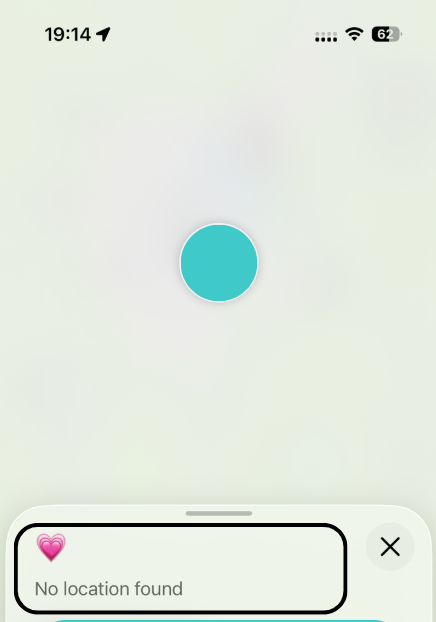
When you open the Find My app to check the location of a friend or family member and see the “No Location Found” message, it doesn’t mean the system is blaming the other person or that they’ve intentionally hidden their location. What it really means is:
Your iPhone is unable to retrieve or display the current location of the device.
In other words, the system tried to fetch the location data from the other iPhone but couldn’t receive valid location information.
This is the standard error message given by Find My, indicating that real-time location updates cannot be obtained, whether it’s due to technical issues or signal problems.
Does It Mean the Other Person Turned Off Location Sharing?
Not necessarily. While it’s possible that the other person has deliberately turned off location sharing, the cause is more likely related to technical issues. We’ll dive into the specific reasons, such as network issues, GPS signal problems, and device settings, in the following sections.
Why Does “No Location Found” Appear?
Network or Connectivity Issues
When you see the “No Location Found” message, one of the first things to check is whether there’s a network issue. When using Find My to locate someone, your device needs to connect to Apple’s location services server. This means both your device and the other person’s need to be online, either via Wi-Fi or mobile data. If the connection is unstable, or if their device isn’t connected to the internet at all, it won’t be able to send location data.
Weak or Lost GPS Signal
Another reason could be weak or lost GPS signal. We know that location tracking relies on GPS, especially when you’re outside. If the other person is in a spot with poor signal, like a basement, tunnel, or a tall building, the GPS signal might be too weak to work properly, which leads to the “No Location Found” message. Even if their phone is fine, signal interference can still mess things up.
The Device Might Be Offline or in a Non-Trackable State
Sometimes, even if the network is fine, the issue might be with the person you’re trying to track. Here are a few common situations:
Airplane Mode Is On
Airplane mode doesn’t completely turn off location services, but it cuts off all networks, which interferes with location tracking (this applies to your phone too). If your friend’s phone is in airplane mode, you’ll only see the last known location. Real-time updates will only come once airplane mode is turned off and the device reconnects.
Location Services or Settings Might Not Be Enabled
If the person you’re trying to track has location services turned off, or if location sharing in Find My isn’t enabled, the system won’t be able to get any location data. While this is less common, if they’ve disabled location permissions in the settings or haven’t chosen to share their location in Find My, you won’t be able to receive any location information.
Other Possible Causes (Less Common, But Possible)
Outdated iOS Version
An outdated version of iOS can also trigger the “No Location Found” error. So, what counts as an outdated version? Generally, older versions of iOS, especially those that are several releases behind the latest version, can cause issues with apps like Find My.
For example, if your device is running iOS 12 or earlier, while the latest available version is iOS 26, this could be considered outdated. These older versions might have bugs or incompatibilities with newer features, like those in Find My, which can affect the app’s ability to fetch and share location data properly.
User Logged Out of iCloud
There are two potential scenarios where iCloud being logged out can cause issues with location tracking:
1. The Person You’re Trying to Track Logged Out of iCloud
If the person you’re trying to track has logged out of their iCloud account, Find My won’t be able to access their location data. iCloud is what ties the Find My app to a specific device, so without being logged into iCloud, location tracking won’t work.
2. You Logged Out of iCloud
On the flip side, if you (the person trying to track) have logged out of iCloud, Find My won’t work either. This could happen after you reset your device, change your iCloud account, or manually log out.
Using a VPN? It Might Not Be the Cause
If you’re using a VPN, it’s easy to connect the dots: VPNs can make my location look different online, so could that be why Find My says “No Location Found”? Not really. A VPN only changes your IP-based location on the internet, not the GPS location Find My relies on.
GPS is what tracks your real physical location. It works by connecting to satellites in space, which give your phone an exact position on Earth. This works regardless of what network you’re on.
VPN changes your IP address (the location websites see when you connect to the internet). It can make it look like you’re in a different country or city, but it doesn’t change your actual physical location, just what the internet thinks your location is.
So, even though a VPN changes where your internet traffic appears to come from, it has no impact on the GPS signals that Find My uses to track your real, physical location.
How to Fix “No Location Found” on iPhone (Step-by-Step Guide)
If you’re seeing the “No Location Found” message in the Find My app, don’t worry! We can go through the following steps to troubleshoot and fix the issue.
1. Enable Location Services
If Find My is unable to retrieve the location, start by checking two settings: Location Services and Precise Location. Both need to be turned on for accurate, real-time updates. Here’s how to check:
Step 1. Open the Settings app
Step 2. Tap Privacy & Security
Step 3.Select Location Services and make sure it is turned on
Step 4. Scroll down and tap Find My
Step 5.Set the location access permission to While Using the App, and turn on Precise Location.

Tip: Sometimes, Screen Time restrictions may limit location services. Make sure the settings aren’t restricted.
2. Check Network Connection
A working internet connection is required for Find My to refresh locations. If your Wi-Fi or cellular signal is weak or keeps dropping, the map may stop updating.
First, you can open a website or app to check if your phone is connected to the internet. If the page loads properly, that’s a good sign your connection is stable.
Alternatively, you can go to Settings > Wi-Fi or Cellular to confirm that you’re connected to a network. If you’re having trouble, try moving to an area with better coverage, or switch networks. You can also toggle Airplane Mode on and off to reset the connection.
If you’re using public Wi-Fi, it’s also worth understanding if that network is secure and how a VPN protects you from hackers on shared networks.

What’s more, to check if the other person’s device is online, you can try sending them a text or calling them.
3. Turn Off Airplane Mode
Airplane Mode disables all wireless connections, including Wi-Fi, cellular data, and Bluetooth, which prevents location updates. Here’s how to check if it’s been accidentally turned on:
First, you can go to Settings and check if Airplane Mode is enabled. If it is, simply toggle it off.
Alternatively, you can also swipe down from the top right of the screen to open the Control Center. If the airplane icon is orange, it means Airplane Mode is on. Tap the icon to turn it off.

Wait a few seconds for the device to reconnect to the network, then check Find My again.
4. Restart the Find My & iPhone
Sometimes Find My acts up for no reason. Restarting it usually helps.
First, restart the Find My app:
- Open the App Switcher and swipe up on Find My to close it completely.
- Reopen Find My and check the location again.
If it still doesn’t work, restart your iPhone:
Restarting refreshes iOS and your network connections, which can help clear temporary errors and get location updates working again.

Once your device restarts and reconnects to the network, check Find My again to see if the location data updates properly.
5. Make Sure You’re Logged into iCloud
If iCloud isn’t signed in, Find My won’t work properly. Ensure that you’re signed into iCloud and that location sharing is enabled:
Step 1. Open the Settings app
Step 2. Tap [Your Name] to check if iCloud is signed in
Step 3. Tap iCloud and make sure Find My is turned on

6. Update iOS
Outdated iOS versions can affect the performance of Find My. Make sure your device is running the latest version of iOS to fix any bugs or compatibility issues.
Step 1. Open the Settings app
Step 2. Tap General > Software Update
Step 3. If an update is available, tap to download and install it

7. Check Your Date & Time Settings
If your iPhone’s clock is off, it can mess with syncing to Apple’s servers. This may prevent Find My from updating the location properly.
Here’s what to do:
Step 1. Open Settings.
Step 2. Tap General > Date & Time.
Step 3. Turn on Set Automatically.

This keeps your time in sync and helps avoid location update issues caused by a time mismatch.
8. Check Apple System Status
If everything looks fine on your phone, the issue may be on Apple’s end. Apple’s System Status page can tell you whether Find My is currently experiencing an outage or disruption.
How to check:
Step 1. Go to the Apple System Status Page.
Step 2. Find Find My in the list.
If there’s a yellow or red dot, it means there’s a known problem. So location updates may be delayed until it’s resolved.

9. Reset Location Settings
If none of the above solutions work, try resetting your location and privacy settings. This will clear any errors in the configuration:
Step 1. Open the Settings app
Step 2. Go to General, then scroll down and tap Transfer or Reset iPhone
Step 3. Tap Reset, and then select Reset Location & Privacy

This will reset all location settings to their default, and you can set them up again.
If these steps don’t solve the problem, you can contact Apple Support for further assistance.
How to Prevent “No Location Found” from Happening Again
If you’ve dealt with “No Location Found” once, you probably don’t want to see it again. The good news is you can prevent a lot of these cases with a few simple habits.
Keep your iPhone able to get a location
Find My can’t share what it can’t detect. So try not to “accidentally disable” the stuff that makes location work.
- Keep Location Services enabled, and make sure Find My has permission to use it.
- Leave Precise Location on for Find My, especially if you rely on it for real-time tracking.
- Be careful with Screen Time or privacy restrictions. It’s surprisingly easy to block location access without realizing it.
Keep your iPhone able to send location updates
Even if GPS is working, Find My still needs a connection to update locations in real time.
- Try to stay on a stable Wi-Fi or cellular network when you’re using Find My.
Watch out for the classic problem zones: parking garages, elevators, tunnels, subways, and dense buildings. Your friend’s location can “drop” in places like this even if nothing is wrong with their phone.
- Double-check Airplane Mode if location updates suddenly stop. It’s one of the easiest toggles to turn on by mistake.
Don’t let battery saving kill location sharing
Low battery can quietly make Find My less reliable.
If you’re depending on Find My, keep your battery reasonably charged and avoid using Low Power Mode.
Low Power Mode can limit background activities, including location sharing, which may cause real-time updates to lag or fail.
Keep iCloud and iOS in a healthy state
Find My is tightly tied to your Apple ID and system services, so account and software “health” matters.
- Stay signed in to iCloud. Logging out, switching Apple IDs, or resetting a device can break Find My until everything is set up again.
- Keep iOS updated. Find My is a system-level feature, and updates often fix bugs that can cause random location issues.
If you keep these four areas in check, Find My becomes way more consistent, and “No Location Found” becomes the exception instead of the norm.
“No Location Found” vs. “Location Not Available”
No Location Found usually means Find My tried to pull a live location update, but it couldn’t get one. Think of it as a temporary “can’t reach the location right now” moment. Most of the time, that points to something technical, like weak GPS, a spotty connection, Low Power Mode, or the phone being offline for a bit.
Location Not Available is different. It usually means Find My can’t show you a location for that person at all, at least not under the current setup. In real life, this tends to happen when location sharing isn’t active for you, the person signed out of iCloud or switched Apple IDs, or their Find My location sharing settings aren’t enabled.
Conclusion
The No Location Found error in Find My is common, but easy to fix. Most issues stem from things like network problems, weak GPS signals, or incorrect location settings. By following the troubleshooting steps in this guide, you can resolve the issue quickly and prevent it from happening again. If the issue persists, it may be related to an outdated iOS or a temporary Apple service disruption.
FAQs
What does “No Location Found” mean in Find My? Is something wrong with my friend’s phone?
Not necessarily. “No Location Found” usually means Find My tried to pull a live location update, but it couldn’t get one at that moment. This is often caused by temporary issues like weak signal, unstable internet, Low Power Mode, Airplane Mode, or the phone being offline. So yes, it could be something on your friend’s side, but it could also be your side or just a temporary connection hiccup.
The key idea is: the location should be available, it’s just not updating right now.
What does “Location Not Available” mean in Find My? Does it mean they stopped sharing their location?
It can, and it’s more likely than with “No Location Found.” “Location Not Available” usually means Find My can’t show you a location for that person under the current setup. This often happens when location sharing isn’t active for you, they signed out of iCloud or switched Apple IDs, or their Find My sharing settings aren’t enabled.
The key idea is: it’s less about a temporary update failure and more about access or sharing not being available.
How can I know if someone turned off their location on Find My?
If you see “Location Not Available,” it’s likely that the person has disabled location sharing, signed out of iCloud, or turned off their location services.
Can a VPN cause “No Location Found”?
No, a VPN doesn’t affect GPS location tracking in Find My. It only changes your online IP address.
How do I prevent “No Location Found” in the future?
Ensure location services are enabled, keep your device connected to a stable network, avoid low power mode, and regularly update your iOS and iCloud settings.