

You’re about to make a highlight play when your screen suddenly freezes. By the time it recovers, you’re already waiting to respawn.
High ping could be the reason. Even a split-second delay can decide whether you win or lose. Before changing your settings, it’s worth finding out where the delay is coming from. Wi-Fi interference, background downloads, and distant game servers can all affect your connection. This article will show you how to identify the cause and reduce ping in games.
Table of Contents
What Is Ping in Gaming?
Ping is a network diagnostic command that measures round-trip latency (RTT): the time it takes to send a request to another device and receive a reply, measured in milliseconds (ms). In gaming, players often use ping and latency interchangeably to describe the round-trip delay between their device and the game server.
Ping vs. Jitter, Packet Loss, FPS, and Lag
But not every freeze or delayed response is caused by high ping. Jitter, packet loss, or device performance issues can also cause lag. Here’s how to tell these problems apart.
Term | What it means | What It Looks Like in Games |
|---|---|---|
Ping / latency | Network delay, typically measured as round-trip time in games | Your hit confirmation arrives late after a shot |
Jitter | Variation in network delay over time | Other players move unevenly as updates arrive at irregular intervals |
Packet loss | Data packets fail to reach their destination | A player freezes, then jumps ahead when position updates are missing |
FPS | The number of frames rendered each second | Low FPS makes camera movement and animations look choppy, even with low ping |
Lag | Noticeable stuttering or delays that can result from any of the issues above | Delayed actions, sudden freezes, or choppy gameplay |
Note: FPS also stands for First-Person Shooter, a game genre that includes VALORANT and Counter-Strike 2. Here, FPS means Frames Per Second.
How to Check Your Ping While Gaming
Check your ping before each adjustment so you can tell whether each step has helped.
Check Ping In-Game
First, check the ping displayed in your game. This is usually more useful than a general internet speed test because it reflects the game’s actual network connection.
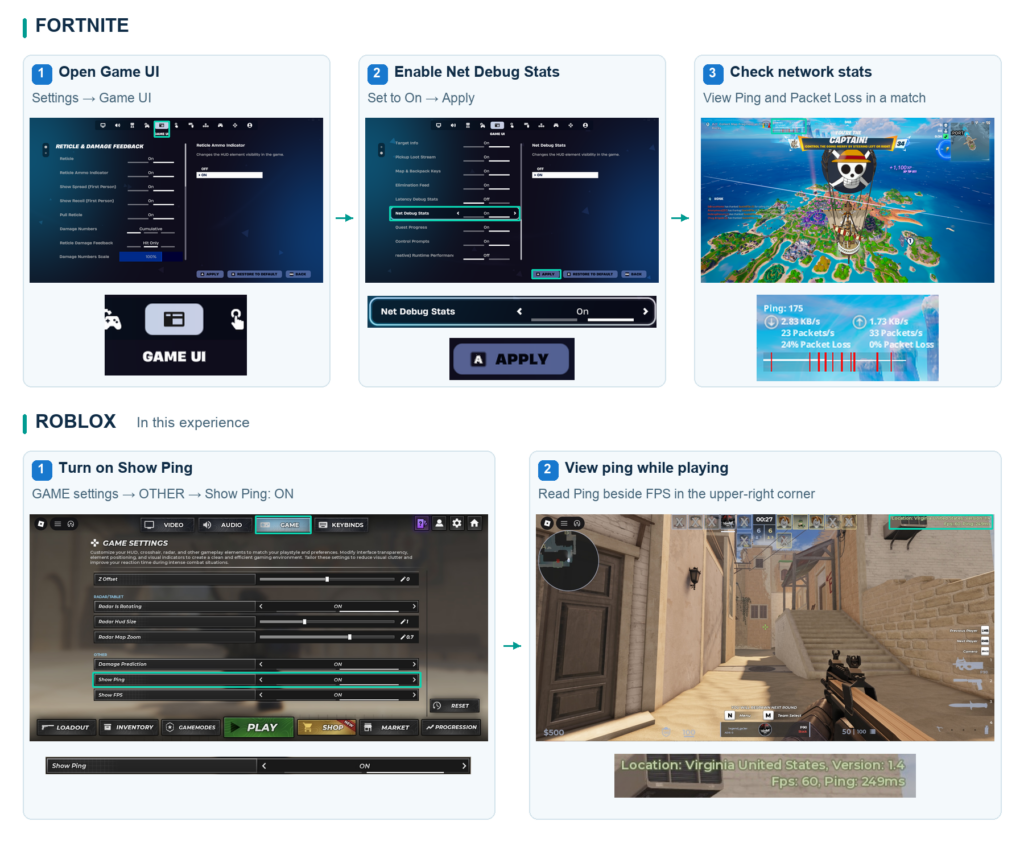
Look for options such as Network Statistics, Performance Stats, Latency, or Ping Display in the game settings. Their names and locations vary between games and platforms.
For example:
- Fortnite: Go to Settings → Game UI, turn on Net Debug Stats, and select Apply. Check your network statistics during a match.
- Roblox: Open GAME SETTINGS and set Show Ping to ON. Return to gameplay to view your ping in the upper-right corner.
Test Ping on PC
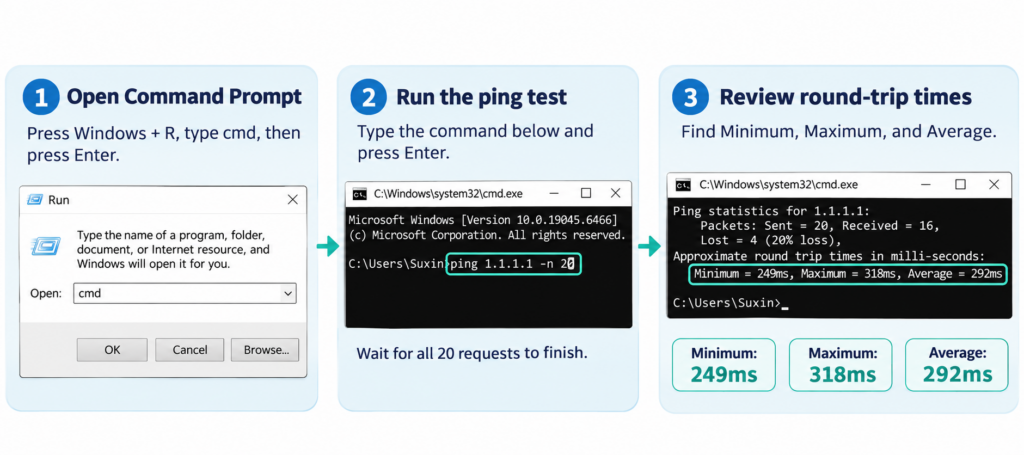
On Windows, you can use the ping command to check the round-trip latency to a host.
- Press Windows + R, type cmd, and press Enter.
- Enter ping 1.1.1.1 -n 20.
- Review the minimum, maximum, and average round-trip times.
This tests your connection to 1.1.1.1, not your game server. Because the ping command uses ICMP, its results may differ from your actual in-game readings. Compare them with your in-game ping to help identify where the problem might be.
What Is a Good Ping for Gaming?
There’s no single ping standard that suits every game. Competitive shooters place greater demands on ping, while slower-paced games such as Minecraft are usually more forgiving.
Game Type / Title | Target Ping | Acceptable Ping |
|---|---|---|
Competitive FPS (VALORANT, Counter-Strike 2) | < 35 ms | < 60 ms |
Battle Royale (Fortnite, Apex Legends) | < 50 ms | < 80 ms |
MOBA (League of Legends, Dota 2) | < 50 ms | < 60 ms |
Sandbox / Survival (Minecraft, Roblox survival experiences) | < 80 ms | < 150 ms |
Casual / Social (Roblox social experiences) | < 100 ms | < 150 ms |

Note: These are general reference ranges, not official requirements.
How to Reduce Ping Based on Your Situation
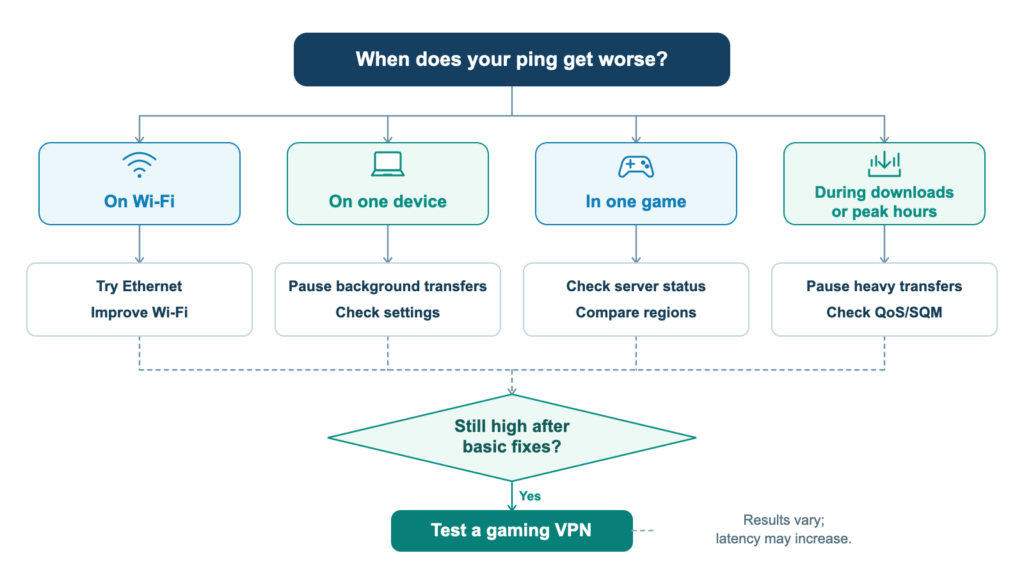
When does your latency get worse? Is there a problem with your Wi-Fi signal? Or does it happen at particular times of day? This troubleshooting decision tree can help you locate the problem and find a solution.
Don’t forget to record your in-game ping each time you try a fix. This will help you work through the problem more quickly.
High Ping on Wi-Fi? Improve Your Connection
How to tell: Ping spikes on Wi-Fi, gets worse farther from the router, or improves over Ethernet.
How to fix it:
- Try Ethernet first. Connect your PC or console directly to the router using a network cable.
- Move closer to the router. If Ethernet is not practical, reduce the distance and physical obstacles between your device and the access point.
- Try another Wi-Fi band. Compare 2.4 GHz and 5 GHz, or 6 GHz if both your device and router support it. Higher-frequency bands may work better nearby, while 2.4 GHz can provide better coverage through obstacles.
- Reduce wireless interference. Keep the router clear of major obstructions and potential interference sources. Microwaves, some cordless phones, and Bluetooth devices can affect the crowded 2.4 GHz band.
- Check your router’s wireless settings. If nearby networks are competing for the same channel, a different channel may help.
High Ping on PC or Mobile? Check Device-Specific Issues
How to tell: Your PC or phone has higher ping than other devices using the same network.
How to Reduce Ping on PC:
- Find and stop bandwidth-heavy applications. Press Ctrl + Shift + Esc to open Task Manager. Select Processes, then click the Network column to sort applications by network usage. If a nonessential application is using a lot of bandwidth, right-click it and select End task.
- Pause game downloads and updates. Open your game launcher, such as Steam or Epic Games Launcher, and check its Downloads section. Pause active downloads or updates before starting a match. Also check whether cloud-storage applications are uploading or synchronizing large files.
- Check for network-adapter driver updates. On Windows 11, go to Settings → Windows Update → Advanced options → Optional updates. If a relevant network-adapter driver update is available, review and install it, then restart if required.
Switching back and forth between Wi-Fi and cellular data during mobile gaming can affect the stability of your connection.
How to decrease Ping in Mobile:
- Compare Wi-Fi and cellular data. Keep the game and server region the same, then play separate sessions using Wi-Fi and cellular data. Check which connection gives you more stable in-game ping.
- Avoid switching networks after the game starts. Choose the more stable connection before starting the game, and move to an area with a stronger signal.
- Pause background transfers. Check both your app store and cloud-backup apps for large downloads or transfers, then pause them through the relevant settings.
High Ping in One Game? Check the Game Server
How to tell: Other online games work normally, but one game repeatedly shows unusually high ping.
How to fix it:
- Check for server problems. Visit the game’s official website or status page and look for notices about server issues. If the publisher confirms an outage, give it some time and avoid changing your game settings while you wait.
- Compare different servers. If the game lets you switch servers, try Auto first if that option is available. Then compare the differences in ping between the available servers.
Examples: How to get lower ping in Fortnite on PC
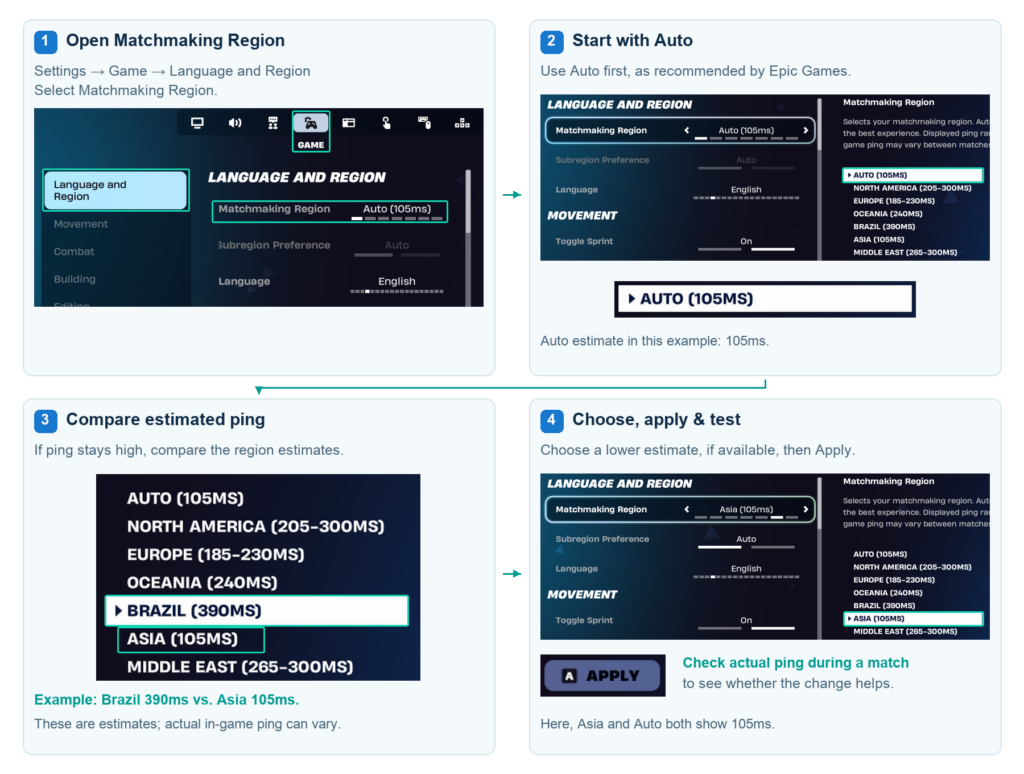
Fortnite lets you compare matchmaking regions and choose one with a lower estimated ping.
Open Settings → Game → Language and Region → Matchmaking Region. Start by following Epic Games’ recommendation and select Auto mode. If your ping is still high, compare the estimated ping of other regions, choose the one with the lowest estimated value, and click Apply.
Ping Spikes During Downloads or Peak Hours? Reduce Network Congestion
How to tell: Ping spikes during large downloads or uploads, or you notice a clear increase in latency at certain times of day.
How to fix it:
- Pause heavy downloads and uploads. Pause large downloads, game updates, and cloud backups on your own devices. If you’re sharing the connection, ask others to pause bandwidth-heavy activities while you test your ping.
- Configure QoS or SQM if your router supports it. Open your router’s administration page or companion app and look for settings labeled QoS, Gaming Mode, Traffic Prioritization, or SQM. Follow the manufacturer’s instructions to prioritize gaming traffic or manage queueing.
- Check server status and contact your ISP if needed. If the latency problem keeps coming back, record what happens and contact your ISP for further investigation.
Still seeing high ping after ruling out local congestion? There could also be a problem with the route between your ISP and the game server. A VPN is one way to test a different route.
None of the Above Worked? Try a Gaming VPN
A VPN for gaming sends your traffic through a VPN server before it reaches the game server. That adds another stop, but it also changes the network route. If your usual route is congested or inefficient, the alternative may deliver lower ping.
The opposite can happen, too. If the VPN route takes longer, a VPN can also increase ping.
X-VPN includes a Video & Game server category. If you’re testing whether a different route helps, try an available gaming server and compare your in-game ping before and after connecting.
Low Ping but Still Lagging? Check Packet Loss and FPS
How to tell: Ping stays low, but players teleport, movement stutters, or the screen briefly freezes.
Check for packet loss and jitter. Open your game’s network statistics, if available. Even with low average ping, missing packets or sudden latency spikes can disrupt gameplay.
Check FPS and frame times. If network statistics look normal but the game still stutters, look at your graphics settings, CPU/GPU usage, temperatures, and background applications.
Conclusion
There’s no single fix for high ping. If Ethernet improves your connection, focus on Wi-Fi. If only one game has problems, check its server region and status. And if your ping is low but the game still stutters, look at packet loss and FPS instead.
If the usual fixes don’t help, a gaming VPN is also worth testing to see whether a different network route improves your ping. Whatever you try, change one thing at a time and compare the results in-game.
Frequently Asked Questions
How to reduce ping in roblox?
Open the in-game Settings menu and enable Performance Stats to check your ping. However, Roblox doesn’t allow you to choose a server region in every game. You can try a wired connection or a different network and pause background downloads.
How to get lower ping in a fortnite pc?
Enable Net Debug Stats under Settings → Game UI to monitor your ping and packet loss during a match. Then go to Settings → Game → Language and Region → Matchmaking Region. Use Auto for the best ping, or compare other available regions if your ping remains high.
How to reduce ping in Wi-Fi?
If possible, try a wired connection first. Otherwise, move closer to your router and reduce wireless interference. You can also try the 5 GHz or 6 GHz band if your devices support it, and configure QoS or SQM on your router to help manage network congestion and prioritize gaming traffic.
Is 100 ping bad for FPS?
For competitive FPS games, a ping of 100 ms is relatively high. Ideally, aim for under 35 ms, while under 60 ms is generally acceptable.
Is 70 ping too high?
There’s no single ping standard for every game. A ping of 70 ms is generally acceptable for most online games, but it may feel slightly high in competitive FPS games where quick reactions matter.