


TikTok is fun until someone ruins it. Whether it’s spam, harassment, or just content you don’t want in your space, knowing how to block someone on TikTok in 2026 gives you instant control. It takes only a few taps, doesn’t notify the other person, and you can always undo it if you change your mind.
In this guide, you’ll learn how to block someone on TikTok on your mobile phone and computer, what actually happens after you block them, and how to unblock anyone if you want.
Table of Contents
How to Block Someone on TikTok Using Mobile
Blocking someone on TikTok is quick and easy, whether you’re using an iPhone or Android. Here’s how to do it in a few simple steps:
Step 1. Go to Their Profile
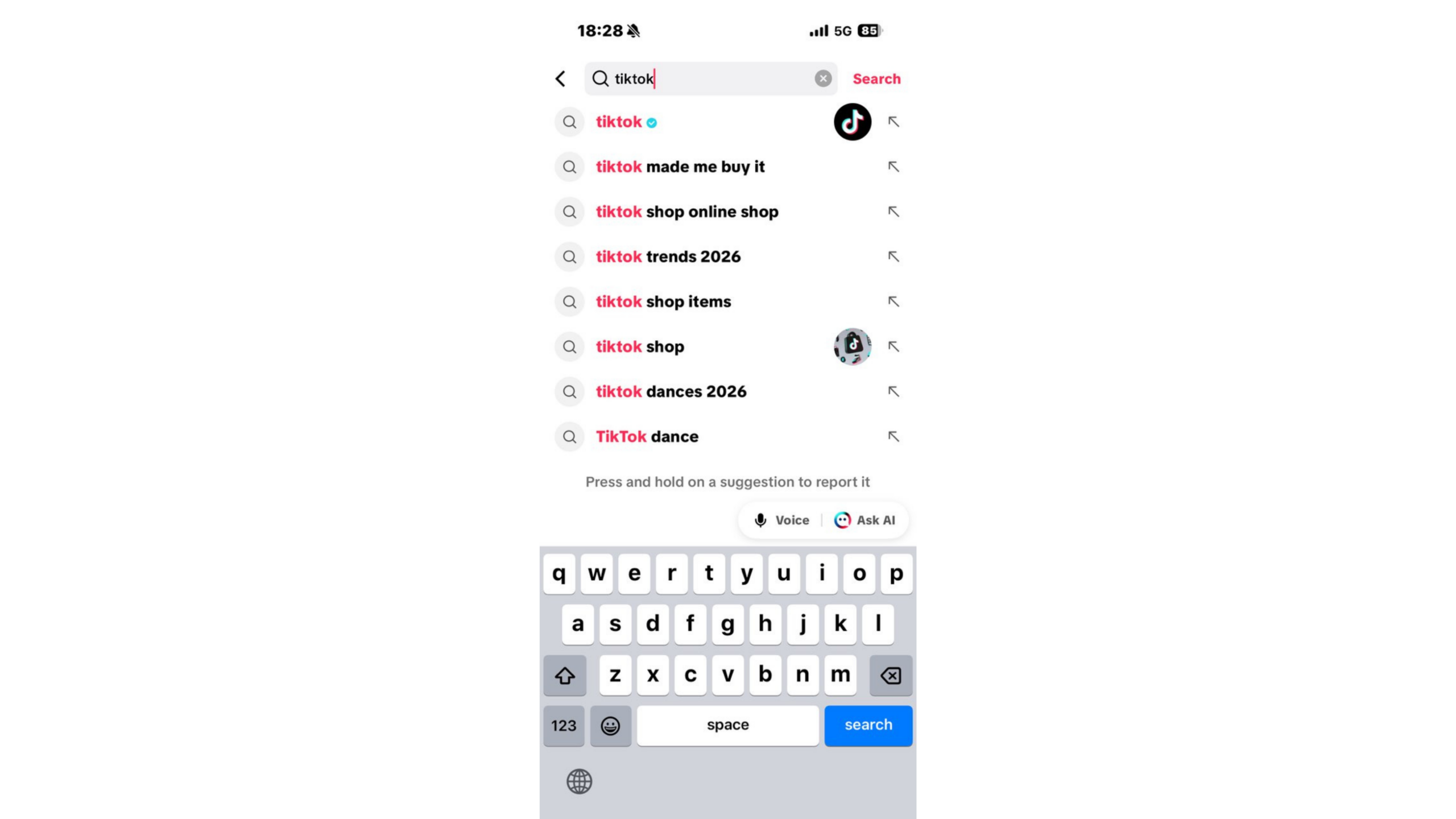
Find the user you want to block. By searching the user name, tapping their ID on a comment or video, or opening their profile from your DM.
Step 2. Tap the Share Arrow
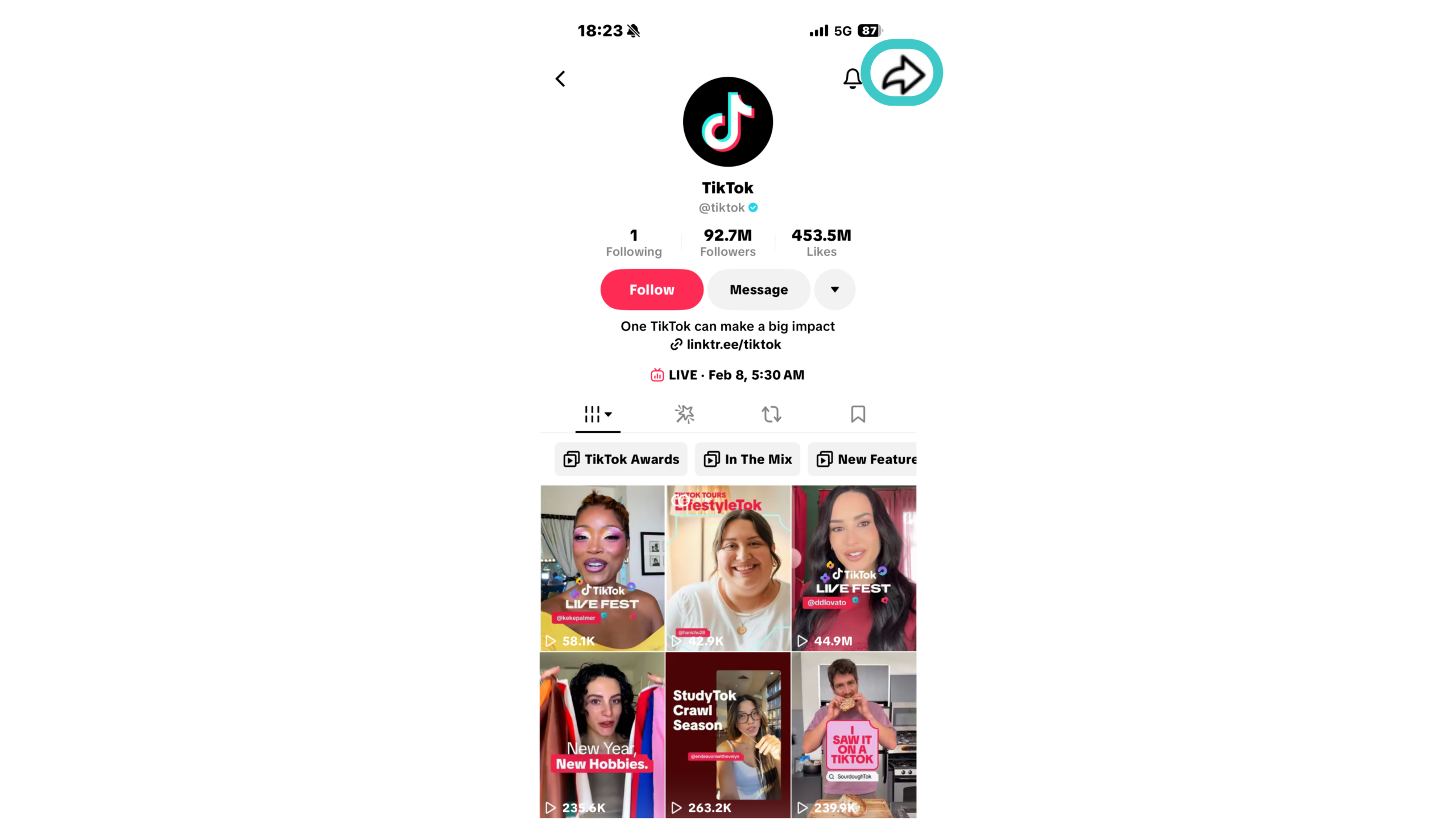
On the profile page, look for the share arrow (just at the top right corner). Tap it to bring up a menu with different options.
Step 3. Select Block
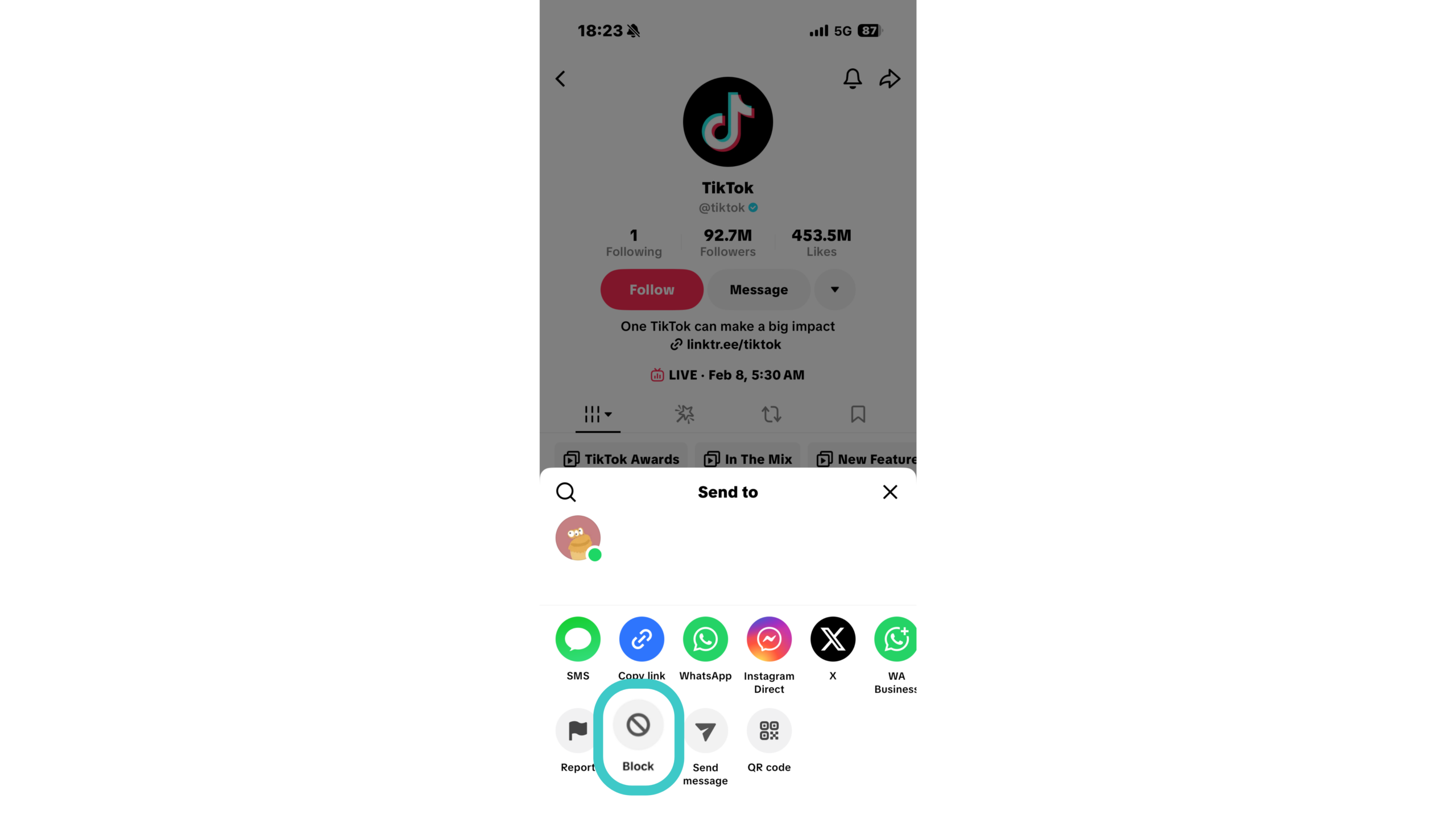
From the menu, tap Block. TikTok will ask you for confirmation.
Step 4. Confirm the Block
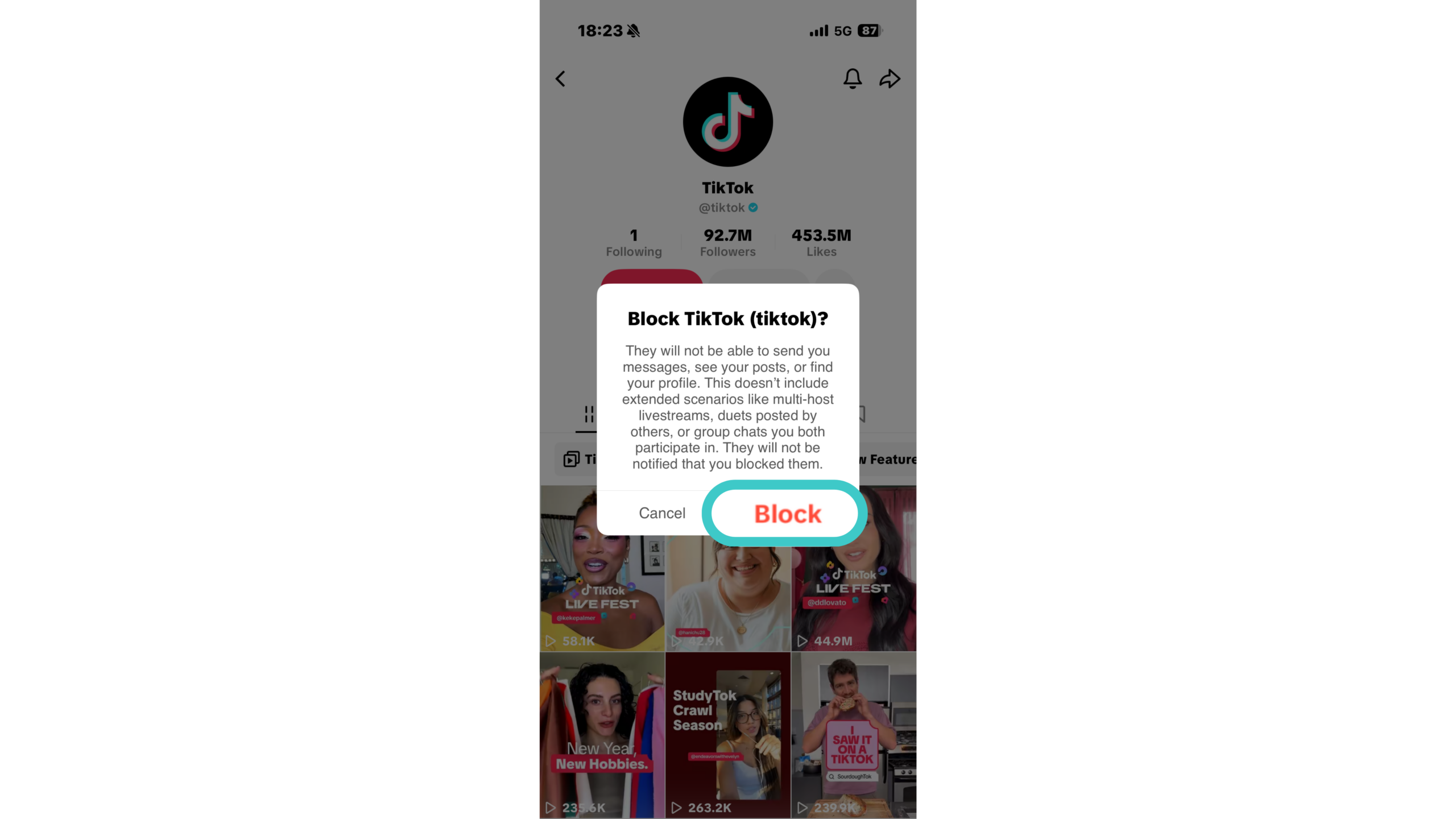
Tap Block again to confirm. That’s it. The user is now blocked from viewing your content, messaging you, and following you.
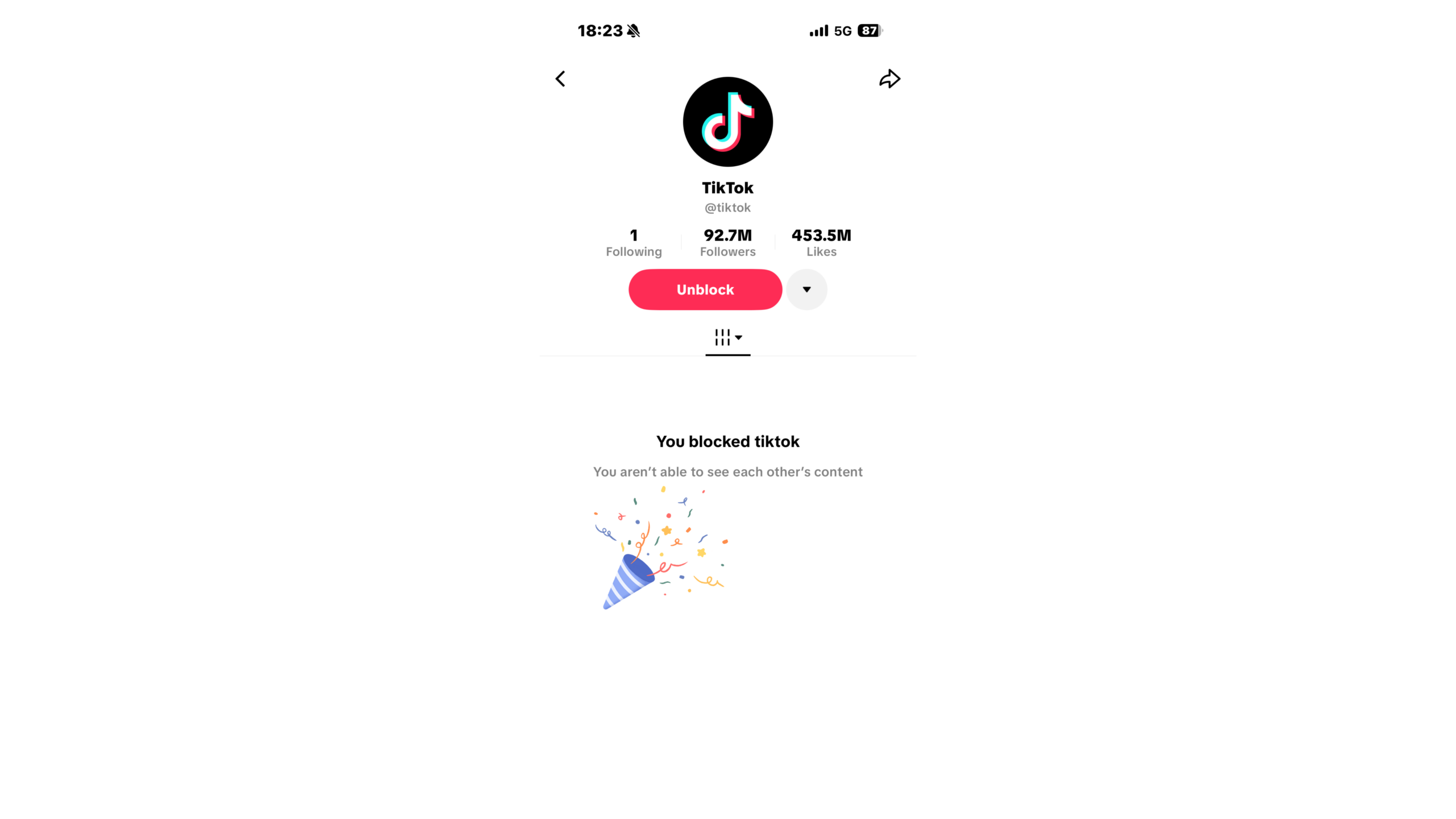
You’ll know the block was successful if their profile turns blank, and the Follow button changes to Unblock.
How to Block Someone on TikTok via the Website
Prefer using TikTok on desktop? You can block someone just as easily from the web version. Here’s how:
Step 1. Open TikTok in Your Browser
Head to tiktok.com and make sure you’re logged in.
Step 2. Find the User You Want to Block
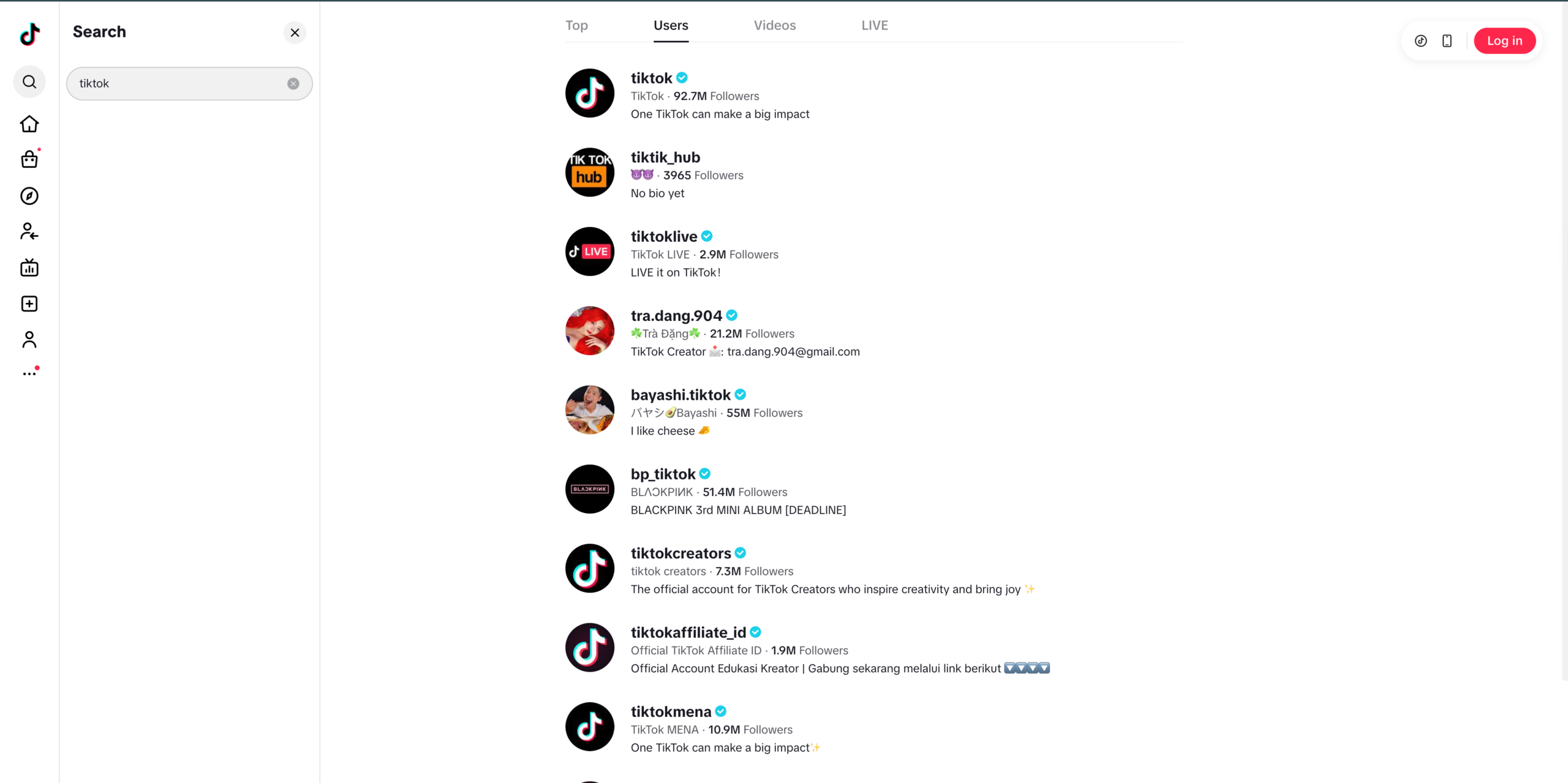
Use the search bar at the top to find their profile, or click their username from a comment, video, or message.
Step 3. Click the Three Dots
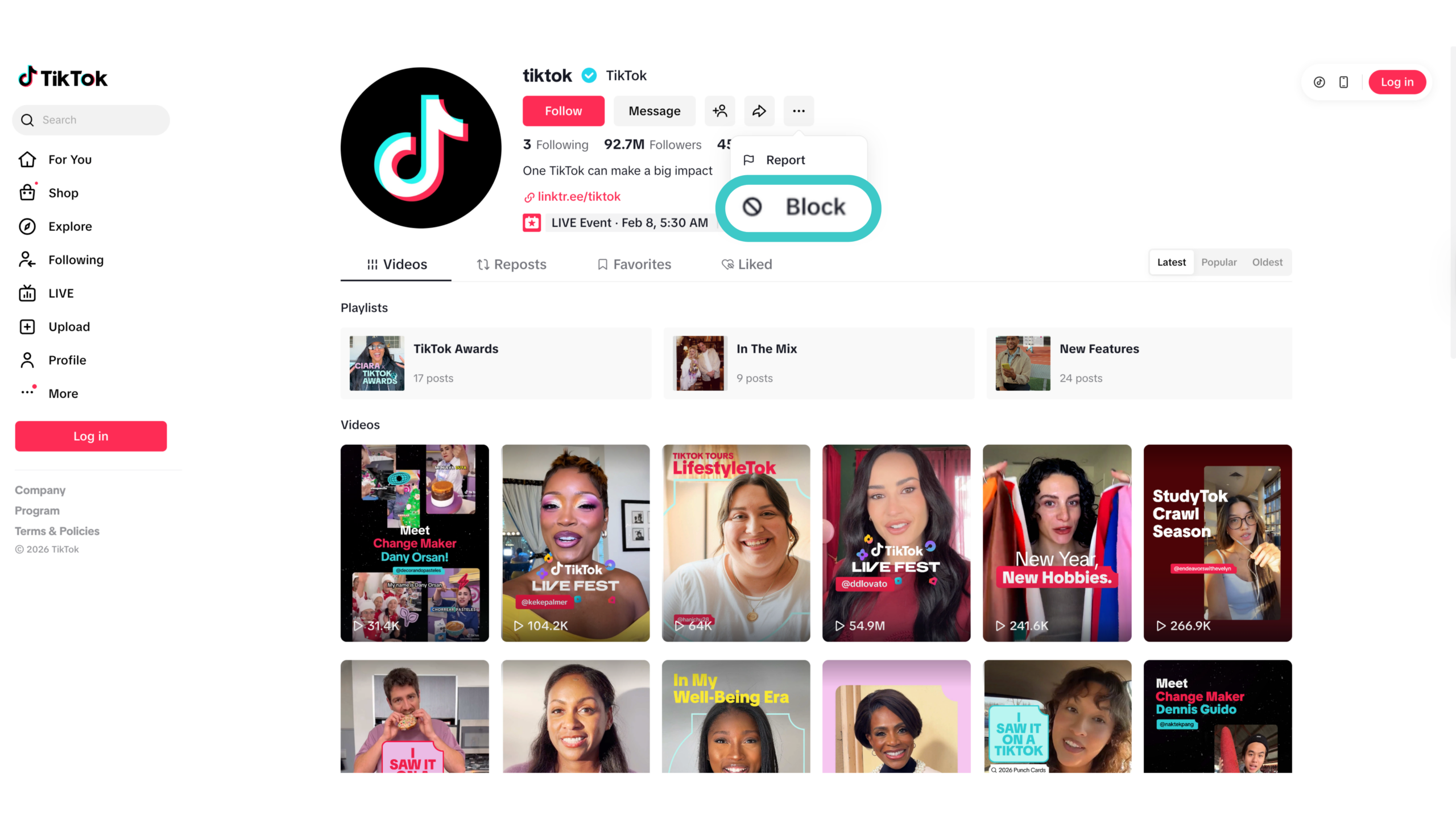
On their profile page, select the More menu (… symbol) near the top right, next to the Follow or Message buttons.
Step 4. Select Block and Confirm
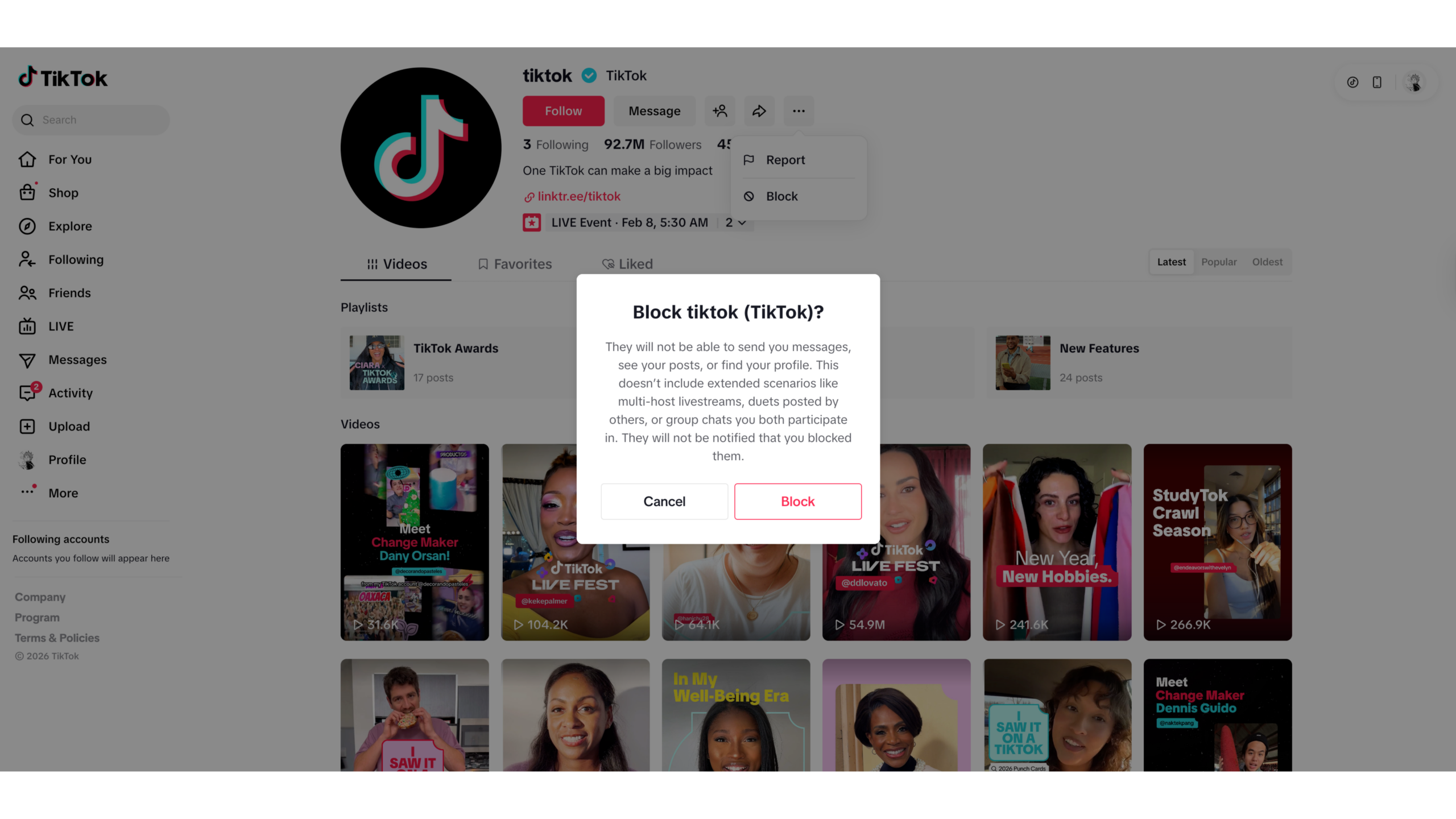
Choose Block from the dropdown menu, then confirm when TikTok asks if you’re sure, and you’re done.
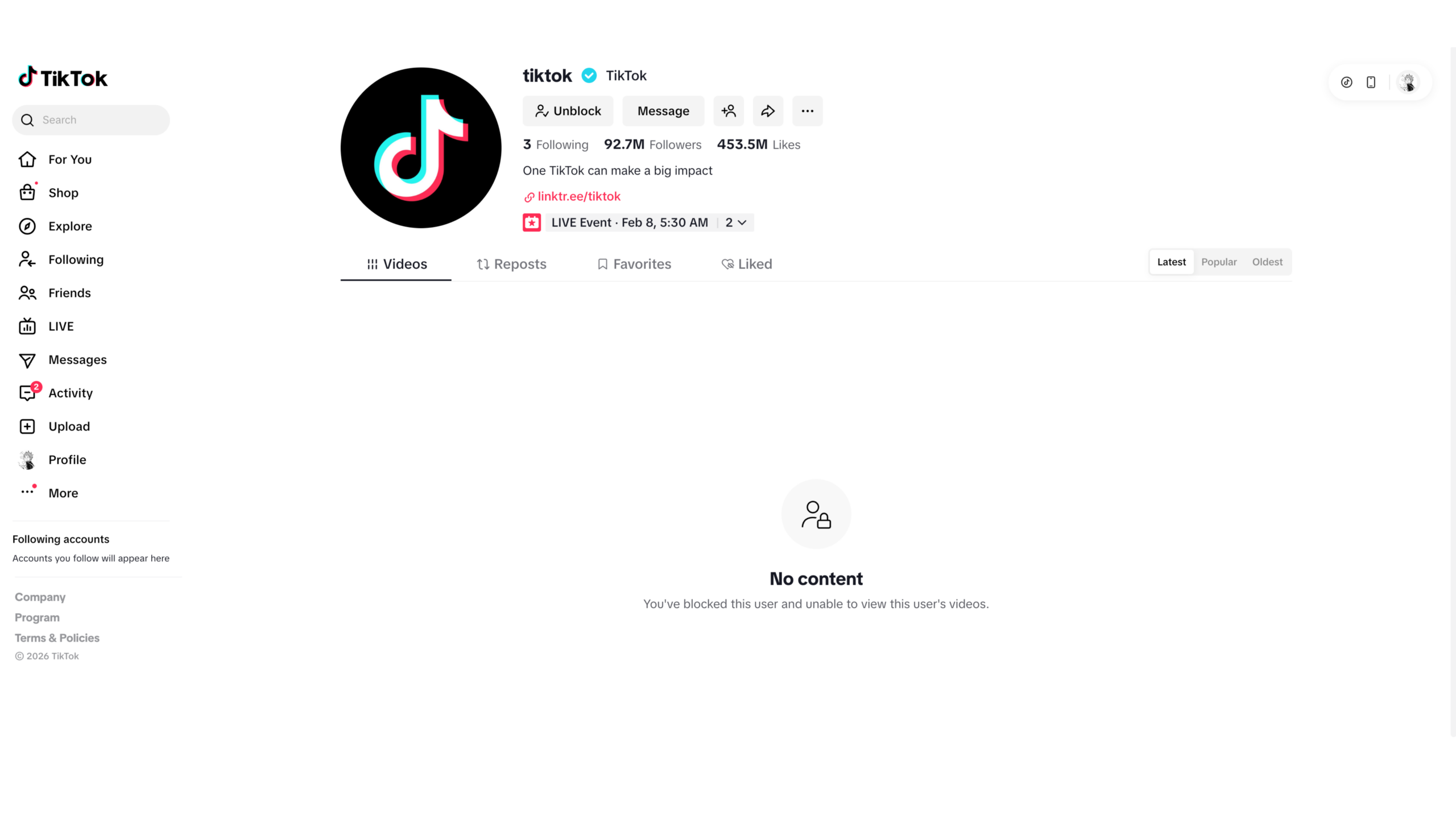
Once blocked, their profile will appear empty if you revisit it, and they won’t be able to view or interact with yours either.
How to Block Multiple Users on TikTok (Bulk Block)
Dealing with a wave of spam or troll comments? TikTok has a built-in way to block multiple users at once, no need to visit each profile one by one.
Here’s how to do it:
Step 1. Open Your TikTok Video with the Problematic Comments
Go to the TikTok post where you’re seeing unwanted comments.
Step 2. Press and Hold on a Comment
Pick any comment from the users you want to block. A menu will appear.
Step 3. Select Manage Multiple Comments
TikTok lets you select up to 100 comments at once. Tap all the ones from users you want to block.
Step 4. Tap More > Block Accounts
Once selected, tap the More menu (… symbol), then choose Block accounts.
Step 5. Confirm the Block
Tap Block to confirm, and TikTok will instantly block all selected users.
What Happens When You Block Someone on TikTok?
You’ve hit Block, now what?
If you’re wondering how do I block someone on TikTok and what actually happens after, here’s the rundown. Blocking someone is silent bur effective. The app doesn’t notify them, but the impact is immediate.
They Can’t See Your Profile or Videos
Your profile will appear empty to them, no posts, no bio, nothing. It’s like you’ve disappeared.
They Can’t Follow or DM You
An existing connection is instantly cut off. They won’t be able to send new messages or re-follow you unless you unblock them.
Their Old Likes and Comments are Hidden
TikTok removes their previous interactions with your content from public view.
They Won’t Get an Alert, But They’ll Probably Figure It Out
TikTok doesn’t send a notification when you block someone. But if they try to visit your profile or interact with your content and find nothing, they’ll likely put two and two together.
How to Check Your Blocked List
Blocked a few accounts and want to double-check who’s on that list? Whether you’re second-guessing a decision or just curious, TikTok makes it easy to view and manage everyone you’ve blocked.
Here’s how to check your blocked list:
Step 1. Go to Your Profile
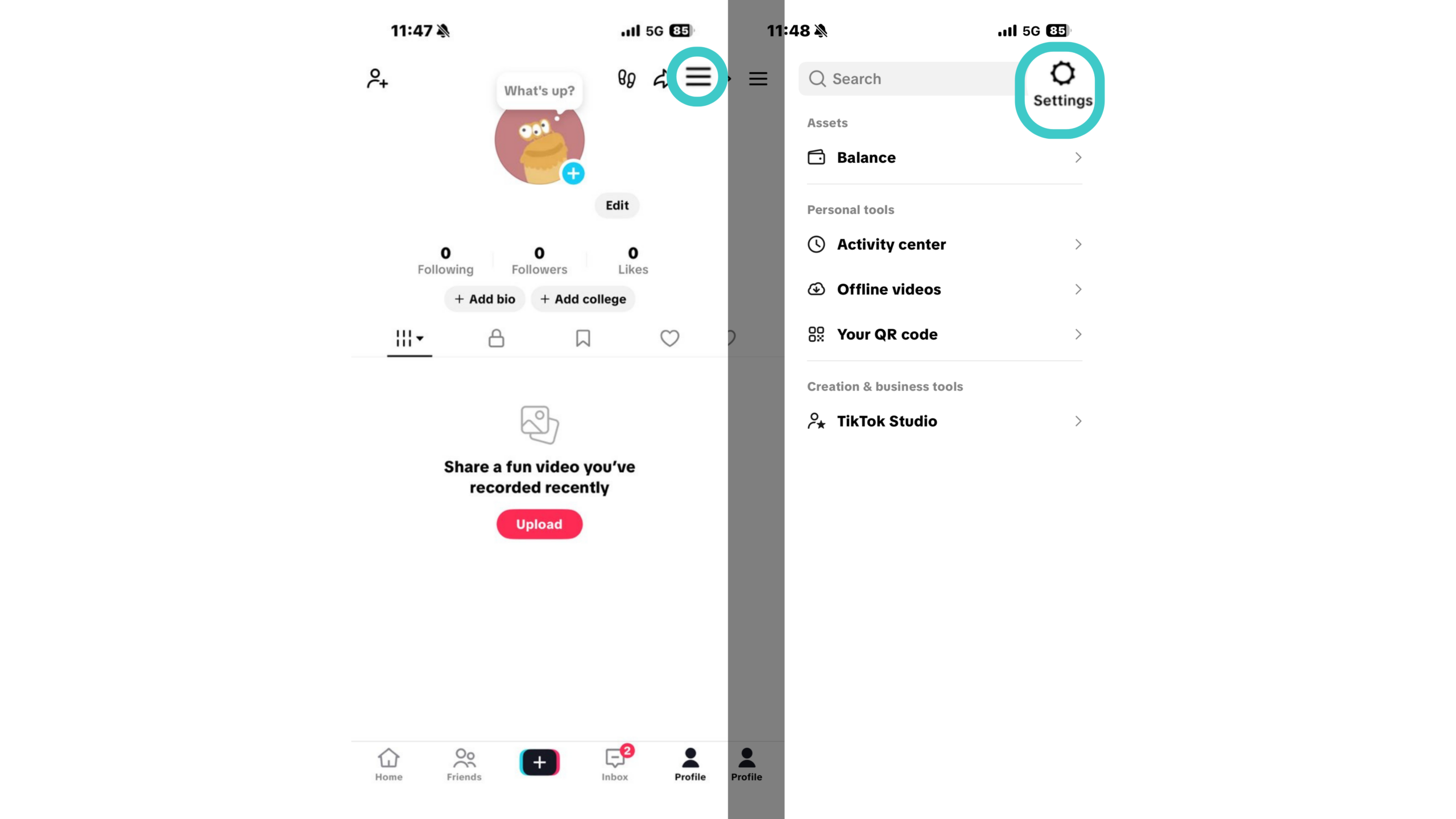
Open the TikTok app and tap the Profile icon at the bottom right.
Step 2. Open Settings and Privacy
Tap the hamburger menu ( ☰ symbol) in the top right corner, then select Settings and privacy.
Step 3. Go to Privacy > Blocked Accounts
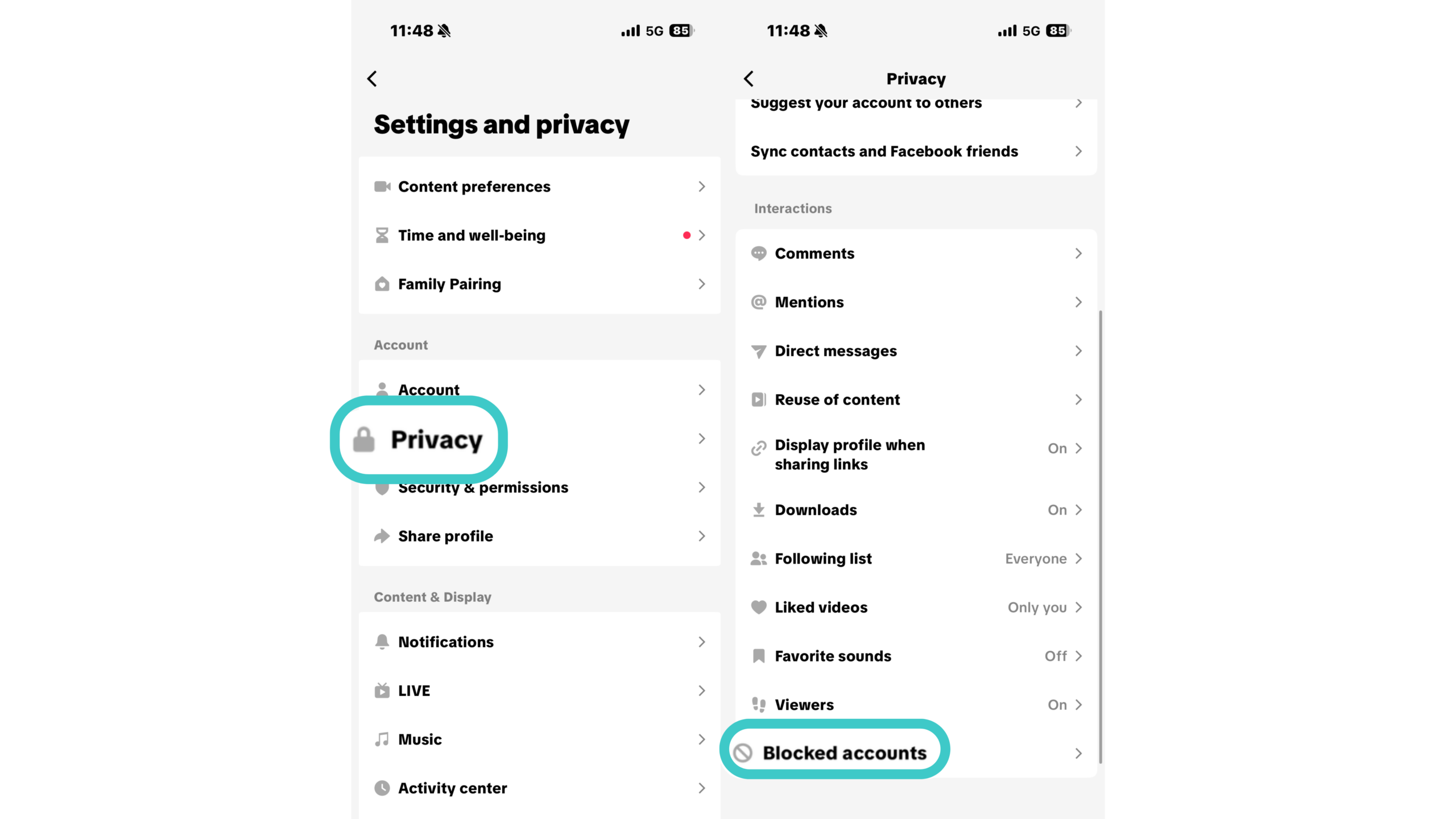
In the Settings menu, tap Privacy, then scroll down to find Blocked accounts under the Interactions section.
Step 4. View and Manage Blocked Users
You’ll see a full list of accounts you’ve blocked. Each one will have an Unblock button next to it, in case you want to reverse the action.
Why You Might Want to Block Someone on TikTok
Blocking someone isn’t being petty. It’s setting a boundary. If you’ve ever hesitated, wondering if you can block someone on TikTok without overreacting, don’t worry. You can, and sometimes you should. It’s not permanent, and you can unblock later if the problem that led to blocking is resolved.
Here are the most common reasons people block others on TikTok, and all of them are valid:
Harassment or Cyberbullying
If someone’s leaving hostile comments, sending inappropriate messages, or targeting you in any way, blocking them is the fastest way to shut it down. You don’t owe anyone access to your space, ever.
It’s also a good idea to follow daily habits to protect your digital identity from aggressive behavior.
Unwanted Comments or Spam
Some users flood your videos with low-effort comments, promos, or bot-like spam. One or two might not matter, but if it’s disrupting your content, blocking is a clean solution.
Privacy Concerns
If someone you don’t know is viewing everything you post, messaging you often, or just lurking a little too hard, it’s okay to block them. You’re in control of who sees what.
Protecting Your Mental Health
TikTok’s algorithm can serve up a constant stream of opinions, and not all of them are kind. Blocking users who make you feel anxious, self-conscious, or unsafe isn’t dramatic. It’s smart.
Fake or Scam Accounts
Scammy accounts pretending to be brands, influencers, or even TikTok staff show up all the time. If someone’s sending weird links, prize claims, or asking for personal info, block them immediately.Scams aren’t limited to social media apps. Many rely on phishing links or fake login pages to steal credentials. If you’re unsure about a link someone sends you, this overview of how phishing scams work and how to avoid them can help you spot red flags before clicking.
How to Unblock Someone on TikTok
Changed your mind? It happens. Whether things cooled off or you just want to take another look, unblocking someone on TikTok is just as simple as blocking them, and just as private.
Here’s how to unblock someone on TikTok, in two easy ways:
Option 1: From Your Blocked List
Step 1. Go to Your Profile

Open TikTok and tap the Profile icon in the bottom-right corner.
Step 2. Open Settings and Privacy
Tap the “☰” icon (top-right), then choose Settings anTap the hamburger menu ( ☰ symbol) at the top-right, then choose Settings and privacy.
Step 3. Go to Privacy > Blocked Accounts
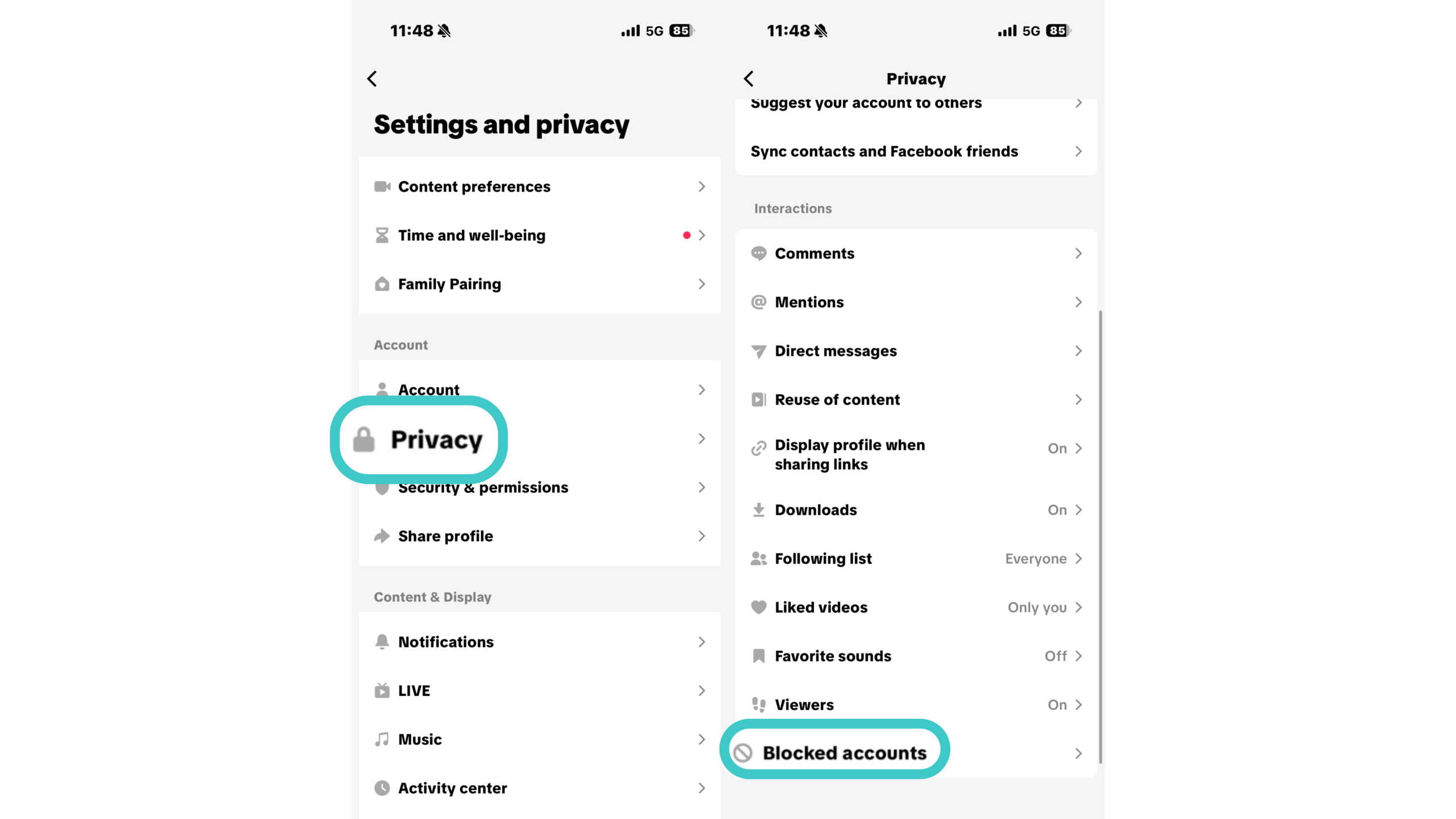
Scroll to find Blocked accounts under the Privacy section.
Step 4. Tap Unblock Next to the User
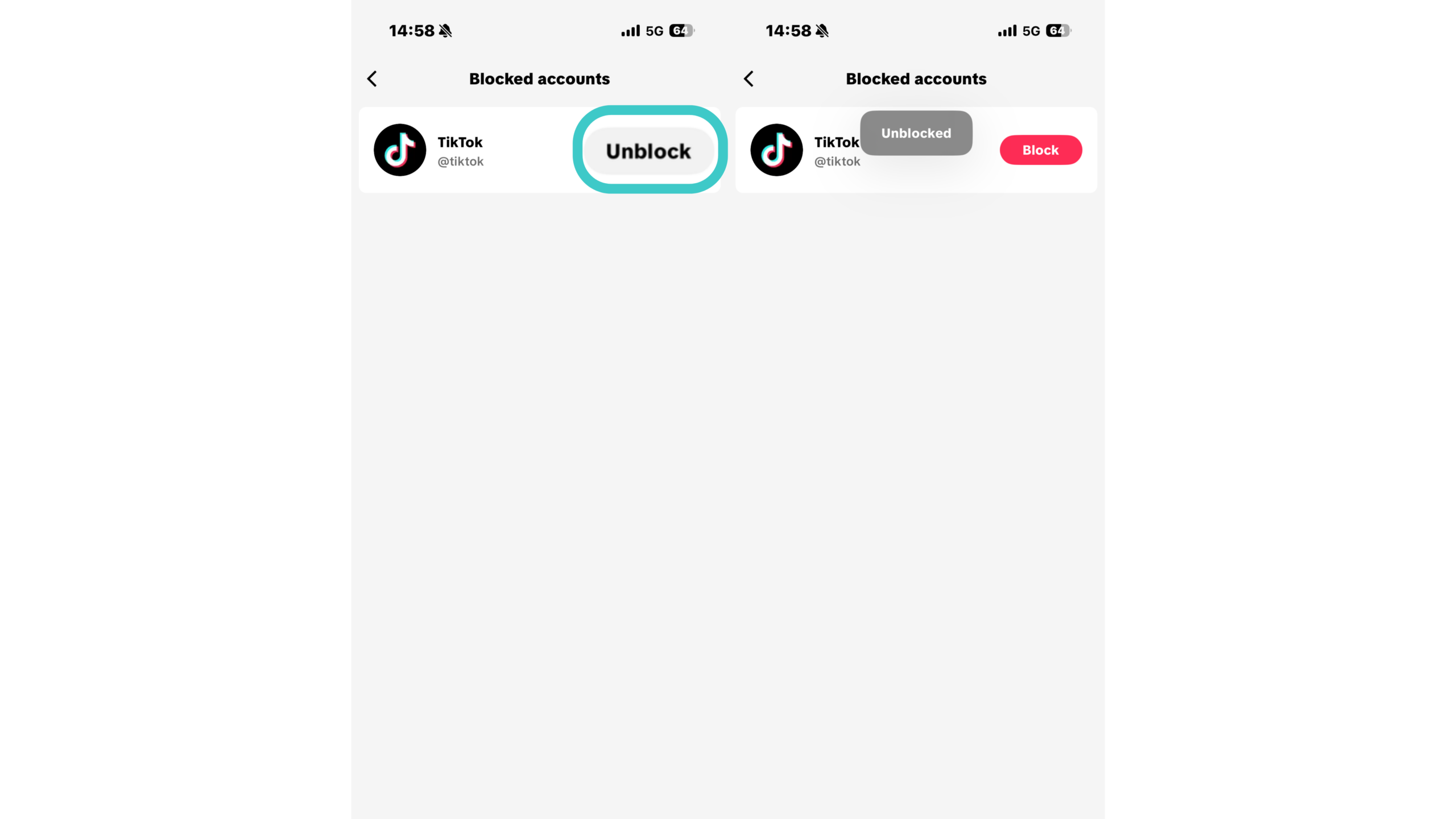
You’ll see a list of everyone you’ve blocked. Just tap Unblock next to their name, done.
Option 2: From Their Profile Page
Step 1. Search for the user you blocked
Step 2. Go to their profile, it’ll look blank except for their handle
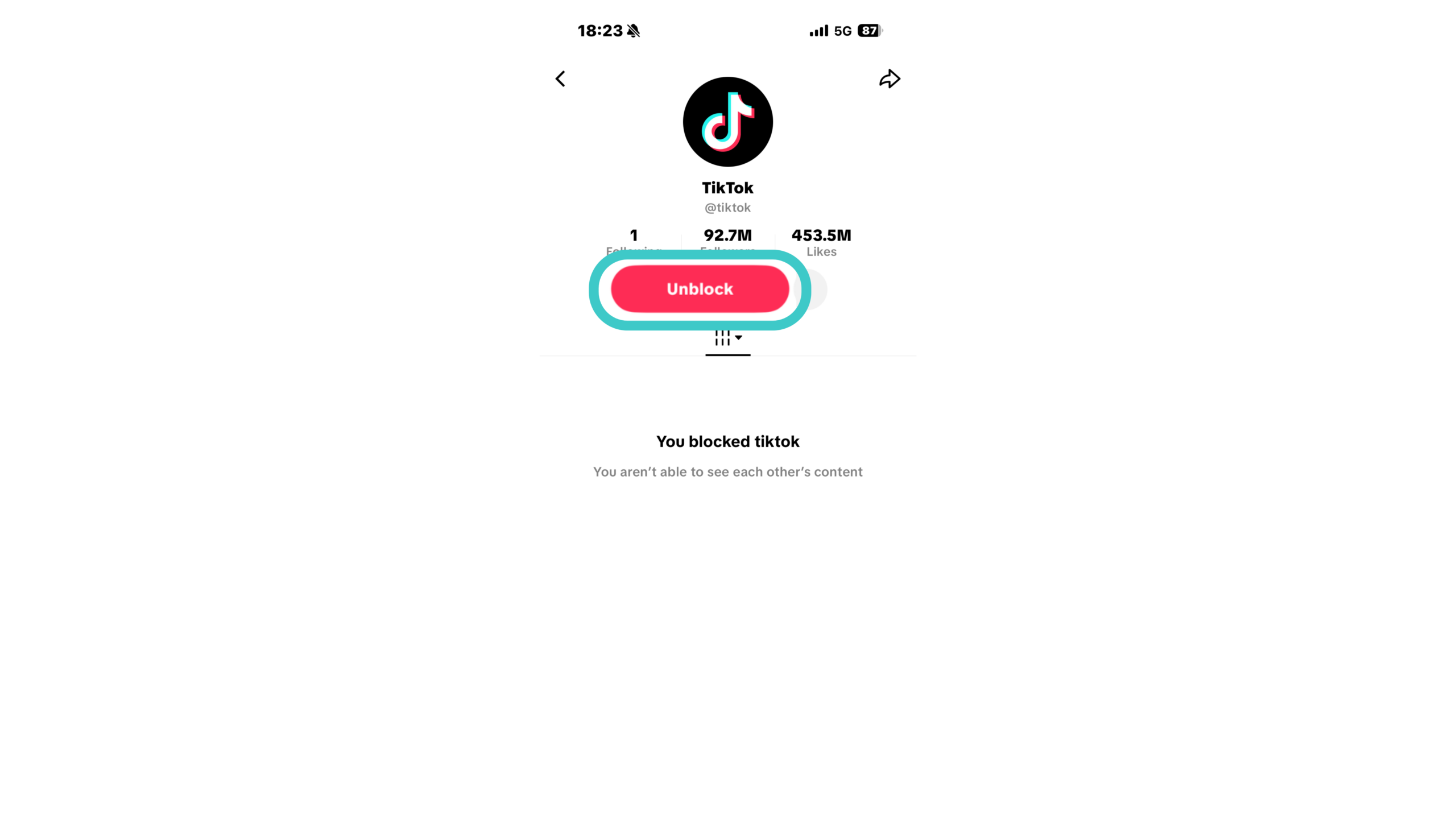
Step 3. Tap the red Unblock button in the center
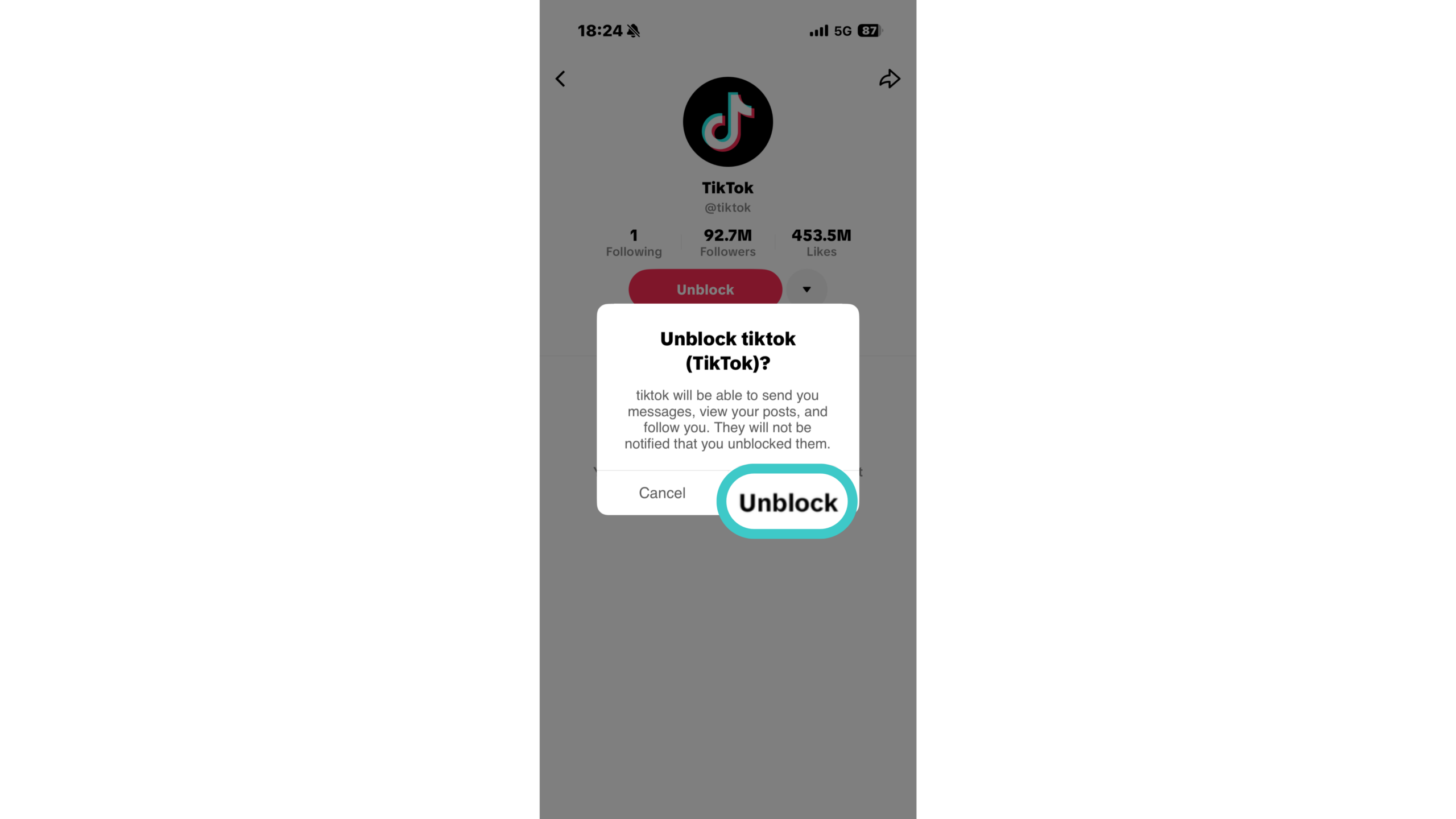
Once unblocked:
- They can follow you again (if your account is public)
- You’ll be able to see their profile and videos
- Their past interactions (comments, likes) may reappear
Don’t worry. No alerts are sent, since TikTok keeps these actions quiet.
Extra Privacy Settings to Stay Safe on TikTok
Blocking helps, but it’s just one piece of the puzzle. If you’re here to learn how to block on TikTok, there’s a good chance you’re also thinking bigger: how to limit who sees you, interacts with you, or even finds your account in the first place.
Protecting your connection matters too, especially when using public Wi-Fi. If you want to understand how your data travels across the internet, check out how a VPN tunnel works explains the basics without technical jargon.
Here are four extra privacy settings that give you more control over your TikTok experience:
Private Account
Only approved followers can see your content.
Step 1. Go to Settings and privacy > Privacy
Step 2. Toggle on Private account
With this on, strangers won’t be able to follow you or see your videos unless you accept their request. Great for staying low-key or sharing only with people you trust.
Comment Filters
Filter out rude or unwanted comments.
Step 1. Go to Settings and privacy > Privacy > Comments
Step 2. Enable Filter keywords or Comment filters
You can block comments containing specific words, or limit who can comment at all. Combine this with blocking for a cleaner, more positive space.
Message Preferences
Decide who can DM you or turn DMs off completely.
Go to Settings and privacy > Privacy > Direct messages
From here, you can limit messages to Friends only, No one, or specific groups. If random DMs stress you out, this setting gives you peace of mind.
Profile Visibility Controls
Reduce how easily people can find your account.
Still getting unwanted attention even with a private account? Try this:
Step 1. Go to Settings and privacy > Privacy > Suggest your account to others
Step 2. Turn off options like Contacts, Facebook friends, or People who open or share your videos
This way, TikTok stops promoting your account in People You May Know sections and elsewhere.
Between blocking and these privacy settings, TikTok can feel like your space again.
Final Thoughts
Whether you’re blocking one person or 100, the goal is simple: protecting your peace. Now that you know how to block someone on TikTok and how to unblock them if you change your mind, you’re in control of who gets to interact with you.
Blocking isn’t a dramatic move. It’s just a digital boundary. Combine it with TikTok’s privacy settings, and you can shape the experience to match your comfort zone. Your account. Your rules.
Blocking is just one layer of digital privacy. Managing who can see your content is important, but understanding how your data moves online gives you even more control. If you feel like you need additional privacy tools, find out when and where you need a VPN.
FAQ
Can you block someone on TikTok without them knowing?
Yes. TikTok doesn’t notify the person when you block them. They may eventually figure it out if they try to visit your profile, but there’s no alert, message, or signal sent to them.
How do I block someone on TikTok without visiting their profile?
Use the bulk block feature from your video’s comment section. Press and hold a comment, select Manage multiple comments, choose the users, and tap Block accounts. No profile visits needed.
Why can’t I block someone on TikTok?
If you don’t see the block option, it might mean they blocked you first. Or it could be due to a glitch, a removed account, or platform limitations. Try restarting the app, clearing cache, or checking for updates.
If I block someone, will they still see my old content?
No. Once blocked, they can’t see your profile, videos, or past interactions. Their previous likes and comments on your posts will also disappear.
Can I block someone who doesn’t follow me?
Absolutely. You can block any TikTok user, regardless of whether they follow you, you follow them, or neither.
Will unblocking someone make them a follower again?
No. If they were following you before the block, they won’t be automatically restored as a follower. They’ll have to request or follow you again manually (if your account is public).