

TikTok is a great platform for entertainment, but spam accounts, trolls, and unwanted DMs can quickly take the fun out of it. When that happens, knowing how to block problematic accounts is the fastest way to regain control of your experience.
This guide covers everything you need to know, including step-by-step instructions for both mobile and desktop, how to block multiple comment spammers at once, and practical solutions for tricky privacy situations.
How to Block Someone on TikTok
Blocking someone on TikTok is a quick process that takes just a few seconds, and the person you block will never be notified. Pick the method below that works best for your device or situation.
Blocking Someone TikTok on Mobile (iOS or Android)
Most people use TikTok on their phones, so here are the steps to block an account directly through the app:
Step 1: Open the TikTok app and go to the profile page of the user you want to block.
Step 2: Tap the Share icon in the top-right corner of the screen.
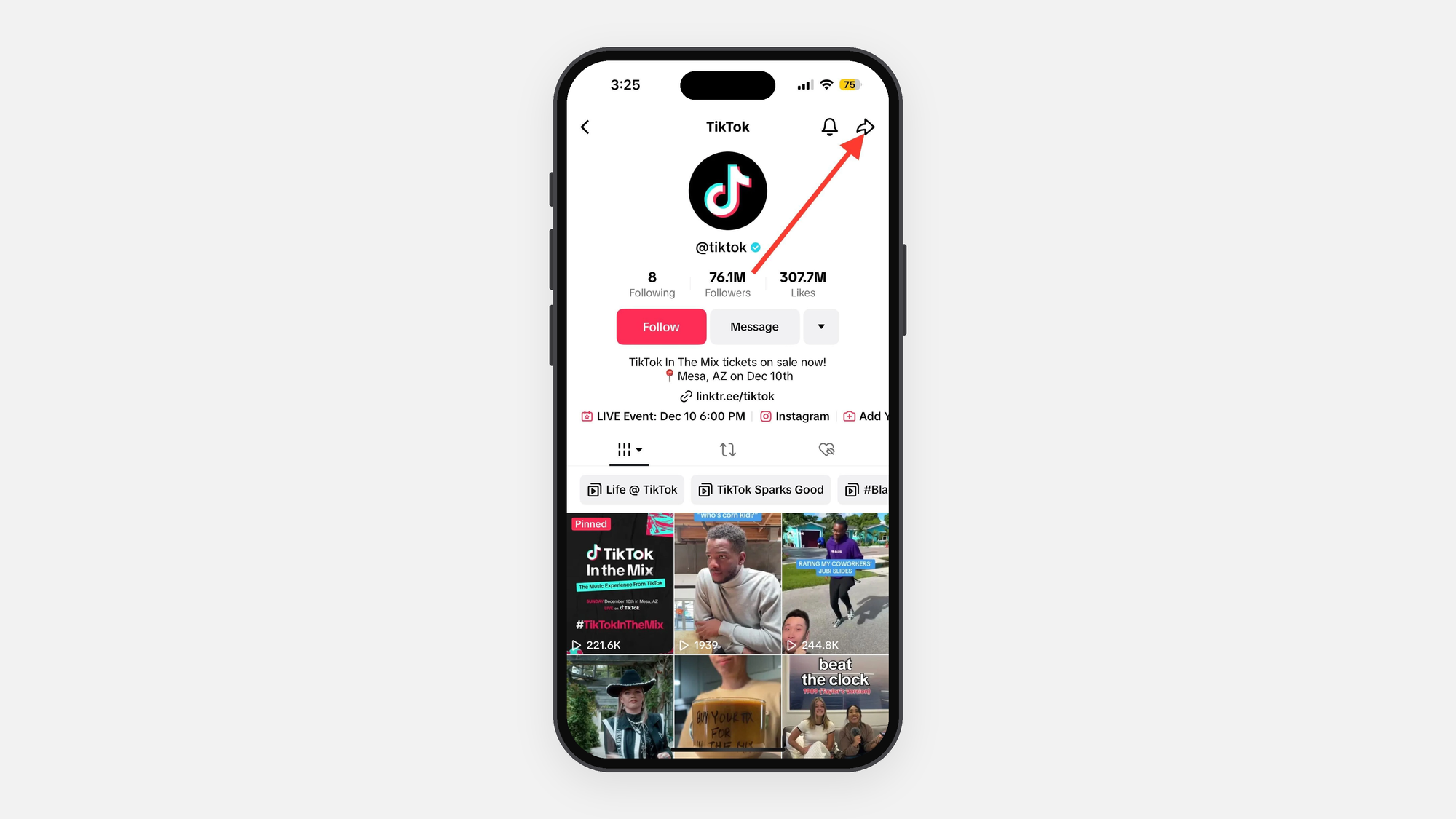
Step 3: Tap Block in the bottom menu.
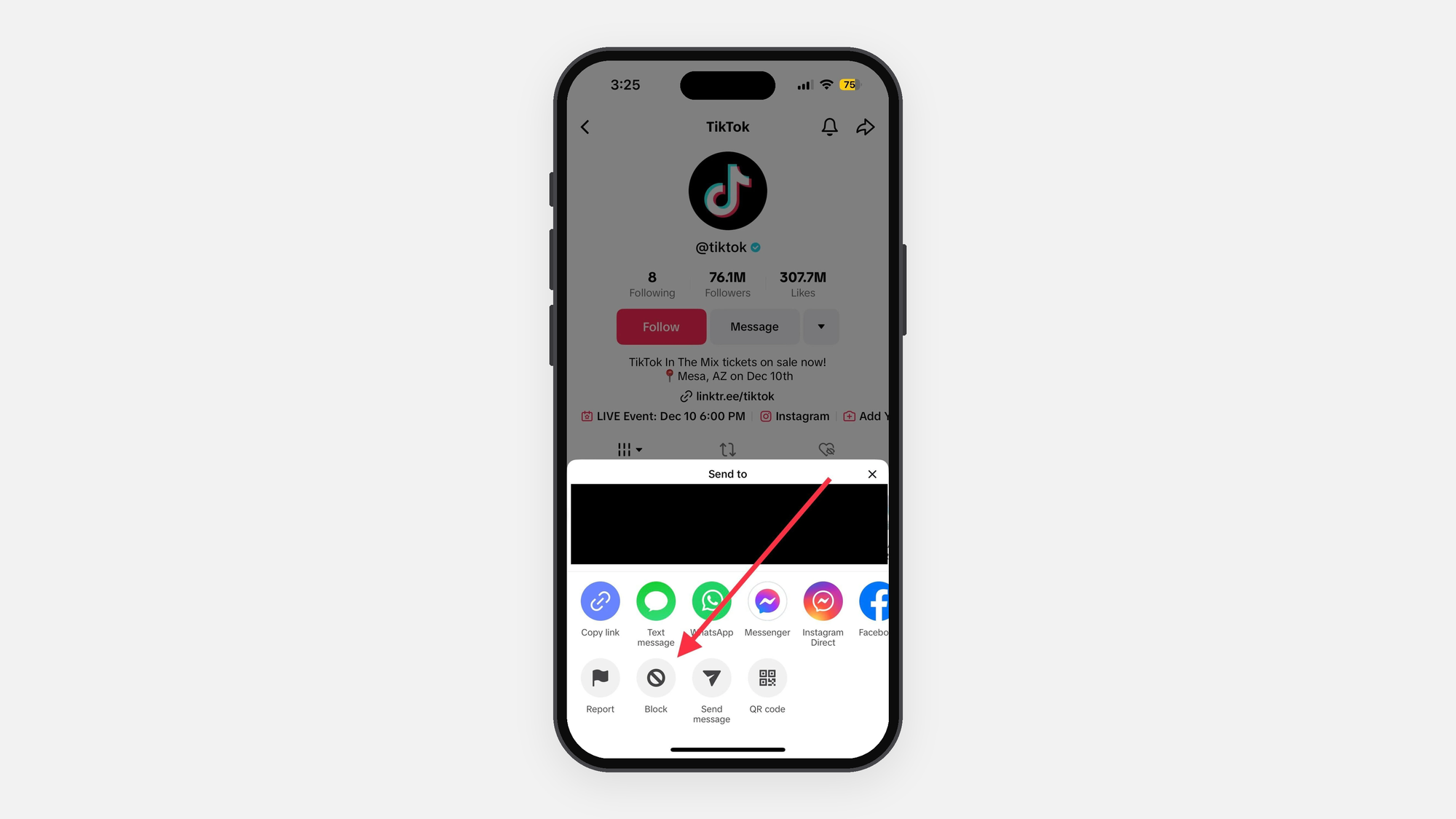
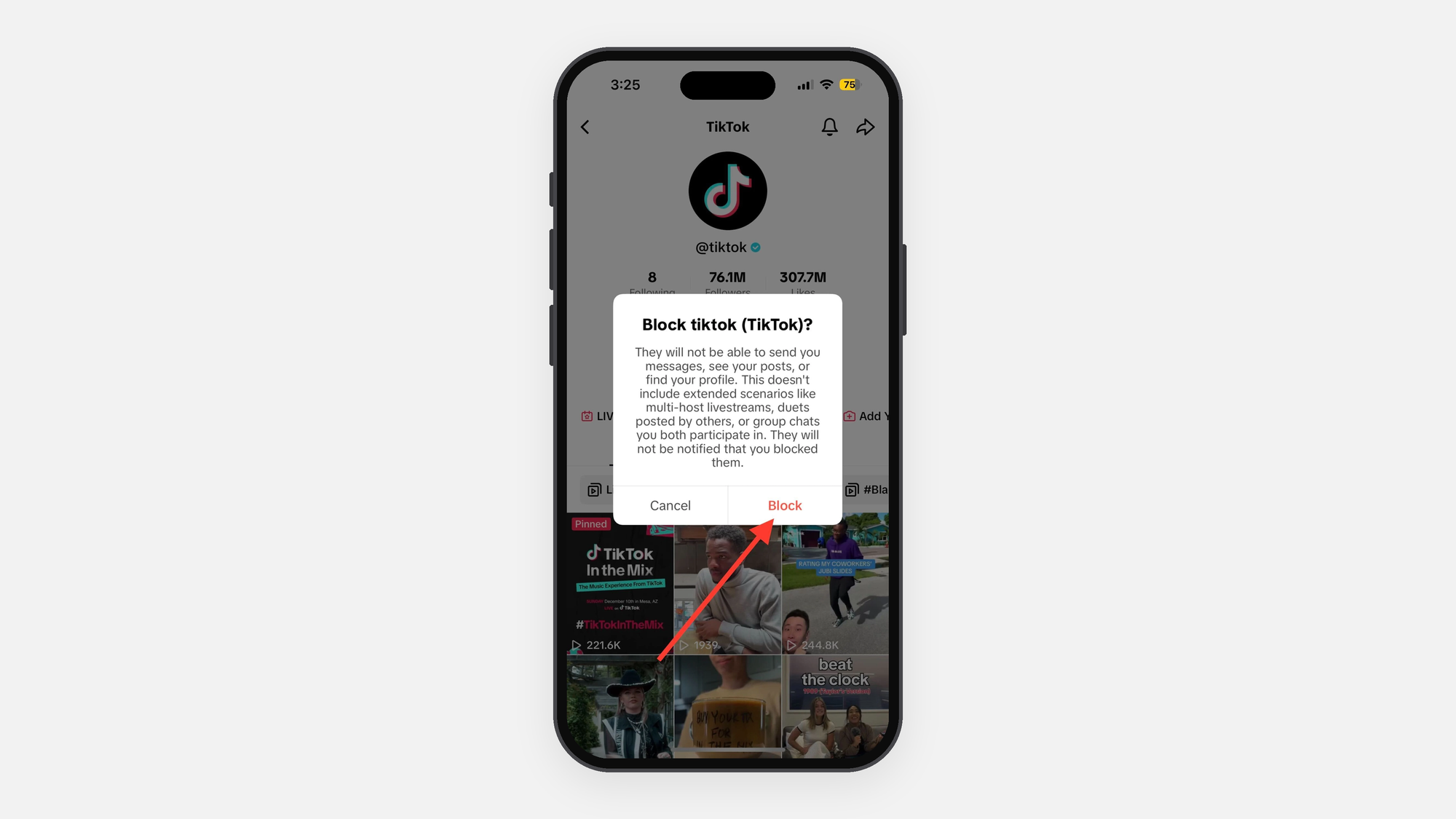
Step 4: Click Block once more in the confirmation pop-up window to finish the process.
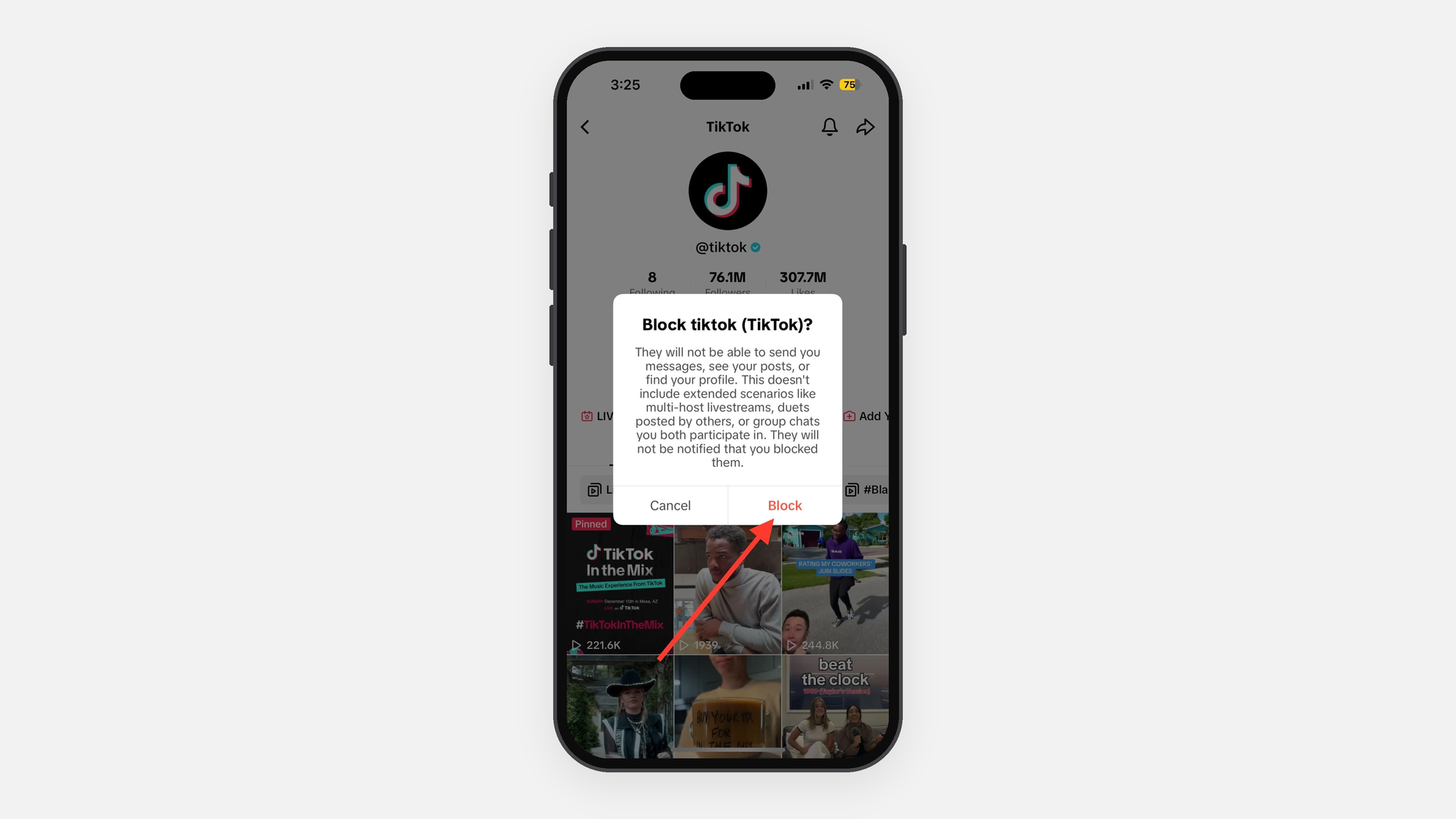
Step 5: To verify that someone has been blocked, look at their profile to see if it appears completely empty and whether the “Follow” button has changed to “Unblock.”
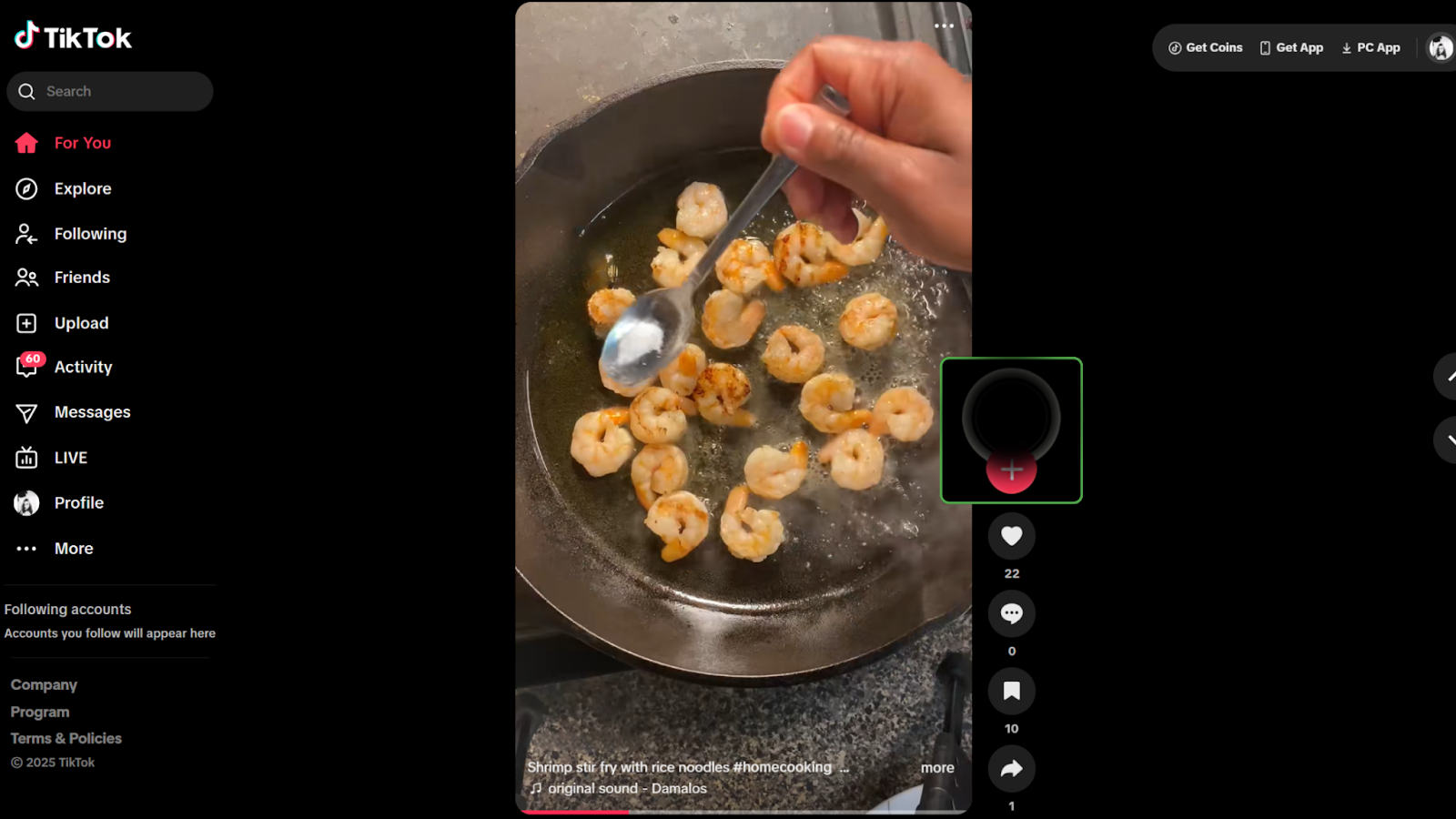
Blocking Someone TikTok on Desktop (PC or Mac)
If you want to block someone on TikTok while using a computer, you can do it directly through your web browser by following these steps:
Step 1: Open your browser and head to tiktok.com, then sign in to your account.
Step 2: Go to the profile page of the user you want to block.
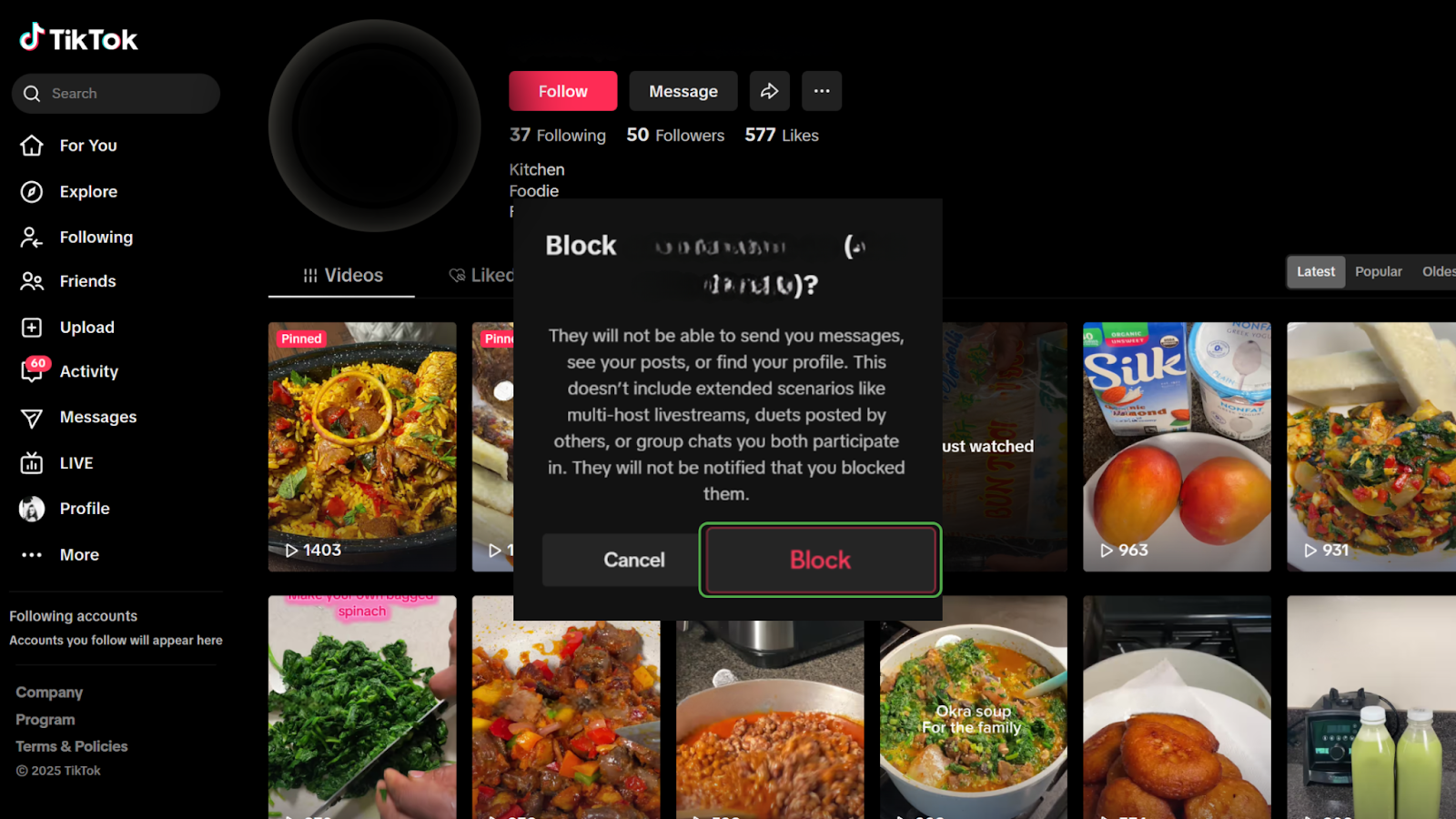
Step 3: Click the three lines icon that appears next to their username toward the top of their profile.
Step 4: Click Block, and then click Block again to confirm.
How to Bulk Block via TikTok Comments
If one of your videos is being hit with spam, bots, or unwanted comments, you don’t need to go through the tedious process of blocking each account individually. TikTok lets you block up to 100 accounts at the same time:
Step 1: Open any video, go to the comments section, and press and hold on a comment. You can also tap the pencil icon located in the top-left corner.
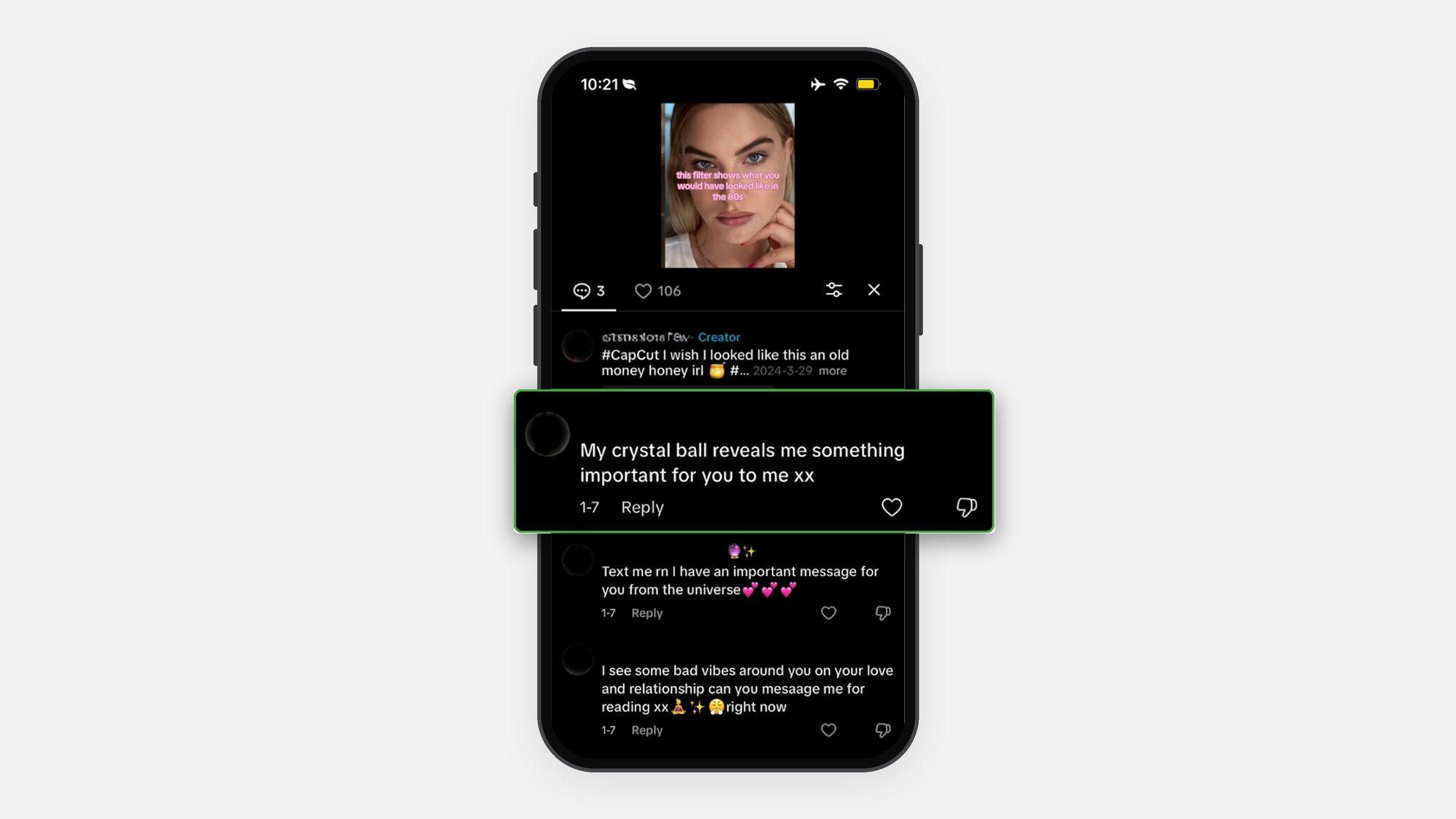
Step 2: Tap “Manage multiple comments.” This activates bulk mode, which means you can delete or block people all at once instead of handling them individually.

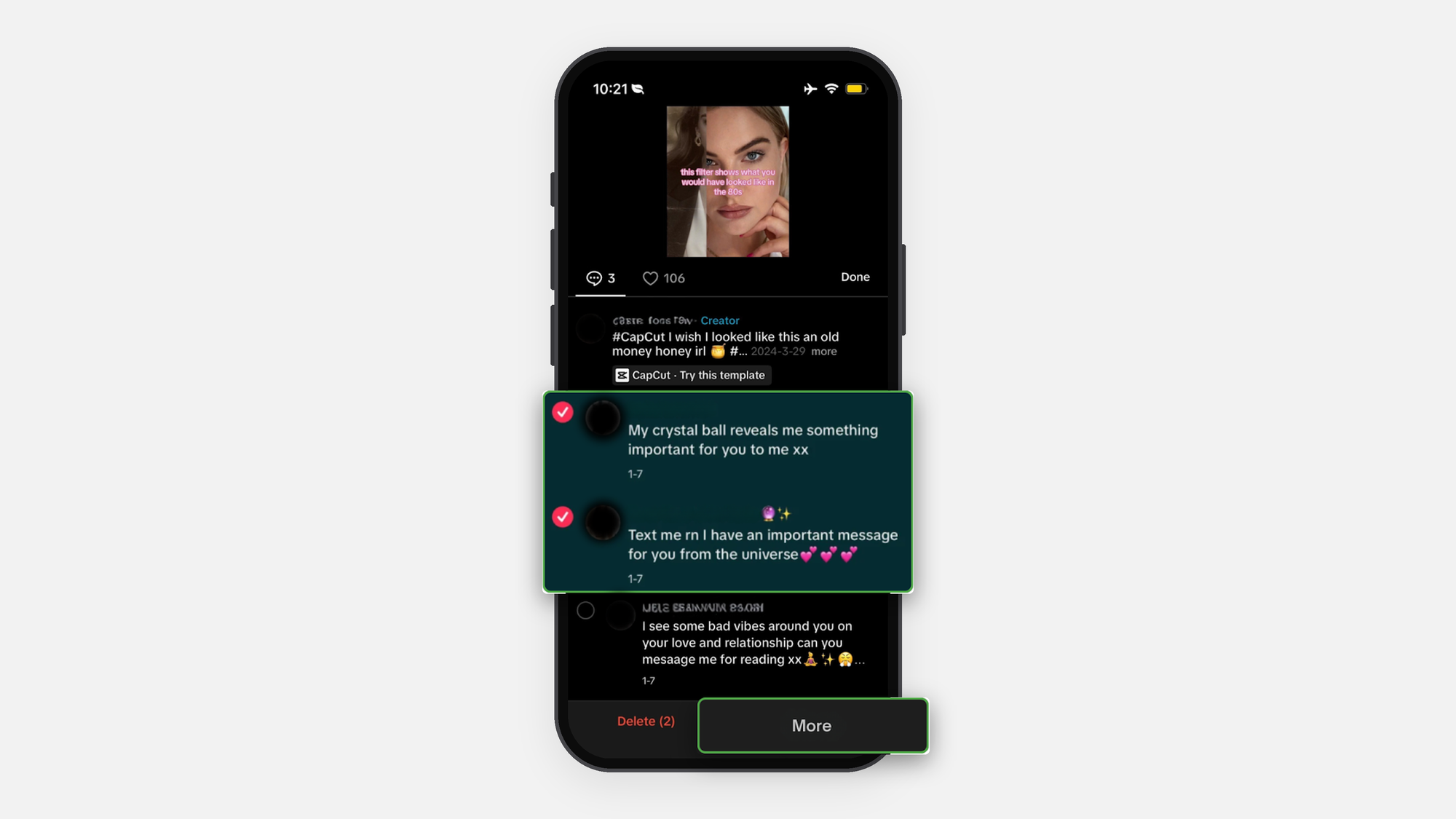
💡You can select up to 100 comments at a time. Simply check the ones from accounts you want to get rid of and block them all at once.
Step 3: Tap “More” at the bottom of your screen.
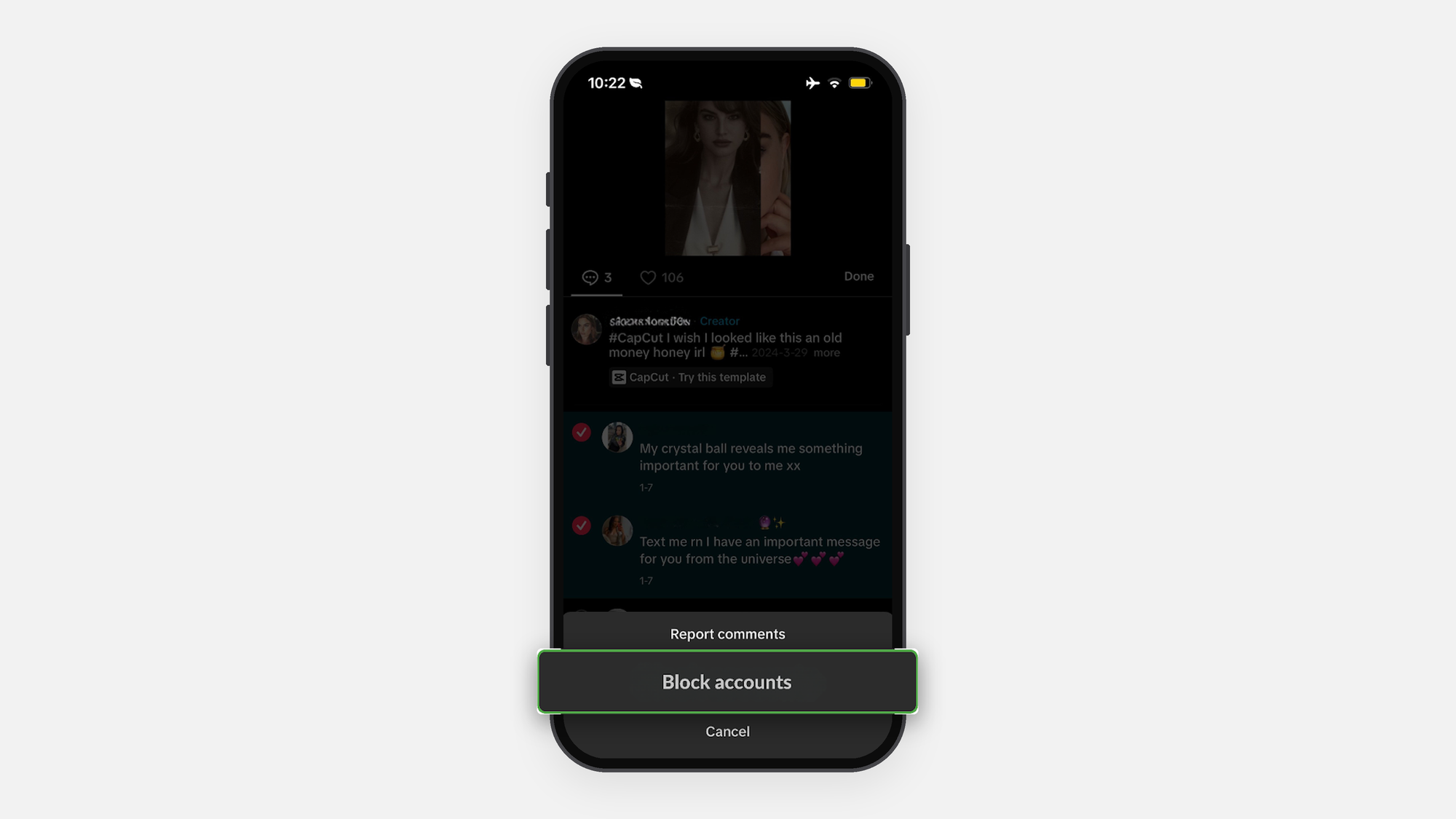
Step 4: Select “Block accounts” to block all of the users who left those selected comments at the same time.
How to Block Someone Who Blocked You
If someone blocks you on TikTok first, their profile will no longer appear when you search for them. That said, you can still block them in return by using one of these two methods:
- Using a Secondary Account or Browser: Log into a second account (or borrow a friend’s account), find the person’s profile, and copy their profile URL. Then open a browser, sign into your main TikTok account, paste the link, and block them directly from the web page.
- Using Past Direct Messages: If you have chatted with this person before, go to your Inbox and open the conversation. Tap the menu icon in the top-right corner and select Block.
How to Block Someone You Don’t Follow
You do not need to follow someone, or have them follow you, in order to block their account.
- Standard Profile Block: From your “For You” page, search results, or comment section, tap the user’s name or profile picture to open their profile. Once you’re there, tap the Share arrow in the top-right corner and choose Block.
How to Manage Your Block List and Unblock Someone
Managing your blocked accounts is straightforward, whether you want to check who you have restricted or give someone another chance. Here is how to find your block list and unblock an account:
Step 1: Head to your Profile and tap the three-line menu located in the top-right corner.
Step 2: Tap Settings and privacy, then select Privacy.
Step 3: Scroll to the bottom of the page and tap on Blocked accounts.
Step 4: Look through your list, locate the user you want to restore, and tap Unblock next to their name.
What Happens After You Unblock Someone
Unblocking an account immediately lifts all interaction restrictions:
- Restored Access: Once you unblock someone, they will be able to search for your profile again, view your public videos, post comments, and send you direct messages.
- No Auto-Refollow: Unblocking someone does not bring back your previous connection on its own. If you both want to see each other’s posts in your Following feeds again, you will each need to go in and manually follow the other person again.
What Blocking Does and Doesn’t Do
What It Does
When you block someone on TikTok, the app immediately severs all direct connections between your two accounts:
- Automatic Unfollow: Once you block someone, both of you will automatically unfollow each other right away.
- Complete Interaction Cutoff: The person you blocked will no longer be able to search for your profile, watch your videos or live streams, comment on your posts, or send you direct messages.
- Zero Notifications: TikTok does not send any alert or notification to the person you have blocked. From their perspective, your account simply seems to have disappeared entirely.
What It Doesn’t Do
While blocking prevents any future contact, it does not completely wipe out your shared history:
- Past Data and FYP Influence: Records of old interactions, including previous likes, video views, or duets, may still be stored within TikTok’s platform data.
Final Words
Blocking unwanted users is the fastest way to put a stop to harassment, tidy up your feed, and take back control of your TikTok experience. That said, locking down your in-app settings is only part of the equation when it comes to achieving complete online privacy.
Using a reliable VPN masks your real IP address and physical location, adding an essential layer of digital protection to keep your personal data safe while you scroll. Combine smart account management with strong privacy tools, and you can enjoy social media on your own terms.
FAQs
Why can’t I block people on TikTok anymore?
You may have hit TikTok’s daily limit, or the app is experiencing a temporary glitch due to poor network connectivity. To fix this:
Step 1: Clear your app cache in Settings and privacy.
Step 2: Ensure a stable connection. If you are experiencing region-based network restrictions or severe latency that causes error messages like “Try again later,” using a stable VPN like X-VPN can help reroute your connection to a faster, unrestricted server.
Step 3: Update TikTok to the latest version, or wait 24 hours before trying again.
How to block someone from TikTok without them knowing?
All blocking on TikTok is completely anonymous by default. TikTok never sends a notification when you block an account. Their profile simply loses access to your content, and your account will no longer appear in their search results.
How do I block someone on TikTok?
Visit the user’s profile, then tap the Share icon or the three lines in the top-right corner. From there, select Block and tap Block again to confirm your choice.
Can you block someone from messaging you on TikTok?
Yes. Blocking an account automatically prevents them from sending you direct messages. If you only want to restrict messages without fully blocking the person, go to Settings and privacy > Privacy > Direct messages and change your permissions to Friends or No one.
How to tell if someone is secretly viewing your TikTok?
Turn on the Profile View History feature. Go to Settings and privacy > Privacy > Profile views and toggle it on. You will be able to see who visited your profile in the last 30 days, as long as the other user also has this feature enabled.