


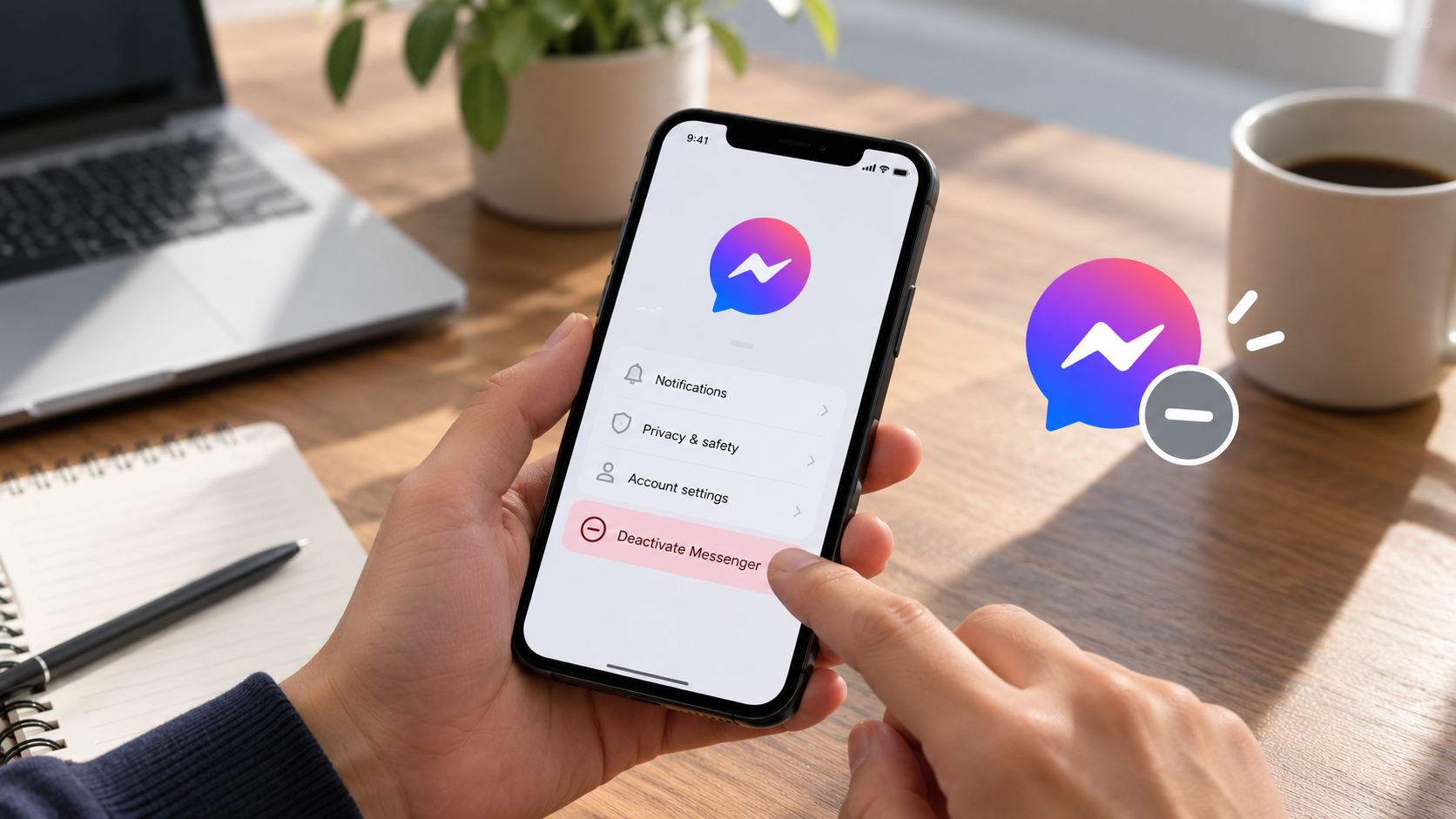
Want to take a break from Messenger? You can temporarily deactivate your account in a few steps. If your Messenger account is linked to Facebook, you’ll need to deactivate Facebook first. Messenger-only and Deactivated Except Messenger (DEMA) accounts may follow a different deactivation process.
Quick Steps:
Step 1: Deactivate your Facebook account.
Step 2: Open Messenger on your iPhone or Android.
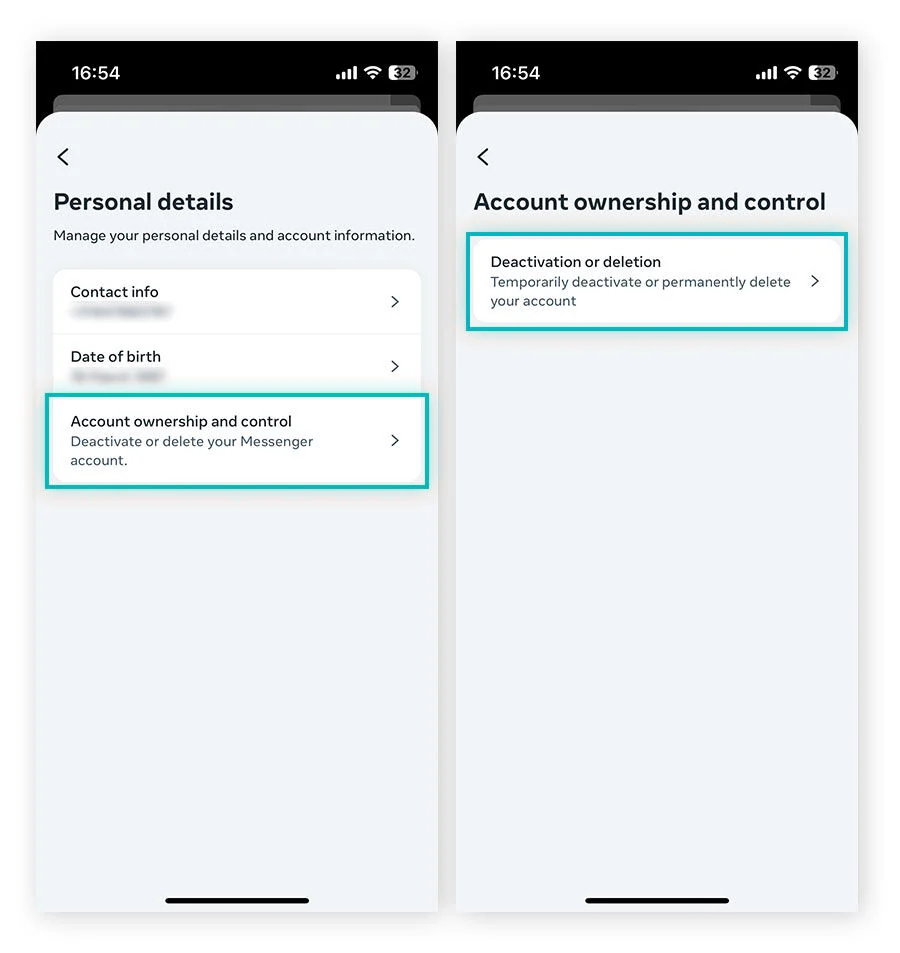
Step 3: Go to Settings → Accounts Center → Personal details → Account ownership and control → Deactivation or deletion, then follow the instructions.

💡Deactivation is temporary, and you can reactivate Messenger by logging back in.
Table of Contents
Why Should You Deactivate Facebook Messenger?
Messenger makes staying connected easy, but sometimes you just need a break. Whether you’re concerned about privacy or simply want fewer distractions, deactivating Messenger gives you more control over your digital life.
Here are a few reasons you might consider it:
- Reduce Distractions: Constant messages and calls can interrupt your day. Deactivating Messenger lets you step away from conversations and focus on what matters.
- Improve Your Privacy: Deactivation makes your Messenger profile less visible to others and stops new conversations while you’re away. Your previous messages may still appear in existing chats.
- Take a Social Media Break: Spending less time on messaging apps can help you disconnect, relax, and build healthier online habits.
- Keep Your Data for Later: Unlike permanently deleting your account, deactivation lets you return whenever you’re ready. Simply log back in to reactivate Messenger.
💡Taking a break from Messenger is one way to manage your digital privacy. For everyday browsing, X-VPN adds another layer of protection by encrypting your internet traffic and keeping your connection more private, especially on public Wi-Fi.
How to Deactivate Facebook Messenger on iPhone and Android
The process is nearly identical on iPhone and Android. Follow the steps below to navigate your account settings and complete the deactivation.
Here’s how to do it:
Step 1. Open Messenger on your iPhone or Android phone.
Step 2. Tap the three-line menu icon in the top-left corner, then select Settings. Go to See more in Accounts Center > Personal details.
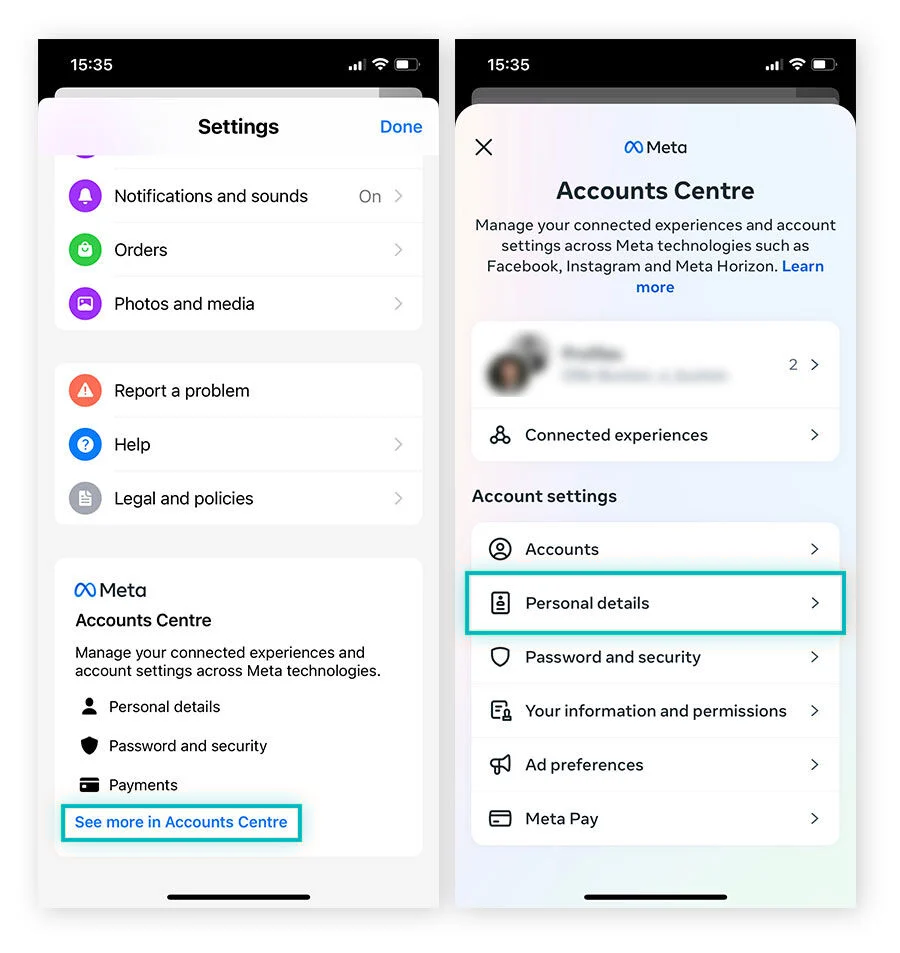
Step 3. Select Account ownership and control, then tap Deactivation or deletion.
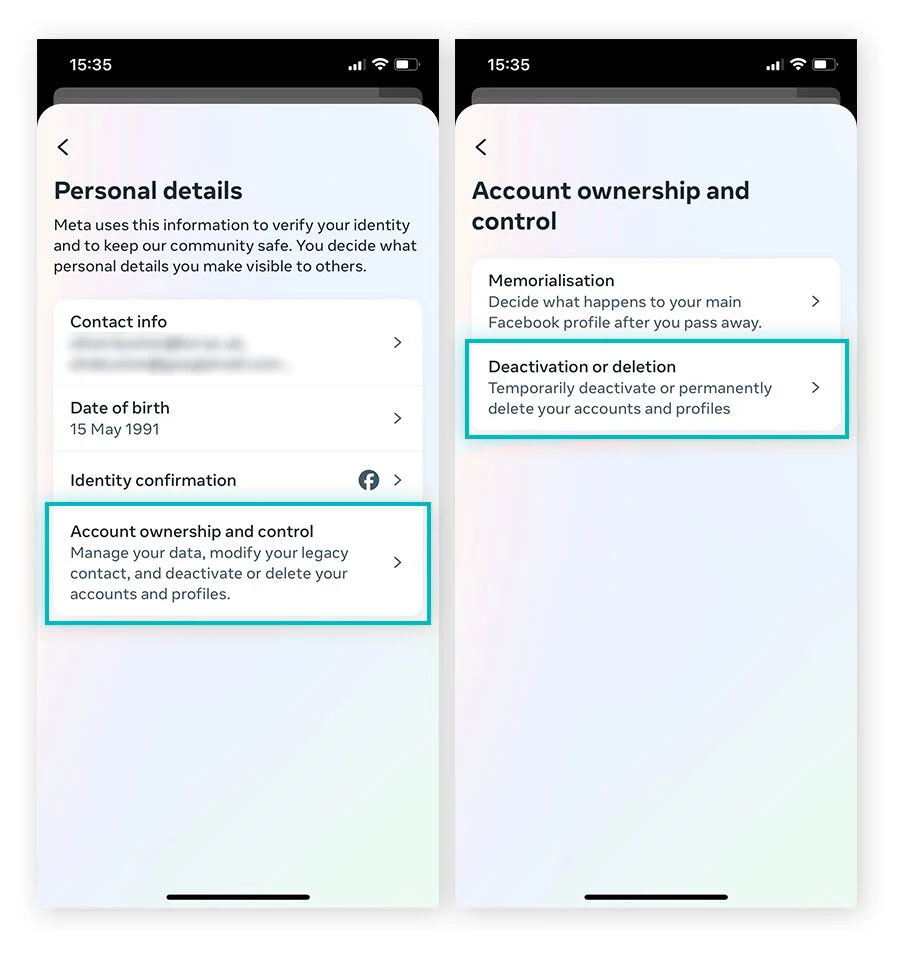
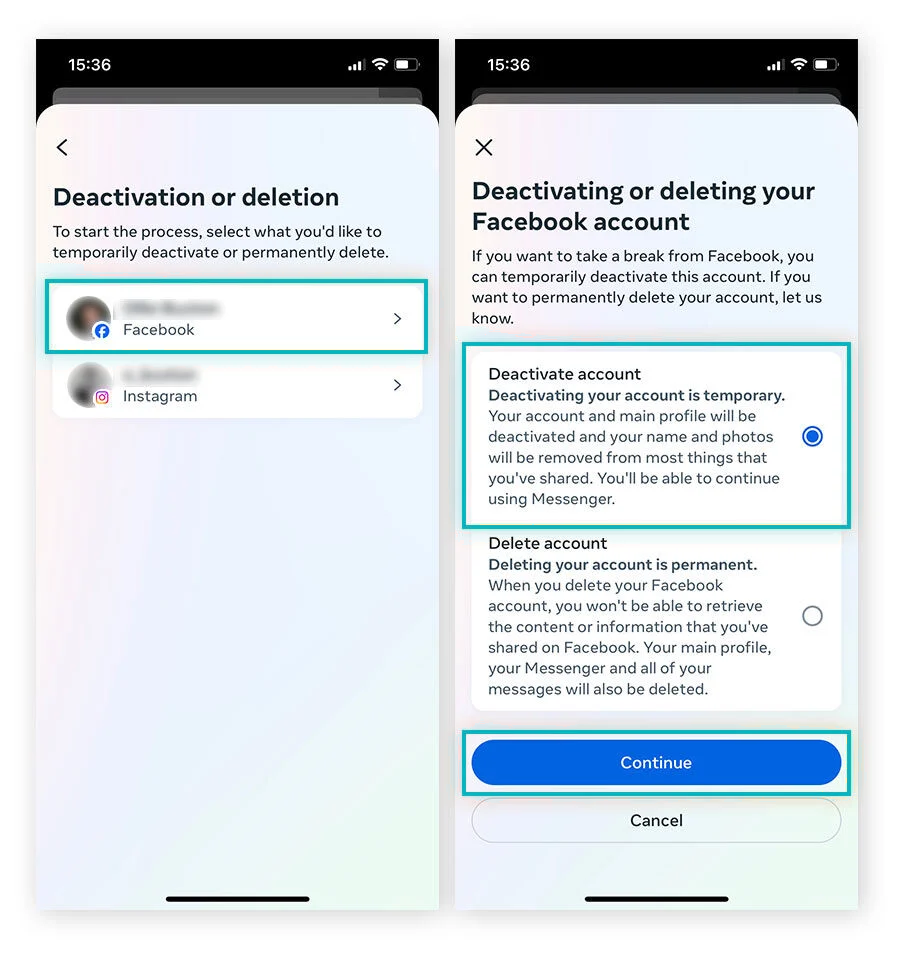
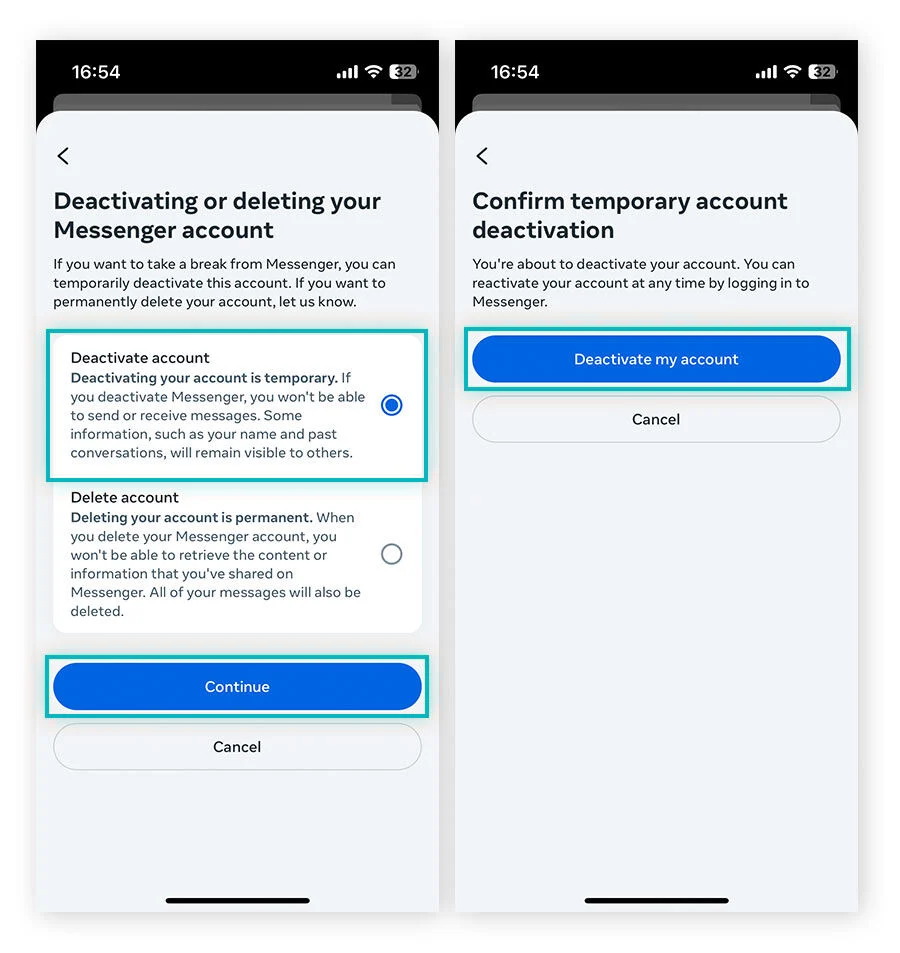
Step 4. Choose your linked Facebook account, select Deactivate account, and tap Continue.
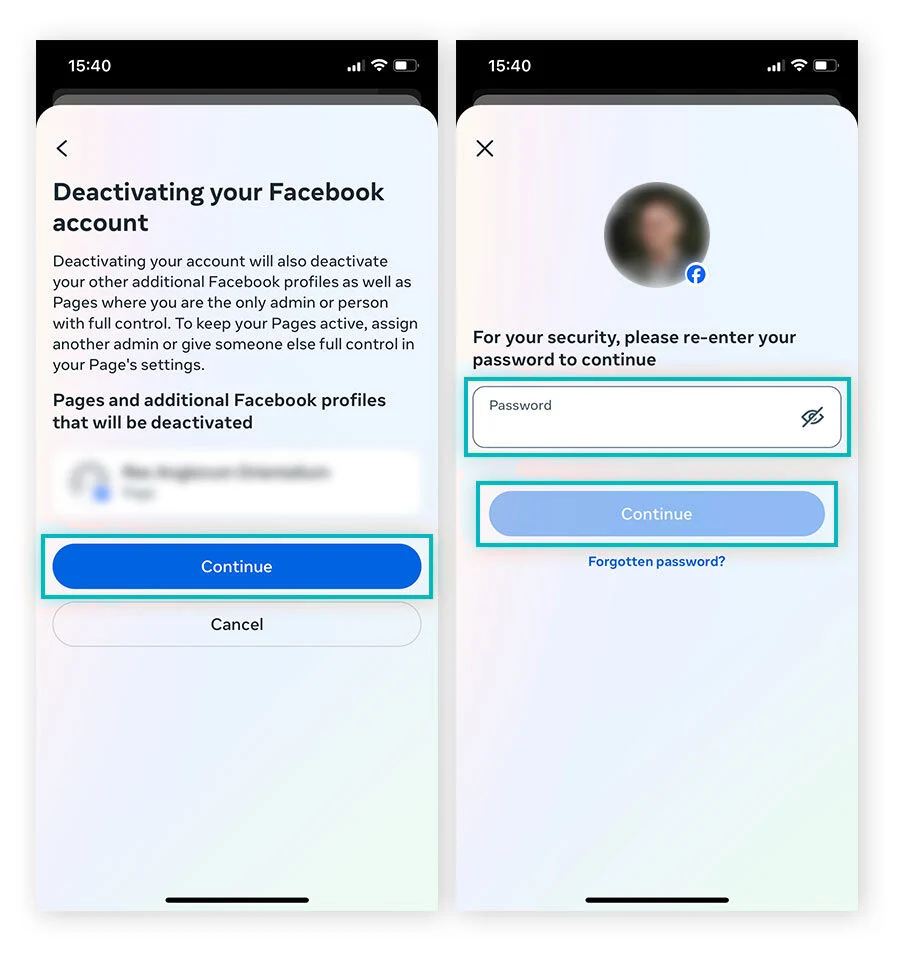
Step 5. Follow the on-screen instructions to deactivate Facebook. Review any affected profiles or Pages, enter your password, and tap Continue.
Step 6. Once Facebook is deactivated, return to Messenger and navigate to Accounts Center > Personal details > Account ownership and control > Deactivation or deletion.
Step 7. Tap Deactivate account > Continue, then select Deactivate my account to finish.
Why Can’t I Deactivate Messenger?
If you have trouble deactivating Messenger, the issue is often related to your Facebook account status or where you’re looking in the app. Here are four common problems and how to fix them.
The Deactivation Option Is Missing
Make sure you’ve deactivated your linked Facebook account first. According to Meta, the option to deactivate Messenger only appears after Facebook is deactivated. Then, open Messenger and check Accounts Center > Personal details > Account ownership and control > Deactivation or deletion.
Facebook Is Deactivated, but Messenger Still Works
Deactivating Facebook doesn’t automatically turn off Messenger. You can still receive messages if Messenger remains active. To deactivate it too, open the Messenger app and complete the separate deactivation process described above.
Your Messenger Settings Look Different
Messenger’s layout may vary depending on your app version. If you can’t find Accounts Center, try opening your profile picture > Account settings > Account ownership and control > Deactivation and deletion. You can also update Messenger through the App Store or Google Play to make sure you’re using the latest version.
You Can’t Complete the Deactivation
If Messenger asks for your password, enter the password associated with your Facebook account. Forgot it? Use Facebook’s password recovery option to regain access. If the process still fails, visit the Messenger Help Center to report the issue.
What Happens After You Deactivate Messenger?
Deactivating Messenger gives you a break from chats and notifications without permanently deleting your account. Here’s what changes once your account is deactivated:
- Your Messages Stay Saved: Your chat history isn’t deleted, and friends can still see messages you’ve previously sent them. You can access your conversations again when you reactivate Messenger.
- Your Profile Is No Longer Searchable: People can no longer find your deactivated profile through Messenger searches, although your name and past messages may still appear in existing conversations.
- You Stop Receiving Messages and Calls: Others won’t be able to contact you through Messenger while your account is deactivated. You also won’t be able to send messages or make calls until you reactivate it.
- Your Account Isn’t Permanently Deleted: Deactivation is temporary. Unlike deleting individual messages or permanently deleting your Facebook account, it lets you return to Messenger simply by logging back in.
Deactivating vs. Deleting Messenger: What’s the Difference?
Deactivating Messenger is a temporary break, while deleting your account is a more permanent decision. Here’s a quick comparison to help you choose.
| Differences | Deactivating Messenger | Deleting Messenger |
| Purpose | Temporarily stop using Messenger. | Permanently leave Messenger. |
| Recovery | Log back in whenever you’re ready. | You can cancel account deletion within the cancellation period set by Meta. After that, it can’t be undone. |
| Facebook Account | You must deactivate your linked Facebook account first. | Deleting your linked Facebook account also removes access to Messenger. |
| Messages & Data | Your chat history is preserved, and previously sent messages remain visible to others. | Your account data is deleted, but messages you’ve sent may remain in recipients’ inboxes. |
💡For Messenger accounts linked to Facebook, permanently deleting the associated Facebook account also ends access to Messenger. If you’re ready to leave for good, follow Meta’s Facebook account deletion guide.
Final Thoughts
Deactivating Messenger lets you take a break from messages and calls without permanently deleting your account. Just deactivate your linked Facebook account first, then complete the process in Messenger on your iPhone or Android.
Your previous messages may still be visible to others, and you can reactivate Messenger whenever you’re ready by logging back in. If you prefer to keep Facebook active, turning off Messenger notifications or hiding your active status can help you enjoy fewer distractions without deactivating your account.
Frequently Asked Questions
Can I Deactivate Messenger on a Computer?
No. According to Meta, you can deactivate your Facebook account using a computer, but Messenger deactivation must be completed on an iPhone or Android device. Open the Messenger app on your phone and follow the deactivation steps.
How Long Can I Keep Messenger Deactivated?
You can keep Messenger deactivated for as long as you want. There’s no fixed time limit, and your account won’t be permanently deleted just because you leave it deactivated. When you’re ready to return, simply log back in with your username and password.
Can I Deactivate Messenger If I Forgot My Password?
You’ll need your Facebook account password to complete Messenger deactivation. If you’ve forgotten it, visit Facebook’s account recovery page and follow the instructions to reset your password. Once you’ve regained access, you can continue with the deactivation process.
Can I Deactivate Facebook and Still Use Messenger?
Yes. Facebook lets you keep Messenger active even after deactivating your Facebook account. You can still send messages, make calls, and stay in touch with friends without reactivating Facebook. Your Messenger profile will also remain visible to people who want to contact you.