

We’re excited to share that a new update for X-VPN on iOS is now rolling out! Today’s release focuses on giving you better privacy protection and stronger security. From disappearing on shared Wi-Fi and stripping out noisy ads to routing traffic through high-capacity or advanced privacy servers, this update turns X-VPN for iOS into a much stronger shield around everything you do online.
Let’s get into the details of what’s new and how these changes help you stay safe on iOS.
Table of Contents
Key Update
Here’s a quick look at what’s new in this iOS update:
WireGuard & OpenVPN UDP Protocols
Two new protocol options for X-VPN on iOS, so you can pick an open-source VPN protocol based on what you’re doing.
Invisible on LAN
Hide your device from other devices on the same Wi-Fi network so you can use public hotspots without being visible on the local LAN.
10Gbps Servers
Connect to high-capacity servers designed to stay fast and stable during 4K streaming, large downloads, and busy peak hours.
Tor over VPN, P2P & Distributed VPN
Choose specialized routes for extra anonymity, long-running P2P transfers, or traffic that’s harder to trace and profile.
Web Protection
Block intrusive ads, hidden trackers, and known malicious or phishing sites to keep your browsing cleaner, faster, and safer.
Security Lab with Post-quantum Encryption
Access advanced privacy options, including post-quantum encryption, when you want stronger, future-focused protection for sensitive data.
Improved Data Page & Status Visibility
See your VPN status, IP, location, protocol, traffic, weekly protected time, and active protections at a glance in the updated Data page.
Introduce WireGuard & OpenVPN UDP Protocols
What Are WireGuard & OpenVPN?
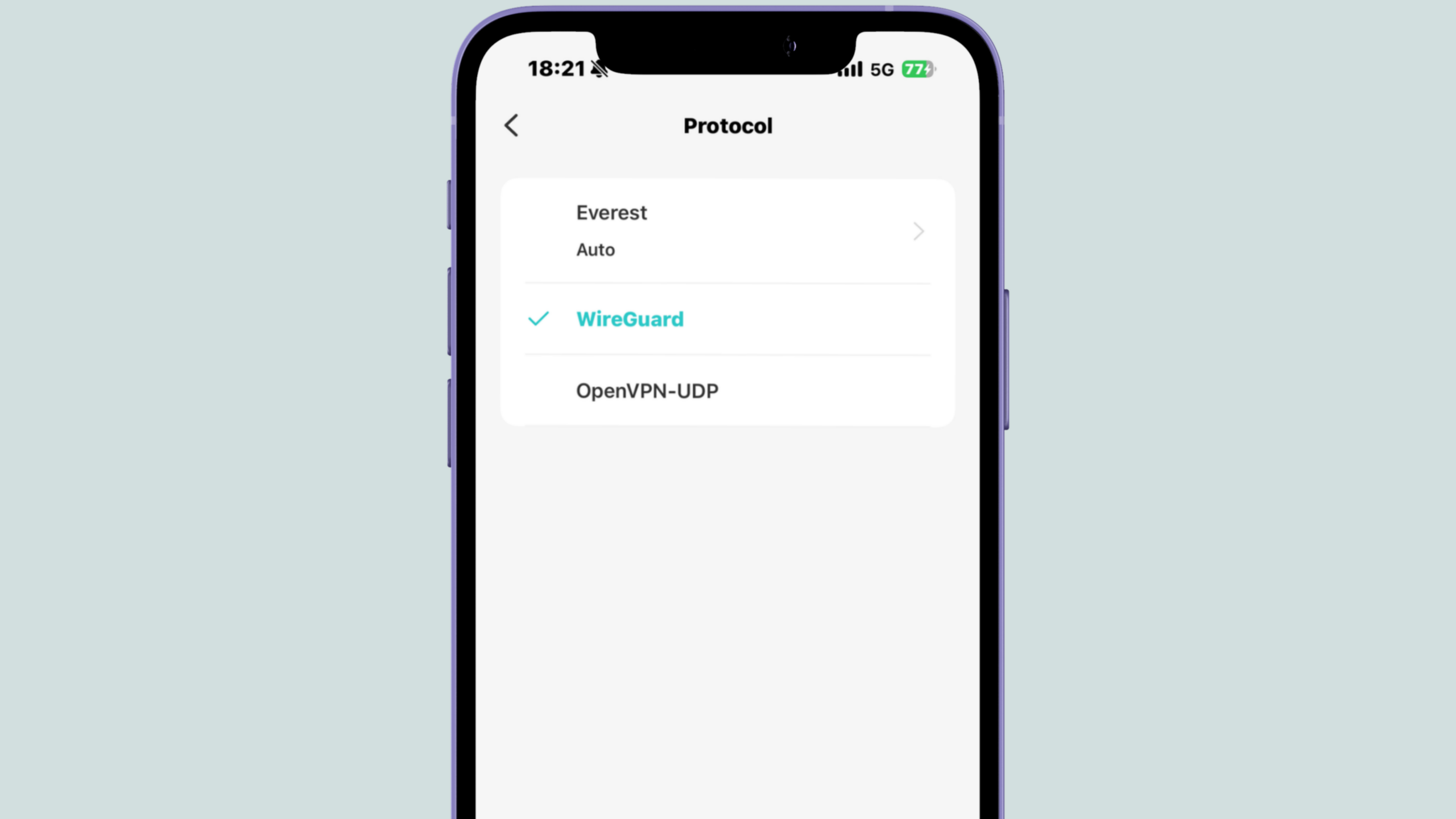
WireGuard and OpenVPN UDP are two new protocol options on iOS, basically two “connection modes” you can choose depending on how you want your VPN to feel.
What Does Them Do?
WireGuard usually feels quicker and smoother for everyday use, while OpenVPN UDP is a reliable speed-focused option that often performs well for streaming and downloads.
How to Use
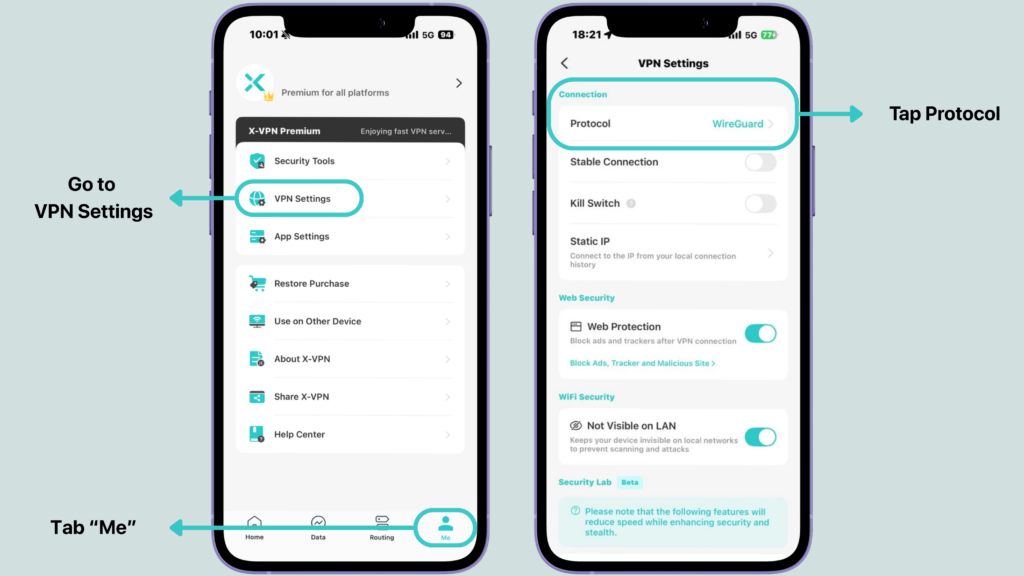
Step 1. Open X-VPN on your iOS device.
Step 2. Tap Protocol under the Server option or Go to Me → VPN Settings → Protocol.
Step 3. Select WireGuard or OpenVPN UDP.
WireGuard and OpenVPN UDP Protocol are available for X-VPN free and Premium users on iOS.
Introduce Invisible on LAN
What Is Invisible on LAN?
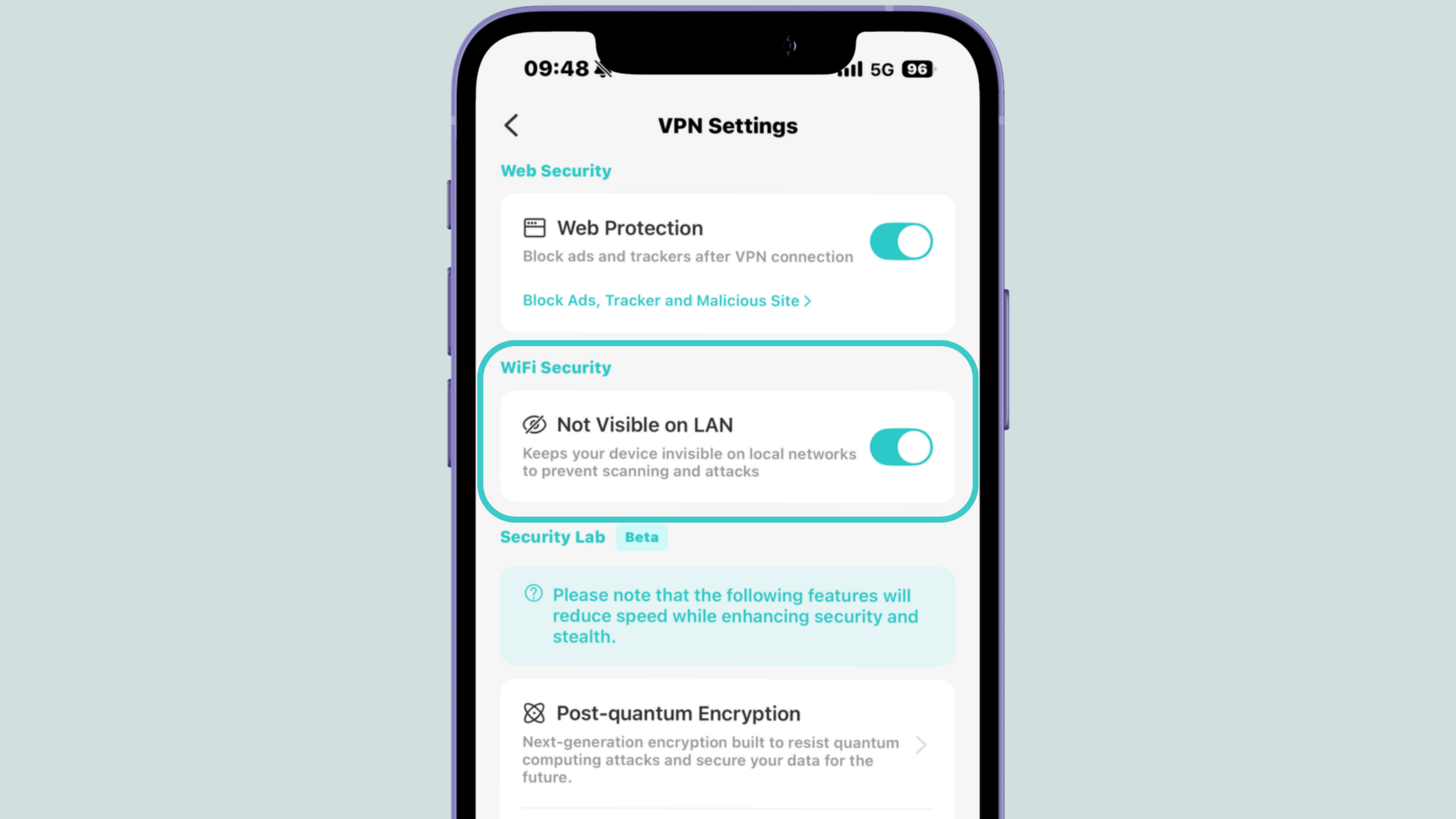
Invisible on LAN is a new Wi-Fi security option that hides your device from other devices on the same Wi-Fi network. Once it’s turned on, people on the same Wi-Fi can’t see your device in their device list, and you also won’t see their shared printers or file shares.
What Does It Do?
Invisible on LAN is built for people who feel uneasy on public Wi-Fi and don’t want strangers on the same network to even notice their device. By hiding you from other devices on the Wi-Fi, it reduces the chance of being discovered or targeted just because you joined a hotel, café, or airport network.
How to Use
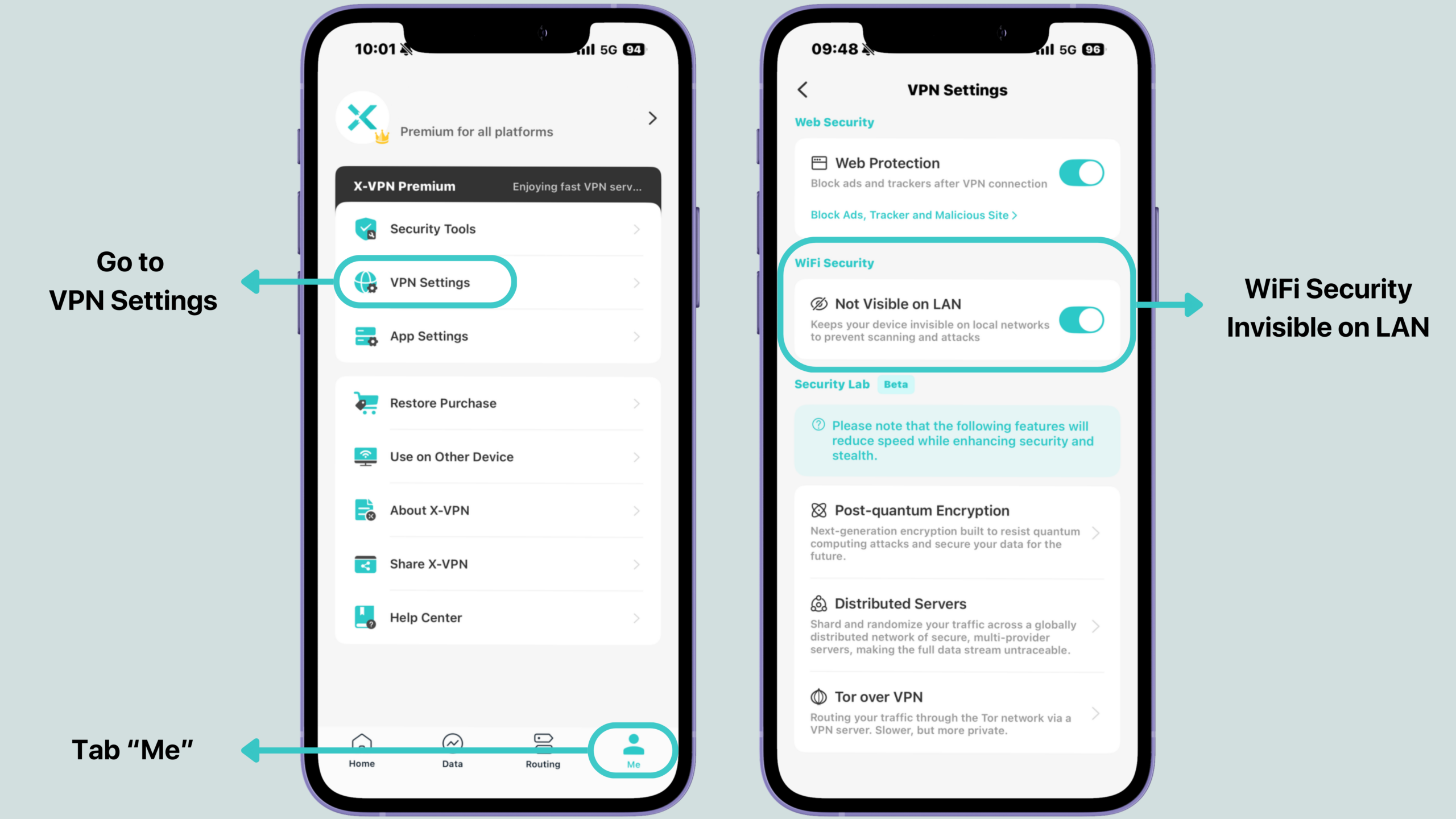
Step 1. Open X-VPN on your iOS device.
Step 2. Go to Me → VPN Settings → WiFi Security.
Step 3. Turn on Not Visible on LAN before or after you connect to a public or shared Wi-Fi network.
For free users, we offer the same invisible on LAN protection as Premium users. You can also enjoy no registration, no data limits, and access to 26 server locations across 15+ countries with our free VPN for iOS.
Introduce 10Gbps Servers
What Are 10Gbps Servers?
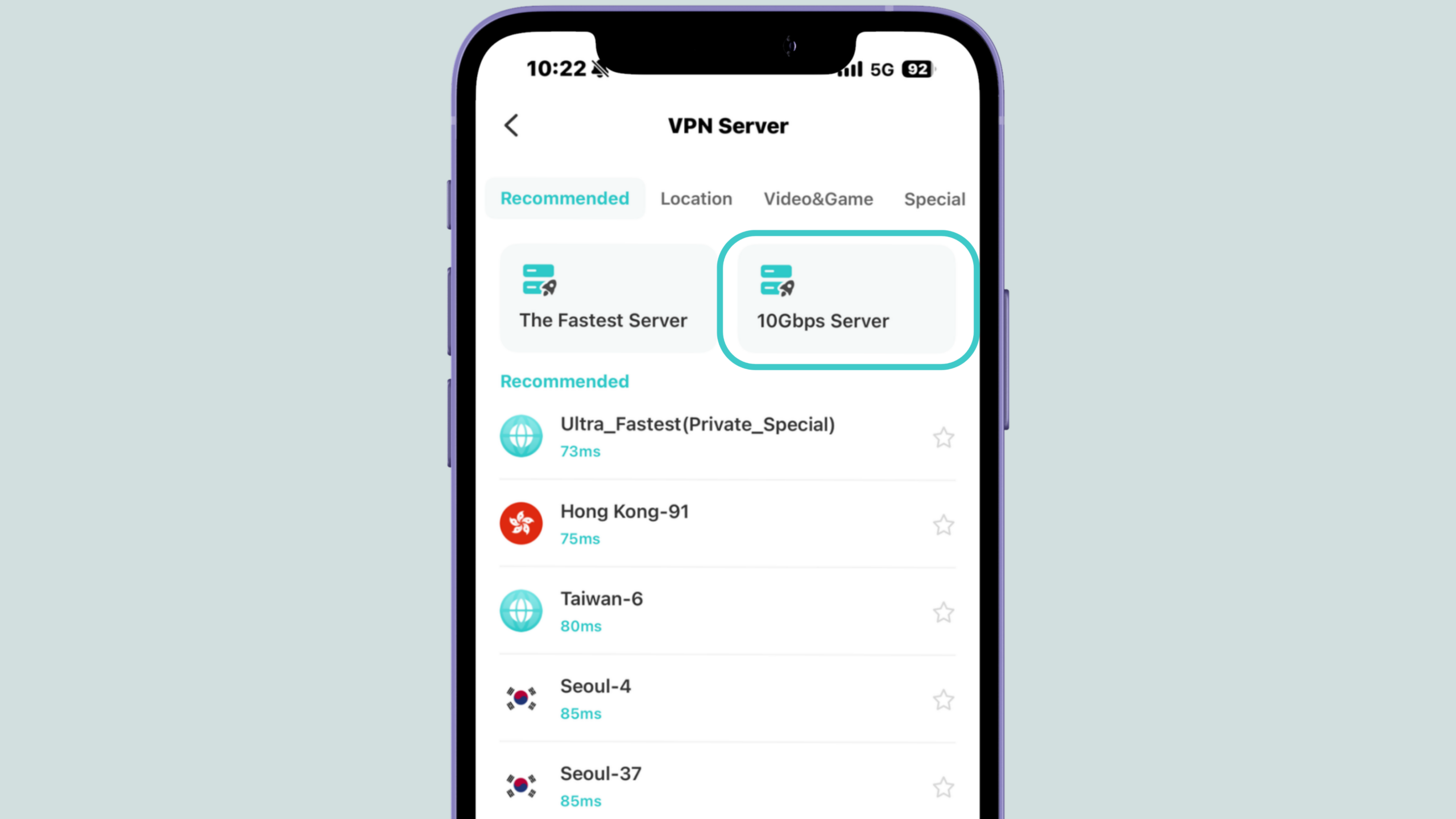
10Gbps servers are high-capacity X-VPN servers with upgraded 10Gbps bandwidth, designed to handle heavy traffic while maintaining fast and stable performance.
What Does It Do?
These servers are designed to stay more stable under heavy load, so 4K or high-bitrate streaming is less likely to buffer or drop quality during peak hours. Large downloads, game updates, system patches, and cloud syncs can finish faster, and even when many people are connected, performance feels more like a “VIP lane” compared to normal nodes.
How to Use
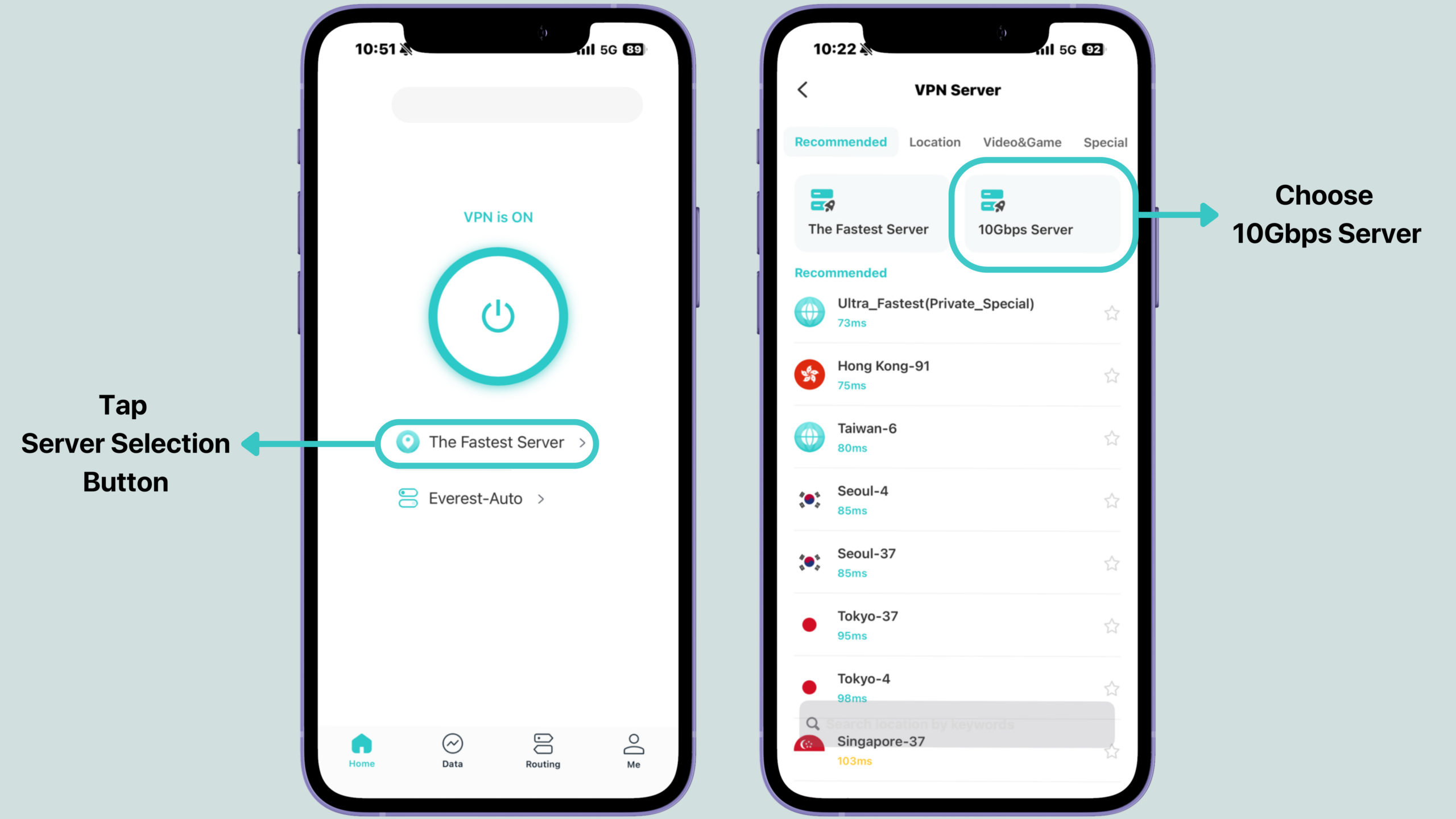
Step 1. Open X-VPN on your iOS device.
Step 2. On the Home screen, tap the server selection button below the Connect button.
Step 3. Go to the Recommended tab and choose 10Gbps Server. X-VPN will automatically connect you to the fastest available 10Gbps server in the nearest supported country, the exact location cannot be manually adjusted.
This feature is available for X-VPN Premium users on iOS; currently, the supported countries include the United States, Germany, Spain, the Netherlands, and Singapore.
Introduce Special Servers
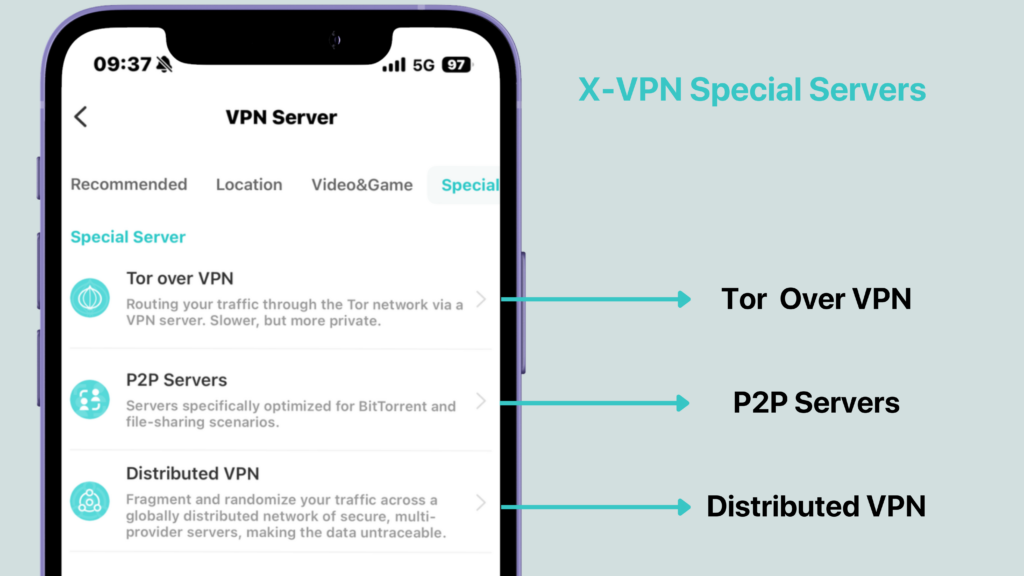
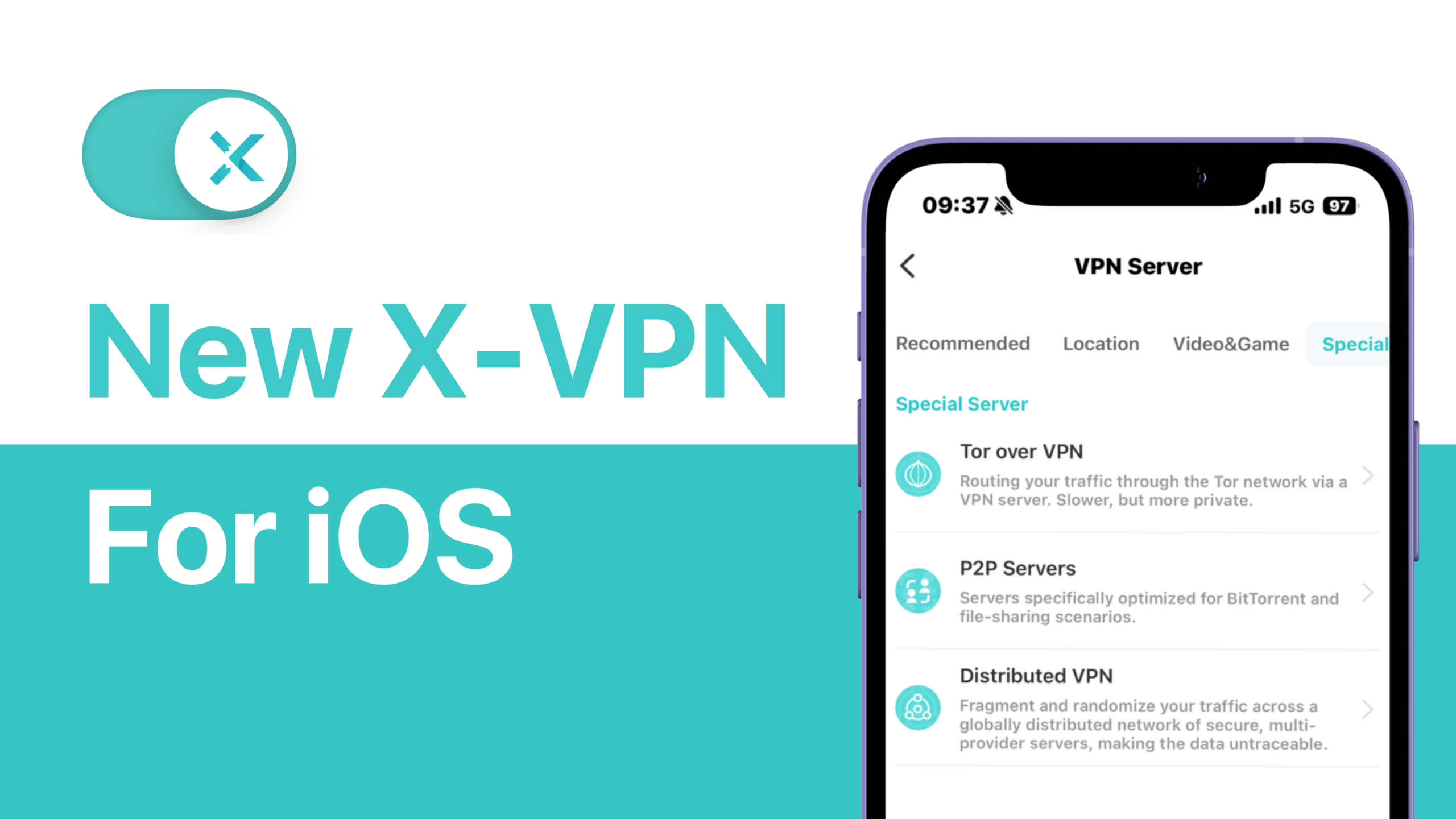
Special servers are designed for situations when you need more than a regular VPN connection, whether that’s extra anonymity, long-running P2P transfers, or traffic that is harder to trace and profile. On iOS, these options are grouped into a Special section so you can quickly pick the route that best matches what you’re doing.
Tor over VPN Servers
What Is Tor over VPN?
Tor over VPN routes your traffic through the Tor network after it leaves the VPN server. Instead of connecting to Tor directly from your device, you first connect to X-VPN, and then enter the Tor network from the VPN side.
What Does It Do?
This setup adds an extra layer of privacy: your ISP sees you using a VPN, not Tor, and the Tor entry node sees the VPN server’s IP, not your real one. It’s made for people who want to access .onion sites or Tor-only resources with more protection. Slower, but more private.
How to Use?
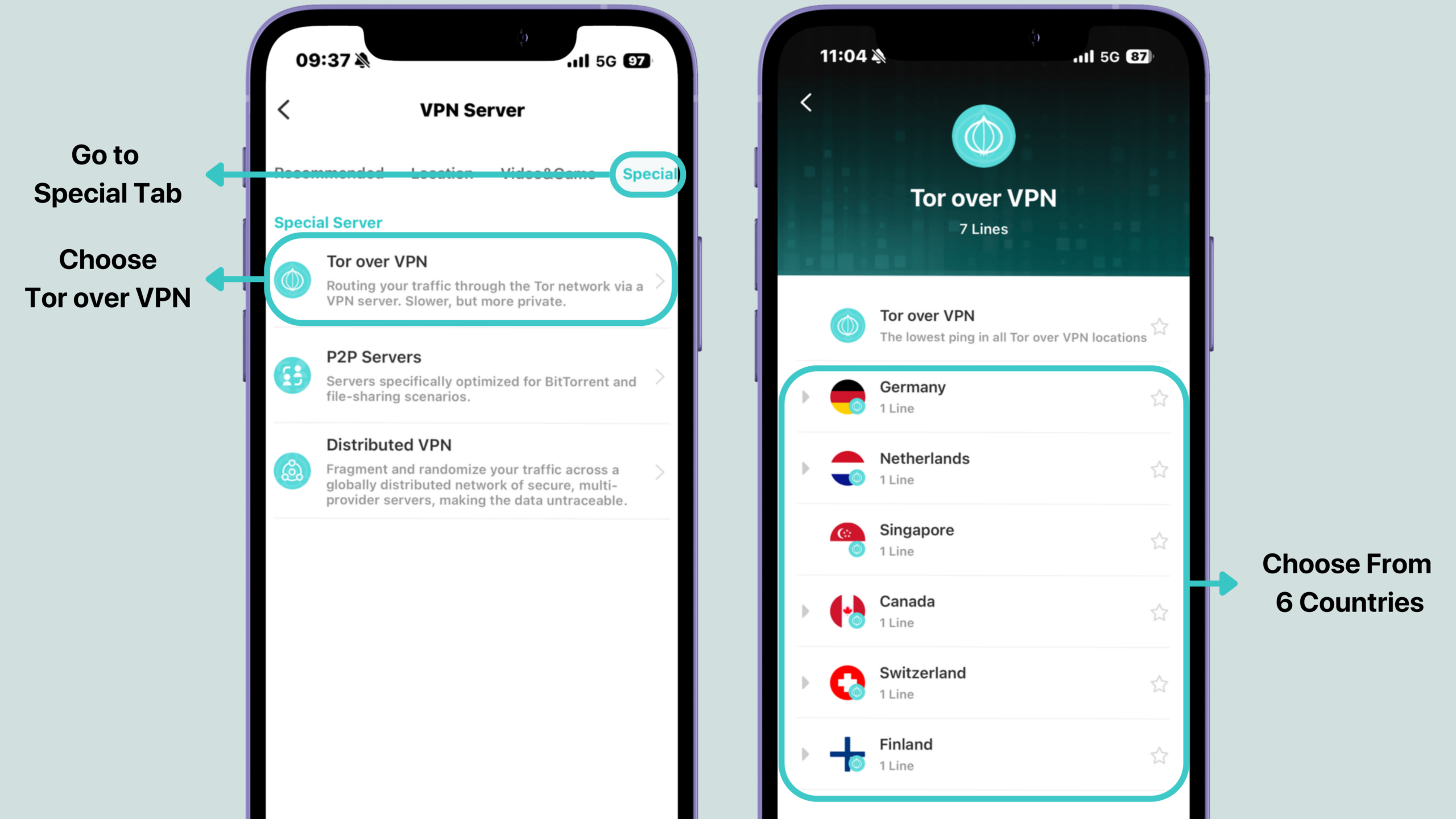
Step 1. Open X-VPN on your iOS device.
Step 2. On the Home screen, tap the server selection button below the Connect button.
Step 3. Go to the Special tab and choose Tor over VPN. You can select a Tor over VPN location from countries including Germany, the Netherlands, Canada, Finland, Singapore, and Switzerland.
P2P Servers
What Are P2P Servers?
P2P servers are VPN servers optimized for peer-to-peer traffic and large file transfers. They are located in regions that are more friendly to P2P usage and built to stay stable during long downloads and uploads.
What Does It Do?
When you use BitTorrent or other P2P tools, your device talks to many other peers and normally exposes your real IP and traffic type. P2P servers help keep your real IP out of sight, reduce the risk of throttling or instability on normal servers, and make long downloads or uploads more stable over time. They are designed for people who often transfer large files via P2P or need to keep using P2P even on networks that are sensitive to or likely to slow down this kind of traffic.
How to Use
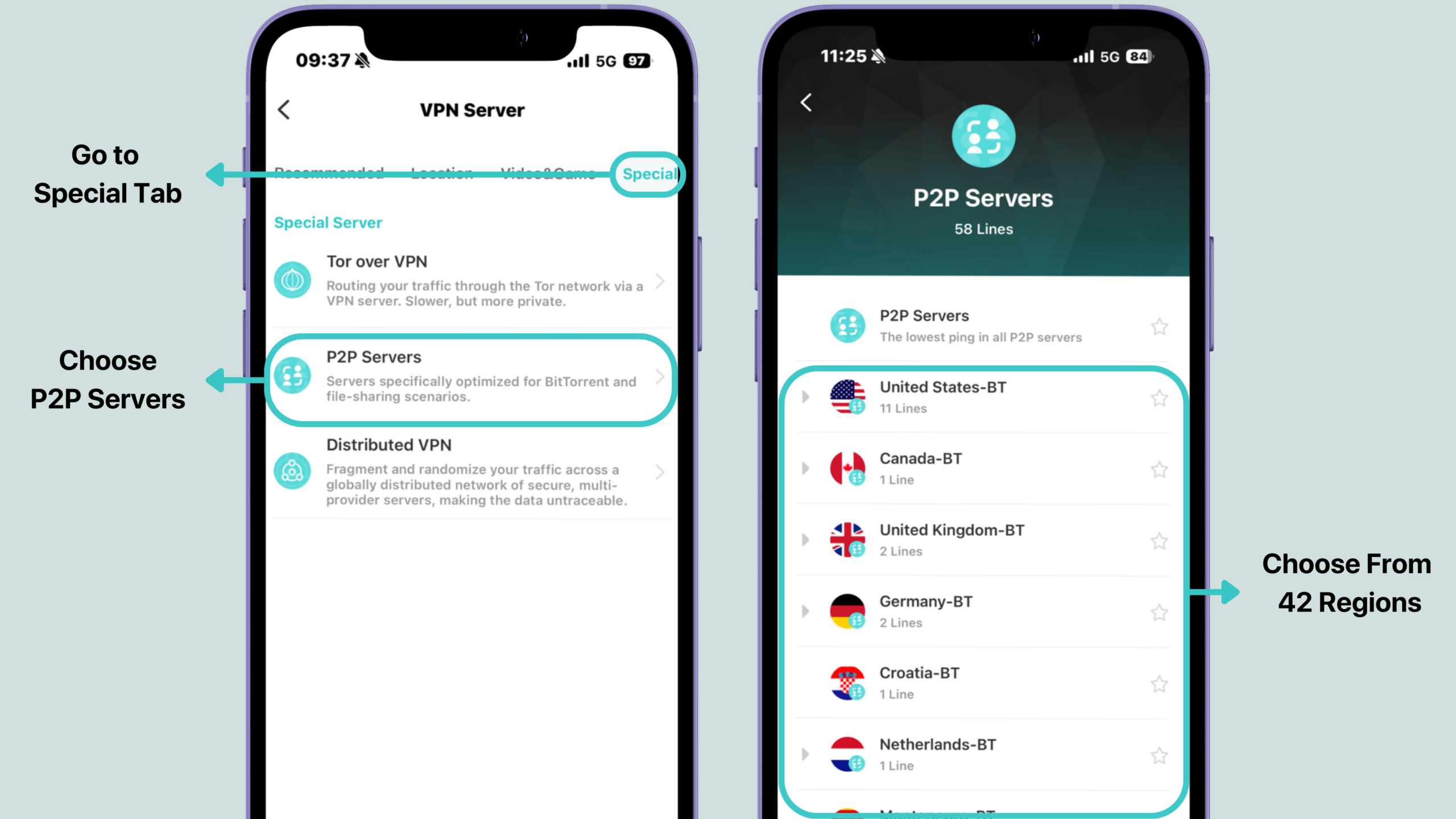
Step 1. Open X-VPN on your iOS device.
Step 2. Tap the server selection button below the Connect button on the Home screen.
Step 3. Go to the Special tab and choose P2P Servers to connect to a P2P-optimized server. You can choose a location from 42 regions now.
Distributed VPN Servers
What Are Distributed VPN Servers?
Distributed VPN servers are an advanced privacy option that breaks your online traffic into small pieces and sends them through different VPN servers before it reaches the website or app you’re using. Different servers and providers see only part of the picture instead of your full data stream. You can think of it like sending one message in several envelopes, through different post offices, so no single stop ever sees the full message and where it came from.
What Does It Do?
By sharding and randomizing your traffic, Distributed VPN makes it harder for any single point to link “who you are” with “everything you did.” Even if one node is compromised, it only sees encrypted fragments, which raises the difficulty of doing traffic analysis or building a full profile of your online activity. This mode is designed for people who handle highly sensitive information, such as journalists, lawyers, or investigative work, and for extreme privacy users who want to reduce single-point exposure as much as possible.
How to Use
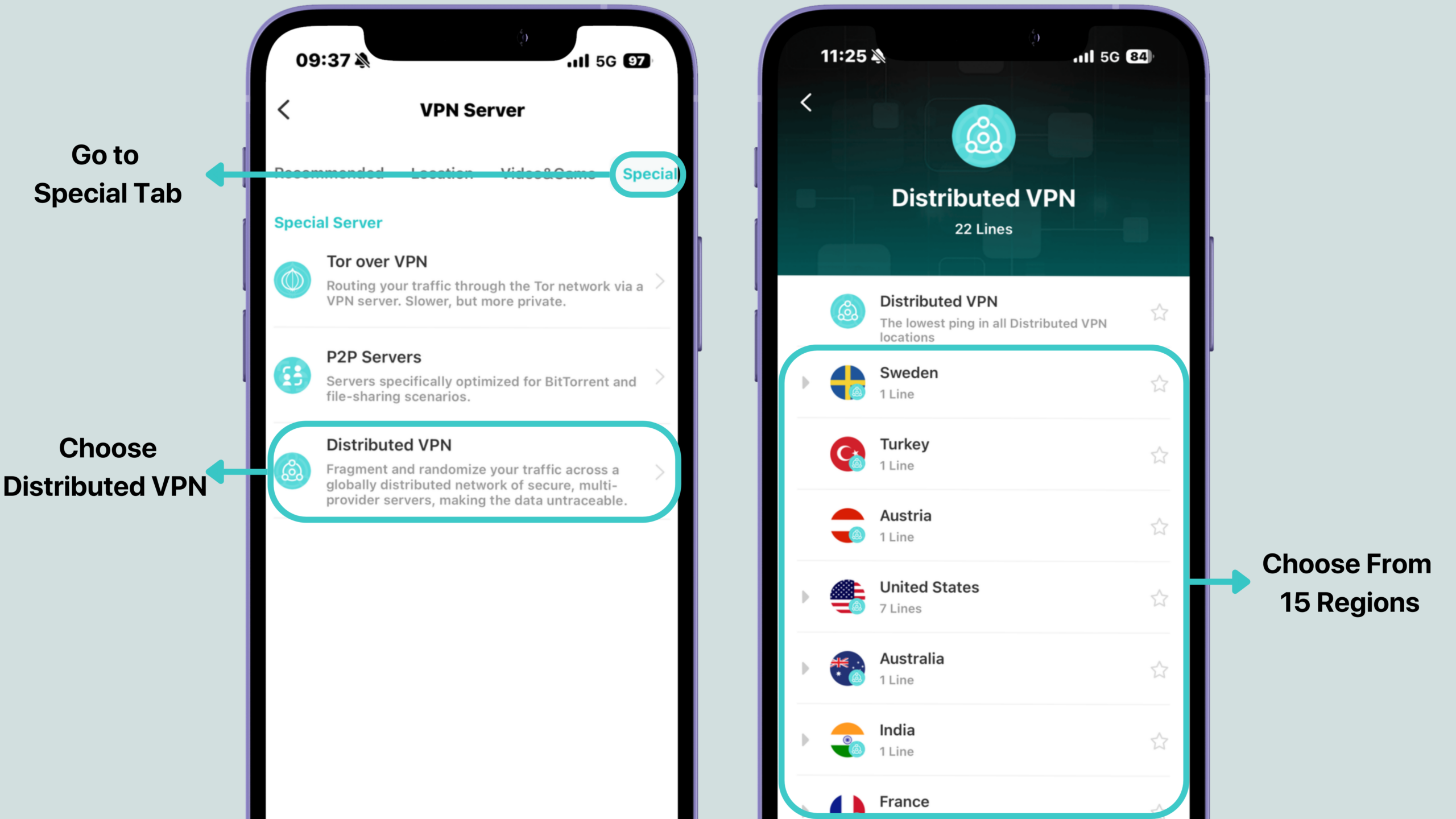
Step 1. Open X-VPN on your iOS device.
Step 2. Tap the server selection button below the Connect button.
Step 3. Go to the Special tab and choose Distributed VPN to enable this mode. You can choose a location from 15 regions now.
The Special VPN servers are available for X-VPN Premium users on iOS.
Introduce Web Protection
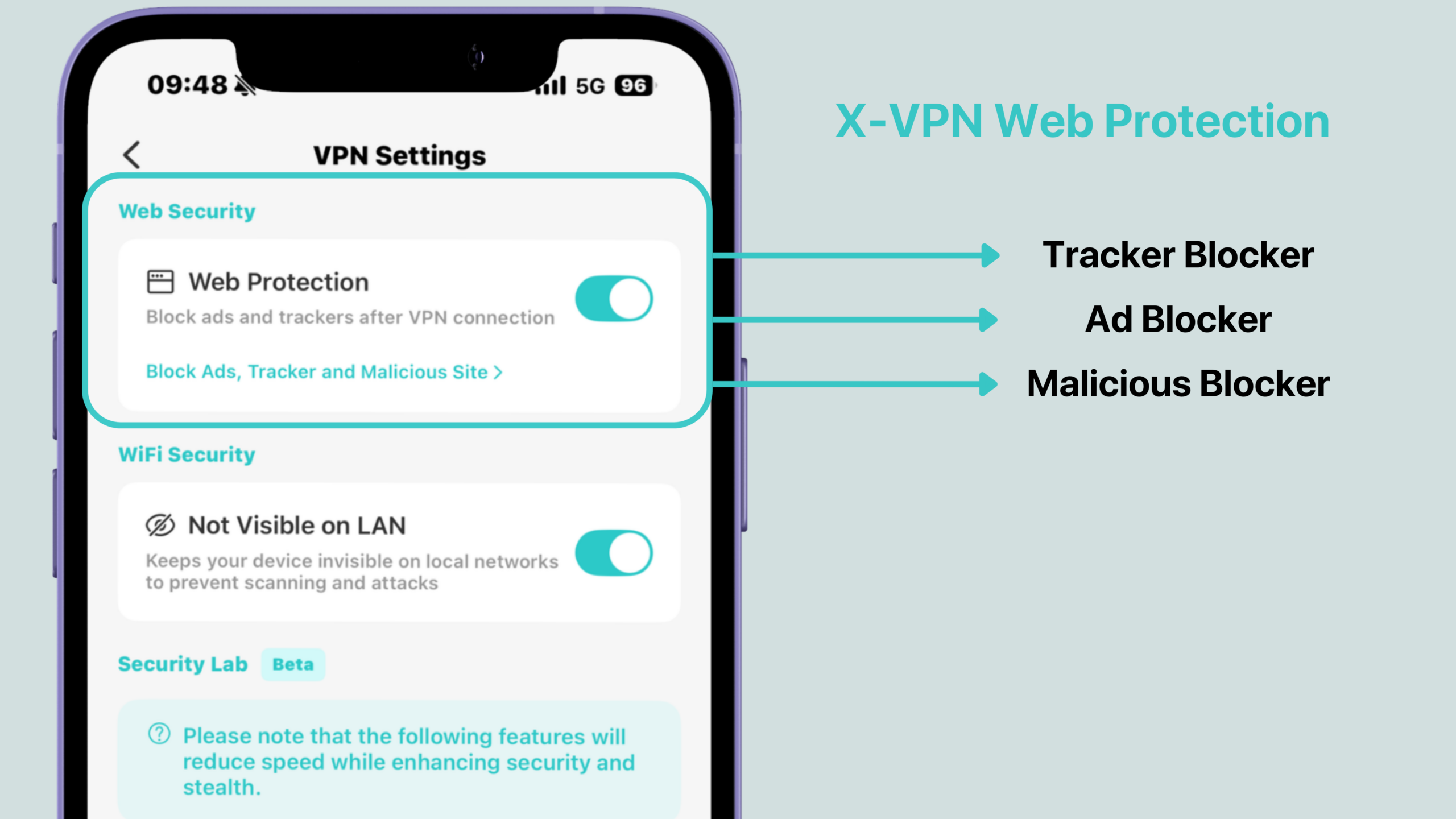
Web Protection is a new set of tools in X-VPN for iOS that makes your browsing cleaner, more private, and safer. It combines three protections in one place, blocking ads, stopping trackers, and filtering dangerous websites, so you don’t have to juggle multiple apps or browser extensions.
Ad Blocker
What Is Ad Blocker?
Ad Blocker is a network-level tool that removes many online ads, including banners, pop-ups, and other disruptive web elemetns.
What Does It Do?
It helps clear away distracting ads that get in the way of reading, speeds up page loading by cutting some extra images and scripts, and can save mobile data for users on limited plans. It also reduces the chances of accidentally tapping on shady ads that lead to suspicious pages.
Tracker Blocker
What Is Tracker Blocker?
Tracker Blocker is a tool that stops hidden tracking scripts and requests.
What Does It Do?
It reduces the feeling of being followed around the internet by “smart” ads after you view a product once, and makes it harder for third-party advertisers or data brokers to piece together your interests and browsing habits. Combined with the VPN hiding your IP, it helps block both “who you are” and “what you do” from being easily tied together.
Malicious Blocker
What Is Malicious Blocker?
Malicious Blocker is a tool that checks the websites you’re about to open.
What Does It Do?
It gives you a safety net when you tap on links in messages, emails, or websites, helping to stop phishing pages, fake banking sites, and malware download pages from opening in the first place. For non-technical users, it works like an automatic brake that steps in when a site looks risky.
How to Use Web Protection
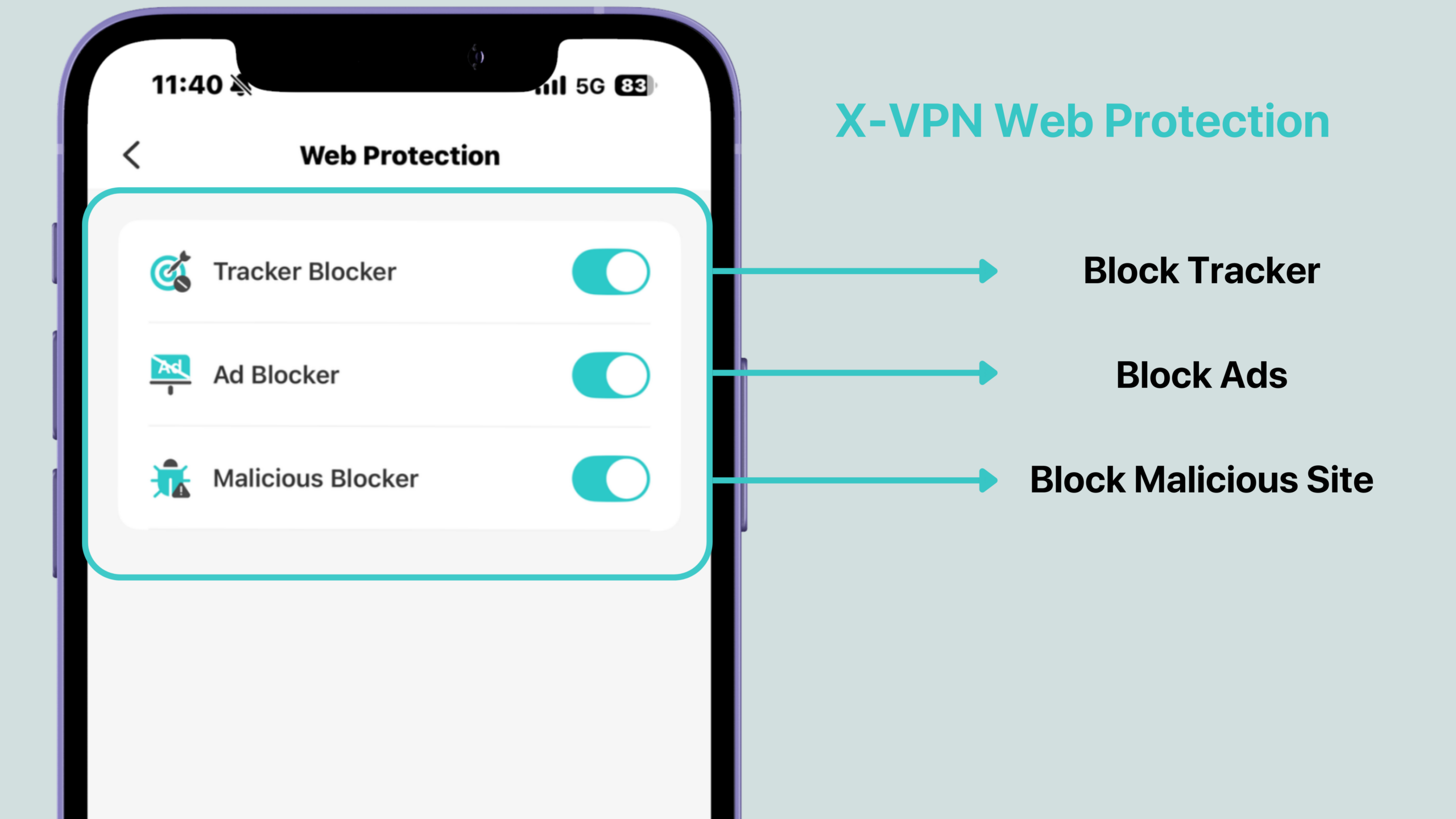
Step 1. Open X-VPN on your iOS device.
Step2. Go to Me → VPN Settings → Web Protection.
Step 3. You can turn on each toggle separately based on your needs: Block Ads, Block Trackers, and Block Malicious Sites.
Web Protection (including Ad Blocker, Tracker Blocker, and Malicious Blocker) is available for X-VPN Premium users on iOS.
Introduce Security Lab
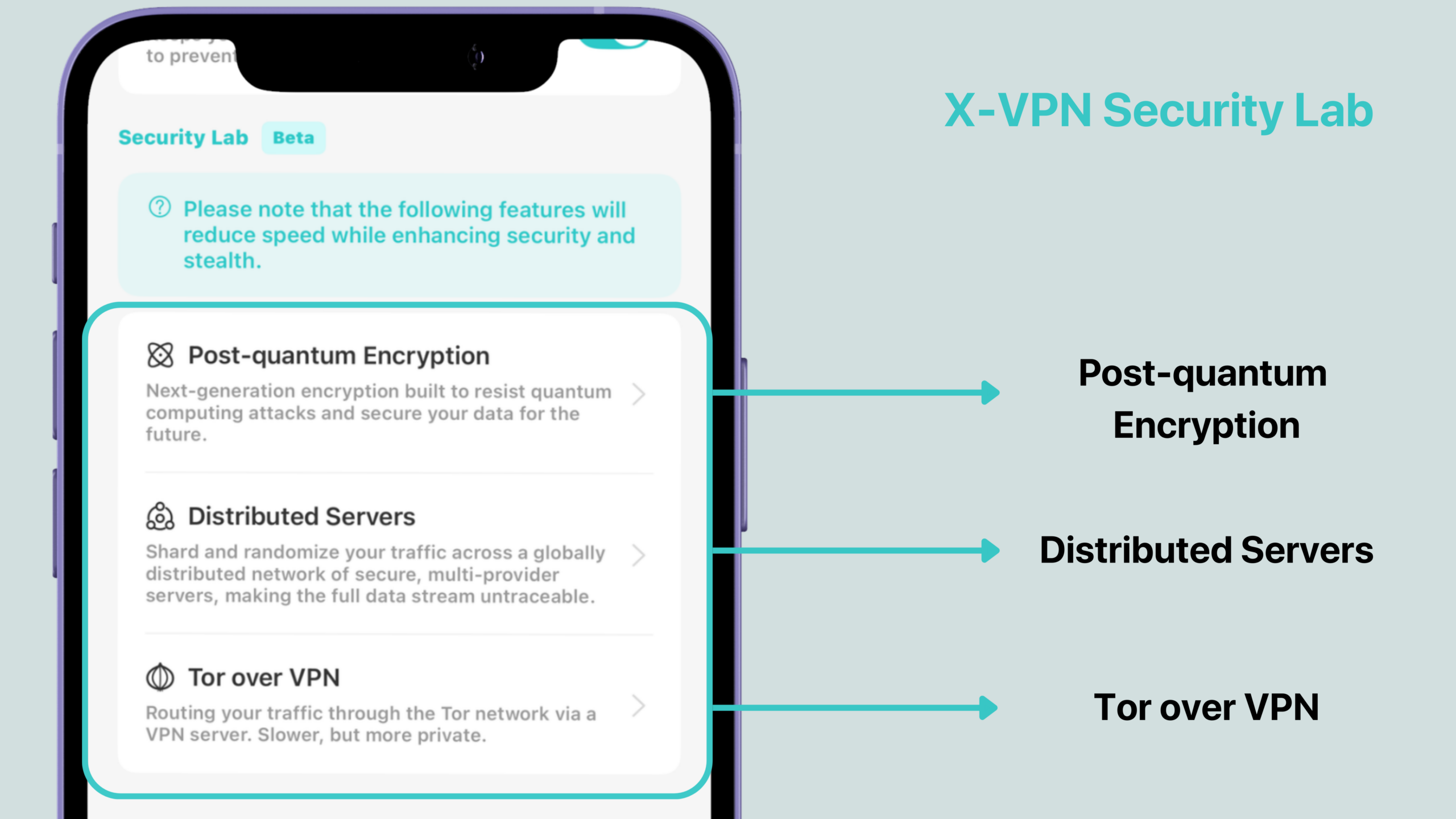
Security Lab is a new area in X-VPN for iOS where we group our most advanced privacy features in one place. Instead of hunting through different menus, you can open a single page when you want “maximum privacy mode” and see all the high-intensity options together.
Inside Security Lab, you can enable features like Post-quantum Encryption, as well as advanced routes such as Distributed VPN and Tor over VPN. When you turn on features in Security Lab, you know you’re choosing stronger privacy that may run slower than a normal VPN session, a conscious switch from everyday use to extra protection for sensitive moments.
Post-quantum Encryption
What Is Post-quantum Encryption?
Post-quantum encryption is an advanced encryption option designed to stay secure even against future quantum computers. While many current algorithms could one day be broken by powerful quantum machines, post-quantum schemes are built to resist that next generation of attacks.
What Does It Do?
This option is for people who worry that today’s encrypted traffic might be recorded decrypted years later. By upgrading the way your keys are protected, it gives long-term sensitive data an extra layer of “future insurance” and offers more peace of mind to users who care about staying ahead of new threats. This mode is designed for users who handle important, long-lived data, such as business leader, privacy enthusiast, or anyone who wants more than “good enough for now” protection.
How to Use Post-quantum Encryption
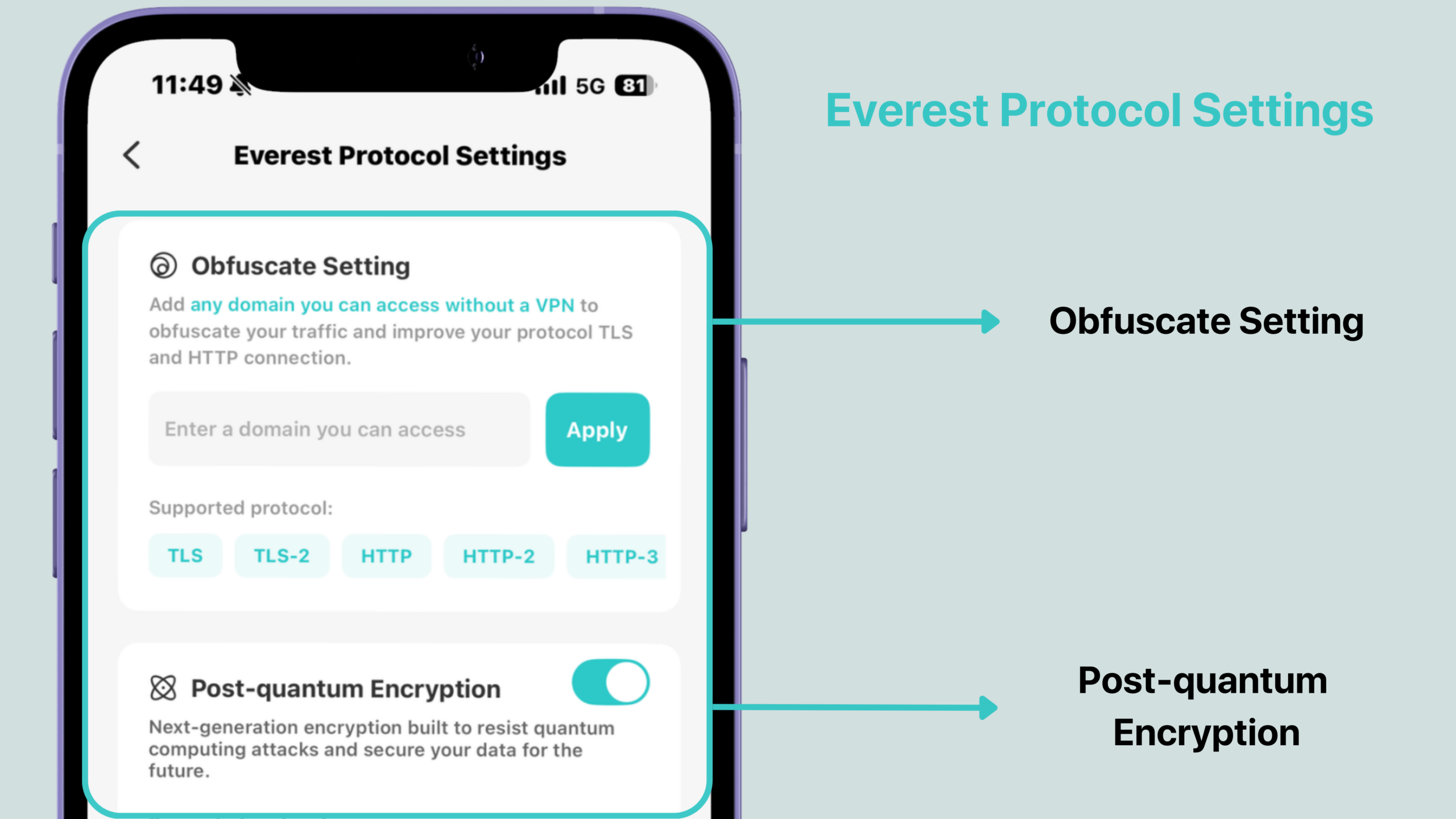
Step 1. Open X-VPN on your iOS device.
Step2. Go to Me → VPN Settings → Security Lab.
Step 3. Turn on Post-quantum Encryption when you need extra protection for sensitive sessions.
Post-quantum Encryption is available for X-VPN Premium users on iOS inside Security Lab.
Improved Data Page & Status Visibility
The Data page has been upgraded to give you a clearer snapshot of how X-VPN is protecting you in real time. On a single screen, you can now see your VPN status (on or off), IP address, location, protocol, traffic, and weekly protected time and traffic.
You can quickly see which protections are enabled and adjust them as needed. This is especially helpful for users who like to customize their set up but don’t want to dig through multiple menus.
How to Use
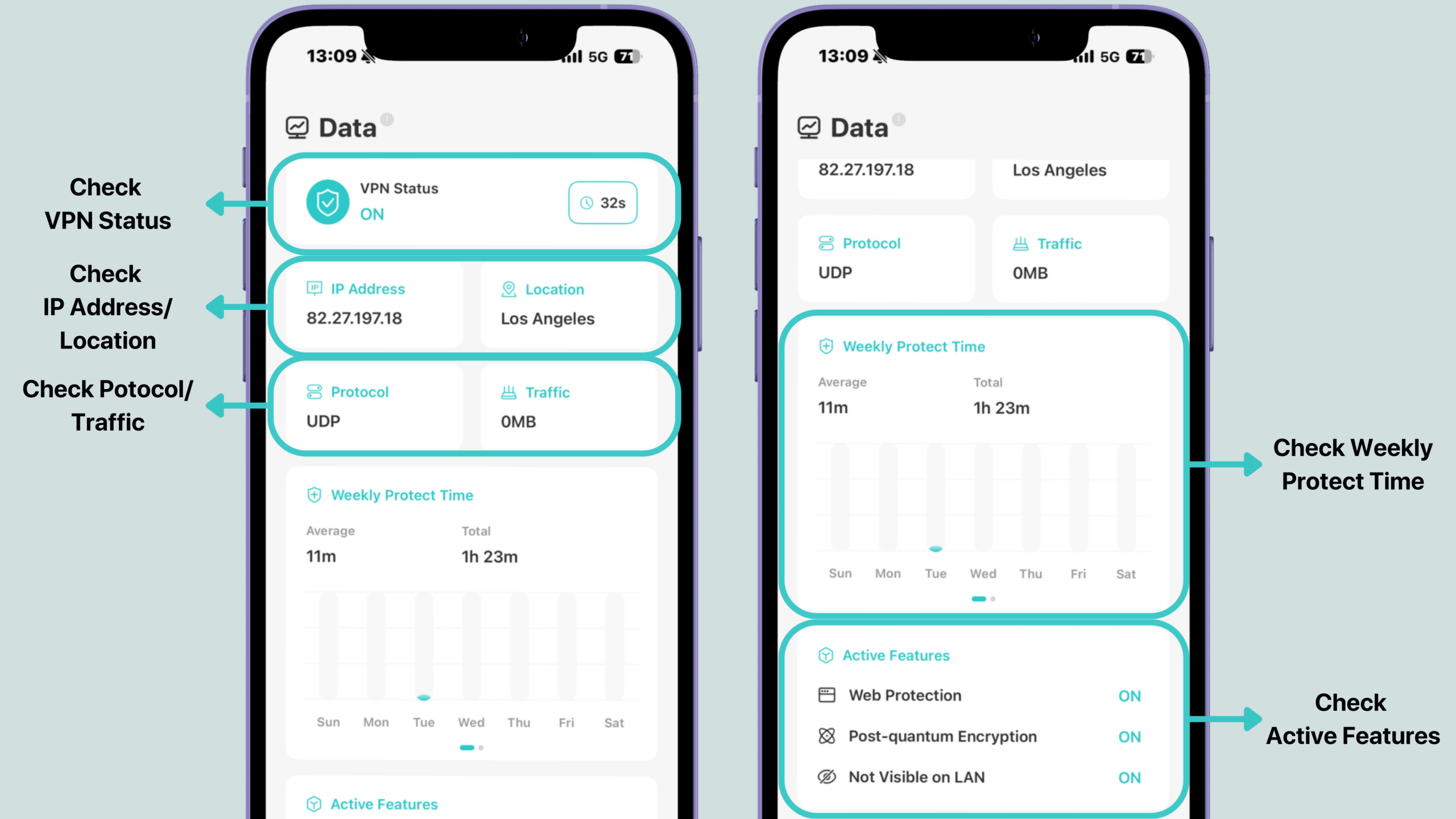
Step 1. Open X-VPN on your iOS device.
Step 2. Navigate to the Data page from within the app.
Step 3. Check your current VPN status, IP address, location, protocol, traffic, weekly protected time and traffic.
The improved Data page is available for all X-VPN for iOS users.
Why Should You Update?
With this iOS update, X-VPN doesn’t just add more switches, it gives your clearer ways to stay safe in the moments that actually matter:
Safer on Public Wi-Fi
Invisible on LAN helps you stay online in hotels, airports, and malls without being visible to other devices on the same Wi-Fi. Combined with the upgraded Data page, you can quickly confirm your protection status before you connect to risky networks.
Cleaner, More Private Everyday Browsing
Web Protection reduces noisy ads, hidden trackers, and known malicious sites in one place, so your daily browsing feels quieter, faster, and less stressful, especially on mobile data or when you don’t want to worry about every link you tap.
Stronger Options When Privacy or Performance Really Matters
10Gbps servers and P2P serves give Premium users more stable performance for 4K streaming, large downloads, and long transfers, while Tor over VPN, Distributed VPN, and Security Lab features like post-quantum encryption are there for high-risk or long-term sensitive use cases, when “just a normal VPN” doesn’t feel enough.
If you rely on your iPhone or iPad for work, travel, banking, or simply staying connected on the go this update helps turn X-VPN for iOS into a more flexible shield you can adapt to each situation.

Conclusion
This iOS update is built for real-life use. Whether you’re joining hotel Wi-Fi on a business trip, streaming on the couch, handling work files on the go, or diving into more sensitive tasks, X-VPN now gives you clearer choices on how private and how powerful you want your connection to be.
Update X-VPN on your iPhone or iPad, explore these new options, and tune your protection to fit each moment, from simple daily surfing to the times when privacy truly cannot fail.
FAQ
Are All Updating Features Free to Use?
No. If you already have an X-VPN Premium subscription, the new Premium features (10Gbps servers, Special servers, Web Protection, and Security Lab options like post-quantum encryption) are included in your plan once you update the app. Invisible on LAN and the new Data page are available for all users.
How Do I Get the Latest X-VPN Update on iOS?
Make sure X-VPN is updated to the latest version on your iPhone or iPad through the App Store. After updating, open the app and you’ll see the new options.
Will Changing to Special or Security Lab Options Affect My Speed?
Some advanced privacy options, such as Tor over VPN, Distributed VPN, and post-quantum encryption, are designed for stronger privacy rather than maximum speed. You may notice slower performance compared to a normal VPN connection or 10Gbps servers, which is expected when you choose these higher protection modes.