




Intro
If you came looking for the Windows built-in VPN expecting something you can switch on and instantly be protected, here’s what nobody tells you up front: it isn’t that.
Windows does include a VPN client, but a client is not a VPN service. On its own it’s an empty shell that does nothing until you feed it a server address and login details from somewhere else: a VPN provider you’ve subscribed to, your company’s network, or a server you host yourself. So what is it really, and is it enough for what you actually need? That’s what this guide is here to sort out.
Table of Contents
Does Windows Have a Built-In VPN?
Yes and no, and the distinction is the whole point.
Windows has a built-in VPN client, not a VPN service. The two get used interchangeably, but they’re different halves of how a VPN works.
To connect to a remote VPN server, you have to tell Windows where that server is and prove you’re allowed in, so the VPN client is the built-in screen where you enter the server’s address and your login details. It’s free and already installed.
The VPN service is everything on the other side, the provider that runs the servers, encrypts your traffic, and gives you a new IP address so sites can’t see where you are. That’s the half that actually protects you, and Windows gives you none of it.

Think of it like a phone with no SIM card. It can dial, but it can’t reach anyone until a carrier gives you a number and a network. The built-in VPN is the phone; a provider is the carrier. Without the second, the first just sits there.
If you’ve used a VPN for Windows before, you’ve only met both halves at once: download an app, sign in, connect, done. The provider built the client and the service into one app, so you never had to know there were two parts. The built-in tool is only the first.
Either way, you still have to bring your own server to point it at. Microsoft’s own setup guide says as much: you can’t connect until you create a profile, and you can’t create one without a server address and login details it assumes you already have.
That’s where the confusion starts. People go looking for a free, ready-to-use VPN built into their computer, and find a blank form waiting for details they didn’t know to bring.
What Is The Windows Built-In VPN Client?
If the last section explained what the built-in client isn’t, here’s what it is: a connection manager. It takes the details you give it, a server address and your login, and uses them to open and hold a connection. It doesn’t decide how strong your protection is, and that last part trips people up.
The encryption on a VPN connection doesn’t come from Windows alone. It comes from the protocol you choose and the server you connect to. The built-in client supports a fixed set of protocols, and you pick one when you set up the connection. Choose a modern, well-configured protocol pointed at a reputable server and your traffic is genuinely well protected. Choose an old one, or point it at a sketchy server, and you’ve built a tunnel that’s weak at best. Same client, completely different outcomes.
Which VPN Protocol Should You Choose?
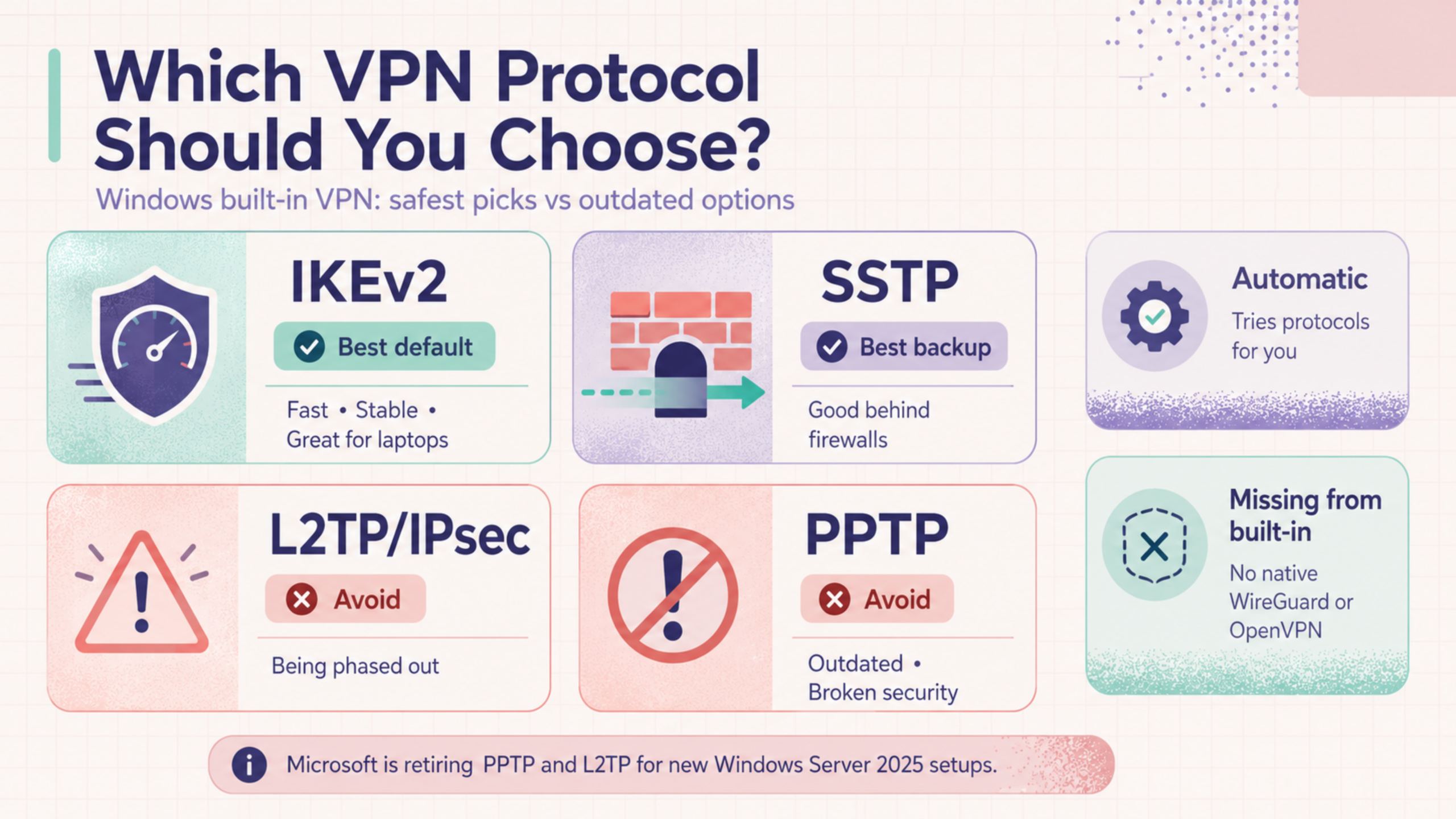
So when you set up the connection, Windows makes you pick a “VPN type.” This is the protocol, the set of rules that decides how your traffic gets encrypted and tunneled, and it’s the single biggest factor in whether the connection is actually secure. The built-in client gives you a fixed menu: IKEv2, SSTP, L2TP/IPsec, PPTP, and an Automatic option that tries them in order. They are not equally safe, and the gap between them is wide.
Two of them you should reach for
Two of them you should avoid, and not because a VPN company says so
There’s a bigger catch hiding in this list, though. The two protocols most people are told to look for, WireGuard and OpenVPN, aren’t on it at all. The built-in client doesn’t support them natively. If you want either, you need a separate app from a provider that implements it, which is the first sign that the built-in route quietly steers you toward older technology.
If you want to go deeper on how these protocols differ, this breakdown of VPN protocols covers the trade-offs in full.
How To Set Up The Windows Built-In VPN (Step By Step)
Setting up the built-in VPN takes two stages: first you create a connection profile by entering your server details, then you connect to it. The steps below are for Windows 11; Windows 10 is nearly identical, with menus in slightly different places.
Before you start, have your connection details ready, because Windows won’t supply them. You need a server address, your login, and which VPN type (protocol) to use. If this is for work, your IT department provides them. If it’s for a personal VPN, your provider lists them in your account.
Create A VPN Profile
1. Open Settings, then go to Network & internet > VPN.
2. Next to VPN connections, click Add VPN.
3. In the window that opens, fill in the fields:
- 1VPN providerChoose Windows (built-in). This is always the option here; it just tells Windows to use its own client rather than a third-party app.
- 2Connection nameAnything you’ll recognize later, like “Work VPN” or your provider’s name.
- 3Server name or addressThe server address from your provider or IT.
- 4VPN typeThe protocol. Pick the one your server uses. If you have a choice, see the protocol section above, and don’t leave it on PPTP.
- 5Type of sign-in infoUsually username and password, though work setups may use a certificate or smart card.
4. Click Save. The profile now appears in your VPN list, ready to use.
If you ever need to change a setting or add proxy details later, select the connection, choose Advanced options, and edit from there. Microsoft’s setup guide walks through the same flow if you want to check your screen against the official version.
Connect and Disconnect
Once the profile exists, connecting takes a couple of clicks, and there are two ways to do it.
The quick way is from the taskbar. Click the network, volume, and battery icons in the corner, select VPN, and toggle on the connection you want. If you’ve only set up one, it’s a single tap. This is the fastest way to switch it on and off day to day.
The other way is through Settings, the same place you created the profile: Network & internet > VPN, then click Connect next to the connection. To disconnect from either spot, go back and toggle it off or click Disconnect.
You’ll know it worked when the connection shows Connected on the VPN settings page, and a small blue shield appears over the network icon in the taskbar. That shield is the quickest at-a-glance confirmation that the tunnel is actually up.
Troubleshooting Common Connection Errors
Manual setups fail in predictable ways, and it’s almost always the connection being blocked or a detail entered wrong, not the client itself.
It Won’t Connect or Times Out
Wrong Server Address or Credentials
Check the Logs
If you’ve tried these and it still won’t connect, the problem is usually the server you’re connecting to, not Windows. A provider’s own app handles ports and protocol selection for you, which avoids most of this.
Limitations of the Windows Built-In VPN
The built-in client connects you to a server, and that’s about where its job ends. Everything a modern VPN app does around that connection to keep you actually private, it doesn’t do. None of these gaps matter much if you’re using it to reach a work network. They matter a lot if you’re using it for privacy. (One note before the list: this is about the everyday client you set up yourself in Settings. Large companies can deploy a more capable, centrally managed version to their staff, but that’s an IT-run setup most people will never touch, so it’s out of scope here.)
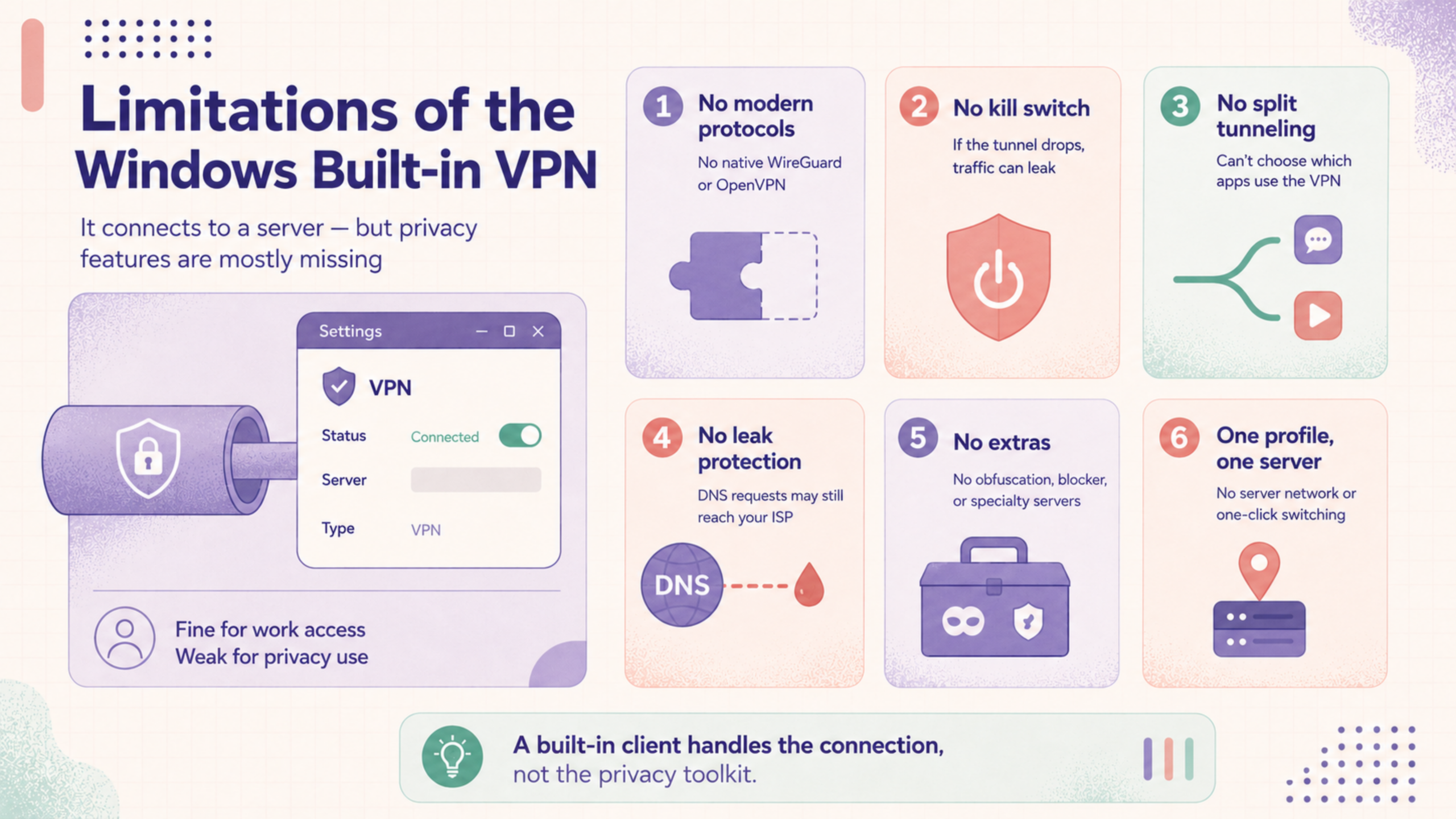
No Modern Protocols
No Kill Switch
No Simple, App-Based Split Tunneling
No Leak Protection
No Extras At All
One Profile, One Server
All in all, the built-in VPN handles the connection and leaves everything that turns a connection into actual privacy up to you, or more often, undone.
Built-In VPN Or a Dedicated App: Which One Do You Need?
By now the answer mostly depends on which of two people you are, because the built-in client suits one of them well and the other barely at all.
The built-in client is genuinely the right tool. Your IT department runs the server, hands you the address, protocol, and credentials, and all you’re doing is entering them once. You don’t need a kill switch or a server network, because you’re not hiding from anyone, you’re reaching internal systems that someone else already secured.
The built-in client is the bare minimum, and usually not what you’re actually looking for. Everything from the limitations section lands on you here: no kill switch if the connection drops, no leak protection, old protocols instead of WireGuard, and a single server you configured by hand instead of a network you can switch through in one click. You can technically force it to work, but you’re doing a provider’s job manually and getting a weaker result.
That’s where a dedicated app like X-VPN for Windows comes in. It bundles the client and the service together, so there’s no manual setup and nothing to configure: install it, sign in, and connect in a single click. You get a network of servers across 80+ countries to switch between instantly, modern protocols like WireGuard and OpenVPN instead of the aging options Windows offers, and a built-in kill switch that cuts your traffic if the connection ever drops. And because privacy is the whole point, it runs on an audited no-logs policy, so nothing about your activity is recorded.
The Bottom Line
The Windows built-in VPN isn’t a VPN service, and that one distinction explains nearly everything about it. It’s a connection tool: capable, free, and already installed, but only useful once you bring it a server, a protocol, and credentials from somewhere else.
For reaching a work network someone else maintains, that’s exactly enough, and it’s the job it was designed for. For privacy, it’s the bare minimum, missing the protections and the convenience that make a VPN worth using day to day. Knowing which of those you need is the whole decision.
FAQ
Is the Windows built-in VPN free?
The client is free and already part of Windows, but it isn’t a free VPN service. It only makes the connection; you still have to supply a server to connect to, whether from a paid provider, your workplace, or one you host yourself. So while the tool costs nothing, getting actual VPN coverage out of it usually doesn’t. If you searched for a free VPN for Windows hoping Windows had one built in, this isn’t it.
Is the Windows built-in VPN safe?
It can be, but safety isn’t a property of the client itself. It depends entirely on the protocol you pick and the server you connect to. A modern protocol like IKEv2 pointed at a trustworthy server is secure; an old one like PPTP, or a sketchy server, is not. The client just follows your instructions.
Can I use it with any VPN provider?
Only with providers that support one of the protocols Windows offers, and that publish the manual connection details you need. Many consumer VPNs have moved to WireGuard and don’t, which is why a provider’s own app is often the only practical route.