


Quick Answer
Before you learn how to use a VPN, the first thing to do is pick a VPN provider you trust. Download its app on the device you want to protect, open it, and connect to a server in the location you want. That’s it.
There is nothing else to do after that. If you want to be sure it worked, run a free IP checker tool and see whether your IP address has changed. For a more complete check, you can also test for DNS, IPv6, and WebRTC leaks.
Intro
VPNs are everywhere now. Many people use them without a second thought to hide their IP address and protect their privacy. VPN apps are usually simple once you know what to expect, but first-time users can still run into unfamiliar prompts, protocols, and server choices. A real, plain-language walkthrough, can make a big difference, showing step by step how to set up a VPN on a variety of devices and answering the basic questions other guides tend to skip.
This is that guide. Keep reading and you will find answers to just about every beginner question you have, from setting up a VPN to what actually happens once it is on.
Table of Contents
What Is a VPN Connection?
A VPN, short for virtual private network, builds an encrypted tunnel between your device and a VPN server. By default, your traffic travels through that tunnel, and your real IP address is swapped for the server’s. So the websites and apps you open see the VPN’s IP instead of yours, and your privacy stays protected. Because the tunnel is encrypted, anyone else on your local network, like the public Wi-Fi at a cafe, sees only meta data and scrambled traffic.
If you are curious about how it all works under the hood, our how a VPN works page has the full explanation.
How to Use a VPN for Beginners in 3 Steps
No matter what device you are on, setting up a VPN follows the same simple three-step pattern:
Step 1. Get a VPN
Pick a VPN provider you trust, then download its app on the device you want to protect. Decide whether you want the paid or free version. If you go with X-VPN, you can start on the free version with no sign-up at all, and move up to premium later if your needs grow.
Step 2. Set Up the VPN
Next, open the VPN app and sign in to your account (If you are on a free version that needs no registration, you can skip this part). Take a moment to explore the panel: see which features the provider offers, which protocols you can choose, and browse the server locations available to you.
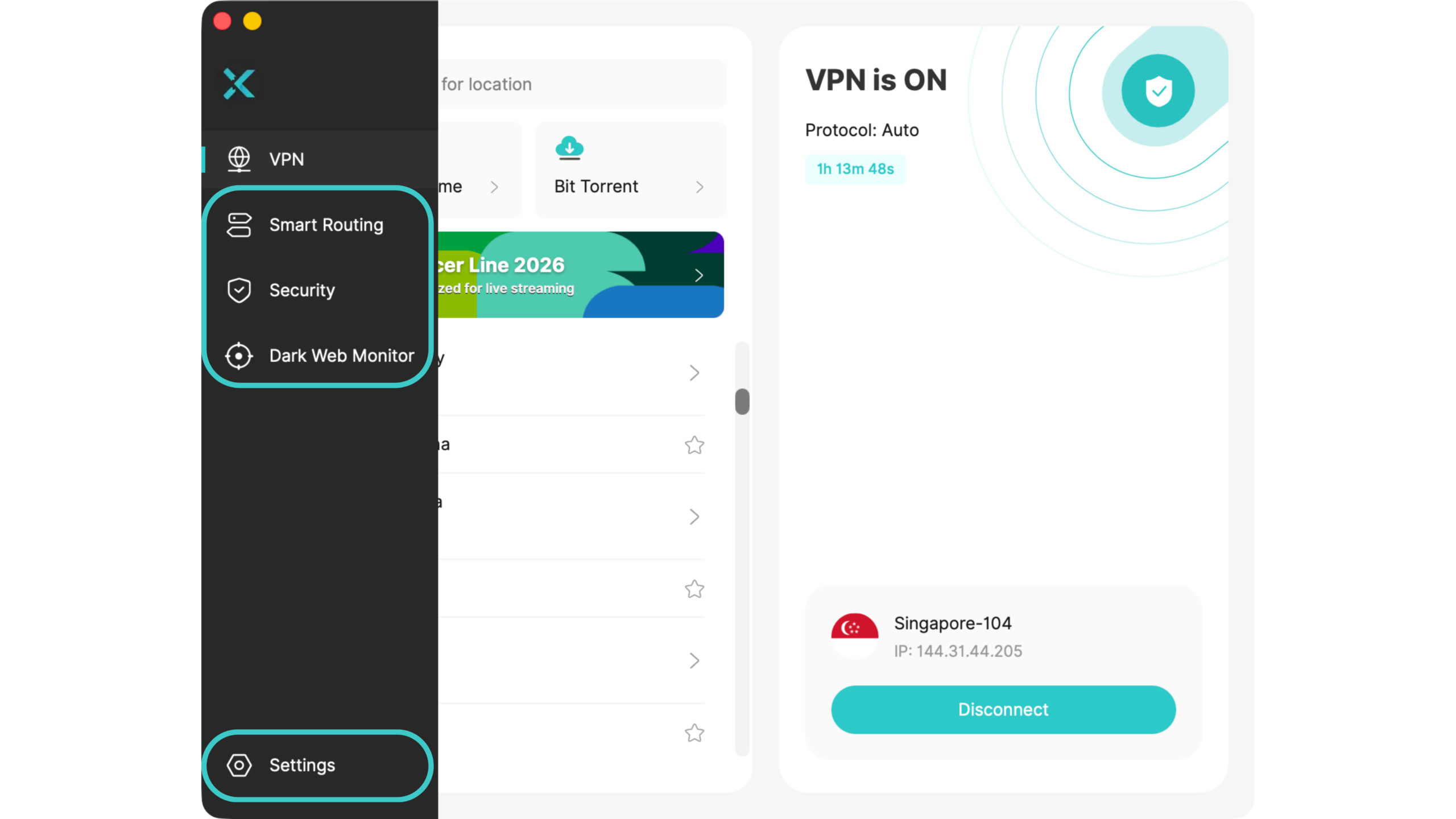
Step 3. Connect to a Server
Now choose a server in the location you need. If you just want the fastest connection, pick the fastest server (which is usually one near where you are). If you want a specific location, select it and connect. From there, your real IP is replaced by that server’s IP.
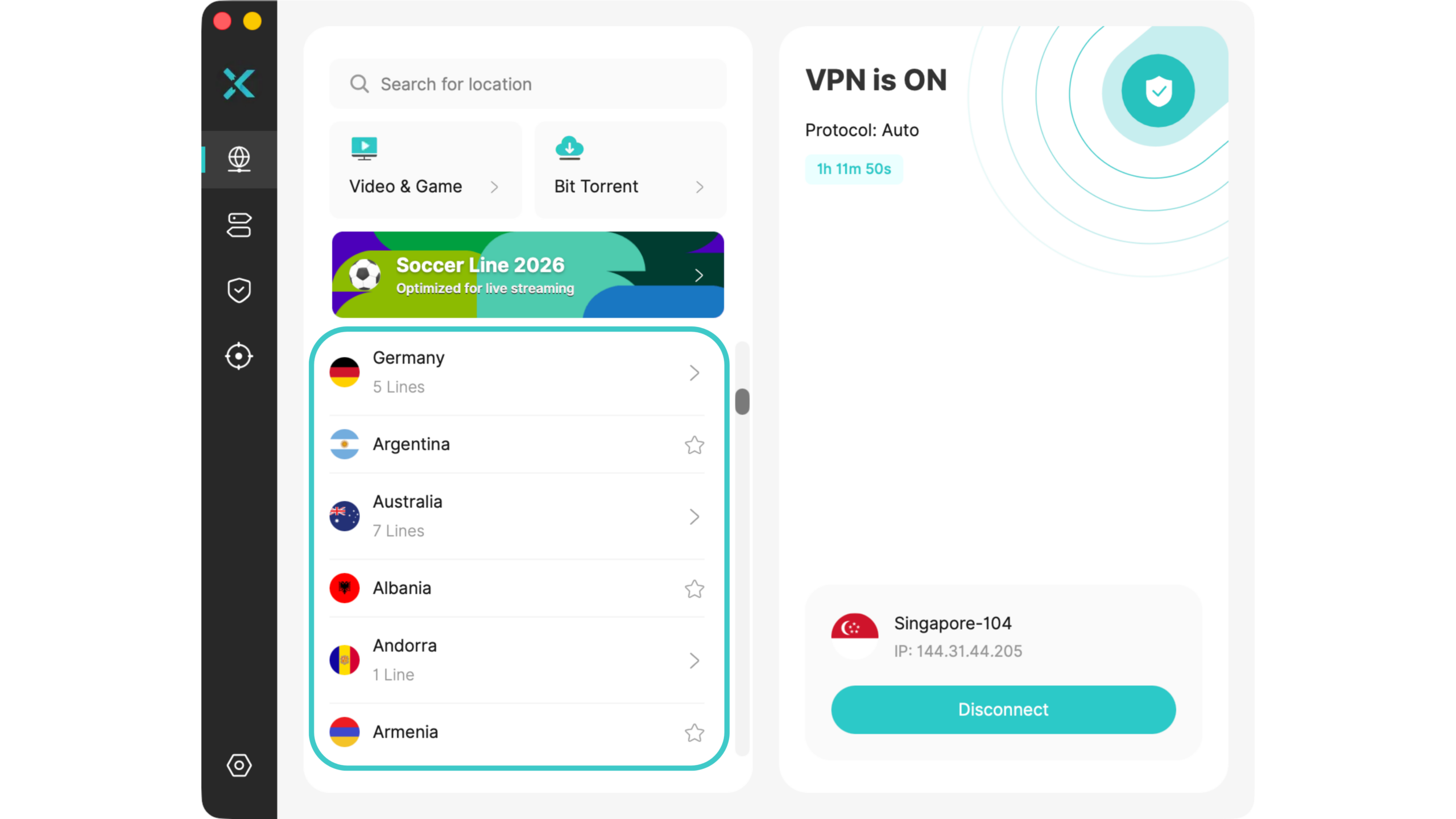

A quick tip: no matter what device you are on, connect to the internet first, then turn on the VPN. A working connection is what the VPN needs to do its job.
What Happens After You Connect
It isn’t always obvious what to do after the connection goes through, since a VPN works silently in the background. Once the app says it’s connected, you can just leave the app and use your device normally.
As mentioned earlier, once you connect, your IP address is replaced by the VPN server’s IP, helping protect your privacy. There’s more to do to achieve complete anonymity, but a VPN gets you most of the way there.
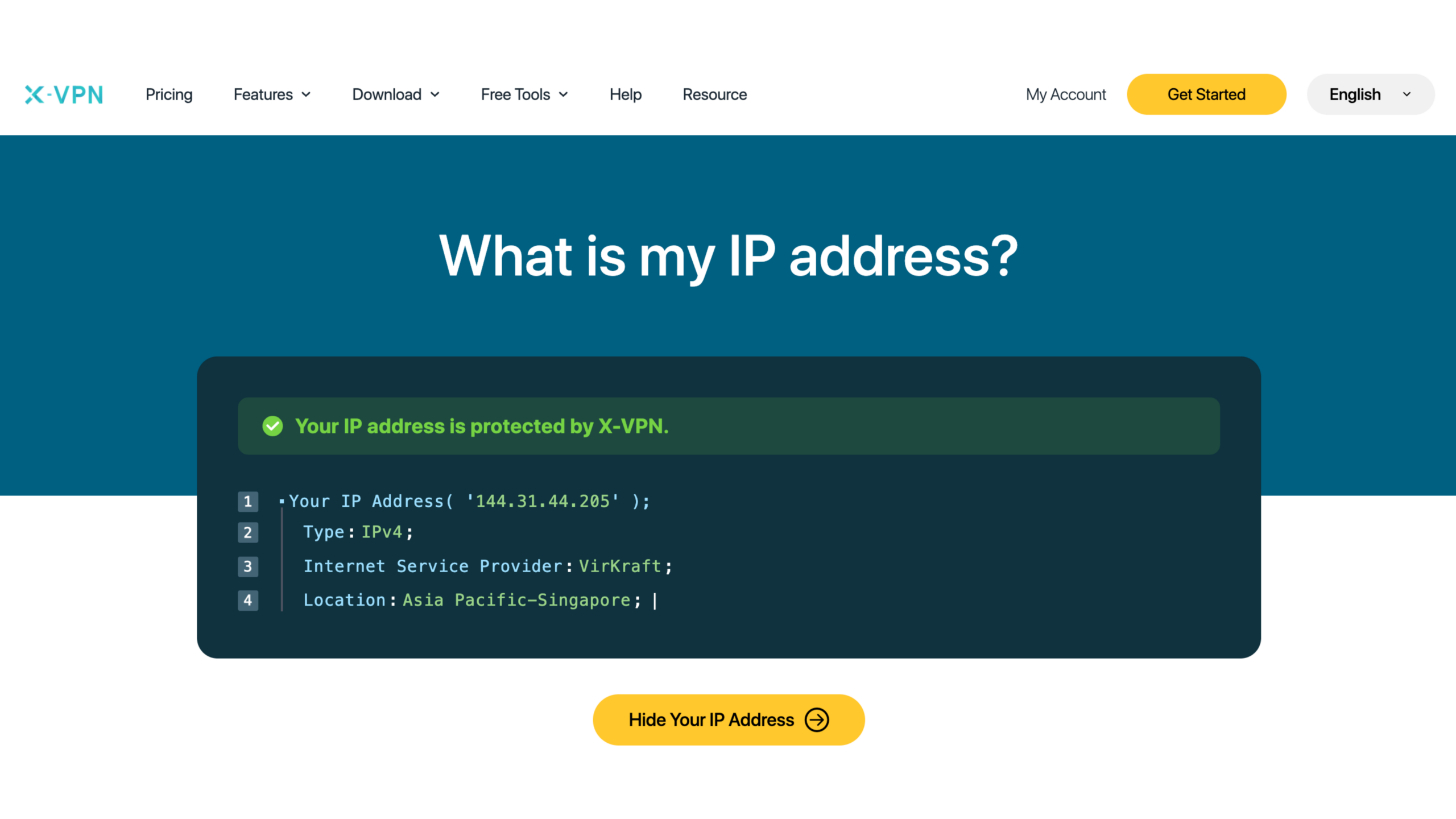
If you want to test whether the VPN is working, use a What Is My IP tool to check whether your IP address now shows the location you picked. The screenshot below, for example, shows the VPN working and my device connected to a server in Singapore.
How to Use a VPN on Every Device
The setup steps are broadly the same everywhere, but each device has its own small differences. So I have used X-VPN as the example and broken it down into more than a dozen device-specific walkthroughs. Just follow along step by step until every device you want to protect is set up.
Since there are a lot of devices to cover, this guide runs long. Feel free to jump back to the TOC above and go straight to the device you care about.
Using a VPN on iOS
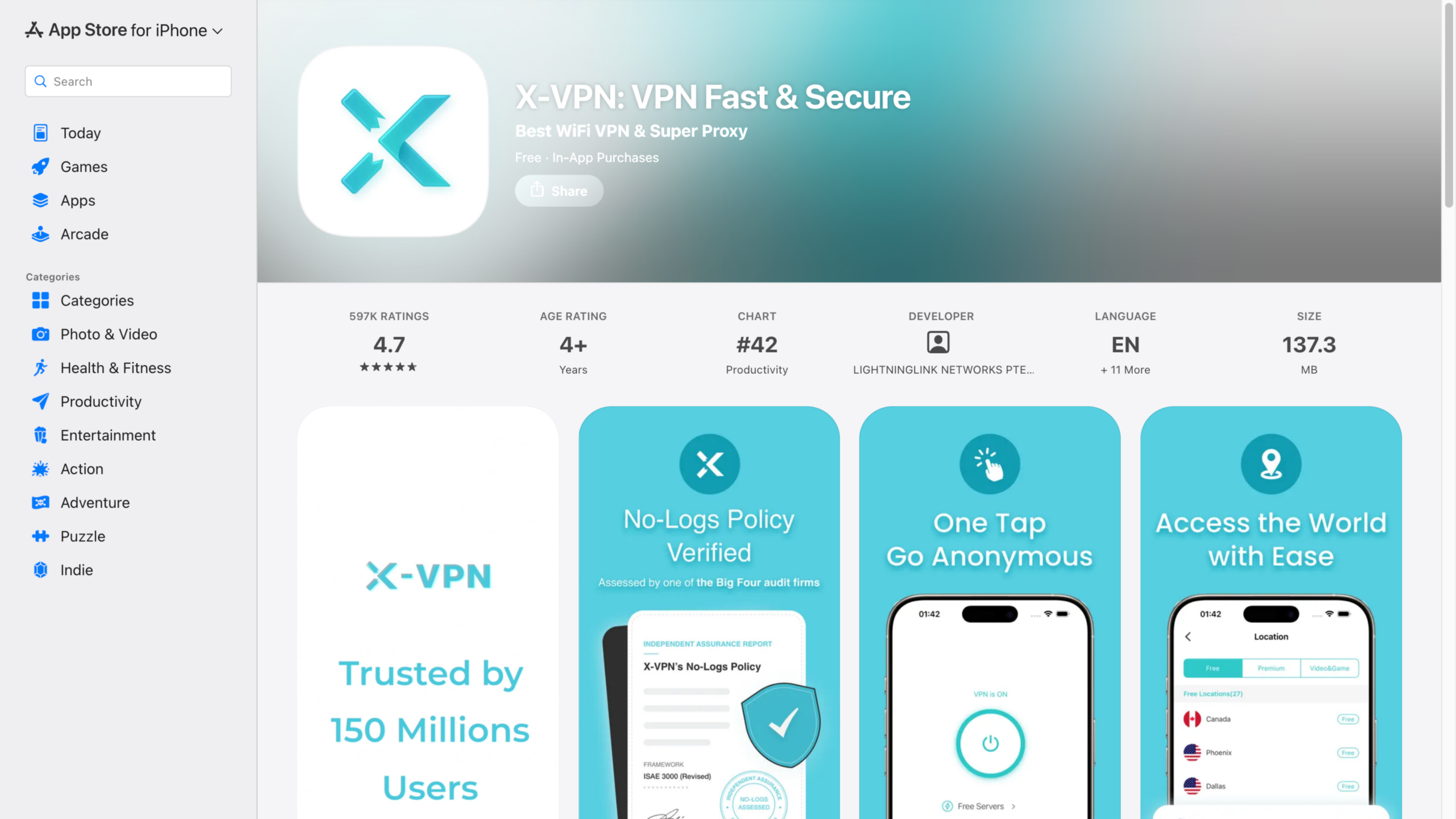
Step 1. Get the VPN for iOS from the App Store on your iPhone or iPad.
Step 2. Open the app and tap the connect button.
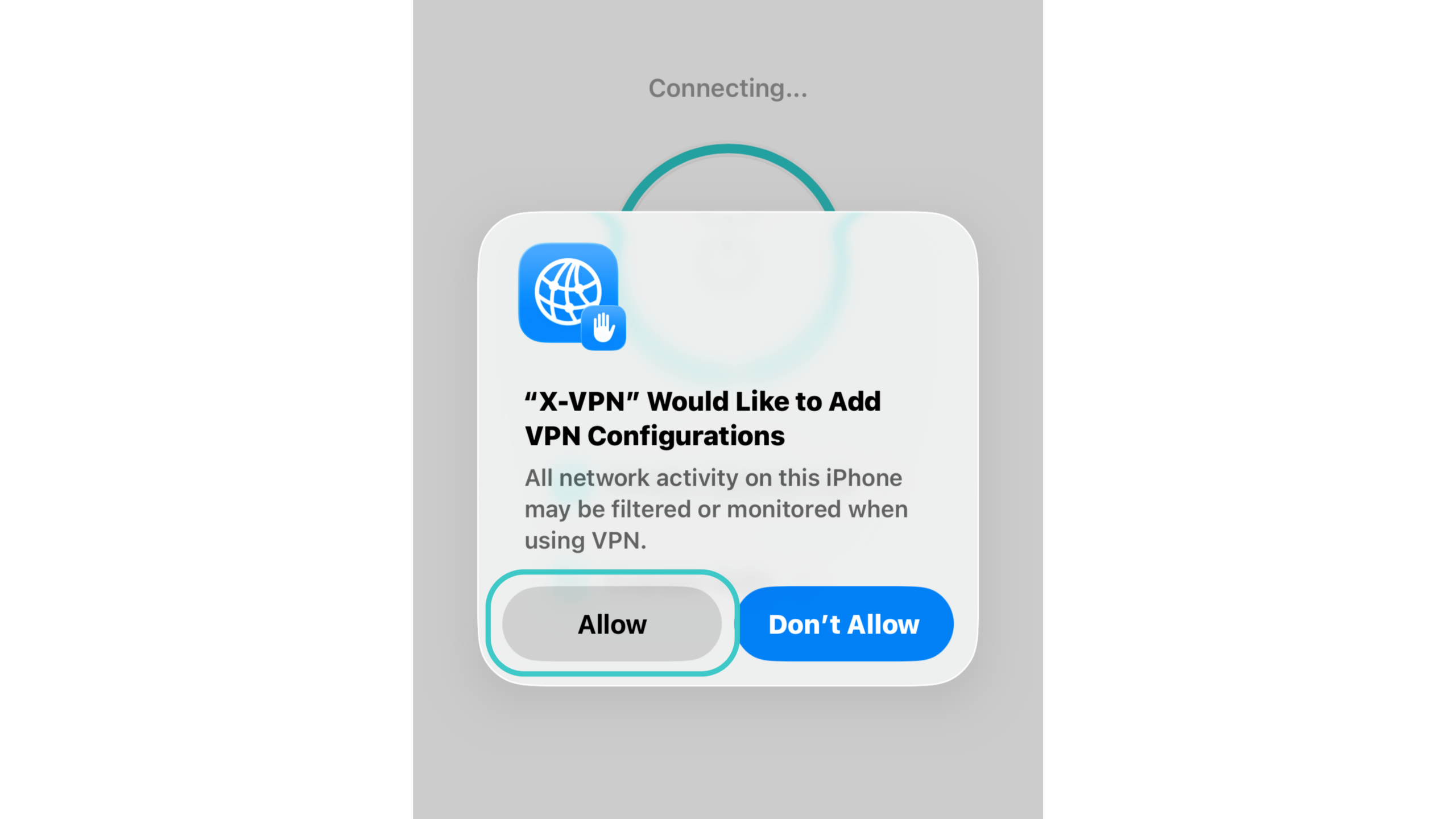
Step 3. A prompt will pop up. Hit Allow to add VPN configurations and finish the connection.
Using a VPN on Android
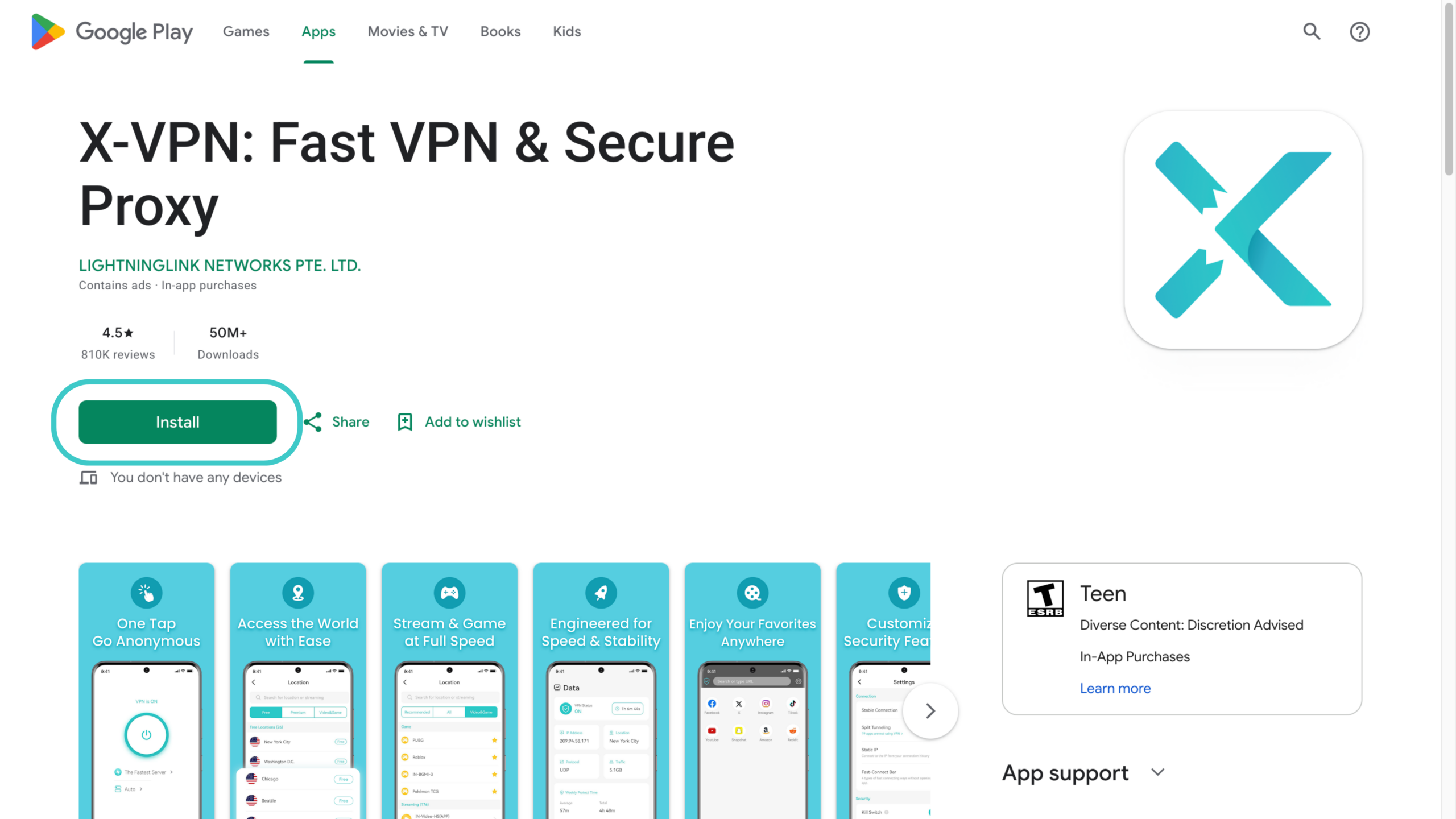
Step 1. Install the VPN for Android from Google Play, or download the APK file directly.
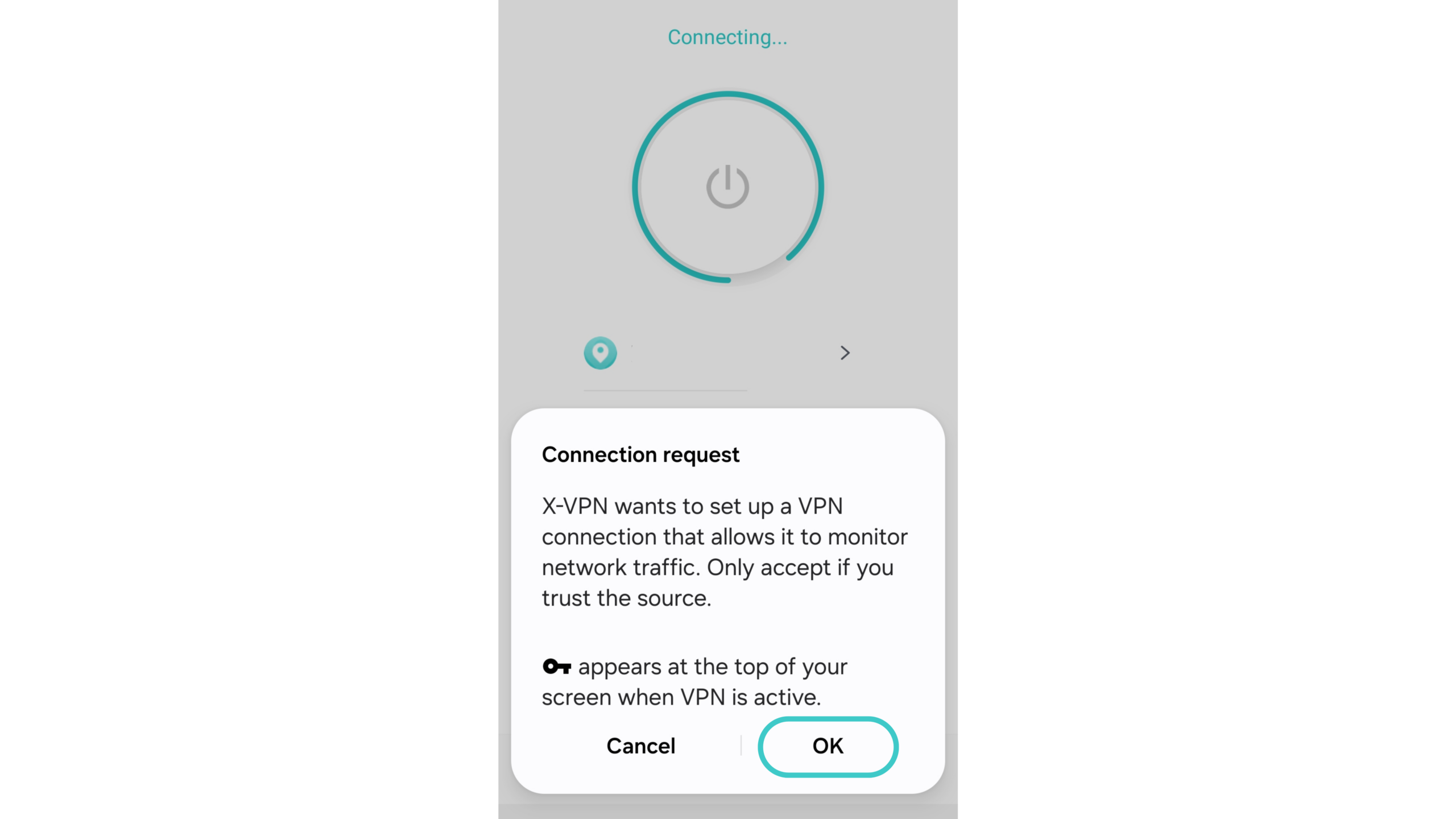
Step 2. Open the app and tap the connect button.
Step 3. Tap OK to allow the connection request, then browse with your traffic encrypted.
Using a VPN on Windows
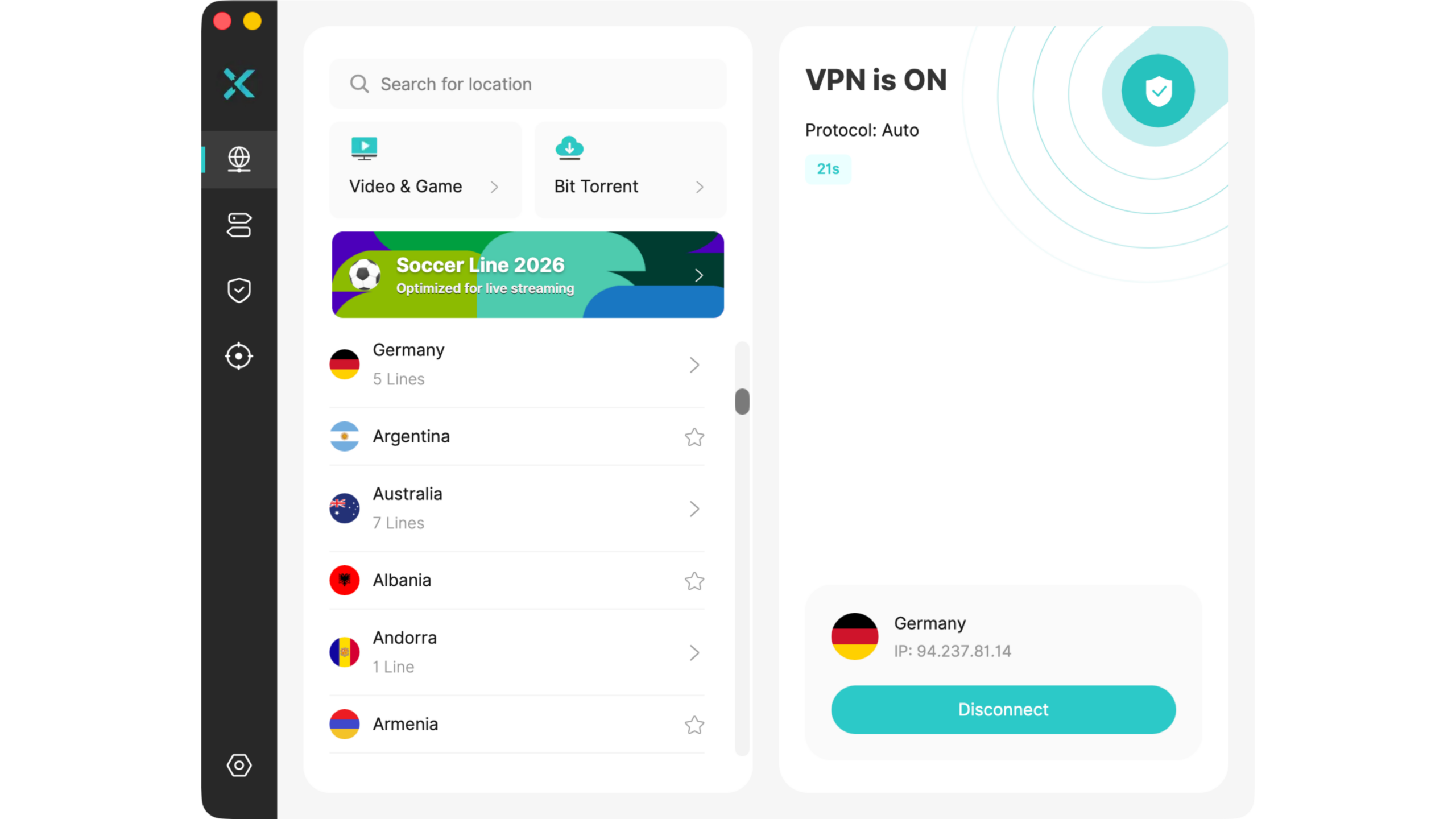
Step 1. Download the VPN for Windows from the official site.
Step 2. Open the app and select a server location.
Step 3. Click to Connect to finish in a few seconds.
Using a VPN on macOS
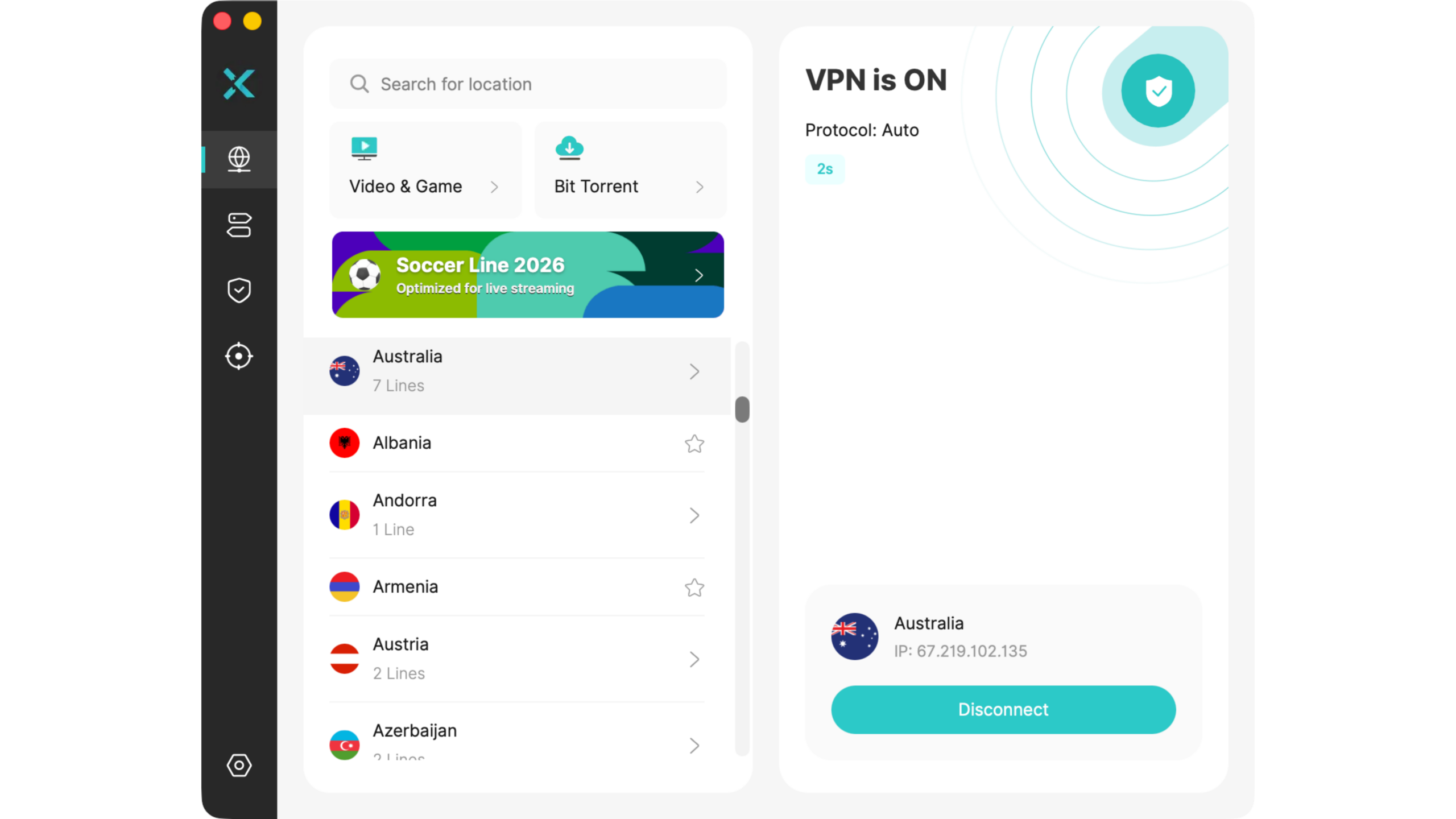
Step 1. Download the VPN for Mac from the official site or the Mac App Store.
Step 2. Open the app and select a server location.
Step 3. Hit Quick Connect to turn on protection.
Using a VPN on Linux
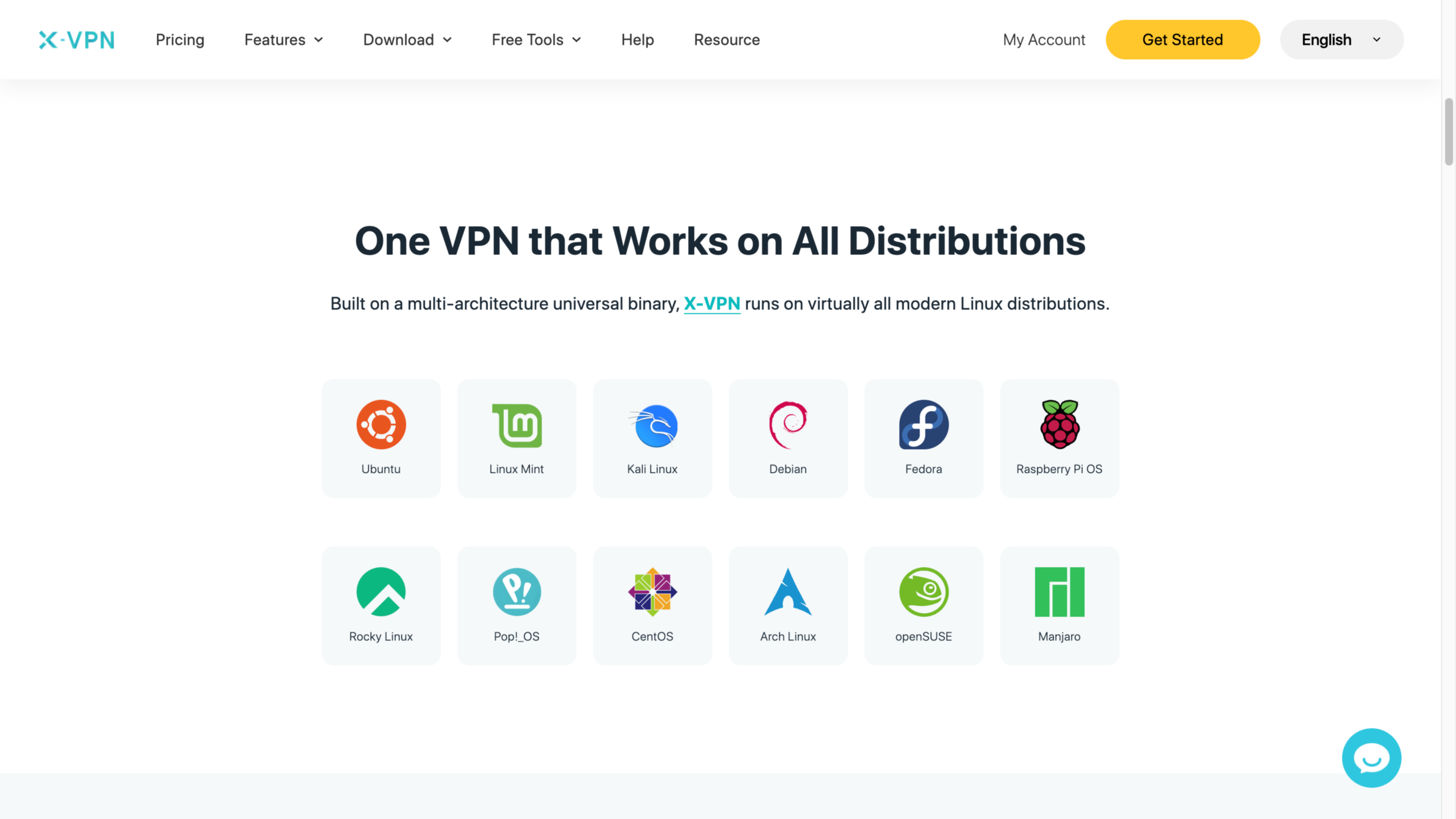
X-VPN runs from the command line on Linux, and it requires a premium account.
Step 1. Open a Terminal and run the install script: sh <(curl -sSf https://app.xvpncdn.com/4dzfjmwrjw/cli_install.sh) If curl gives you trouble, use wget instead: sh <(wget -qO - https://app.xvpncdn.com/4dzfjmwrjw/cli_install.sh)
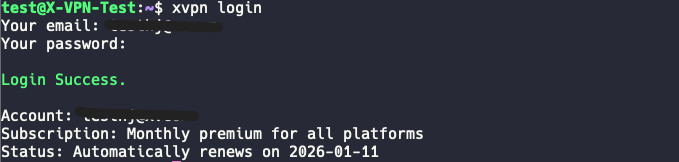
Step 2. Log in by running xvpn login, then enter your email and password. You can also run xvpn login --via-passcode and enter a passcode from another signed-in device.
Step 3. Run xvpn connect to connect to the fastest server on the Auto protocol. If you prefer a menu, launch the built-in UI and use the arrow keys to pick a location and protocol.
For the full command reference, see How to Use X-VPN on Linux (Command Line).
Using a VPN on Chromebook
Step 1. Download the VPN for Chromebook from Google Play or the APK file.
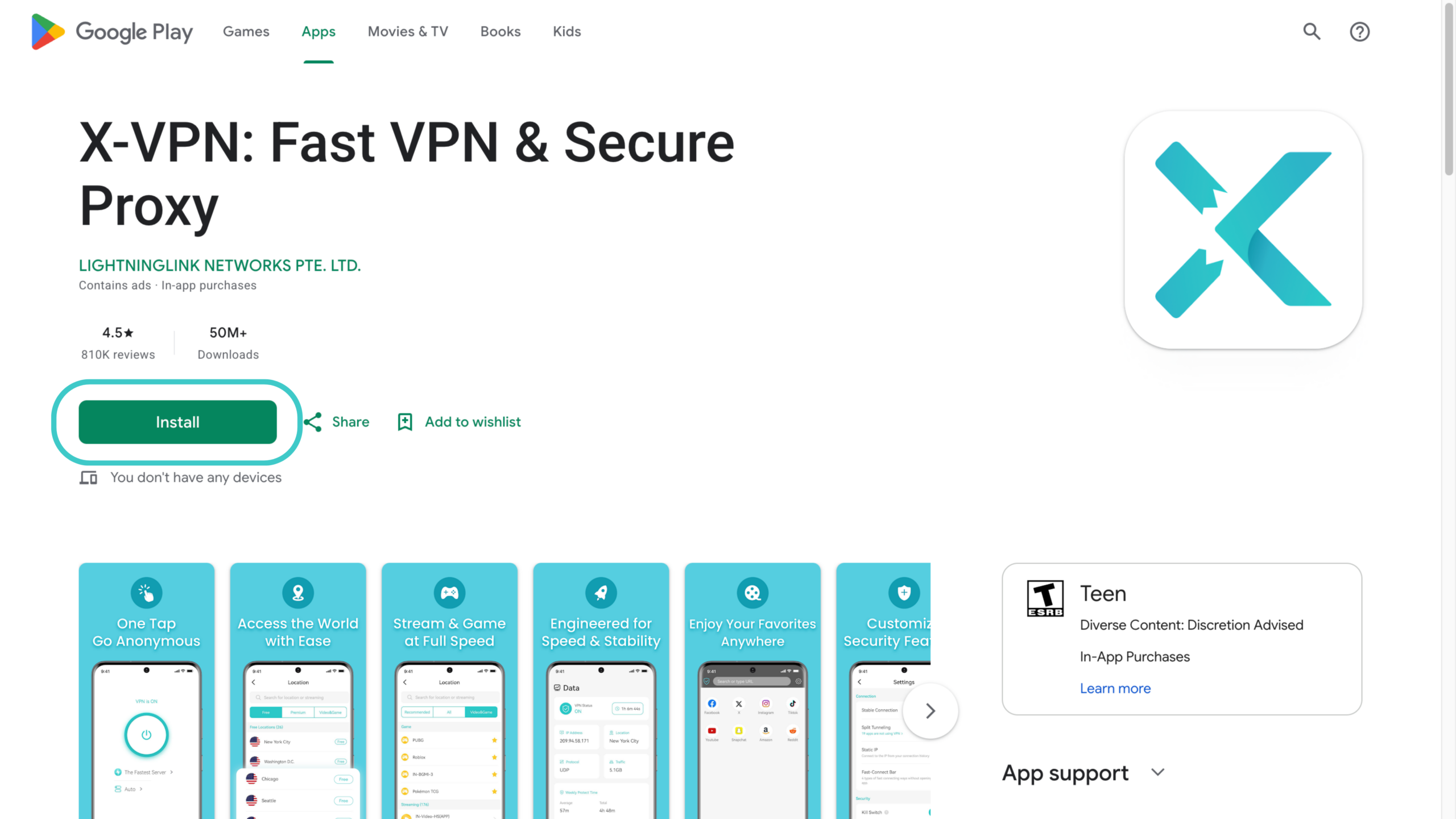
Step 2. Launch the app and tap the connect button.
Step 3. Start browsing with X-VPN protecting your connection.
Using a VPN Extension on Chrome
Step 1. Get a VPN for Chrome by adding the X-VPN extension from the Chrome Web Store.
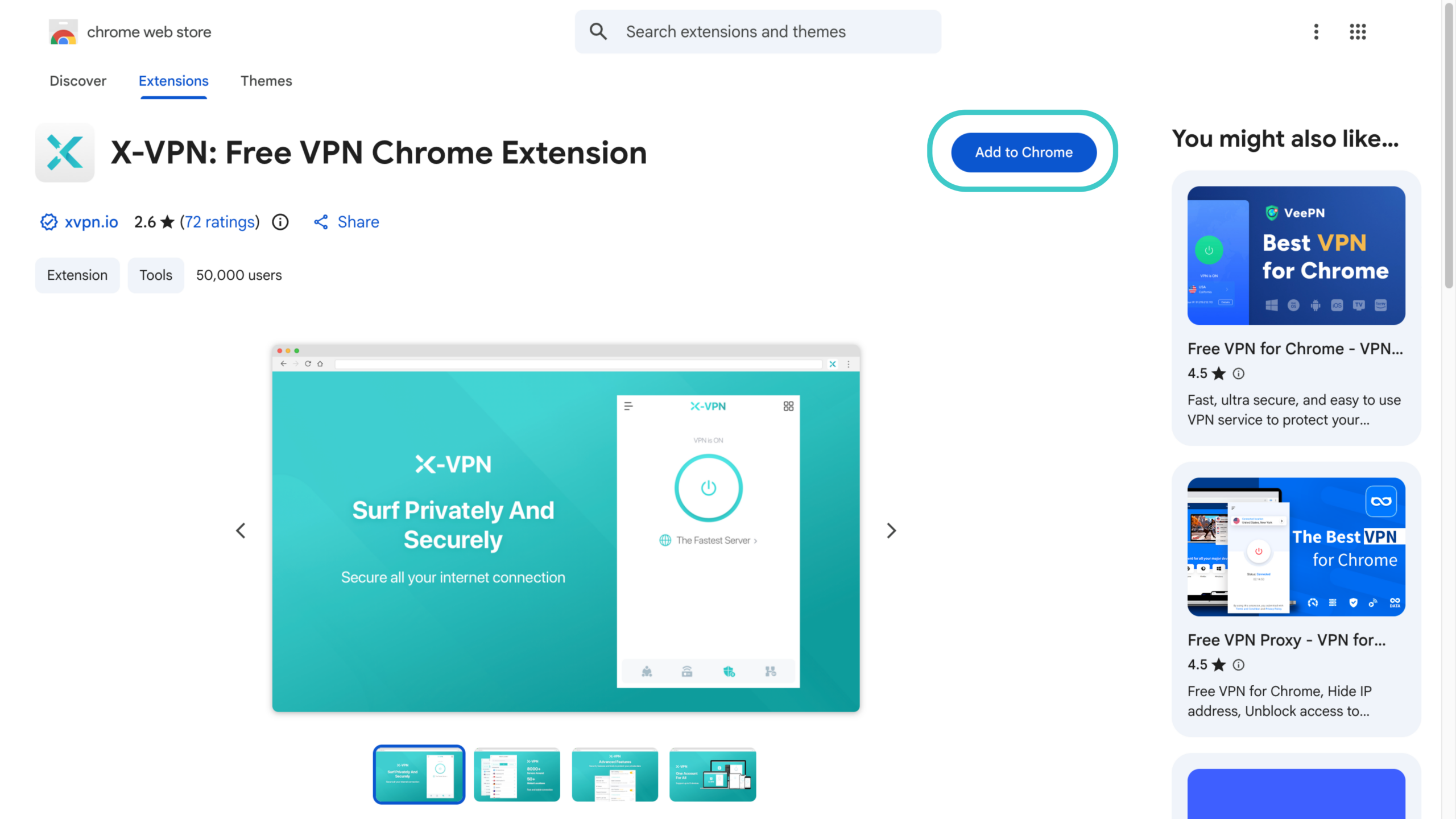
Step 2. Click the extensions icon in the top right of Chrome and open X-VPN.
Step 3. Pick a server, or hit the button to connect quickly.
A browser extension only protects traffic inside that browser. For everything else on your device, use the full app.
Using a VPN on Home Network (Router)
Setting up a VPN on your router protects every device on your Wi-Fi at once, including ones that cannot run a VPN app on their own. Router setup is a premium feature. The exact screens vary by router, but the pattern is the same.
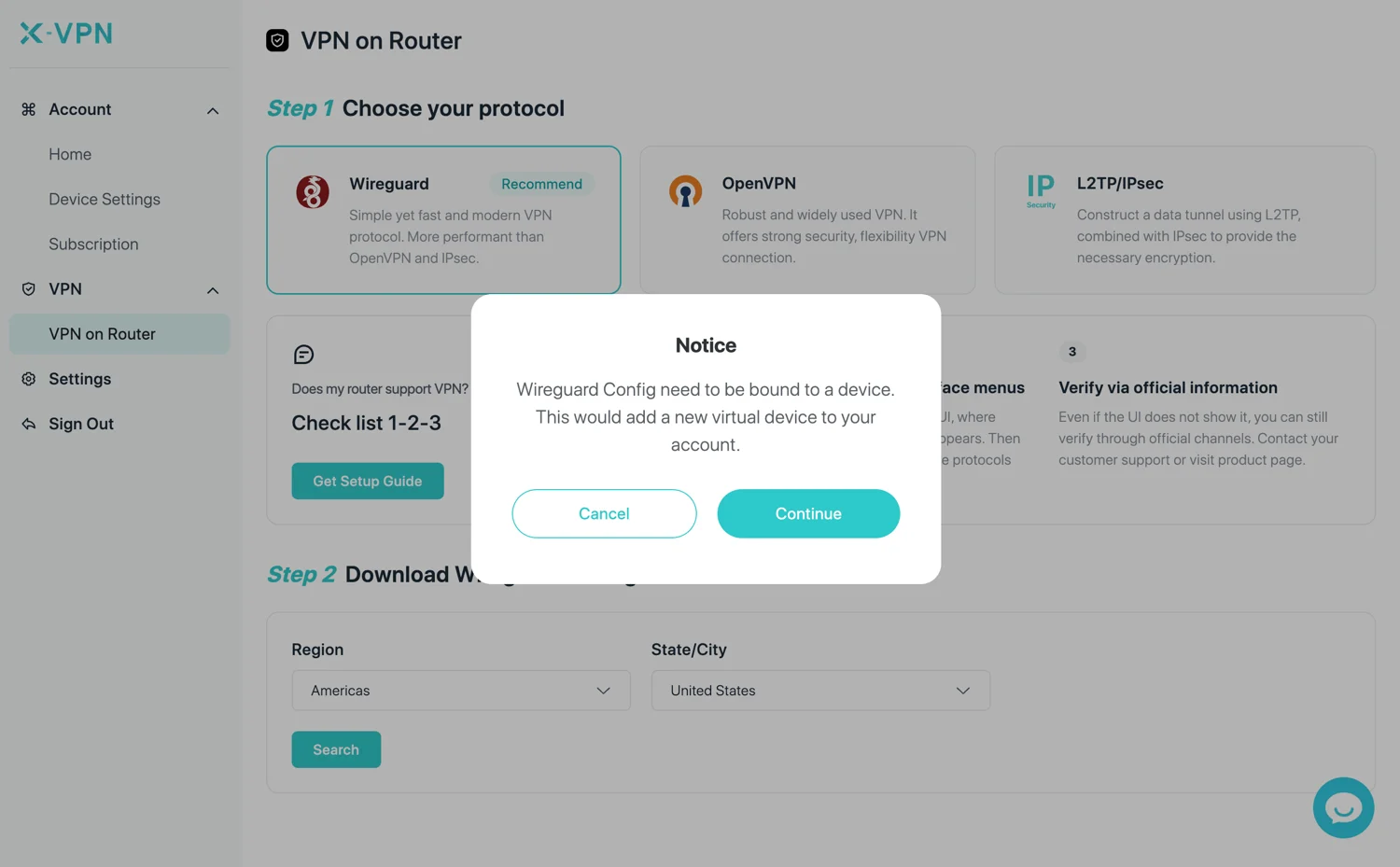
Step 1. Sign in to your X-VPN account, then go to My Account > VPN > VPN on Router. The first time, you will register your router as a device on your account.
Step 2. Choose a protocol. X-VPN supports WireGuard, OpenVPN, and L2TP/IPsec, so pick the one your router supports, then select a server location. For WireGuard or OpenVPN you download a configuration file. For L2TP you copy a set of credentials instead (username, password, and IPsec pre-shared key).
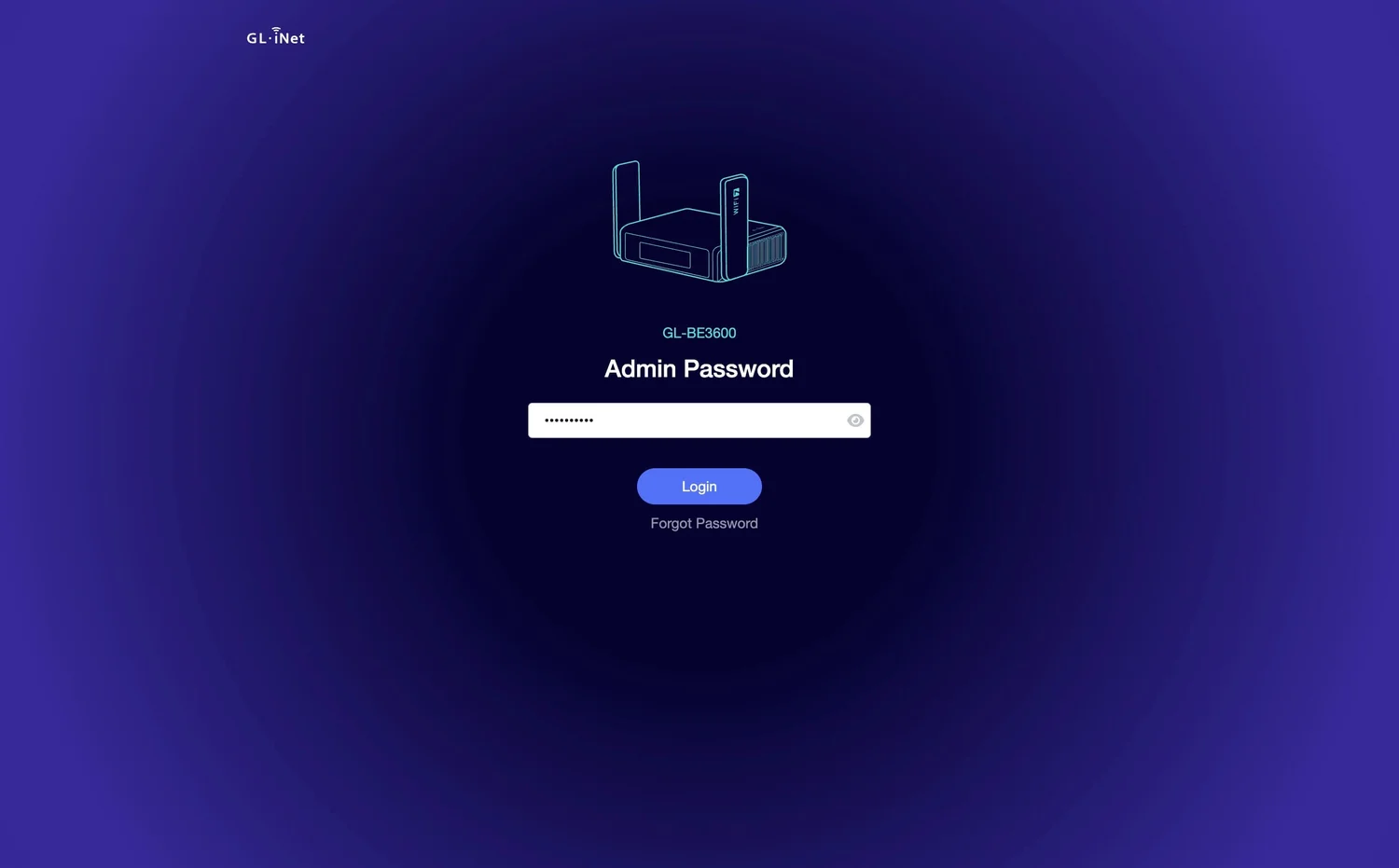
Step 3. Connect a device to your router over Wi-Fi, open a browser, and sign in to your router’s admin panel at its IP address.
Step 4. In the router’s VPN client section, add a profile, then either upload the configuration file (WireGuard or OpenVPN) or enter the credentials (L2TP), and apply.
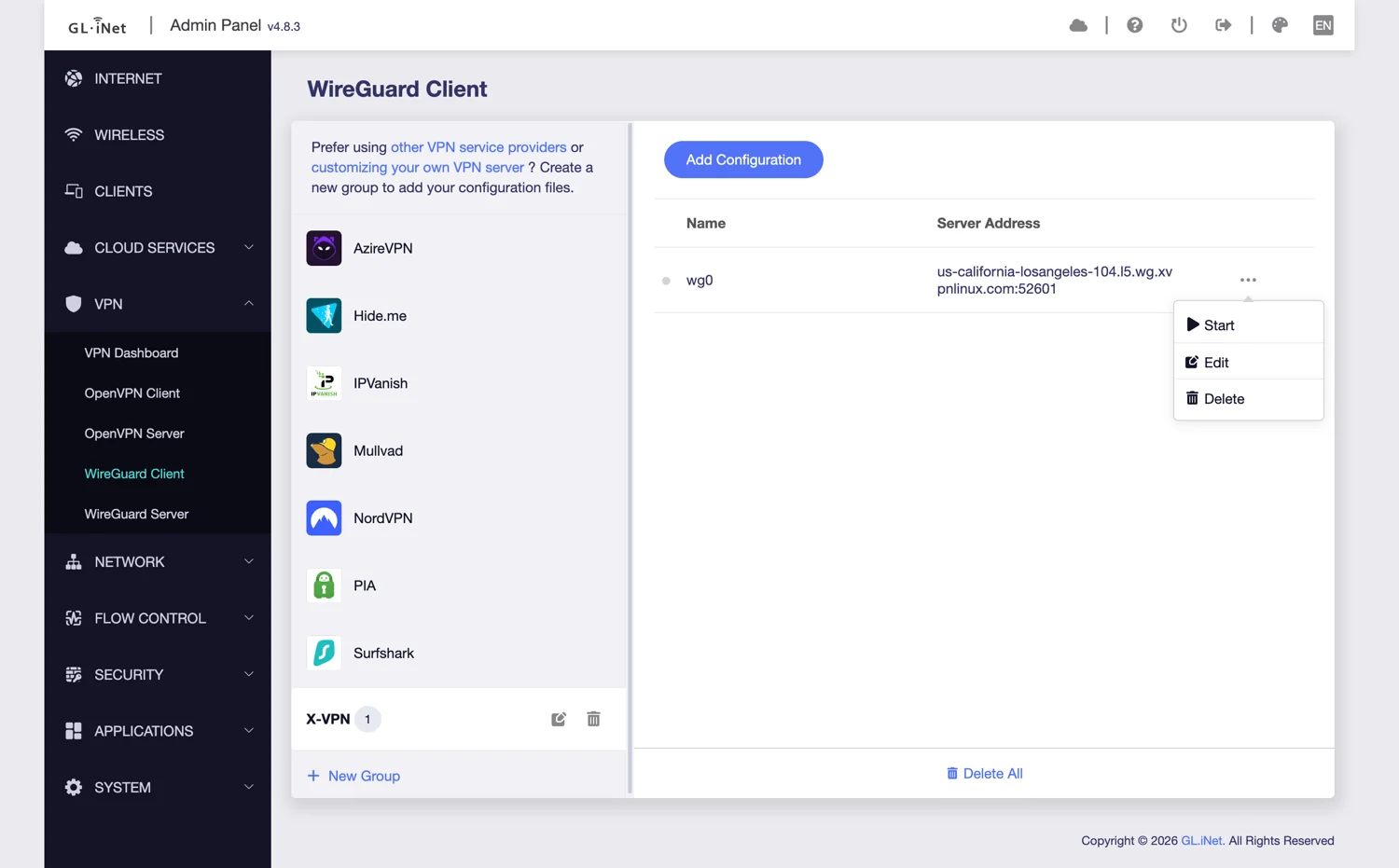
Step 5. Activate the connection, then check your IP has changed to confirm it is working.
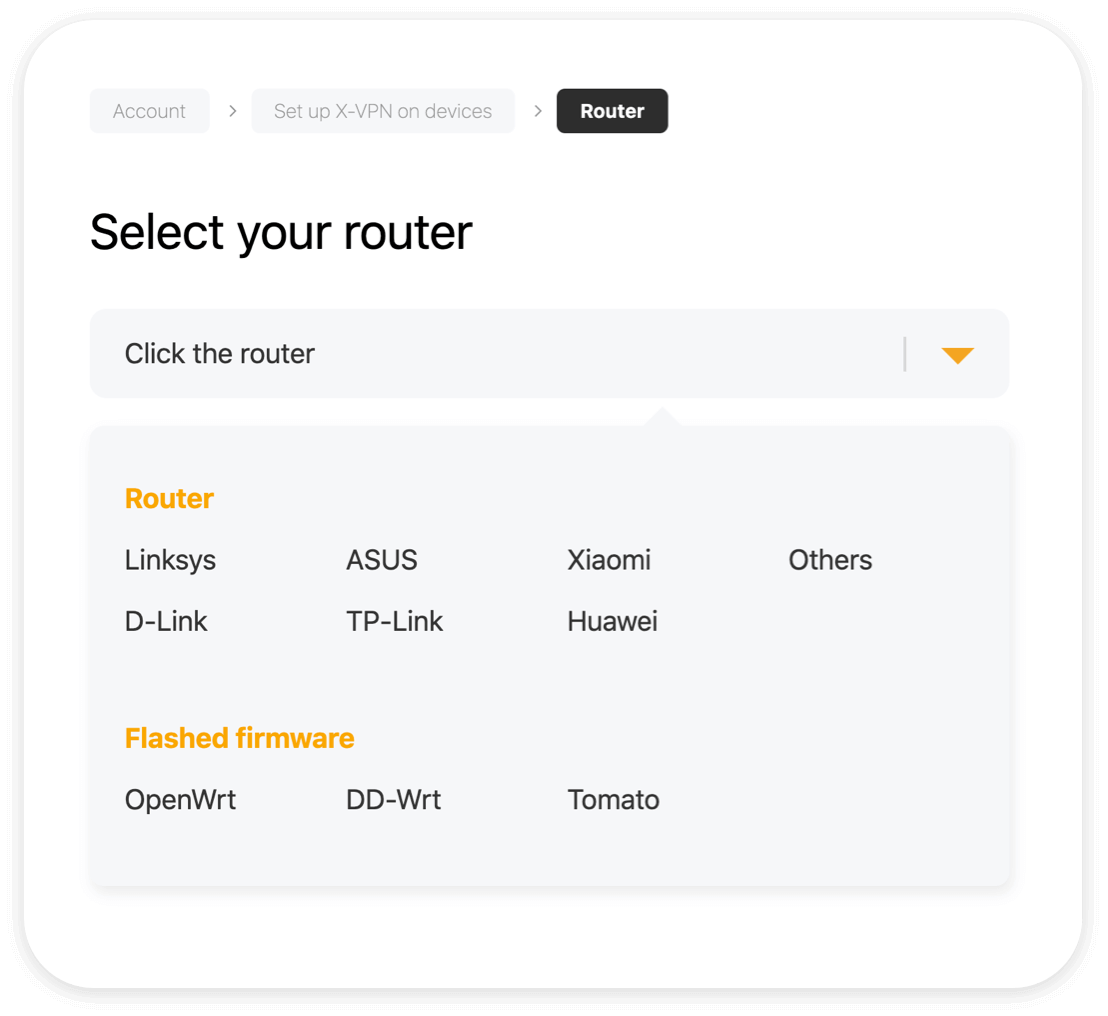
Router models differ. Find your brand in the VPN Setup Guides for Routers.
Using a VPN on Game Consoles
Consoles like the Xbox, PS4/PS5, and Nintendo Switch do not run VPN apps directly. You connect them either through a router running the VPN, or through the proxy method below.
How to Use a VPN on Xbox
Step 1. Log in to X-VPN and make sure you are on the premium plan.
Step 2. Set up the VPN on your router using the router steps above.
Step 3. Connect your Xbox to that router.
How to Use a VPN on PS4 / PS5
Step 1. Download X-VPN on your phone, open it, and connect to a server.
Step 2. Hit the Menu icon on the top-left corner, and navigate to Game Consoles/Proxy Server> Allow VPN connection option.
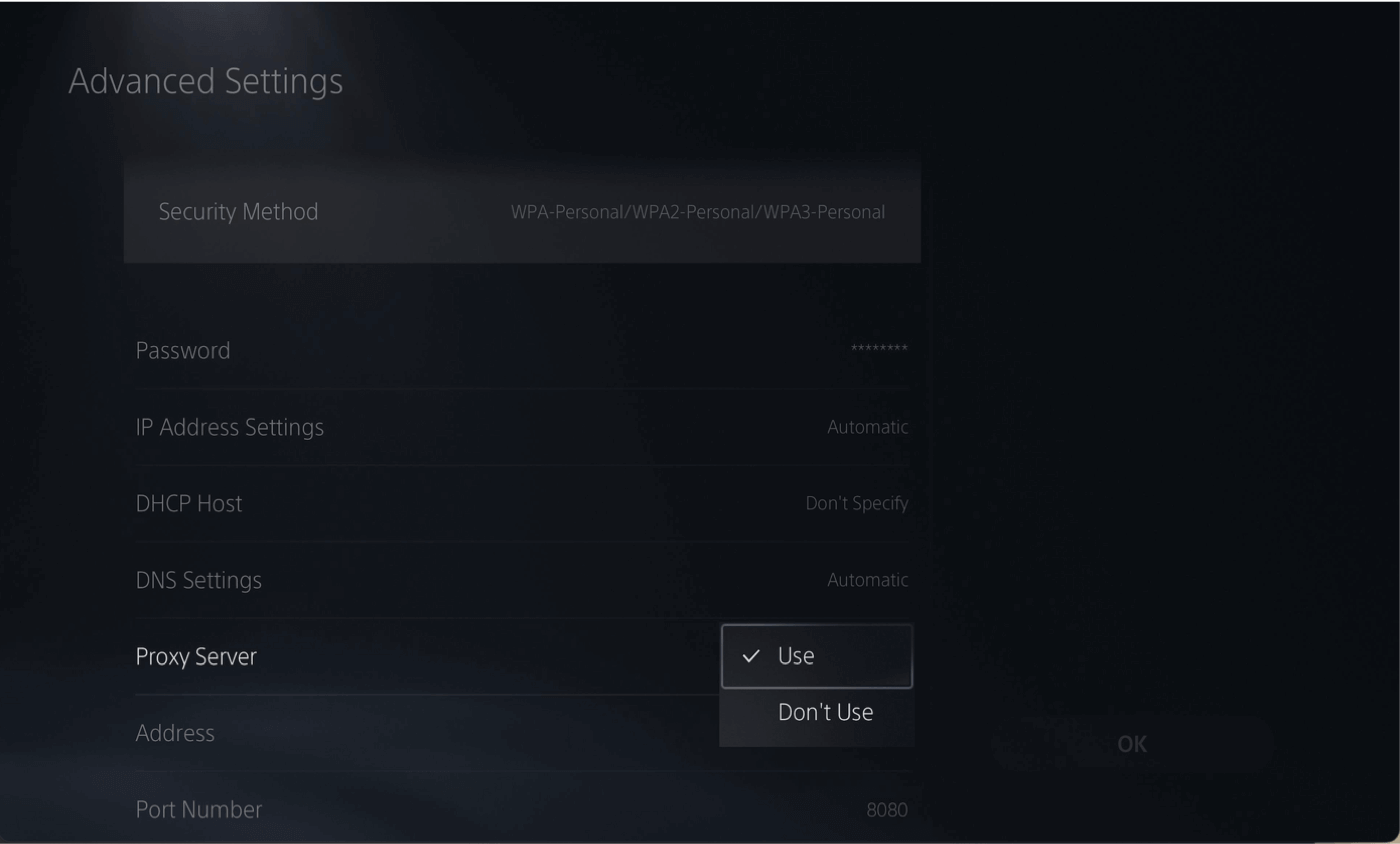
Step 3. Remember the Address and Port number and use them to configure the proxy server on PS4 or PS5.
How to Use a VPN on Nintendo Switch
Step 1. Install X-VPN on Android or iPhone, open it, and connect to a server.
Step 2. Hit the Menu icon on the top-left corner, and navigate to Game Consoles/Proxy Server> Allow VPN connection option.
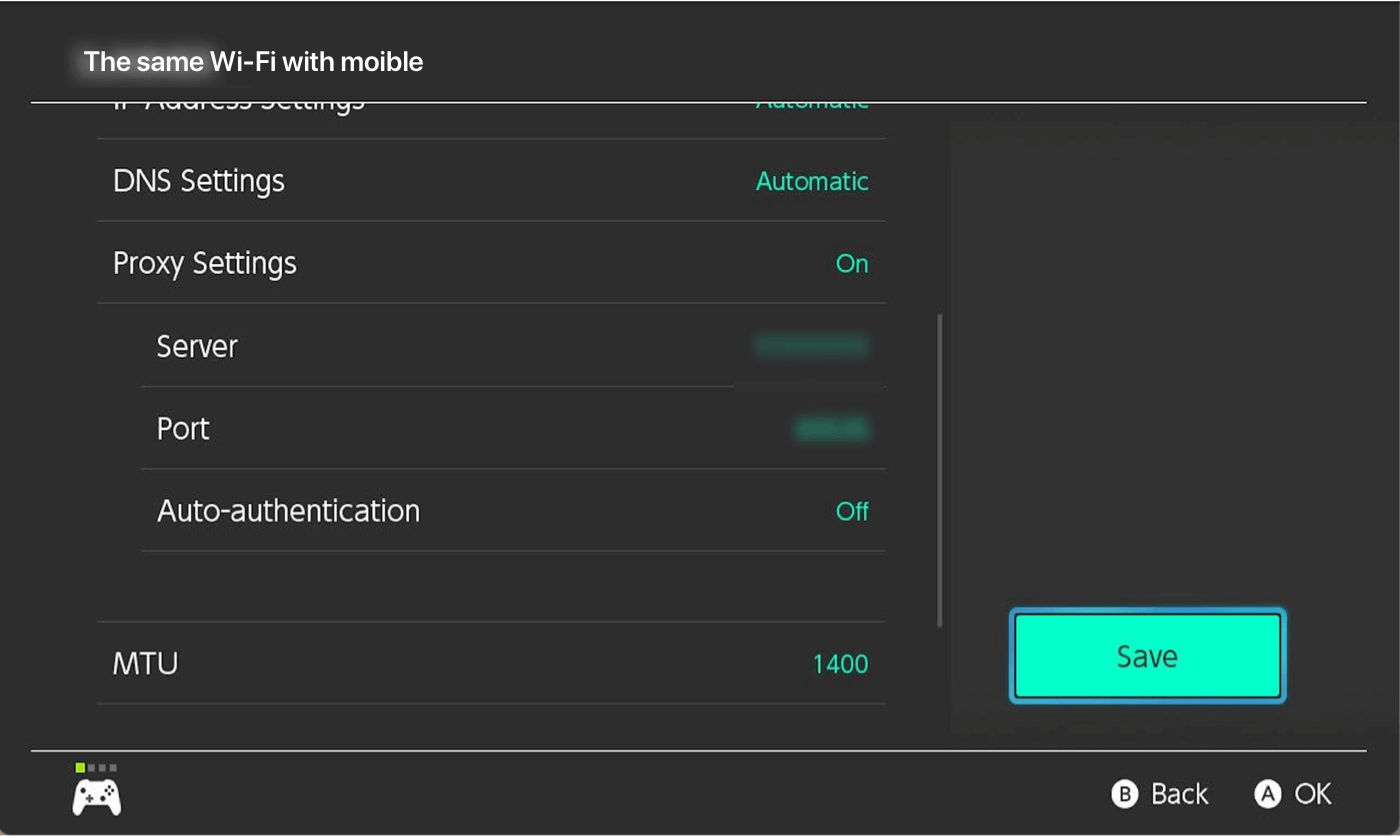
Step 3. Remember the Address and Port number and use them to configure the proxy server on your Switch.
For the full walkthrough, see the VPN Setup Guide for Game Consoles.
Using a VPN on TV
How to Use a VPN on Apple TV
Step 1. Update your Apple TV to tvOS 17 or later, then download the VPN for Apple TV from the App Store.
Step 2. Start a 7-day risk-free trial or sign in with your premium account.
Step 3. Choose a server and connect.

How to Use a VPN on Android TV
Step 1. Download the VPN for Android TV on Google Play.
Step 2. Start a 7-day free trial or upgrade to premium.
Step 3. Hit Quick Connect to protect your connection.
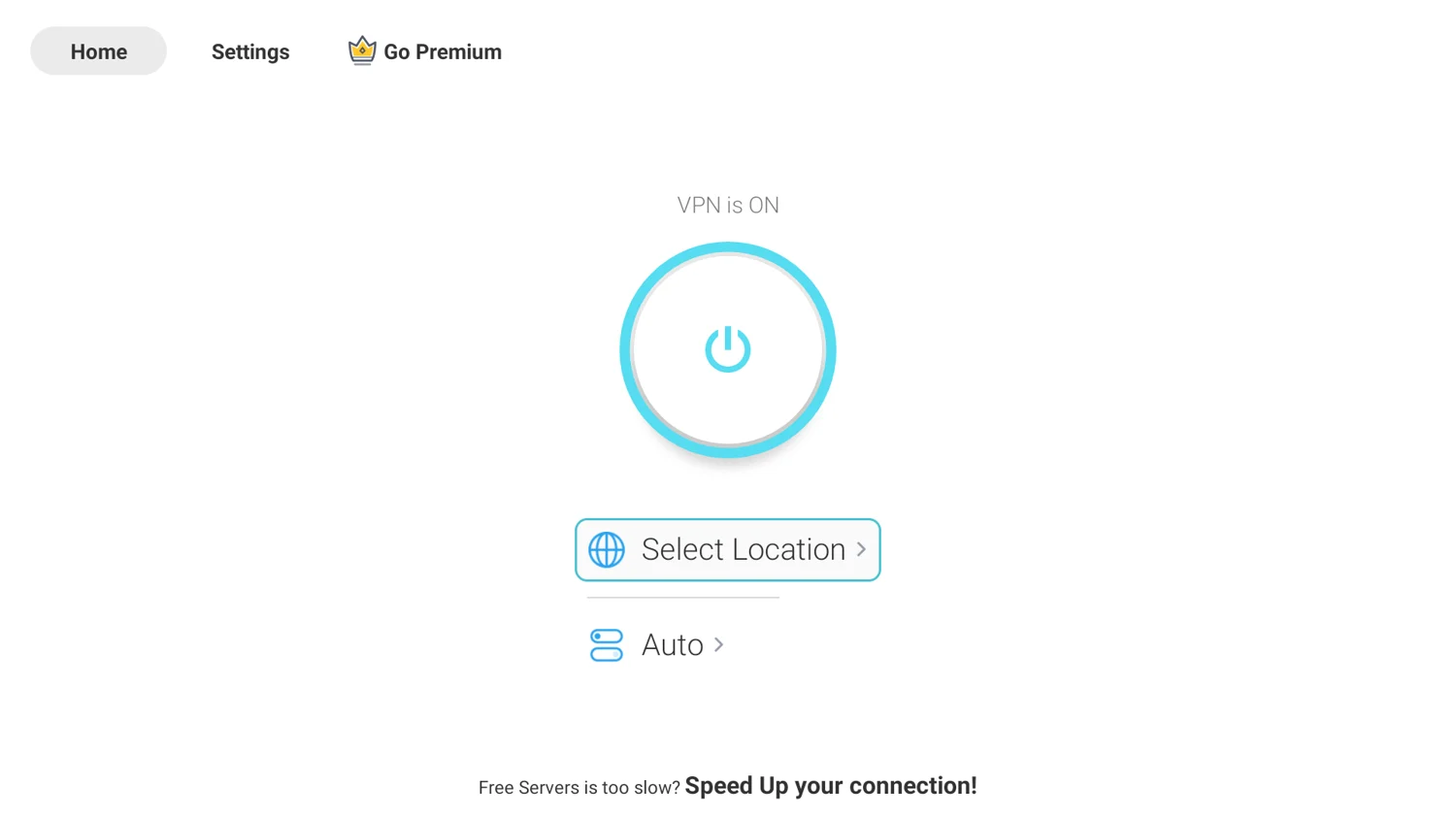
How to Use a VPN on Amazon Fire TV
Step 1. Get the VPN for Amazon Fire Stick in the Amazon Store.
Step 2. Start a 7-day free trial or sign in with your account.
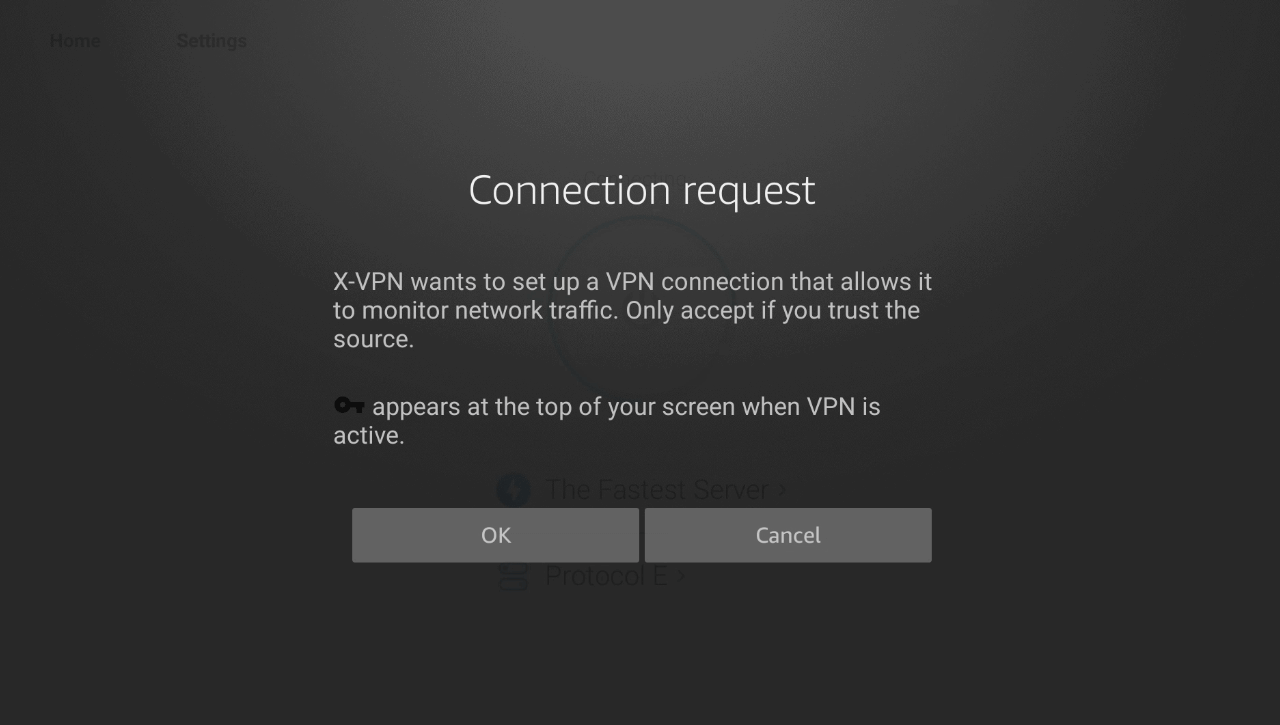
Step 3. Tap OK to allow the connection request.
TVs that run LG webOS or Samsung Tizen do not support VPN apps. To cover those, run the VPN on your router so the protection reaches them over Wi-Fi.
How to Use a VPN on Multiple Devices
X-VPN covers up to 5 devices at the same time on one account. Install it on each device, sign in with the same account, and every one of them is protected.
Simultaneous connections and router setup are premium features, which you can try with a 7-day free trial.
Troubleshooting: When Your VPN Isn’t Working
Most VPN problems have simple fixes. Here are the common ones.
It won’t connect at all
Switch to a different server, since the one you picked may be busy or down. If that fails, change the protocol, which gets through many network restrictions. Restart the app if it still hangs.
It keeps disconnecting
This usually comes from an unstable network or a protocol that the network throttles, but sometimes from your device settings. Our guide on why your VPN keeps disconnecting walks through each cause and fix.
Speeds feel slow
Connect to a server closer to your physical location, since distance adds latency. Try WireGuard for lower overhead. On Wi-Fi, moving closer to the router often helps more than any VPN setting.
Conclusion
You now know how to use a VPN on any device, what happens once you connect, which settings to turn on, and where its limits are. The core of it stays simple: get the app, and connect to a server.
Install X-VPN, connect to a server, and start browsing with your connection private.
FAQ
What do I do after connecting to a VPN?
Nothing else. Once the app is connected, every app and browser on your device routes through the VPN automatically, unless you specifically let them bypass the VPN with split tunneling. There is no separate search bar or browser to open. To confirm it is working, check your IP with a What Is My IP tool.
Should I connect to the internet first or turn on the VPN first?
Connect to the internet first, then turn on the VPN. A VPN needs a working connection to build its encrypted tunnel, so it runs on top of your Wi-Fi or mobile data rather than replacing it.
Does a VPN protect one device or my whole home?
A VPN app protects only the device it is installed on. To cover everyone in your home, including devices that cannot run the app, set up the VPN on your router so the protection reaches everything on your Wi-Fi.
Is it safe to allow the VPN configuration prompt on my iPhone?
Yes. That prompt is normal and required. iOS asks permission so the app can route your traffic through the VPN. Once you allow it, a small VPN icon appears at the top of your screen, and the app handles the connection from there.
Is it 100% safe to use public Wi-Fi and check my bank with a VPN on?
A VPN encrypts your traffic on public Wi-Fi, which removes the biggest risk on those networks. It is not a guarantee of total safety, though. Keep using sites over HTTPS, use strong and unique passwords, and turn on two-factor authentication. The VPN protects the connection, not the account.
Should I leave my VPN on all the time?
For consistent privacy, yes. Leaving it on keeps every session encrypted, which matters most on public or shared networks. The kill switch makes always-on use safe by blocking traffic if the connection drops.
Which VPN protocol should I choose?
Choose WireGuard for speed on a normal network, OpenVPN if you run into a compatibility issue, and Everest on a network that blocks VPN traffic.
Does a VPN slow down my internet?
A small drop is normal, because your traffic is encrypted and routed through a server. Keep it minimal by connecting to a nearby server and using a fast protocol like WireGuard.
Is it safe to use a VPN?
Yes, as long as you choose a reputable provider with a strong, audited privacy policy and a solid security record. A good VPN encrypts your data and keeps no logs of your activity. Be cautious with unknown free VPNs, since some collect and sell user data.
Is using a VPN legal?
In most countries, yes. A VPN is a standard privacy tool. It does not make otherwise illegal activity legal, and a few countries restrict VPN use, so check the rules where you live before you rely on one.