

Need to sell your iPhone, send it for repair, or give it to someone else? You may need to turn off Find My iPhone first.
Find My iPhone helps you find a lost device and keeps it protected with features like Activation Lock. Since Find My keeps your iPhone linked to your Apple Account, you’ll need to turn it off before handing the device over in some cases.
This guide will show you how to turn off Find My iPhone on your device or through iCloud, with simple steps and troubleshooting tips to help if something goes wrong.
Table of Contents
Before You Start
- First, check whether turning off Find My iPhone is really what you need. If you only want to stop friends or family from seeing your location, change your location-sharing settings instead.
- Connect the iPhone to a stable Wi-Fi or cellular network before changing the setting.
- If Stolen Device Protection is turned on, disable it first. You won’t be able to turn off Find My until it’s off.
How to Turn Off Find My on Your iPhone
When you still have access to the iPhone, you can turn off Find My iPhone directly in Settings.

Note: Some option names may vary slightly depending on your iOS version.
Step 1. Open Settings, then tap your name at the top to open your Apple Account settings.
Step 2. Tap Find My.
Step 3. Select Find My iPhone and turn off the switch. Enter your Apple Account password, then tap Turn Off. If you’ve forgotten the password, you’ll need to reset it before continuing.
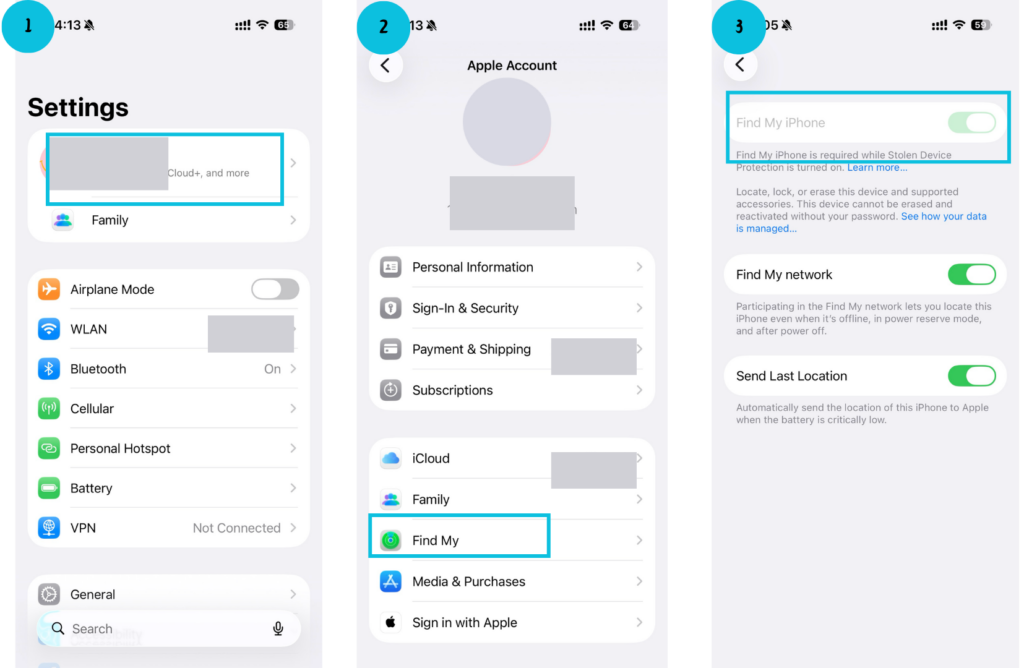
Once the switch is off, you can no longer locate, lock, or erase the iPhone through Find My, and Activation Lock is removed.
How to Turn Off Find My Remotely Using iCloud
You can also remove your iPhone from Find My through iCloud.com if you no longer have access to the device or need to remove it remotely.
Warning: Do not remove an iPhone from Find My if it is lost or stolen. Removing it also removes Activation Lock, making it easier for someone else to activate or resell the device.
Step 1. Open iCloud.com/find in a browser and sign in with the Apple Account used on the iPhone.
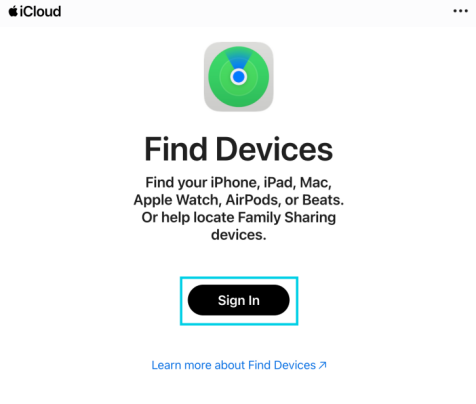
Step 2. If asked to verify your identity, follow the on-screen instructions.
Step 3. Open the device list and select the iPhone you want to remove.
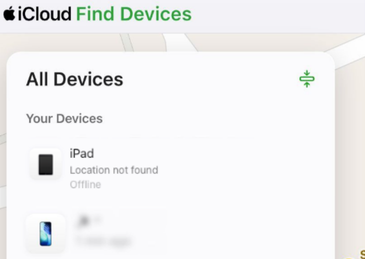
Step 4. Choose the option that matches your situation:
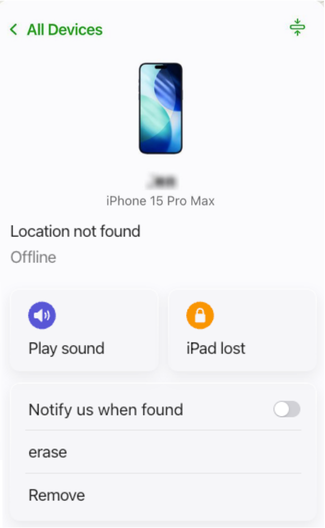
For repair or trade-in: Select Remove This Device and follow the prompts. If the iPhone remains in Find My with a Ready for Repair or Trade In label, the request was successful. The status will remain for 30 days.
Note: If the iPhone is offline, Activation Lock is removed immediately, and the device is removed from Find My after 30 days.
If the iPhone has been sold or given away: Select Erase This Device first, then choose Remove This Device after the erase is complete.
What Happens After You Turn Off Find My iPhone
Once Find My iPhone is turned off, you will no longer be able to use Find My to locate or remotely protect the device if it goes missing.
Activation Lock will also be disabled, so someone who erases the iPhone may be able to set it up with another Apple Account and use or resell it. Other security features, such as your passcode and Face ID, will continue to protect the data currently stored on the device, but they cannot prevent the iPhone itself from being erased and reused.
If you need these protections again later, you can turn Find My iPhone back on at any time in Settings. Activation Lock will then be enabled automatically.
Why Can’t I Turn Off Find My iPhone
You may run into problems when turning off Find My iPhone, such as the switch being grayed out. Security settings, account access, or device restrictions are usually the cause. Try the fixes below.
1. Stolen Device Protection Is Enabled
Find My cannot be switched off while Stolen Device Protection is active. Open Settings > Face ID & Passcode > Stolen Device Protection and disable it first.
If you are away from a familiar location, such as home or work, Apple may require a one-hour Security Delay. If you are preparing for a repair or trade-in, disable Stolen Device Protection before you leave to avoid waiting at the store.
2. Your Apple Account Password Is Not Accepted
A password error may appear if the iPhone is offline or you entered the password for a different Apple Account. Check the internet connection and confirm that you’re using the account shown at the top of Settings. If you’ve forgotten the password, reset it before trying again.
3. Screen Time Is Blocking the Change
If the Find My setting is unavailable or cannot be changed, Screen Time may be restricting it. Go to Settings > Screen Time > Content & Privacy Restrictions. Under Allow Changes To, tap Accounts or Account Changes and select Allow.
4. The iPhone Is Linked to the Previous Owner
Seeing iPhone Locked to Owner or a request for the previous owner’s Apple Account means the iPhone is still linked to their account. You’ll need to ask the previous owner to erase the device and remove it from Find My. Can’t reach them? Contact Apple with your proof of purchase for help with Activation Lock.
5. Your Organization Restricts the Setting
On a managed iPhone, your organization may control account or Find My settings. Check Settings > General > VPN & Device Management for a management profile. If the setting is restricted, contact your IT administrator instead of attempting to remove the profile yourself.
Conclusion
Find My iPhone is useful for protecting a lost device, but it may need to be turned off before the iPhone is repaired or passed on to someone else.
No matter the reason, following the correct steps helps prevent account issues and protects your personal information. By using the methods above, you can safely disable Find My iPhone on your device or remove it remotely through iCloud when needed.
FAQs
Can I turn off Find My iPhone without my iPhone?
Yes. You can use Find Devices on iCloud.com to remove the iPhone from Find My and disable Activation Lock, even if you do not have the device with you.
Can someone track me if Find My iPhone is off?
Find My can no longer locate the iPhone after you turn it off. However, friends or family may still see your location if Share My Location remains enabled, and apps with location permission may still access your location.
Does turning off Find My iPhone delete data?
No. Turning off Find My iPhone does not delete your photos, apps, messages, or other personal data. It only disables Find My features and removes Activation Lock.
What is Activation Lock on an iPhone?
Activation Lock is a security feature that turns on automatically when Find My is enabled. It links the iPhone to the owner’s Apple Account and prevents other people from activating or using the device without the account password. Turning off Find My also removes Activation Lock.
Can I turn Find My iPhone back on later?
Yes. Go to Settings > [your name] > Find My > Find My iPhone and turn it back on. Activation Lock will also be enabled automatically.
How to check if Find My iPhone is off?
On the iPhone, go to Settings > [your name] > Find My > Find My iPhone. If the switch is off, Find My and Activation Lock are disabled on that device.
If you removed the iPhone through iCloud.com, check its status in the device list. A device prepared for repair or trade-in may remain visible temporarily, so seeing it in the list does not always mean the removal failed.