

Got a frozen Chromecast on your hands? Maybe you want to switch it to a new Wi-Fi network, or you’re getting ready to sell it and need to wipe everything clean. Whatever the reason, a factory reset gets the job done in under a minute. Just keep the device plugged in, press and hold the button on the side, and release it once the LED light turns solid white.
Keep reading for a breakdown of exactly where the button is on each Chromecast model, how to run a reset through the Google Home app, and a few handy troubleshooting tips if things don’t go as planned.
Table of Contents
Chromecast Reset Button & LED Light Cheat Sheet (By Model)
If you want a fast visual reference without sitting through lengthy instructions, the cheat sheet below is exactly what you need. It breaks down the precise button location, how long to hold it, and what the LED light signal looks like when you have successfully reset each Chromecast model.
Model | Reset Button Location | Hold Duration | LED Signal to Release Button |
|---|---|---|---|
Google TV Streamer | Back panel | 10–12 sec | Blinking yellow ⭢ Solid white |
Chromecast with Google TV (4K / HD) | Back panel | 10–15 sec | Blinking yellow/amber ⭢ Solid white |
Chromecast 2nd Gen, 3rd Gen & Ultra | Back panel | 10–15 sec | Blinking yellow/amber ⭢ Solid white |
Chromecast 1st Gen | End or side of stick | 25+ sec | Flashing white (TV screen turns black) |
Chromecast Audio | Side (near power port) | 10–15 sec | Blinking orange ⭢ Solid white |
Method 1: How to Factory Reset Chromecast Using the Reset Button
If your Chromecast is frozen, stuck offline, or simply refusing to play nice with the Google Home app, there is a straightforward solution that does not require any software or a working Wi-Fi connection. You can perform a hard reset using the physical reset button built directly into the device. This hardware method gives you a reliable way to restore your Chromecast to factory settings without needing the app at all.
Chromecast with Google TV & Google TV Streamer
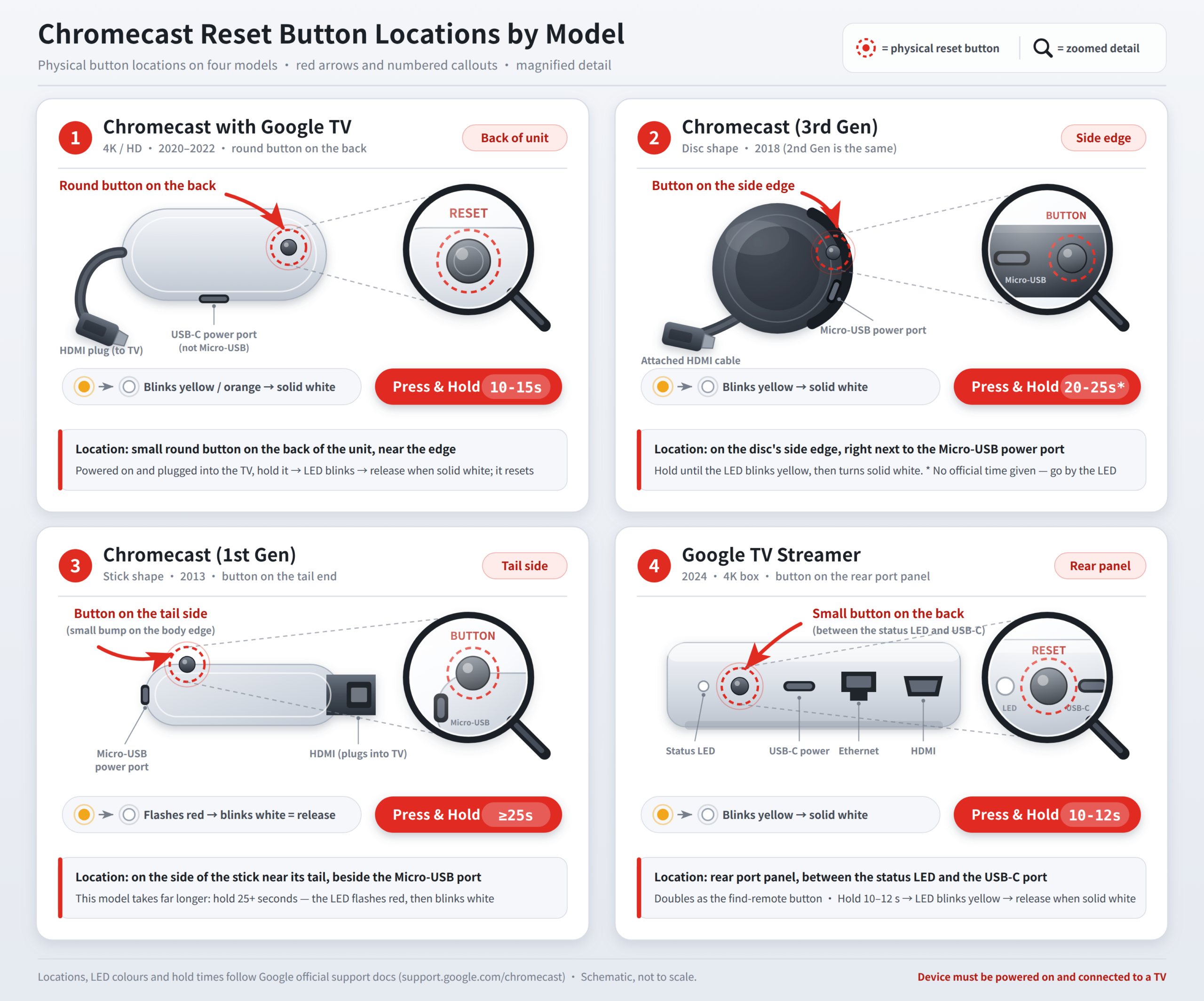
If you own one of the newer Chromecast devices running the Google TV interface – whether that’s the 4K, HD, or Google TV Streamer model – you’ll find the reset button sitting on the back of the streaming unit itself, not on the remote.
- Keep your device plugged in: Make sure the device stays connected to your TV’s HDMI port and remains attached to its power adapter throughout the process.
- Find and hold the back button: Look for the small physical button on the back panel of the device, then press and hold it down.
- Watch the LED indicator: Keep holding the button while the LED light starts blinking yellow/amber. Continue holding until the light switches to a solid white color.
- Let go to restart: Release the button. The device will automatically reboot and bring up the “Welcome” setup screen on your TV.
Chromecast 2nd Gen, 3rd Gen & Ultra
These compact, disc-shaped dongles come equipped with a single small reset button positioned conveniently right beside the power port.
- Check the power connection: Make sure your Chromecast is plugged into your TV’s HDMI port and connected to a working power source.
- Hold the side button: Hold down the physical button on the side of the disc, located right beside the Micro-USB port.
- Wait for the light change: Keep the button pressed as the LED light flashes orange.
- Release on solid white: Once the LED light stops blinking and stays solid white, release the button. The TV screen will turn black as the device goes through its setup process again.
Because 2nd/3rd Gen models do not support native apps, you can set up X-VPN on your router to automatically protect and unblock content across your entire home network.
Try Privacy Guard for Free
Use X-VPN to encrypt your network connection and easily protect your personal privacy.
Chromecast 1st Gen
Compared to other models, the original stick-shaped Chromecast, which looks a lot like a USB flash drive, requires you to hold the button down for a slightly longer period of time in order to trigger a full hardware wipe.
- Keep the power connected: Keep the stick plugged into your TV’s HDMI port and make sure it stays connected to the power cable.
- Press and hold the end button: Keep the stick plugged into your TV’s HDMI port and make sure it stays connected to the power cable.
- Watch for a black screen: Continue holding the button while the LED light starts flashing white and your TV screen goes black.
- Release and wait: Release the button and give the device 2 to 3 minutes to finish the reboot and restore process on its own.
Chromecast Audio
If you use the dedicated audio-only Chromecast to stream music through your external speakers, you can reset it in as little as 0 to 15 seconds by using the button on the side of the device.
- Start with power: Before anything else, make sure your Chromecast Audio is plugged into a wall outlet or a USB power source and fully powered on.
- Press and hold the side button: Find the small physical button on the side of the device, sitting right next to the power port, and hold it down firmly.
- Watch the LED and let go at the right moment: Keep holding the button while the LED light blinks orange. The moment it switches to a solid white light, release the button and you are done.

Always make sure your Chromecast is plugged into a wall outlet using its official power adapter before you attempt a reset. If you rely on your TV’s USB port for power instead, there is a real risk that the power will cut out right in the middle of the reset process when the TV screen goes black, which can corrupt the device.
Method 2: How to Factory Reset Chromecast via the Google Home App
If your Chromecast is still connected to your Wi-Fi network and responding normally, using the Google Home app is the cleanest and easiest method. You can erase all data directly from your phone without having to reach behind your TV or touch any physical buttons.
- Open the app: Open the Google Home app on your phone or tablet, making sure the device is connected to the same Wi-Fi network as your Chromecast.
- Select your Chromecast: Find your device by scrolling through the list, then tap on your Chromecast tile to open the control screen.
- Open Settings: Tap the Settings icon, which looks like a gear, in the top-right corner of the screen.
- Choose Factory Reset: Tap Device information, then select Factory reset.
- Confirm the reset: Tap Factory reset again at the bottom of the screen to confirm.
Verification: Once the reset is confirmed, your Chromecast will disconnect from your phone, wipe its data, and reboot on its own. When the process is complete, the “Set up” screen will appear on your TV.
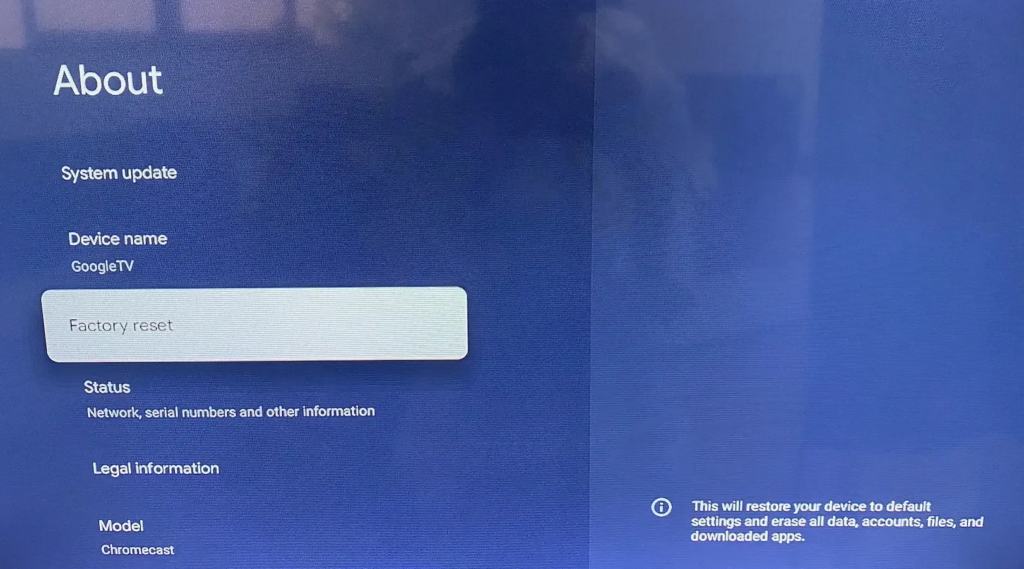
On Chromecast with Google TV, you can also reset directly on your TV screen by going to Settings > System > About > Factory Reset.Tips Content
Conclusion
Resetting your Chromecast to factory settings is one of the fastest and most reliable solutions available, whether you are dealing with persistent software issues, passing the device on to someone else, or moving to a new Wi-Fi network. There are two ways to do it – either through the Google Home app for a software-based reset, or by pressing the physical reset button on the device itself. Whichever method you choose, keeping an eye on the LED light indicators throughout the process helps ensure everything goes as expected.
Once the reset is done, just fire up the Google Home app, set your device up from scratch, pair it with a reliable streaming VPN, and you’ll be back to enjoying buffer-free streaming in no time.
Frequently Asked Questions
How do I factory reset my Chromecast without Wi-Fi or the app?
You can factory reset a Chromecast without Wi-Fi or the Google Home app by using the physical reset button on the device. Keep the device plugged into power and your TV, press and hold the reset button until the LED light turns solid white, then release it.
How do I reset my Google Chromecast to connect to new Wi-Fi?
If you changed your Wi-Fi password or router, open the Google Home app, select your Chromecast, go to Settings > Device Information > Wi-Fi, and tap Forget This Network. If your phone cannot discover the Chromecast, you must perform a physical factory reset to reconnect.
What should I do if my Chromecast won’t reset or the button isn’t working?
If pressing the physical button has no effect, start by checking how your Chromecast is powered. It should be connected to its official wall adapter, not a USB port on your TV. After confirming that, unplug the power cable and leave it disconnected for a full 60 seconds. When you plug it back in, press and hold the reset button right away, and continue holding it until the LED light changes.
Where is the reset button on a Chromecast?
The physical reset button is located directly on the Chromecast device. On a standard dongle (1st through 3rd Gen or Ultra), you will find it positioned beside the Micro-USB power port on the side of the device. If you have a Chromecast with Google TV or a Google TV Streamer, the button is on the back panel instead.
How do I reset a Chromecast remote that isn’t working?
To reset your Chromecast with Google TV remote, begin by removing the batteries. Next, press and hold the Home button while reinserting the batteries. Continue holding the button until the LED light on the remote begins to blink, then release it to activate pairing mode.
What is the difference between restarting and factory resetting a Chromecast?
A soft reset, also called a restart, power cycles your Chromecast to fix minor temporary issues without touching any of your personal data. A hard reset, by contrast, is a complete factory reset that permanently wipes everything on the device – saved Wi-Fi networks, Google accounts, and app preferences included – leaving it in exactly the same condition it was in when you first took it out of the box.
What should I do after factory resetting my Chromecast?
After the factory reset finishes, turn on Bluetooth on your phone and open the Google Home app. Tap the “+” icon in the top left corner, then select Set up device. From there, follow the on-screen instructions to connect your Chromecast to Wi-Fi and link it back to your Google Account.