


Clearing your Instagram cache frees up storage space and fixes app glitches without deleting your photos, messages, or account.
- Android: Go to Settings > Apps > Instagram > Storage > Clear Cache.
- iPhone & iPad: Go to Settings > General > iPhone Storage > Instagram > Offload App.
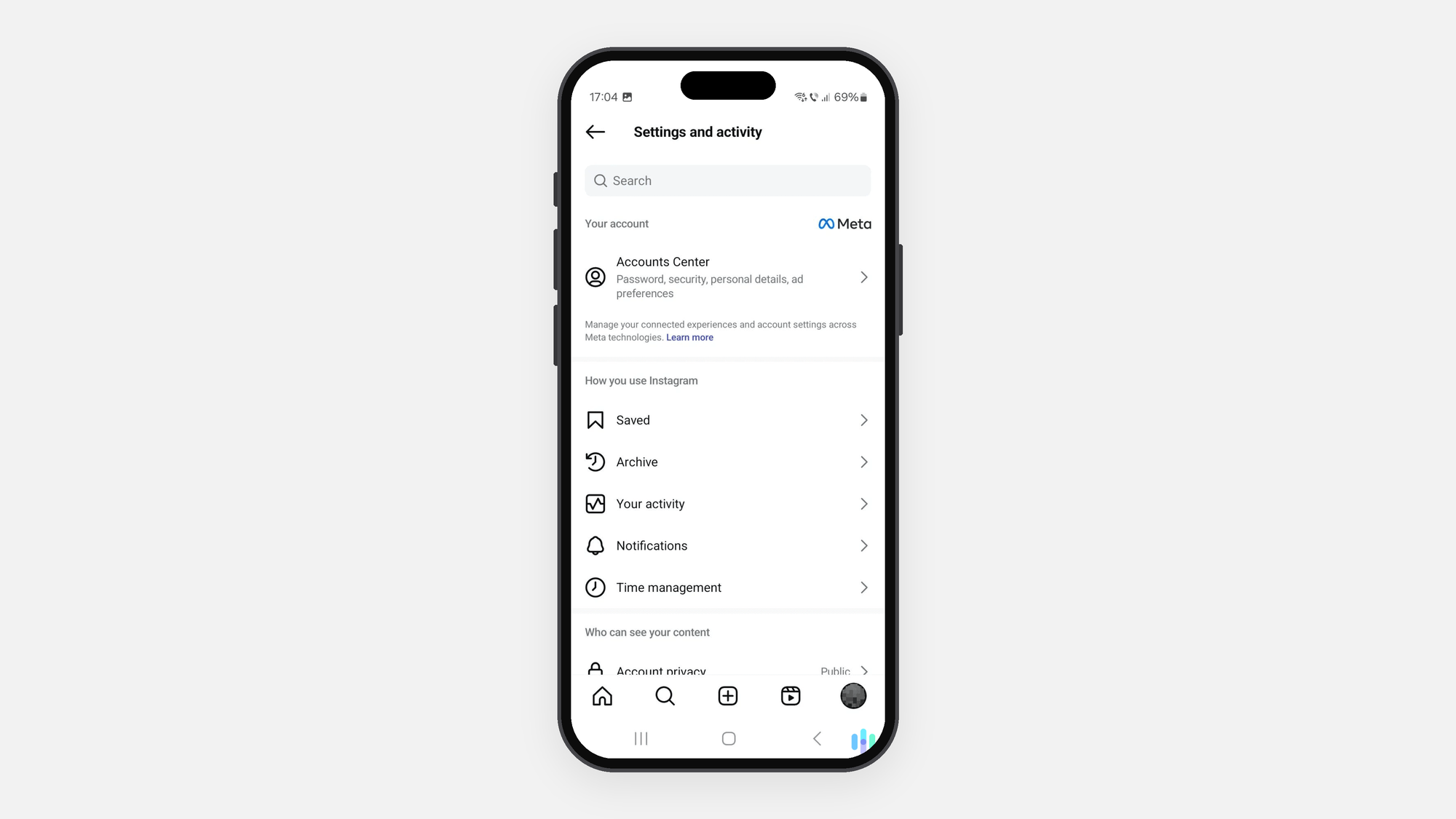
- Search & Browser History: In the Instagram app, go to Settings and activity > Your activity / Website permissions to clear search history and web cookies.

Clearing cache or deleting the app may wipe your saved Instagram drafts. Save them to your phone’s camera roll before proceeding!
Table of Contents
Why You Need to Clear Your Instagram Cache
Instagram constantly preloads media to make your feed load instantly, but this hidden temporary data builds up fast. Clearing your cache solves two core issues:
- Free Up Valuable Storage: Wipes cached thumbnails, videos, and images that silently eat up phone memory.
- Resolve App Glitches: Fixes slow loading speeds, blank Reels, and unresponsive screens caused by corrupted temporary files.
How to Clear Instagram Cache on Android
Android makes it easy to clear temporary files directly through your phone’s built-in settings. You don’t need any third-party apps, and the process takes less than a minute.
Quick Steps to Clear Instagram Cache on Android Settings
Follow these simple steps to free up storage space without affecting your personal account details:
Step 1: Open the Settings app on your Android phone.
Step 2: Scroll down and tap Apps (or Apps & Notifications depending on your device).
Step 3: Find and select Instagram from the list of installed applications.
Step 4: Tap Clear Data.
Step 5: Tap Clear cache at the bottom or top of the screen.
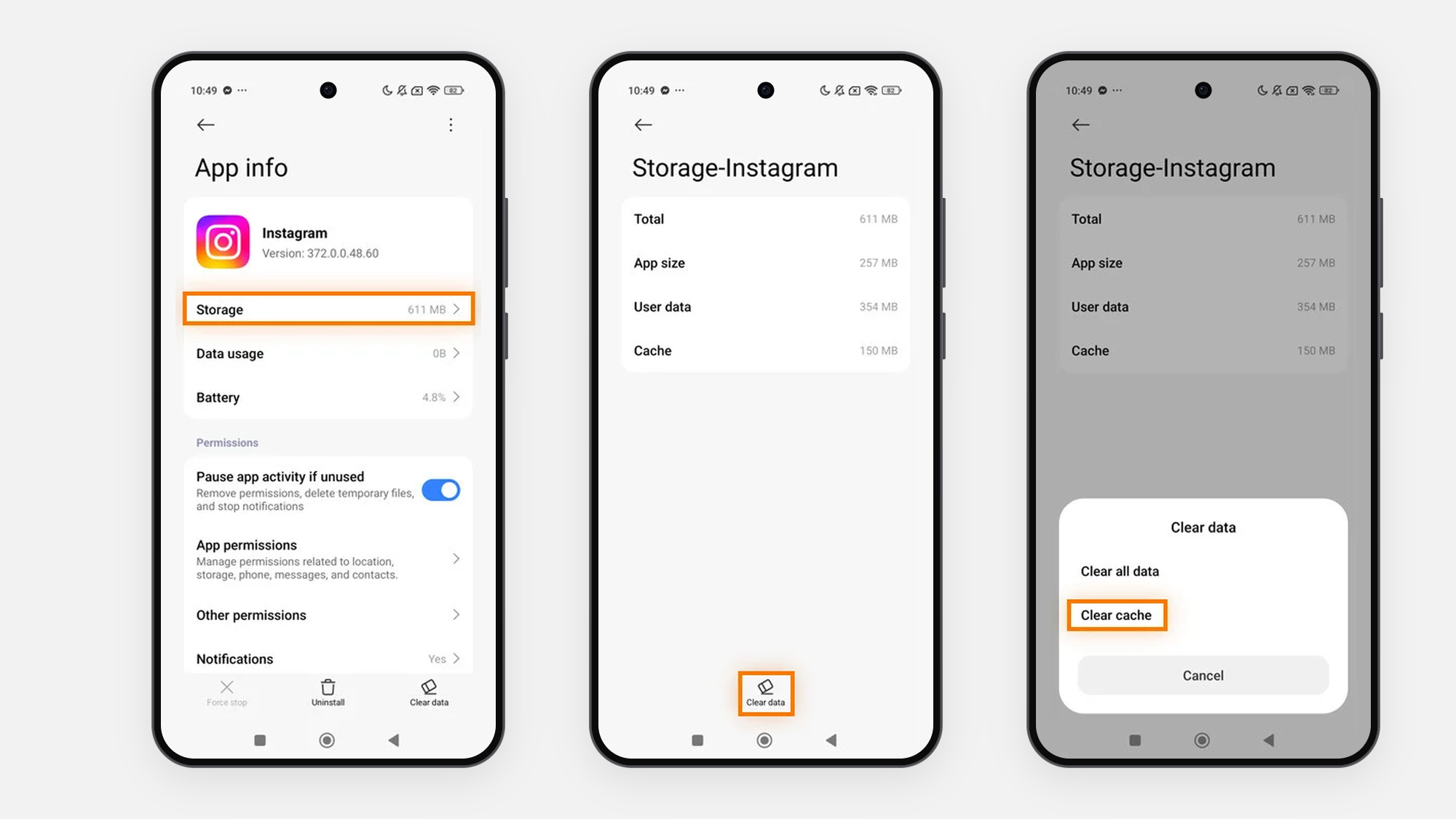
The exact menu names may vary slightly depending on your phone brand (Samsung, Pixel, Xiaomi, etc.), but the general path remains the same.
Clear Instagram Cache vs. Clear Data on Android: What is the Difference?
When you reach the storage screen, you will notice two options: Clear cache and Clear data (or Clear storage). It is crucial to know the difference before tapping:
- Clear Cache (Safe): Removes temporary files like image previews and preloaded Reels. It frees up space and fixes glitches without logging you out or deleting your photos, messages, or drafts.
- Clear Data (Use with Caution): Resets the Instagram app to its original state, as if you just downloaded it. It deletes all local data, settings, and stored credentials—meaning you will be logged out and will need to enter your username and password to log back in.
How to Clear Instagram Cache on iPhone and iPad
Unlike Android, iOS does not provide a dedicated “Clear Cache” button. However, Apple offers two built-in methods to remove temporary files and recover gigabytes of storage space on your iPhone or iPad.
Method 1: Offload Instagram
Best for: Freeing up space quickly without needing your password or losing drafts.
Offloading removes the main app file and temporary cache while safely saving your personal data, settings, and login credentials on your phone.
Step 1: Open the Settings app on your iPhone or iPad.
Step 2: Tap General, then select iPhone Storage (or iPad Storage).
Step 3: Scroll down the app list and tap Instagram.
Step 4: Tap Offload App, and confirm your choice by tapping Offload App again.
Step 5: Wait a few seconds, then tap Reinstall App to restore Instagram with a clean cache.
Method 2: Delete and Reinstall Instagram
Best for: Recovering maximum storage space or fixing persistent app crashes.
If offloading doesn’t free up enough space, deleting and reinstalling the app completely wipes all cached data, local temporary files, and saved drafts.
Step 1: Locate the Instagram icon on your Home Screen or in your App Library.
Step 2: Press and hold the Instagram icon until a pop-up menu appears.
Step 3: Tap Remove App, then tap Delete App to confirm.
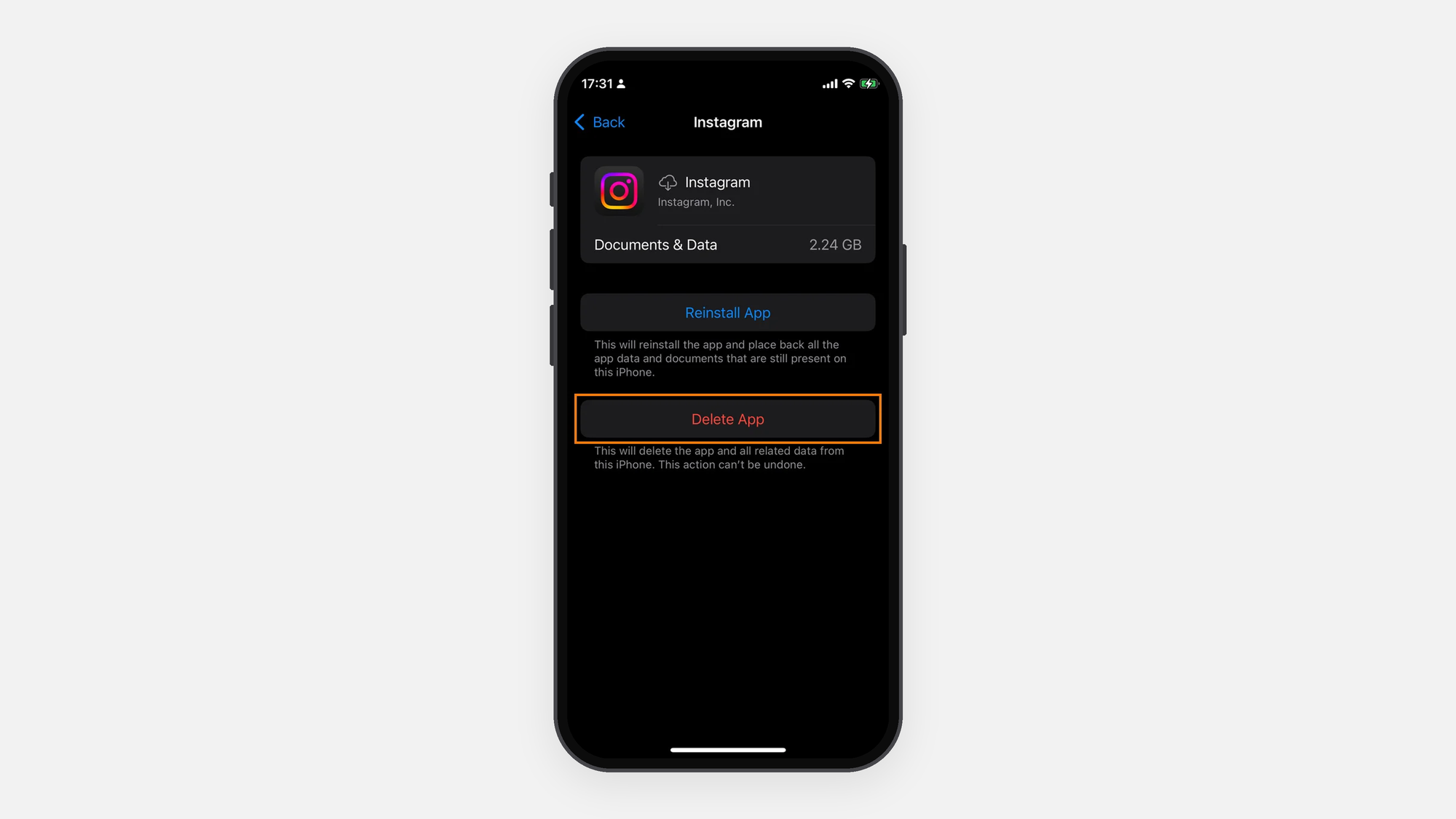
Step 4: Open the App Store, search for Instagram, and re-download the app.
Deleting the app will log you out and permanently delete your unpublished drafts. Before proceeding, make sure you know your login credentials (username and password) and have saved any local drafts to your phone’s camera roll!
How to Clear Instagram Search History and In-App Browser Cache
Clearing your phone’s system cache removes media files, but Instagram also saves your search queries and web browsing activity inside the app. Cleaning these two areas helps protect your privacy and keeps your search tab organized. You can also take a few additional steps to protect your digital identity, such as reviewing app permissions and limiting the personal information you share on social media.
How to Clear Instagram Search History in the App
Removing your search history clears the recent searches shown in Instagram’s search interface.
Step 1: Open the Instagram app and tap your profile icon in the bottom right corner.
Step 2: Tap the three lines icon in the top right corner.

Step 3: Tap Your activity.
Step 4: Scroll down and tap Recent searches.
Step 5: Tap Clear all in the top right corner, then tap Clear all again to confirm.
How to Clear Instagram In-App Browser Cookies and Browsing Data
Every time you open an external web link inside Instagram, its built-in browser saves cookies and temporary web pages. You can wipe this data directly from your app settings.
Step 1: Go to your Instagram profile and tap the three lines icon in the top right.
Step 2: Select Settings and activity.
Step 3: Scroll down to Your app and media and tap Website permissions.
Step 4: Tap Browser settings.
Step 5: Tap Clear next to Browsing data, then tap Clear browsing data to confirm.
Clearing browsing data is a useful privacy habit, but it doesn’t make your online activity anonymous. If privacy is your main concern, learn how to browse more privately by managing cookies, app permissions, account logins, and your network connection.
Conclusion
Clearing your Instagram cache, search history, and in-app browsing data is a quick and effective way to free up valuable storage space and resolve sudden performance glitches. While Android allows direct cache clearing with a single tap, iPhone users can easily achieve the same result by offloading or reinstalling the app.
FAQs
Will Clearing Instagram Cache Delete My Photos, Account, or Messages?
No. Your photos, videos, account details, and direct messages (DMs) are stored safely on Instagram’s cloud servers. Clearing your cache only removes temporary preview files from your phone, leaving your personal content completely untouched.
Will Clearing Instagram Cache Delete Saved Drafts?
Yes, it can. Unlike published posts, unfinished video and photo drafts are stored locally on your device. Clearing your app cache or reinstalling the app may permanently delete these drafts, so always save them to your camera roll first.
How Do I Clean My Instagram Account?
To clean up Instagram locally, clear recent searches and in-app browser data, and remove drafts you no longer need. If you mean cleaning up your profile, you can separately review old posts, followers, and followed accounts. For broader privacy beyond Instagram, you can also take steps to protect your personal data online.
Does iPhone Automatically Clear Cache?
iOS automatically manages some temporary files and storage when space is low, but it does not provide a manual system-wide “Clear Cache” button for Instagram. If Instagram is using too much storage, you may need to offload or delete and reinstall the app.
Where Is “Clear Cache” in Settings?
On Android, open Settings → Apps → Instagram → Storage & cache → Clear cache. On iPhone, there is no direct “Clear Cache” button; you must go to Settings → General → iPhone Storage → Instagram and select Offload App or delete and reinstall the app.