


Ads are harder to escape now than they have ever been. Almost any screen you own has them, your computer, your phone, even the smart TV in the living room, and a lot of them are shaped around you in particular.
This guide is for anyone worn down by it. It covers the newest ways to block ads in 2026 on Windows, Mac, iPhone, Android, and YouTube. Some work by changing settings you already have to cut the ads down. Others are tools, free or paid, that clear the ads out for you and hand back a screen with room to breathe.
Table of Contents
What blocking ads actually gets you
The most significant benefit is that you’ll never again accidentally click on an ad while browsing articles or watching videos, only to be redirected to an annoying shopping platform.
Beyond that, there are some less obvious benefits:
First, it reduces data usage, battery drain, and processor load.
Since most ads consist of autoplaying videos, large GIFs, and tracking scripts, removing them will make your pages load faster and reduce your data usage this month. After all, you won’t be wasting resources on these intrusive ads.
Second, your privacy will be better protected.
Many ads have trackers that automatically record what you’re reading, what you’ve bought, your location, and where you plan to go, building a precise user profile for more targeted advertising the next time. Some ads can even lead you to malware or phishing pages if you accidentally click on them, which can do real harm.
This article covers how to remove ads on two levels: browser-level ad blocking, which only clears ads on web pages; and in-app, mobile game, and smart TV embedded ads, which differ from browser ads and need a different approach.
Read on to see how to remove or reduce ads on whichever device is giving you trouble.
How to block ads on Windows
On Windows, we will show how to set up the two main browsers, Chrome and Edge, to block most ads.
Start with your browser settings
In Chrome:
- Open the three-dot menu.
- Go to Settings > Privacy and security > Site settings > Additional content settings > Intrusive ads.
- Make sure blocking is on.
- Then open a new tab and check for any remaining pop-up ads or other intrusive behavior.
For Edge, there are two settings to change.
First, go to Settings > Cookies and site permissions > Pop-ups and redirects, and make sure it is set to block. Next, open Privacy, search, and services, and set Tracking prevention to Balanced or Strict.
Note that these built-in settings in both browsers only filter ads on sites already flagged for bad behavior. Some ads will still get through, but these settings help. It is a quick fix that costs nothing.
Add a browser extension
To remove even more ads, you can try browser extensions or privacy browsers.
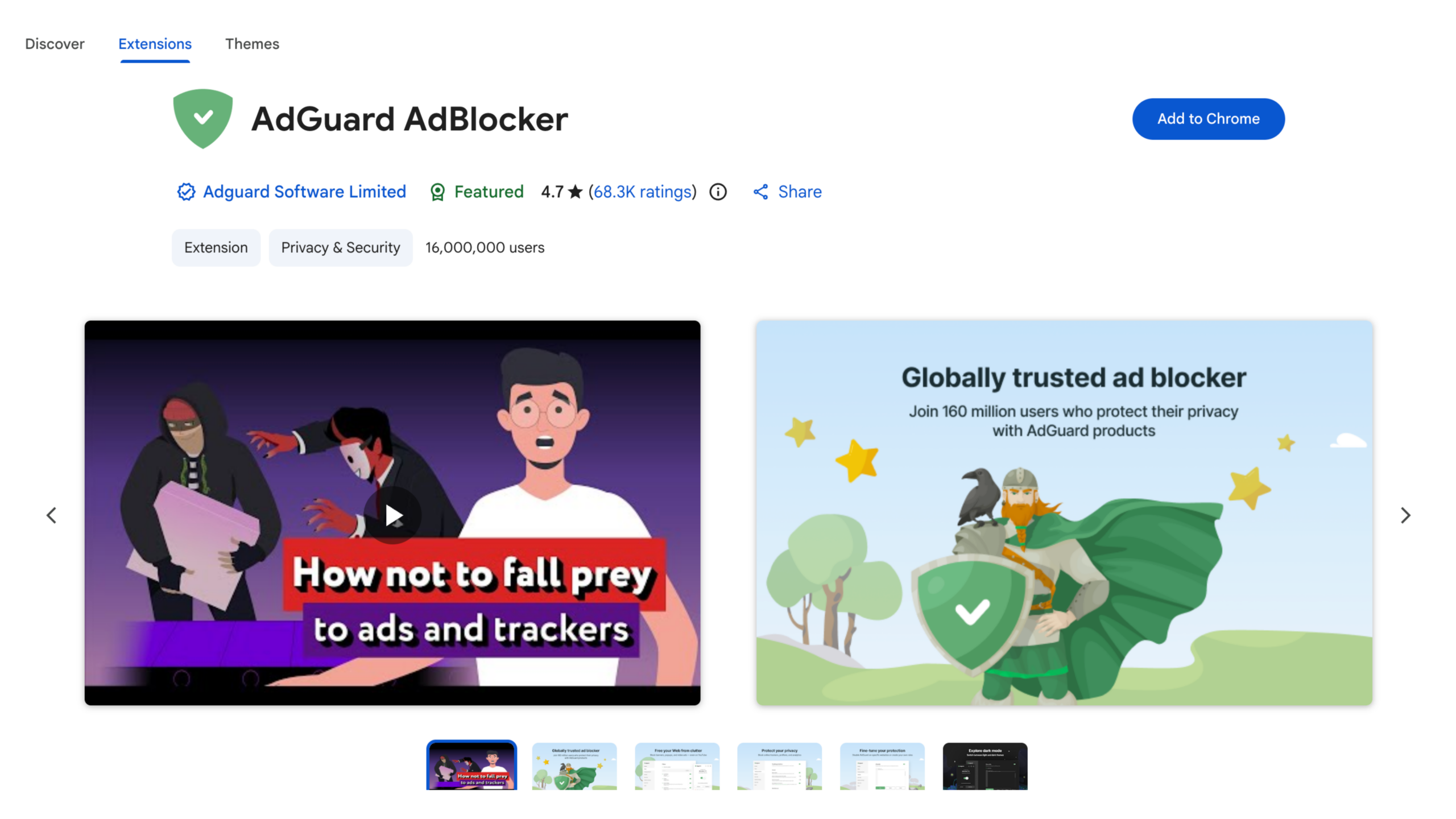
If you’re using Firefox, uBlock Origin is a free option worth trying. If you’re using Chrome, the original uBlock Origin no longer works there because of Chrome’s Manifest V3 change, so try uBlock Origin Lite or AdGuard instead. If you’re using Edge, the full uBlock Origin still works, or you can try AdGuard.
Alternatively, you can choose a privacy browser like Brave, which comes with built-in ad and tracker blocking, so you don’t need to do anything else.
How to block ads on a Mac
Safari on macOS comes with a built-in pop-up blocker and support for content blockers, so most of your options live there.
Open Safari > Settings > Websites to manage pop-ups,

and switch on Safari > Settings > Advanced > Use advanced tracking and fingerprinting protection, set to In all browsing, if it is not already on.

For more than pop-ups, install a content blocker such as AdGuard for Safari, or move to a browser that blocks ads on its own, like Brave. Firefox with uBlock Origin is the free route if you prefer that.
How to block ads on iPhone
For iPhones, you can cut down on ads through both system settings and free tools.
Free settings to change first
For system settings, there are three steps:
First, open Settings > Apps > Safari > Block Pop-ups and turn on the pop-up blocker.

Second, to cut down on targeting, go to Settings > Privacy & Security > Apple Advertising and turn off Personalized Ads.

Third, go to Settings > Privacy & Security > Tracking and turn off the option that lets apps track you across other apps.

The last two steps won’t reduce the number of ads you see, but they keep your personal data out of the profiles advertisers build, which lowers how targeted those ads can be.
Add a free ad blocker for iPhone
The pop-up blocker from the previous step only handles pop-ups. It cannot block banners or other in-page ads, so to remove those as well, you need to add a tool or switch browsers.
You can install a free tool like AdGuard to block more of the ads that show up in Safari. Or, as on a Mac, you can switch to a privacy browser like Brave that blocks ads on its own.
One catch: Chrome and Firefox on iOS do not support ad-blocking extensions, so browser extensions are not an option on iPhone.
If the ads are inside an app rather than the browser, you can cut them down with DNS-based filtering, which we cover below.
How to block ads on Android
Check Chrome’s settings
In the Chrome browser:
- Tap the three-dot menu.
- Go to Settings > Site settings.
- Under Intrusive ads, turn on blocking.
- Make sure Pop-ups and redirects are set to block as well.
Just like the desktop version, this only works on sites that have already been flagged for intrusive ads.
Use Private DNS to block ads system-wide
There is a free ad blocker for Android that few people know about: the built-in Private DNS setting. It filters out ad domains across the whole device, including the browser and many apps, not just web pages.
To turn it on:
- Go to Settings > Network & internet (or Connections) > More Connection Settings > Private DNS.
- Choose Private DNS provider hostname.
- Enter
dns.adguard.com, and tap Save.


Setting it up takes about a minute and costs nothing. It won’t catch every ad, but it clears out a large share of them with no extra app to install, which makes it well worth doing.
Switch browsers for fuller coverage
Chrome on Android does not support ad-blocking extensions, the same limit you hit on iPhone.
So instead of Chrome on Android, we recommend the privacy browser Brave, which blocks ads on every site by default, or Firefox, which lets you install uBlock Origin.
Turn on X-VPN Safe Browsing
If you don’t want to add extensions or download many apps, but still want a complete suite of safe browsing protection, we recommend X-VPN’s built-in Safe Browsing.

Safe Browsing’s Ad Blocker can remove pop-up ads, banners, and video ads from web pages, clearing the clutter quickly. On top of that, Safe Browsing also includes a tracker blocker, download protection, and a malicious website blocker, giving you protection against third-party profiling, phishing websites, and malicious file downloads. Download X-VPN and upgrade to premium to use it, backed by a 30-day money-back guarantee. You can also start with a 7-day free trial to see if it suits you.
How to block ads on YouTube
Next, let’s look at YouTube specifically, where ads are their own kind of problem. It runs ads across both the website and the app, and it keeps changing how they are delivered, which is a big source of frustration for a lot of users.
On desktop
If you watch YouTube in a web browser, blocking ads is fairly straightforward. Use the Brave privacy browser, or pair Firefox with the uBlock Origin extension. Both give you a quick, free way to block ads on youtube.com.
If you use Chrome, though, ad-blocking extensions are more limited because of Google’s Manifest V3 changes, so Firefox or Edge with the full uBlock Origin does a better job on YouTube. On top of that, YouTube often rolls out updates that break these tools, so one that works today might need an update next month. Keeping your extension current usually sorts it out.
On mobile
The YouTube app is trickier, since browser-based ad blockers don’t work inside the app.
To watch the YouTube app without ads, the best and only official route is a YouTube Premium subscription. It removes ads across your account and adds features like background playback and offline downloads.
If you’d rather not pay, you can watch YouTube in a mobile browser with ad blocking turned on. The experience isn’t as smooth as the native app, but it works.
There are also third-party apps that claim to strip out YouTube ads, but many come from unofficial sources that carry security risks, and they break YouTube’s Terms of Service. We don’t recommend them.
What about ads in apps, games, and on your Smart TV
Beyond in-browser ads, a few other kinds are just as annoying, and they are exactly the ones browser-based ad blockers can’t handle, because they load inside apps or on the device itself.
For apps and games on Android, the Private DNS setting is the best free option, and it often works right away in a lot of games. Options for iPhone users are narrower. Since Apple doesn’t let one app filter another app’s traffic, DNS-based filtering is the main route. Neither approach is perfect, though: some games serve their content and ads from the same server, so no filter can separate the two cleanly.
For smart TVs, start in the system settings, turn off interest-based ads, and reset the advertising ID if your model has that option. This cuts down targeted ads but won’t remove them all. To go further, point your TV or router at a filtering DNS service like AdGuard DNS, which clears most of the ads on the home screen and in banners. It can’t remove ads built into streaming services, and firmware updates sometimes flip certain settings back on, so it’s worth rechecking your setup now and then.
Summary
In short, there is no single magic switch that clears all ads at once. Effective ad blocking means matching the method to the device or the place where the ads show up. Most of the solutions in this guide are free and take only minutes to set up, and you can combine several of them for more complete coverage.
If you’d rather not set things up by hand, X-VPN’s Safe Browsing does it for you. It blocks web ads, trackers, and risky downloads in a single click. Whichever method you choose, a cleaner screen without the constant distractions is well worth the few minutes it takes.
FAQ
How do I stop pop-up ads on my phone?
On Android, turn off the display permission for the app causing them. Hold the app icon, open App info, and switch off Display over other apps. On iPhone, turn on Settings > Safari > Block Pop-ups for web pop-ups. If pop-ups show up across your whole phone, an app you installed is the likely source, and removing it fixes it.
Is there a free ad blocker for iPhone or Android?
Yes. On Android, the built-in Private DNS setting (using dns.adguard.com) filters ads system-wide for free. On iPhone, AdGuard’s free tier and the Brave browser both block ads in normal browsing at no cost.
How can I watch YouTube without ads?
In a desktop browser, Brave or Firefox with uBlock Origin blocks YouTube ads for free, though updates can interrupt them now and then. In the mobile app, YouTube Premium is the only official ad-free option.
Can I block ads inside apps and games?
Partly. Browser blockers cannot reach them, but a filtering DNS can block many of the ad requests apps and games send out. It does not catch everything, since some ads come from the same servers as the app’s own content.
Do ad blockers work on smart TVs?
Not the browser kind. You can cut down TV ads by turning off interest-based ads in the settings and pointing the TV or your router at a filtering DNS. That clears many home-screen and banner ads, but not the ads inside ad-supported streaming plans.
Does blocking ads make browsing faster?
Yes. Ads add images, video, and scripts your browser has to load. With them blocked, pages tend to load quicker and use less data, which is easy to notice on a phone.