


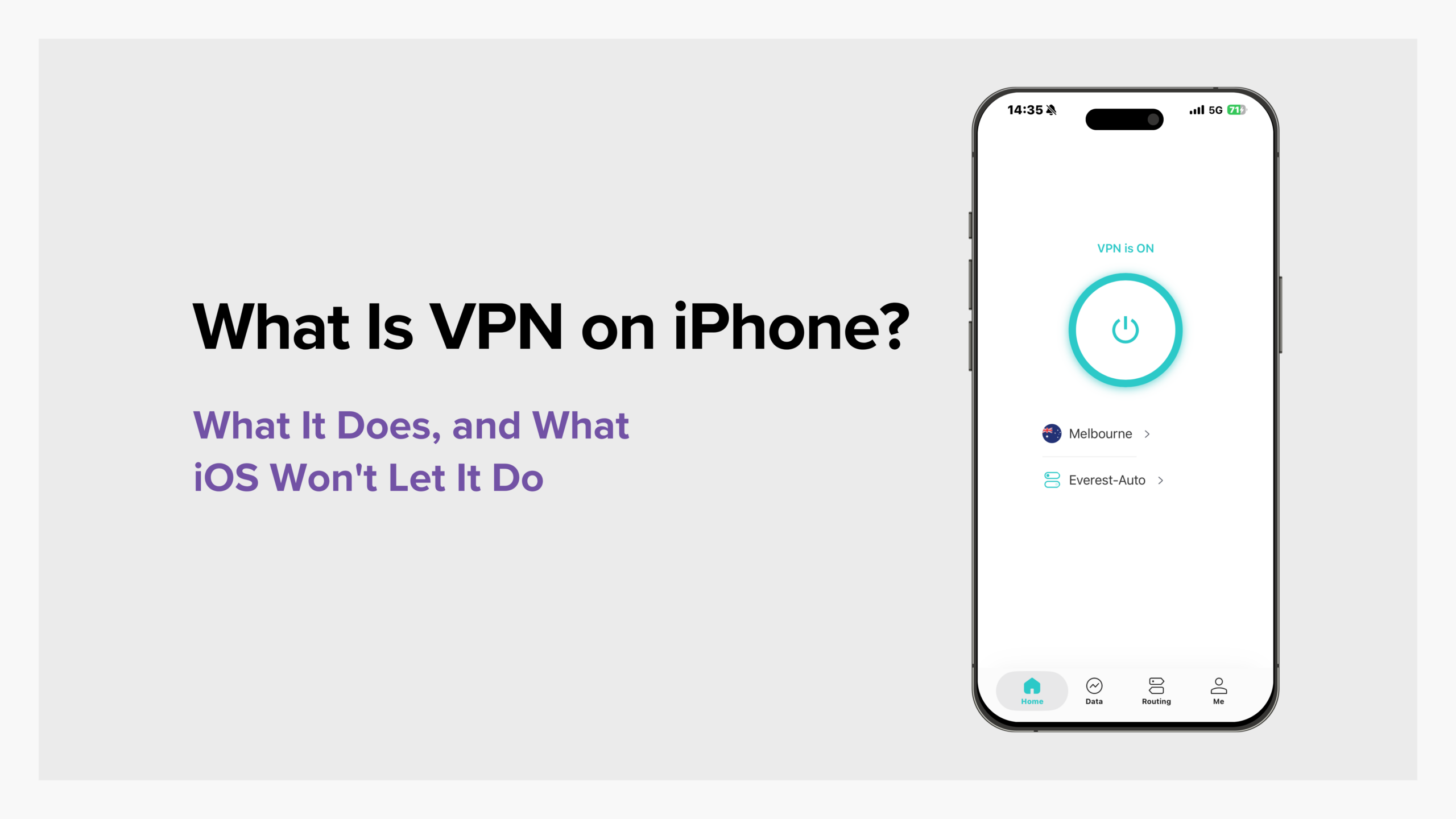
What is VPN on iPhone? They’re essentially no different from those on other devices, except that iOS imposes certain limitations.
On a Mac or PC, a VPN can have more direct control over network traffic. On an iPhone, however, a VPN must operate within the permissions set by Apple, which means there are certain things a VPN on an iPhone simply can’t do.
Keep reading to learn exactly what a VPN can do on an iPhone, what its limitations are, the two ways to set up a VPN on an iPhone, and how to verify that your VPN is working properly.
Table of Contents
What Is VPN On iPhone?
A VPN (Virtual Private Network) creates an encrypted tunnel between your device and your VPN provider’s server. Your internet traffic travels through this tunnel, and the websites you visit see the VPN server’s IP address, not your own.
VPNs on the iPhone work the same way, with one key difference: who controls the network traffic.
On a desktop or laptop, a VPN app can take over the network routing and send all of the computer’s traffic through the tunnel. On an iPhone, it can’t do that. Apple only allows VPN apps to tell iOS where to send traffic and how to encrypt it, and iOS does the routing.
As a result, any operation that requires deeper control over the phone’s network is ultimately governed by iOS, not the VPN provider.
This is why VPNs on the iPhone have certain limitations.
What Can A VPN Do For Your iPhone?
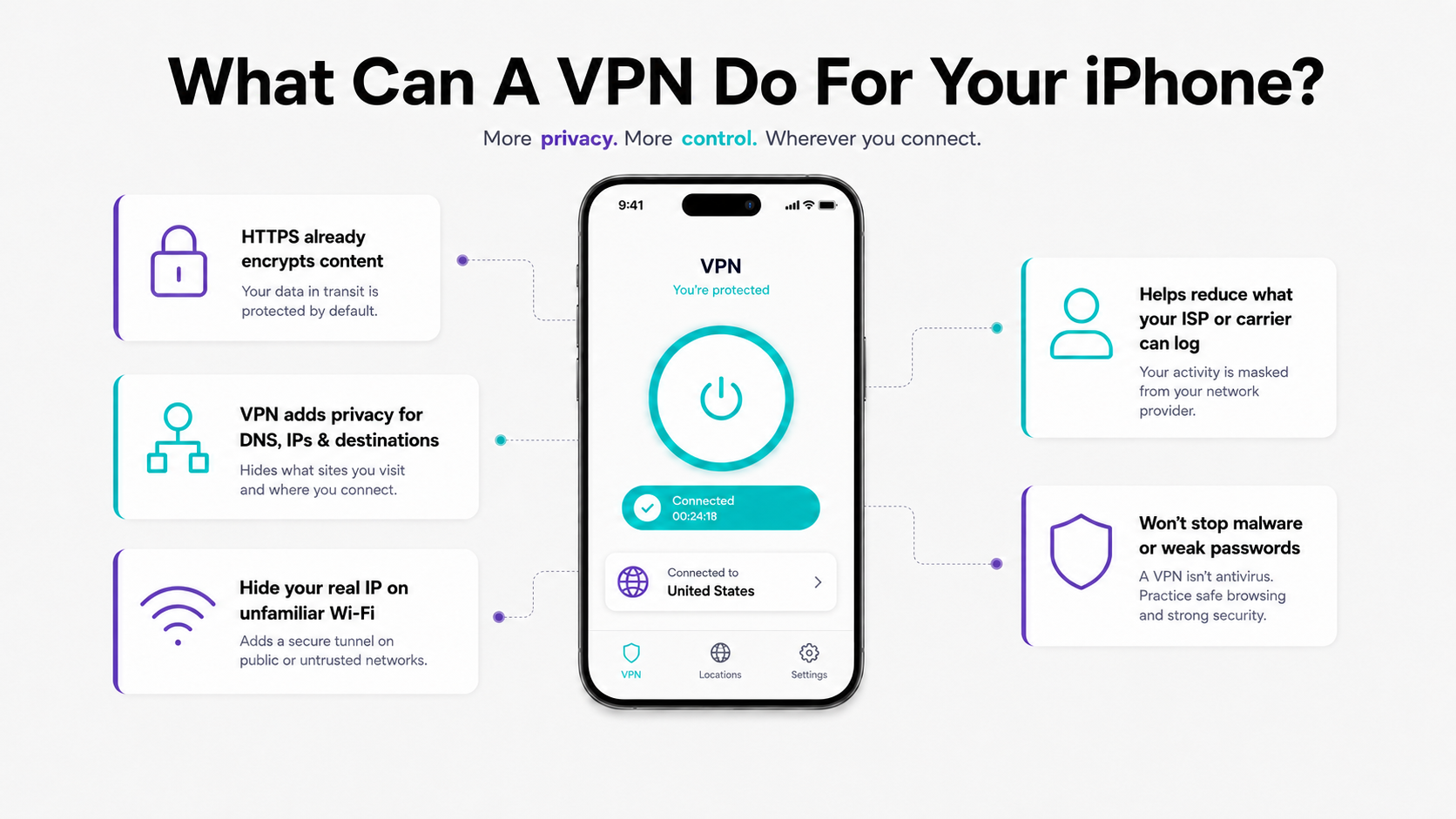
Most of the network activity on your phone already travels over HTTPS.
That means the data between your iPhone and the server on the other end is already encrypted. Even if someone tries to monitor or intercept your data on a coffee shop’s Wi-Fi, they won’t be able to read your chat messages or online banking passwords just by eavesdropping on network traffic.
However, this encryption only protects the content you’re sending; it doesn’t hide where you’ve been.
Your current internet service provider can still see:
- Which domains your phone queries through DNS (Domain Name System).
- Which IP addresses you’ve connected to.
- How much data you’ve sent to each destination, and when.
Even without being able to read the actual content you’re sending, this information is still enough for others to build a fairly detailed profile of which websites and apps you use. Your mobile carrier or home internet service provider (ISP) can also see and log this information over time.
This is where a VPN on your iPhone comes in.
A VPN shifts this record of “where you’ve been” from your current network provider to the VPN provider you chose. You can then review and evaluate how that provider handles your data. As long as the provider has a third-party-audited no-logs policy stating that it will not track or collect your data, your data will generally be safer and more private than if you weren’t connected to a VPN.
Furthermore, when you connect to an unfamiliar network, a VPN hides your real IP address, preventing it from being directly exposed to every website you visit.

💡 While a VPN can protect you, it can’t do everything. If your main concern is malware, or if you reuse the same password across multiple accounts, a VPN can’t solve those security problems.
What Can’t A VPN Do For Your iPhone
Limits That Come From The VPN Itself
A VPN works at the network layer.
It can change who gets to observe your network traffic and what your IP address appears to be to the outside world. But it can’t solve problems at the identity layer, which is where most tracking happens today. Once you log in to an account, the service still knows who you are, no matter which VPN server your traffic is coming from.
Put simply, you just need to know that a VPN on your iPhone can’t hide or change:
- Data that apps collect and send themselves, including advertising identifiers and analytics data.
- Any information related to the accounts you’re logged into.
- Browser and device fingerprinting.
- Your Apple ID and iCloud activity, since this activity is linked to you regardless.
- Phishing sites and malware (some VPNs have “safe browsing” features that can reduce the risk from these sites or malicious software).
- AirDrop and other local network traffic that doesn’t travel over the internet at all.
- Devices other than this iPhone.
And here’s a point that’s often overlooked: Installing a VPN app on your iPhone won’t protect your laptop, nor will it protect others connected to the same Wi-Fi network as you.
So if you want all devices on your home network to be protected by a VPN, you’ll need to install and run a VPN on each device that requires protection, or run the VPN directly on your router.
Limits That Come From iOS
These limitations explain most of the strange things people run into when using a VPN on an iPhone.
Split Tunneling Is More Limited on iPhone
On Windows or Android, split tunneling typically lets you directly choose which apps use the VPN connection.
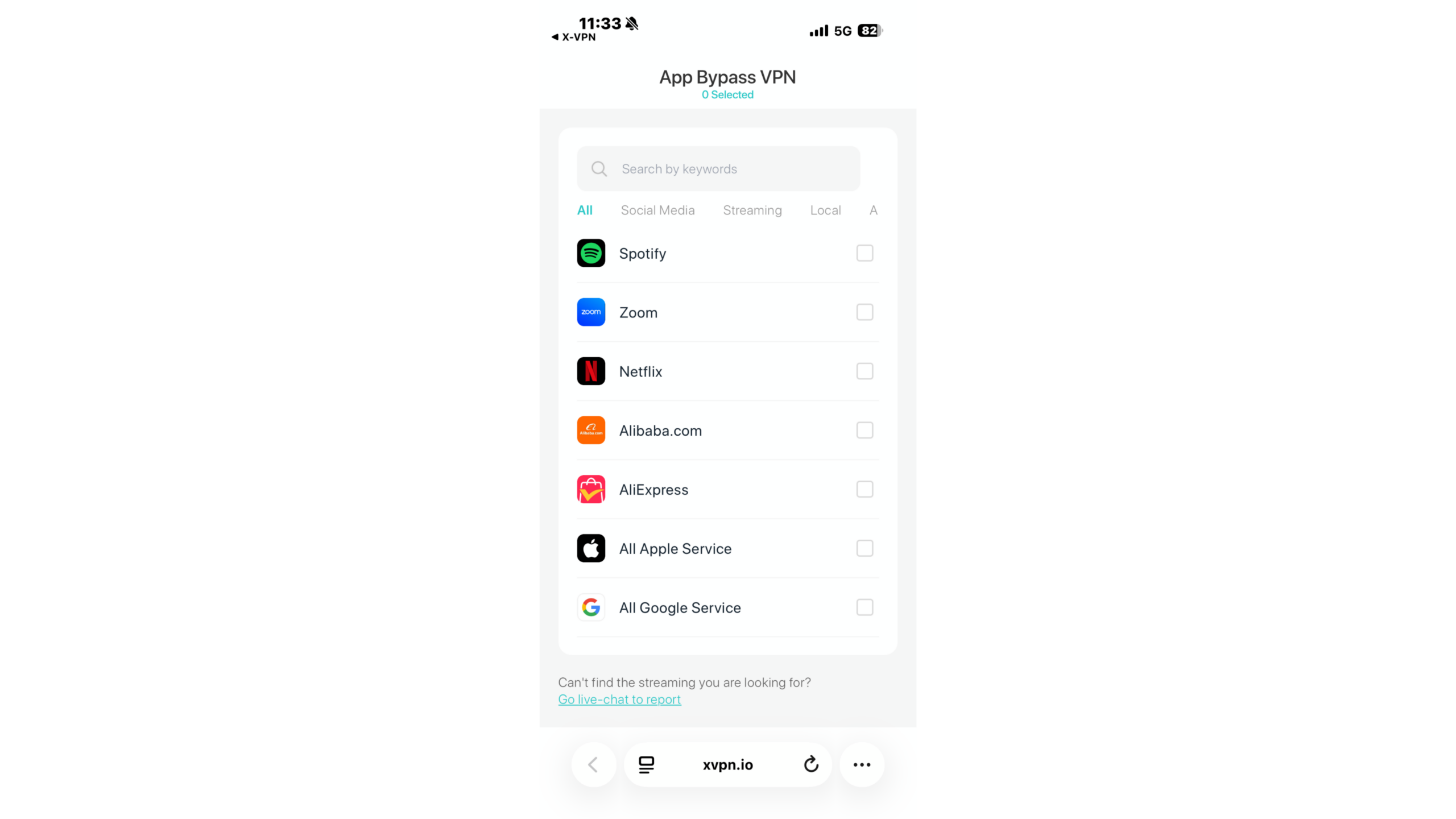
On the iPhone, however, most VPN apps only allow specific websites or IP addresses to bypass the VPN tunnel; they don’t let you configure settings for individual apps.
That said, different VPN providers handle this differently, so when using this feature on your iPhone, it’s best to check exactly what split tunneling options your VPN supports.
💡The X-VPN iOS app supports app-based split tunneling, so you can choose which apps use the VPN connection and which do not.
Some Connections Stay Outside The Tunnel
Your iPhone may keep several network connections open at the same time. Push notifications, iCloud syncing, and apps refreshing in the background are all talking to servers over the internet, each on its own connection.
When you turn on the VPN, newly established connections will usually go through the VPN tunnel, but network connections that existed before the VPN was turned on may continue to use their original network paths until they close on their own. This process may take a few minutes, and an app can’t forcibly terminate them mid-connection. That’s part of how iOS is designed to work.
Put simply, the connections that stay outside the VPN tunnel are mainly traffic related to Apple’s own services, and what’s exposed is metadata about your phone talking to Apple, not the actual content of your browsing. Your web browsing content will not be exposed as a result.
Therefore, the claim that “a VPN can encrypt all app traffic on your iPhone without exception” can’t actually be guaranteed. This limitation exists in iOS itself and is not the fault of any specific VPN provider, so no VPN provider can completely circumvent it.
However, there is a simple way to prevent this from happening: Before connecting to a VPN on your iPhone, turn Airplane Mode on and then off. Doing this will shut down any existing network connections on your phone. After that, when you enable the VPN, all connections will be reestablished and successfully routed through the VPN tunnel.
How to Choose a VPN for Your iPhone
Most iPhone VPN selection guides list various encryption standards, but in reality, virtually all reputable VPN providers already meet these standards. If you want to choose a truly secure and reliable VPN for your iPhone, the following are the things you should really focus on.
Check the App Store Privacy Label
Open the App Store page for the VPN app you want to download and scroll down to the “App Privacy” section.
Pay close attention to the “Data Used to Track You” section to see if it contains any sensitive information that could be directly linked to you. Checking this takes only about 30 seconds, but it’s one of the most practical ways for the average user to verify a VPN’s privacy practices.
These labels are self-reported by the developer, not by Apple. So treat the label as a starting point and read the provider’s privacy policy alongside it.
Check the Protocols the App Provides
iOS natively supports only IKEv2, IPsec, and L2TP; more modern protocols must be provided by the VPN app itself.
If a VPN provider offers nothing beyond the protocols already supported by iOS, it doesn’t add much beyond what iOS already offers in “Settings.”
Look For an Independent Audit, and Read What it Actually Covered
In addition to verifying the details of the VPN provider’s no-logs policy, that is, what data it does not collect, it’s also crucial to confirm whether the no-logs policy has been verified by an independent third-party audit.
Check How a Free Tier Makes Money
Free VPNs and paid VPNs have exactly the same network permissions. If you plan to use a VPN’s free service, be sure to check whether its no-logs policy matches that of the paid version. If the app displays ads, also be sure to review the VPN provider’s explanation of how those ads work.
Before choosing X-VPN, you can also evaluate it based on the criteria above.
The X-VPN iOS app supports our proprietary Everest protocol as well as the open-source WireGuard and OpenVPN protocols; our no-logs policy has been audited by one of the Big Four accounting firms, and both the free and paid versions adhere to the same no-logs policy.
The free version displays ads, and we’ve publicly disclosed how we handle them.
Our App Store privacy label is also public, so you can apply the same verification methods above to X-VPN.
How to Set Up a VPN on Your iPhone
There are two ways to set up a VPN on your iPhone. For most people, downloading a VPN app is the easiest option.
Manual configuration is generally only necessary in specific situations, but even if you may never set up a VPN manually, it’s still worth learning about this method, as it will give you a better understanding of the VPN features built into iOS.
Setting Up with a VPN App
Step 1. Download a VPN app from the App Store.
Step 2. Open the app and log in. (If you choose to try the free version of X-VPN, you can use it without registering.)
Step 3. When the system prompts you for VPN configuration permission, tap “Allow.”

Step 4. In the VPN app, tap “Connect.”
Step 4 is often where first-time VPN users are most hesitant, so it’s worth explaining: By tapping “Allow,” you grant the VPN app permission to handle your device’s network traffic. Once authorized, the app can create a VPN tunnel and route your device’s internet traffic through it.
iOS shows a system prompt because VPN access is a broad system-level permission. The prompt is there simply to make sure you approve it. This prompt is completely normal and will appear whenever you use a legitimate VPN app on your iPhone.
Also, before tapping “Allow,” you should use the method mentioned in the previous section to verify that the VPN app is truly secure.
Here’s another handy tip:
VPN configurations are stored at the system level, not just within the VPN app itself. So, once you’ve granted permission, you can go to:
Settings > General > VPN & Device Management
to find the corresponding VPN configuration. If your VPN app ever freezes, you can also enable or disable the VPN directly from the system settings.
Setting Up Manually in Settings
Go to: Settings > General > VPN & Device Management > VPN > Add VPN Configuration
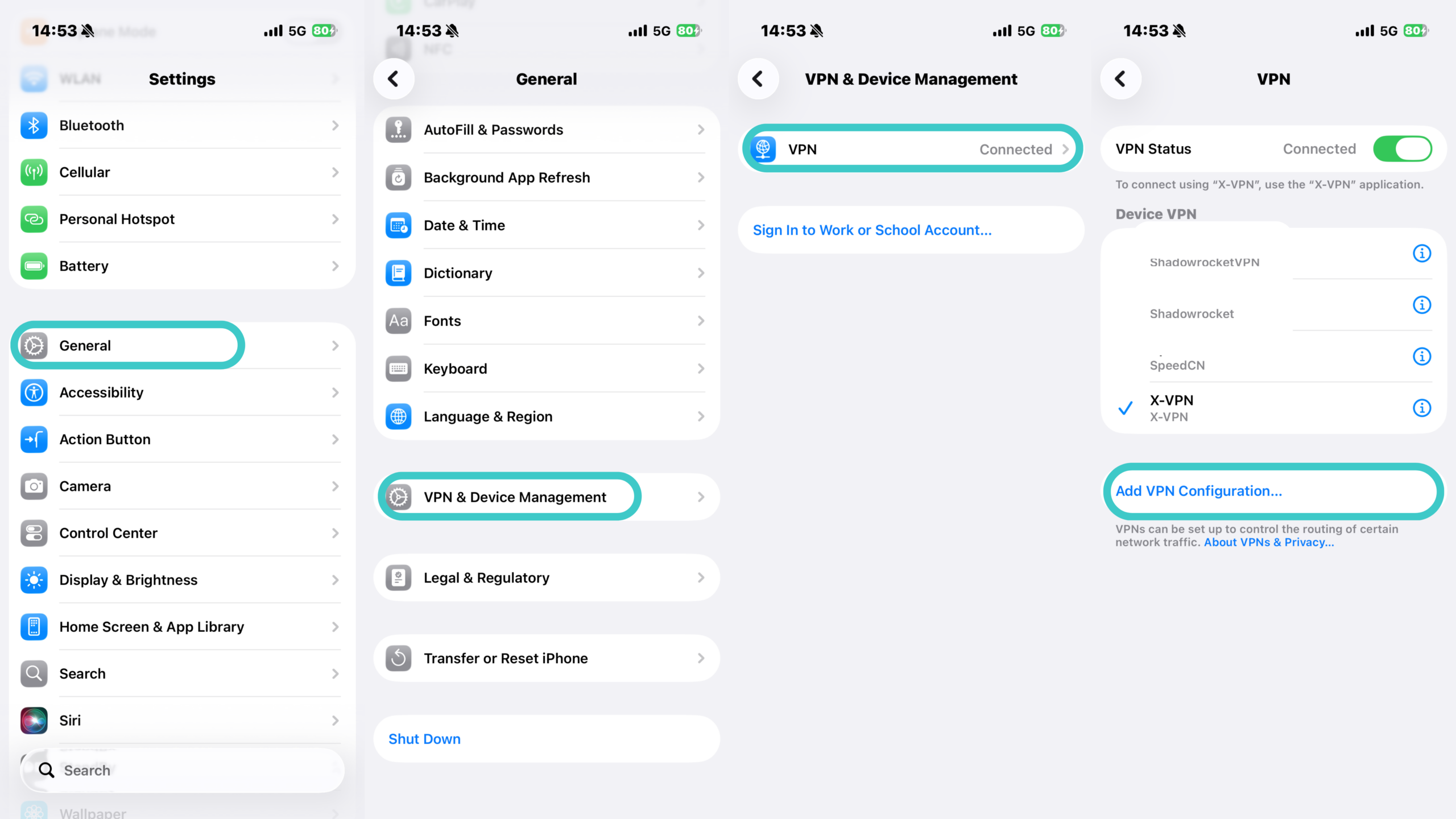
iOS will ask you to enter the following information:
- VPN Type
- Server Address
- Remote ID
- Login Credentials
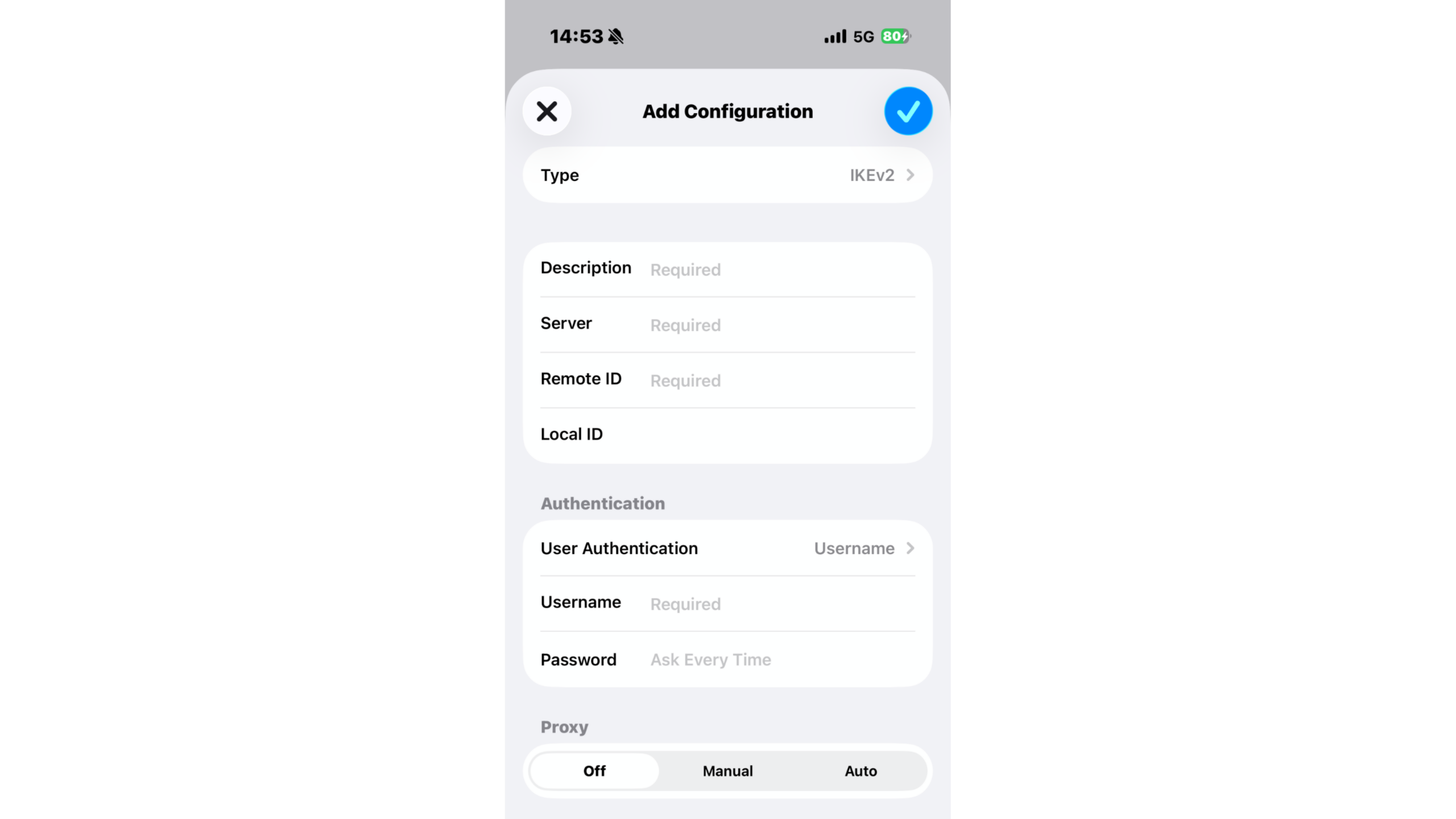
This information must be provided by the VPN server operator.
The most important field to note is “Type.”
iOS offers IKEv2, IPsec, and L2TP—these are all the built-in VPN protocol options. Some modern open-source VPN protocols, such as WireGuard and OpenVPN, are not included among these options. This is a design choice rather than an omission.
Apple’s built-in VPN client only supports protocols implemented by Apple itself; other protocols must run through an app and use Network Extensions to establish their own VPN tunnels.
Generally speaking, manual configuration is typically used in two scenarios: when connecting to a VPN service provided by your company or employer, or when connecting to a VPN server you’ve set up yourself.
How to Check Whether Your VPN Is Working
As mentioned earlier, when the VPN icon appears in the status bar in the upper-right corner of your iPhone, it indicates that a VPN configuration is currently active. However, this does not necessarily mean that your internet traffic is actually being routed through the VPN. Sometimes, the VPN icon may remain visible for a short time even after the VPN connection has been disconnected.
Therefore, to ensure that your VPN is actually working properly, you should perform the following two checks.
1. Compare your IP address before and after connecting
Before connecting to the VPN, check your IP address, and then check it again after connecting.
If your IP address hasn’t changed, it means the VPN isn’t working properly.
2. Check for DNS leaks
Even if your IP address changes after connecting to the VPN, DNS queries may still be sent to your mobile carrier or ISP, allowing them to log every domain name you’ve requested.
By running a DNS leak test, you can see which DNS resolvers your device is currently using. Resolvers are the DNS servers responsible for converting domain names into IP addresses. The test results will list each resolver and the company it belongs to.
If the VPN is working properly, these resolvers should belong to your VPN provider, not your network carrier.
Conversely, if your mobile carrier or home broadband provider appears in the results, it means you’re experiencing a DNS leak.
Be sure to check this when you first set up a new VPN and again after a major iOS version update.
Should I Always Keep My VPN On on My iPhone?
The answer to this question actually depends on why you’re using a VPN.
If you’re using a VPN to prevent your internet service provider from logging your online activity, you’ll need to stay connected to the VPN at all times. If the VPN connection drops, a portion of your online activity will be logged during that period.
If you only need a VPN in specific situations—such as on hotel or airport Wi-Fi while traveling—simply turn it on when you need it.
It’s important to note that in certain situations, turning off the VPN is actually the better choice.
When you’re using online banking and payment apps
Some online banking or payment apps may require additional authentication if they detect a change in your IP address, or they may outright reject login requests from unfamiliar IP addresses. While this is done to protect your funds, it can also be inconvenient, so it’s best to disconnect from the VPN.
When you’re using AirDrop or connecting to devices over your network
While connected to a VPN, devices in your home—such as printers and speakers—may not display properly or connect as expected.
Some VPN apps offer settings like “local network” that allow traffic to devices on your home network to bypass the VPN tunnel, which can resolve this issue. If your VPN doesn’t have this feature, simply disconnect from the VPN.
One more point to note:
Choosing a VPN server on the other side of the ocean won’t provide you with a higher level of privacy protection. No matter how far away the VPN server is from you, the encryption method itself remains the same—it doesn’t become more secure simply because the server is farther away. Moreover, connecting to a distant server will only increase network latency.
So if your primary goal is simply privacy protection, it’s best to choose a server close to you, as this will also minimize the impact on your internet speed.
Summary
A VPN on your iPhone encrypts your internet traffic and changes the IP address visible to the internet.
It shifts the record of “which websites you visit” from your internet service provider to the VPN provider you’ve chosen.
However, a VPN can’t exceed the scope of permissions granted to it by iOS.
Consequently, VPNs on iPhones face more restrictions than those on laptops. Once you understand these limitations, you’ll be able to use a VPN on your iPhone correctly.
FAQ
Does the iPhone come with a built-in VPN?
The iPhone has a built-in VPN client, not a VPN service. iOS can connect to a VPN via IKEv2, IPsec, or L2TP, but you still need a VPN provider or your own VPN server to actually establish a connection.
Why does my iPhone show a VPN connection even though I haven’t installed one?
There are typically three reasons:
First, your company or school may have pushed a VPN configuration to your device. Second, an app may be using a local VPN to filter traffic on your device—for example, ad-blocking apps and parental control apps often use this method. Third, an old VPN configuration created by an app in the past may still be present in the system, even if that app has been uninstalled.
You can go to: Settings > General > VPN & Device Management to view your current configurations.
What is iCloud Private Relay?
It’s a privacy feature, not a VPN. It primarily covers traffic from Safari and some unencrypted apps, not all traffic on the entire device; it also doesn’t allow you to choose a server location yourself, and requires an iCloud+ subscription.
Can a mobile VPN protect my entire home network?
No. It can only protect this specific phone. Other devices need to have VPN apps installed individually, or you’ll need to run a VPN directly on your router.
Why does my VPN keep disconnecting on my iPhone?
Common causes include switching between Wi-Fi and cellular networks, weak network signals, and Low Power Mode restricting background activity.
Switching protocols within the VPN app or selecting a server that’s closer to you can often resolve these issues.
What does the VPN icon on your iPhone mean?
Once a VPN is enabled, the VPN icon in the iPhone’s status bar indicates that a VPN configuration is currently active on the device.
Doesn’t encrypted DNS already hide which sites I visit?
Partly. iOS supports encrypted DNS, and you can set it up with a configuration profile from a provider like Cloudflare. That stops your carrier or Wi-Fi operator from reading your DNS queries.
It doesn’t cover everything, though. Encrypted DNS only encrypts the lookup itself. Your phone still connects to the resulting IP address in the open, so whoever runs the network can still see which servers you’re talking to and when. A VPN moves the whole connection, not just the lookup.
iCloud Private Relay is a separate thing again. It does hide Safari’s DNS lookups, but only Safari’s, and only if you have iCloud+.